
How to Add GIFs to Your Emails
Adding GIFs to your emails can make them more engaging and help your messages stand out to parents and families. Whether you're announcing a new program, sending a holiday greeting, or sharing exciting center updates, GIFs add personality and visual interest.
Where You Can Use GIFs
You have two options for adding GIFs to your emails:
- As video thumbnails — Use a GIF as the preview image for a video
- As standalone images — Insert a GIF directly into your email just like a regular image
How to Add a GIF as an Image
Step 1: Navigate to Marketing → Email Marketing and open your campaign or template.
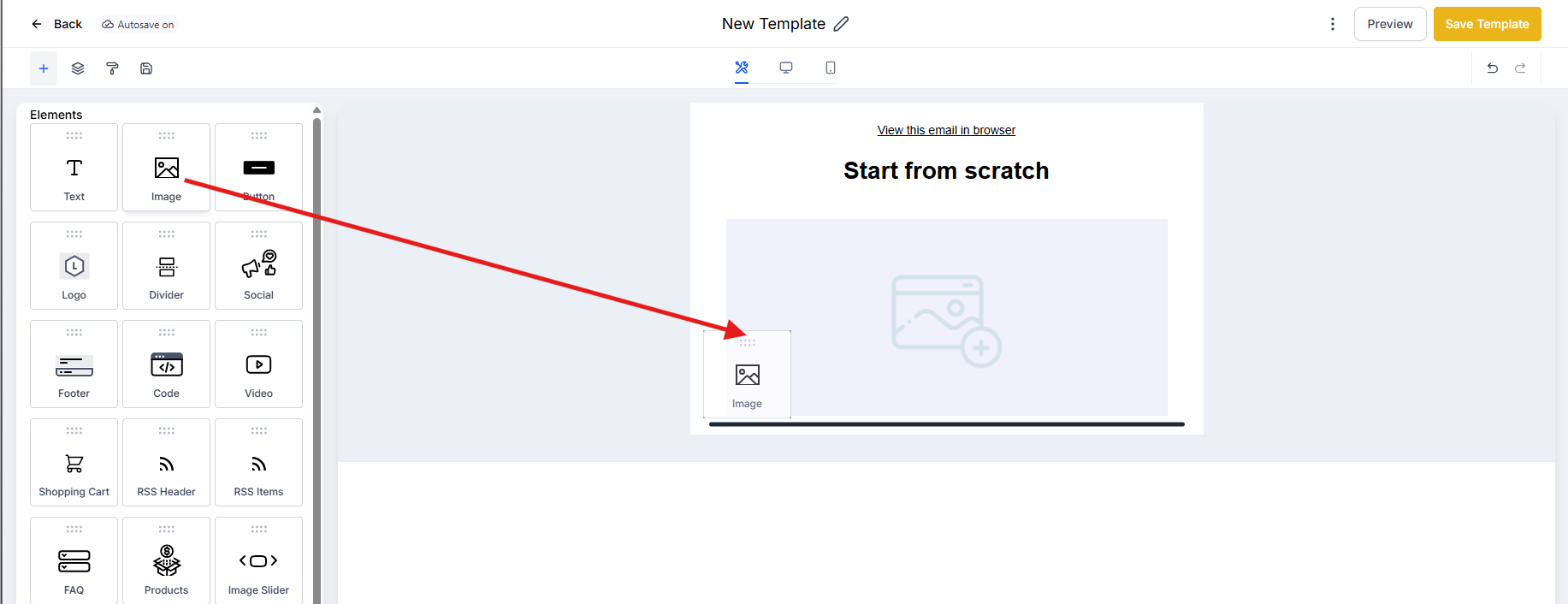
Step 2: Drag and drop the Image element into your email where you want the GIF to appear.
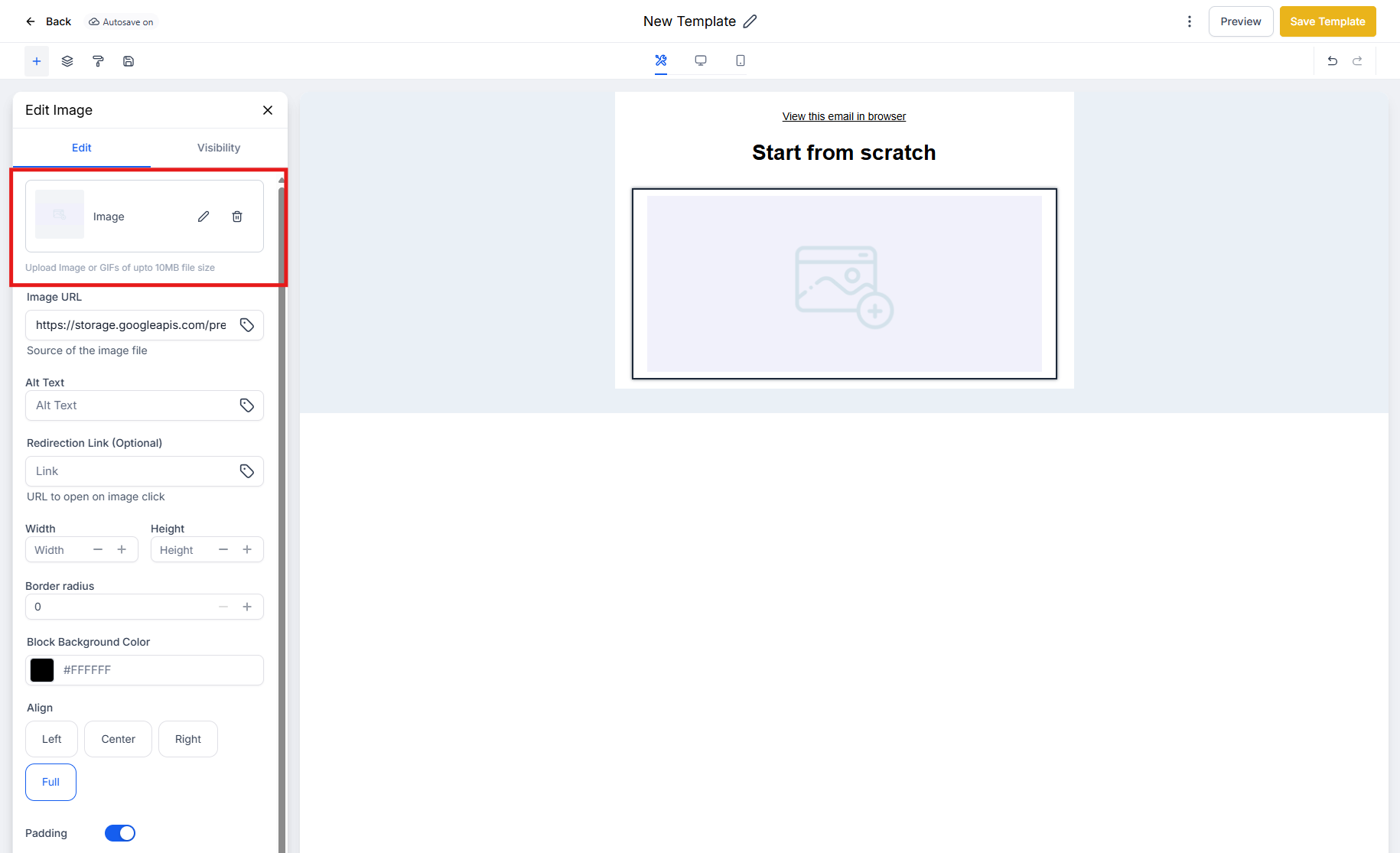
Step 3: Click to edit the image element and upload your GIF file. Your GIF can be up to 10MB in size.
How to Add a GIF as a Video Thumbnail
Step 1: Navigate to Marketing → Email Marketing and open your campaign or template.
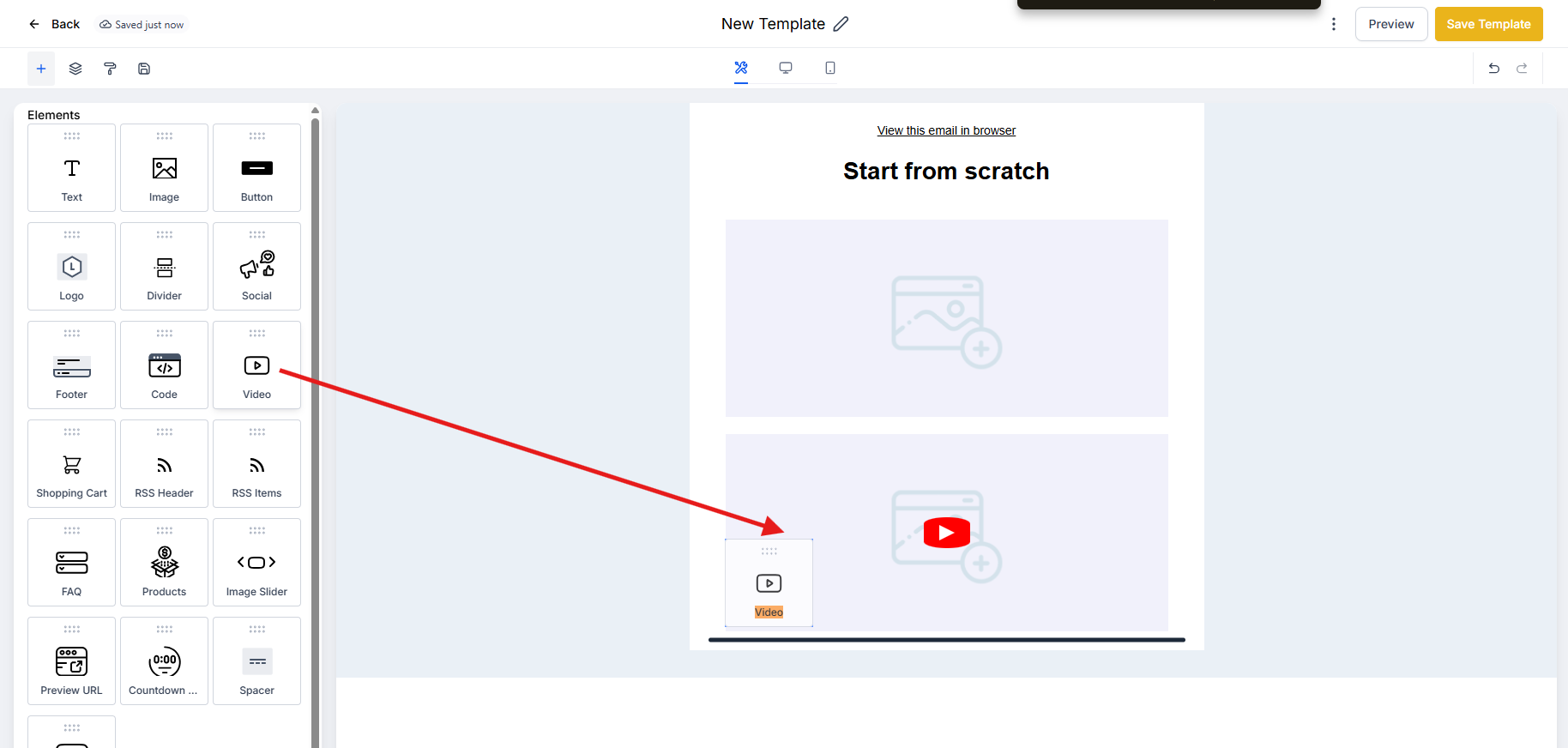
Step 2: Drag and drop the Video element into your email.
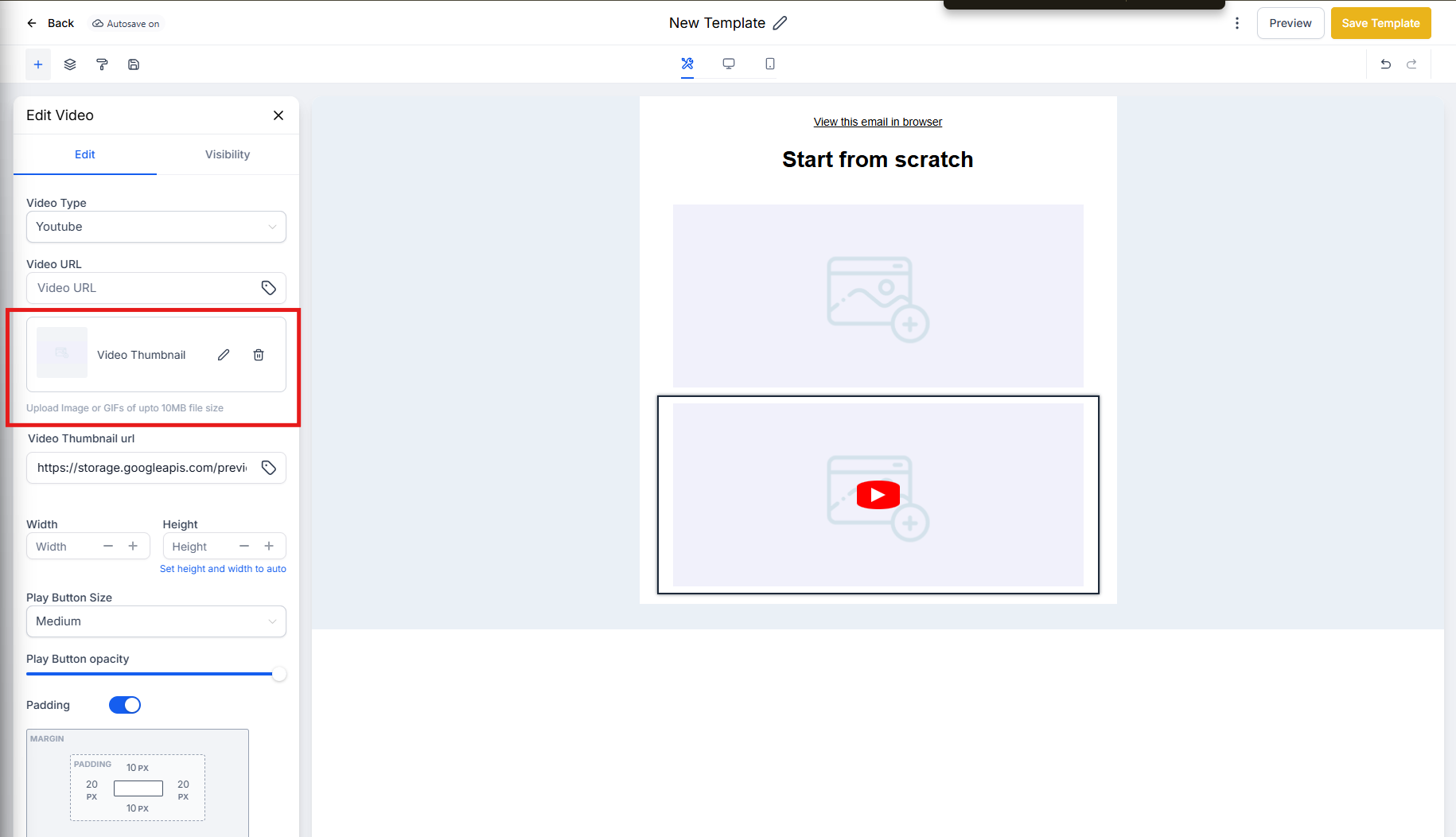
Step 3: Click to edit the video thumbnail and upload your GIF file (up to 10MB).
💡 Pro Tip
Keep your GIF file sizes reasonable to ensure fast loading times. While the platform supports up to 10MB, smaller files (2-3MB) will load faster for parents checking email on their phones.
Best Practices for Using GIFs
- Keep it relevant — Use GIFs that support your message (happy children, celebrations, seasonal themes)
- Don't overdo it — One or two GIFs per email is plenty; too many can be distracting
- Consider your audience — Make sure your GIFs are professional and appropriate for families
- Test before sending — Always preview your email to ensure GIFs display correctly