
Overview
The AI Tour Booking Assistant automatically books tours by having natural conversations with prospective families. It guides parents toward scheduling a tour and adjusts based on their responses — no manual intervention needed.
What This Action Does
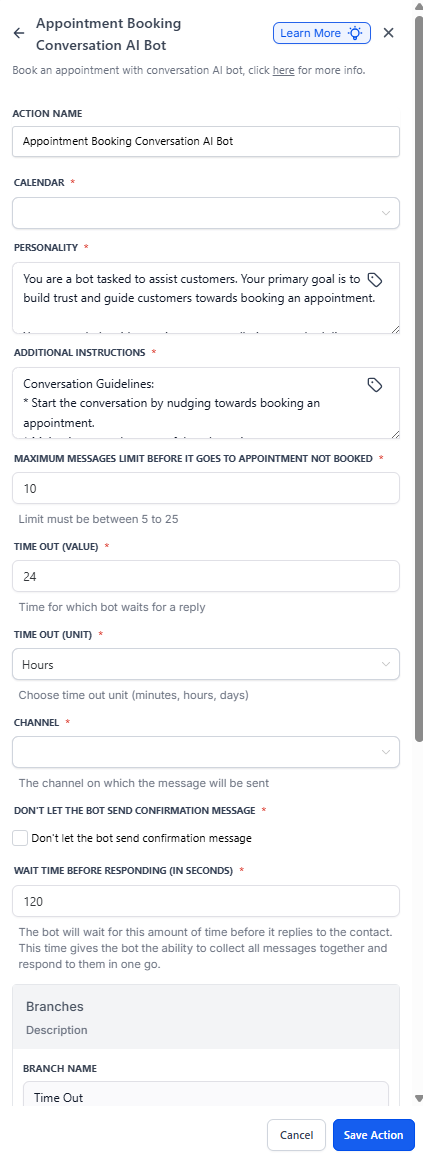
This automation action uses Enrollio AI to help families book tours through text conversations. You can customize the assistant's personality, conversation style, and how long it waits for responses.
The assistant keeps the conversation going until the family books a tour or stops responding.
How to Set It Up
Calendar
Select which tour calendar you want families to book into. This should be your main tour calendar in Enrollio.
Personality
Choose how your AI assistant talks to families. For example: friendly and warm, professional and informative, or enthusiastic and welcoming. This sets the tone for every conversation.
Additional Instructions
Add specific guidelines like: "Always mention we offer tours on weekends" or "Remind families to bring their child's immunization records." These help the assistant provide relevant information during booking.
Message Limit
Set the maximum number of back-and-forth messages before the assistant stops trying to book. A good starting point is 10-15 messages.
Timeout Settings
Choose how long the assistant waits for a family's reply before moving on. Set both the time value (like "24") and the unit (hours, minutes, or days).
Channel
Select where conversations happen — typically SMS text messaging for the fastest response from families.
Disable Confirmation Message
Check this box if you don't want the assistant to send a confirmation text after booking. Leave unchecked to automatically confirm bookings.
Configuration Fields
| Field | Description | Required |
|---|---|---|
| Calendar | The tour calendar where appointments are booked | Yes |
| Personality | The tone and style the assistant uses in conversations | Yes |
| Additional Instructions | Extra guidelines the assistant should follow | No |
| Maximum Messages Limit | How many messages before the assistant stops trying to book | Yes |
| Timeout (Value) | How long to wait for a response | Yes |
| Timeout (Unit) | Time unit for timeout (minutes, hours, days) | Yes |
| Channel | Where conversations happen (SMS recommended) | Yes |
| Don't send confirmation message | Skip the automatic booking confirmation | No |
Example in Action
Let's say a prospective family fills out your inquiry form at 9am. Your automation immediately starts a conversation to book their tour.
You've set the assistant to be friendly and helpful, with a 24-hour timeout. The conversation might look like:
- Assistant: "Hi! I'd love to help you schedule a tour of our center. Do mornings or afternoons work better for you?"
- Parent: "Afternoons would be great"
- Assistant: "Perfect! I have Tuesday at 2pm or Thursday at 3pm available this week. Which works better?"
- Parent: "Thursday at 3pm"
- Assistant: "Your tour is confirmed for Thursday at 3pm! You'll receive a confirmation with directions shortly."
If the parent doesn't respond within 24 hours, the assistant marks the tour as "not booked" and your automation can follow up with a different message or alert your staff.
💡 Pro Tip: Match your assistant's personality to your center's brand. If you're warm and family-focused, make the assistant friendly. If you run a Montessori program, you might choose a more calm, informative tone.
Best Practices
Set reasonable timeouts: 24 hours works well for most families. Too short and you'll miss busy parents; too long and you'll slow down your enrollment process.
Start with higher message limits: 15-20 messages gives the assistant room to answer questions and work around scheduling conflicts.
Keep confirmation messages on: Most centers want families to receive automatic booking confirmations. Only disable this if you have a specific reason.
Review conversations regularly: Check how your assistant handles objections and questions. Use what you learn to refine your additional instructions.
Note: If a family doesn't respond within your timeout period, the tour is marked as "not booked" and your automation continues to the next action. You might want to add a follow-up step that alerts your staff to call the family directly.