
Connect Enrollio automations with Manus to create, manage, and automate AI-powered tasks directly from your CRM. This integration lets you trigger automations based on Manus task activity and perform task operations — create, update, fetch, delete, or continue tasks — right inside Enrollio.
What is Manus in Automations?
Manus is a task-based AI system. Each task:
- Starts with an initial prompt
- Processes structured AI logic
- Returns a response or output
- Can be continued with additional prompts
With this integration, Enrollio can both send instructions to Manus and react to task lifecycle events.
Available Triggers (Manus → Enrollio)
| Trigger | Description |
|---|---|
| New Task Created | Fires when a new task is created in Manus |
| Task Stopped | Fires when a Manus task is stopped or completed |
Note: Triggers fire only when a task is created through an automation action. They won't fire when a task is created directly from the Manus app.
Available Actions (Enrollio → Manus)
| Action | Description |
|---|---|
| Create Task | Create a new task in Manus |
| Get Task | Retrieve details of a specific task |
| Update Task | Modify task metadata or parameters |
| Fetch Tasks | Retrieve a list of tasks |
| Delete Task | Remove a task |
| Continue a Task with a Prompt | Add a follow-up prompt to an existing task |
Connecting Your Manus Account
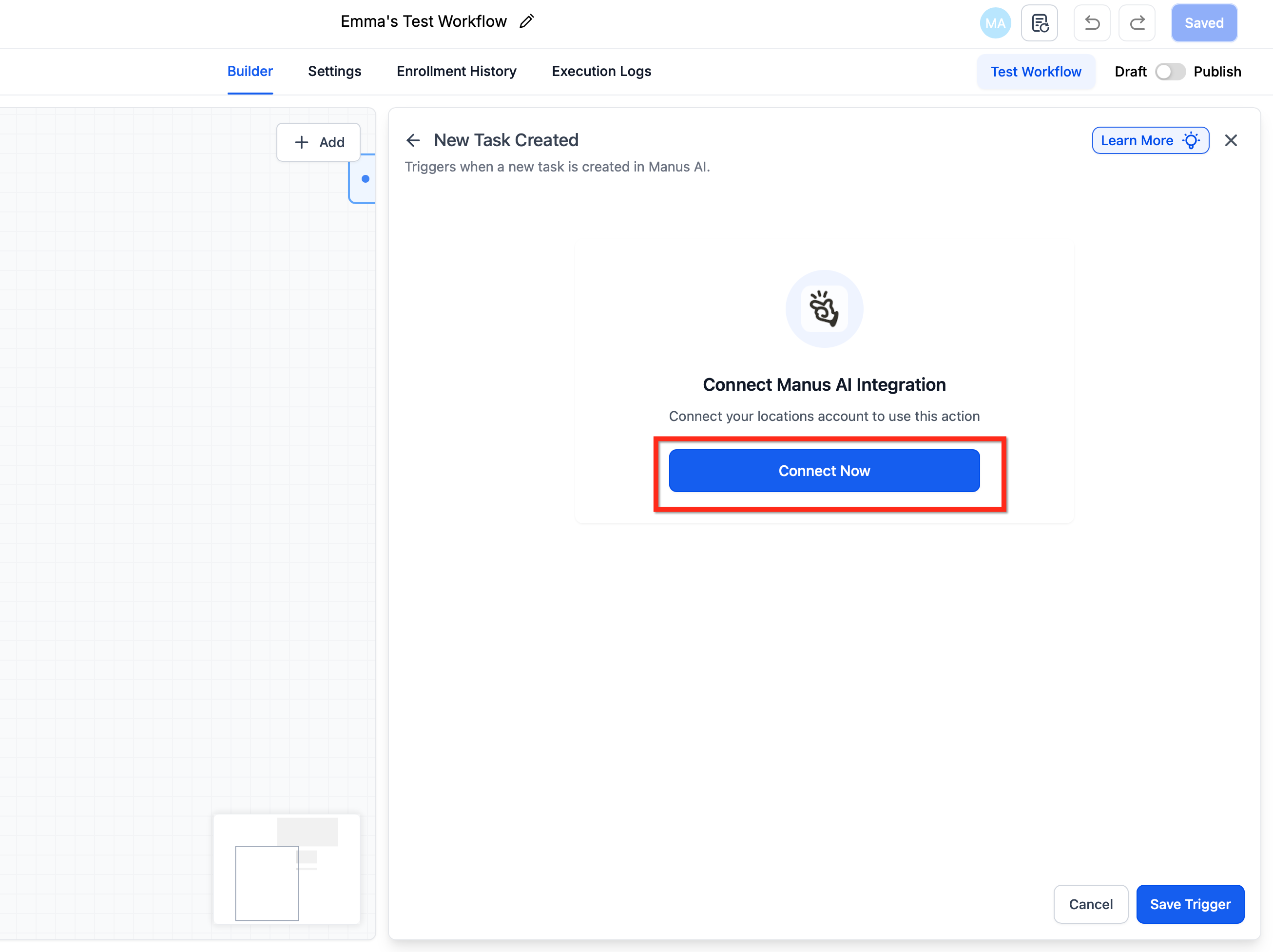
Connect from Automation Builder
- Go to Automations
- Create or open an automation
- Add a Manus action or trigger
- Click Connect Now
- Authorize your Manus account with your API key
Connect from Integrations Page
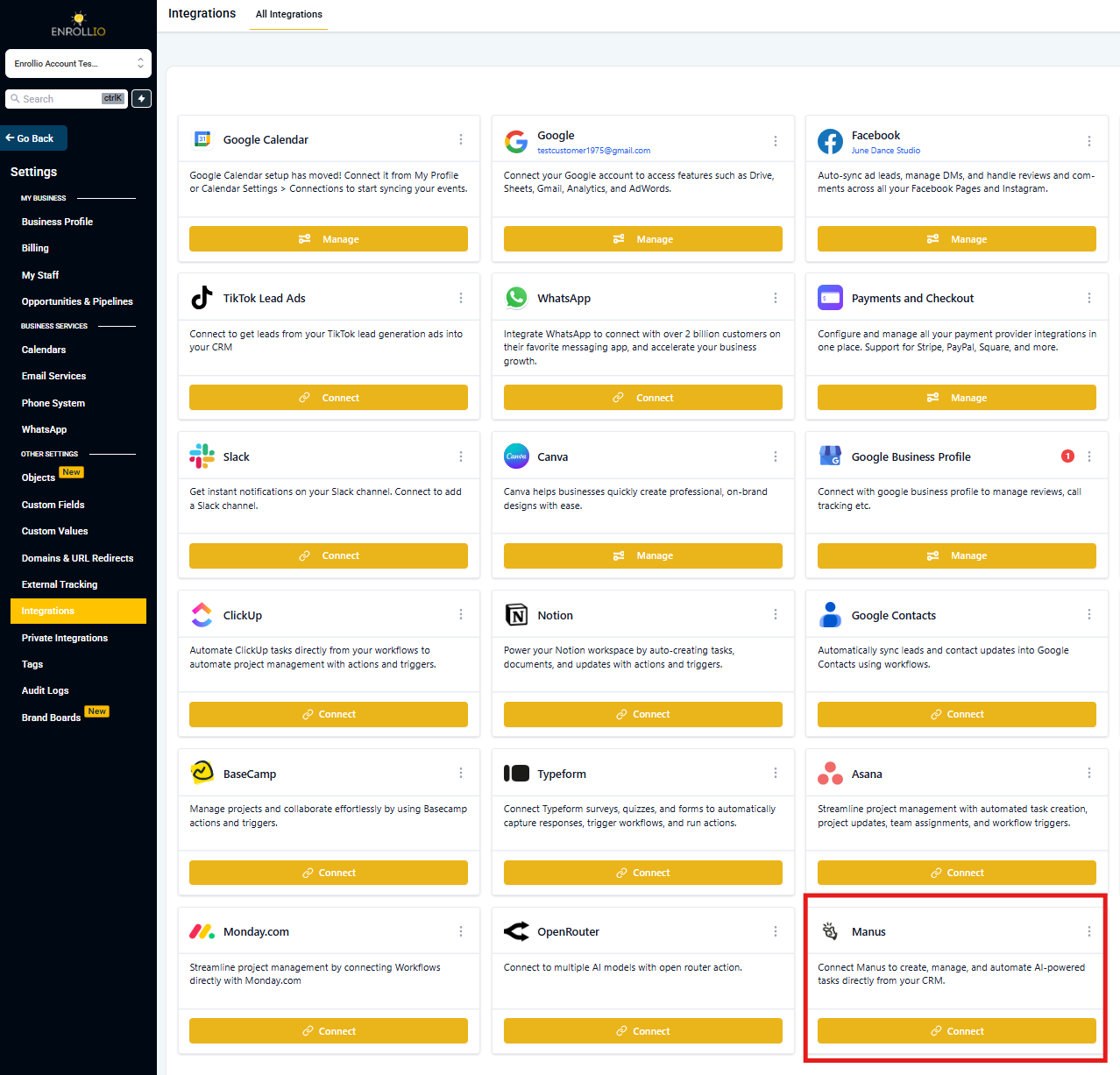
- Go to Settings → Integrations
- Select Manus
- Click Connect
- Complete authentication with your API key
Once connected, Manus actions and triggers will appear inside your automations.
Getting Your Manus API Key
- Navigate to Manus API Settings
- Click Create New
- Copy the generated API key
- Paste the key into the API key field when prompted in Enrollio
How to Use Manus in an Automation
- Go to Automations
- Create or open an automation
- Select a trigger (e.g., Form Submitted, Enrollment Pipeline Stage Changed)
- Add a Manus action (e.g., Create Task)
- Map merge fields such as:
- {{contact.first_name}}
- {{contact.email}}
- {{opportunity.name}}
- {{custom_values}}
- Optionally store the returned Task ID in a custom field
- Add conditions or Wait steps as needed
- Test and Publish
💡 Pro Tip: Store Task IDs
After creating a task, store the returned Task ID in a custom field. You can later use it to get, continue, update, or delete the task. This enables multi-step AI automations.
Common Use Cases
1. Tour Follow-Up Personalization
Goal: Auto-generate personalized follow-up messages after a family tours your center.
Trigger: Enrollment Pipeline Stage Changed → Stage = "Tour Completed"
Automation Steps:
-
Create Task (Manus)
Prompt: "Based on this parent's tour notes: {{custom.tour_notes}}, write a warm, personalized follow-up email that addresses their specific questions about {{custom.program_interest}} and highlights our strengths in that area."
Store Task ID →manus_followup_task_id - Wait (1–2 minutes)
-
Get Task (Manus)
Retrieve the personalized message -
Send Email
Use the AI-generated content -
Create Internal Note
Attach the message for staff reference
Outcome: Every family gets a personalized follow-up that feels hand-written, without manual effort from your enrollment team.
2. Waitlist Communication Strategy
Goal: Generate tailored waitlist updates based on each family's specific needs and timeline.
Trigger: Tag Added → "Waitlist Check-In"
Automation Steps:
-
Create Task (Manus)
Prompt: "Create a waitlist update message for {{contact.first_name}}. Their desired start date is {{custom.desired_start_date}} and they're interested in {{custom.program_type}}. Include current waitlist position and estimated timeline. Tone: warm and reassuring."
Store Task ID →manus_waitlist_task_id - Wait
- Get Task (Manus)
- Send SMS or Email
-
Update Custom Field
Log last waitlist communication date
Outcome: Waitlisted families stay engaged with personalized updates that address their specific situation.
3. Enrollment Application Review Summary
Goal: Auto-summarize enrollment applications for quick staff review.
Trigger: Form Submitted → "Enrollment Application"
Automation Steps:
-
Create Task (Manus)
Prompt: "Summarize this enrollment application: Parent: {{contact.full_name}}, Child: {{custom.child_name}}, Age: {{custom.child_age}}, Program: {{custom.program_interest}}, Special needs: {{custom.special_needs}}, Start date: {{custom.desired_start}}. Highlight any red flags or special considerations."
Store Task ID - Wait
- Get Task (Manus)
-
Create Internal Note
Attach AI summary to family record -
Notify Staff Member
Assigned enrollment coordinator
Outcome: Staff can quickly review key application details without reading through lengthy forms.
4. Competitive Research for Inquiries
Goal: Research prospective families' questions about competing centers and generate informed responses.
Trigger: Form Submitted → "General Inquiry" where {{custom.mentioned_competitor}} is not empty
Automation Steps:
-
Create Task (Manus)
Prompt: "The parent mentioned they're considering {{custom.mentioned_competitor}}. Research this competitor and create talking points that highlight our center's differentiators. Focus on: curriculum approach, staff qualifications, safety features, and parent communication. Keep it factual and professional."
Store Task ID →manus_competitor_task_id - Wait
- Get Task (Manus)
- Create Internal Note
-
Notify Enrollment Team
Include research summary
Outcome: Your team enters conversations armed with competitive intelligence and clear differentiators.
5. Parent Concern Analysis & Response
Goal: Analyze parent concerns submitted through forms and generate empathetic, solution-focused responses.
Trigger: Form Submitted → "Parent Feedback" where {{custom.concern_type}} = "Issue" or "Complaint"
Automation Steps:
-
Create Task (Manus)
Prompt: "Analyze this parent concern: {{custom.feedback_text}}. Identify the core issue, emotional tone, and urgency level. Then draft a response that: 1) Acknowledges their feelings, 2) Explains our perspective/policy, 3) Offers a specific solution or next step. Parent name: {{contact.first_name}}. Keep it warm but professional."
Store Task ID - Wait
-
Get Task (Manus)
Retrieve analysis and draft response -
Create Internal Note
Attach AI analysis for director review -
Create Task for Staff
"Review and send parent response - {{contact.full_name}}" - Notify Director
Outcome: Parent concerns are analyzed immediately, and your team has a thoughtful draft response ready — reducing response time and ensuring consistent, empathetic communication.
Frequently Asked Questions
Where can I view the full output of a Manus task?
Detailed AI responses, prompt history, iterations, and lifecycle status are available in the Manus dashboard. Enrollio confirms task initiation, API response, and the returned Task ID, while Manus stores the full execution details.
How do I retrieve the output of a task inside Enrollio?
Use the "Get Task" action and reference the stored Task ID to fetch the latest task details.
What are common reasons a task might fail?
Common failures include: integration disconnected, invalid Task ID, task already stopped, missing required prompt input, or API authorization failure. Check Automations → Execution Logs for error details.
Do I need a paid Manus plan to use this integration?
The integration works with Manus accounts, but usage limits and advanced features depend on your Manus subscription.
Can I continue a task multiple times?
Yes, as long as the task remains active.
Can I update a task after creation?
Yes, use the "Update Task" action.
Are Manus actions and triggers premium automation steps?
Yes, they follow Enrollio premium automation billing rules.
Is there a limit to how many tasks I can create?
Task limits depend on your Manus subscription plan and API usage caps.
Does Enrollio include AI credits for Manus?
No. Enrollio does not include AI credits for Manus. Credits are managed through your Manus subscription.