
Add Product Element in Email Campaigns
Showcase your childcare programs, merchandise, and add-on services directly in your email campaigns. Visual product displays help families quickly understand what you offer and make enrollment decisions faster.
Why Use Product Elements in Your Emails?
Adding products to your emails creates a better experience for families and drives more enrollments:
- Visual Engagement: Show families what you offer with images instead of text descriptions
- Convenient Browsing: Parents can see your programs without leaving their inbox
- Higher Conversion: Visual presentations lead to more tour bookings and enrollments
- Personalization: Display relevant programs based on the child's age or family preferences
- Promote Add-Ons: Showcase enrichment programs, extended care, or merchandise alongside core offerings
- Highlight New Programs: Draw attention to new classes, summer camps, or special promotions
- Strengthen Your Brand: Consistent, professional presentations build trust with families
- Track Performance: See which programs generate the most interest in your campaigns
- Mobile-Friendly: Products display beautifully on phones and tablets where parents check email
- Stand Out: Product displays make your emails more engaging than text-only messages
Setting Up Products in Enrollio
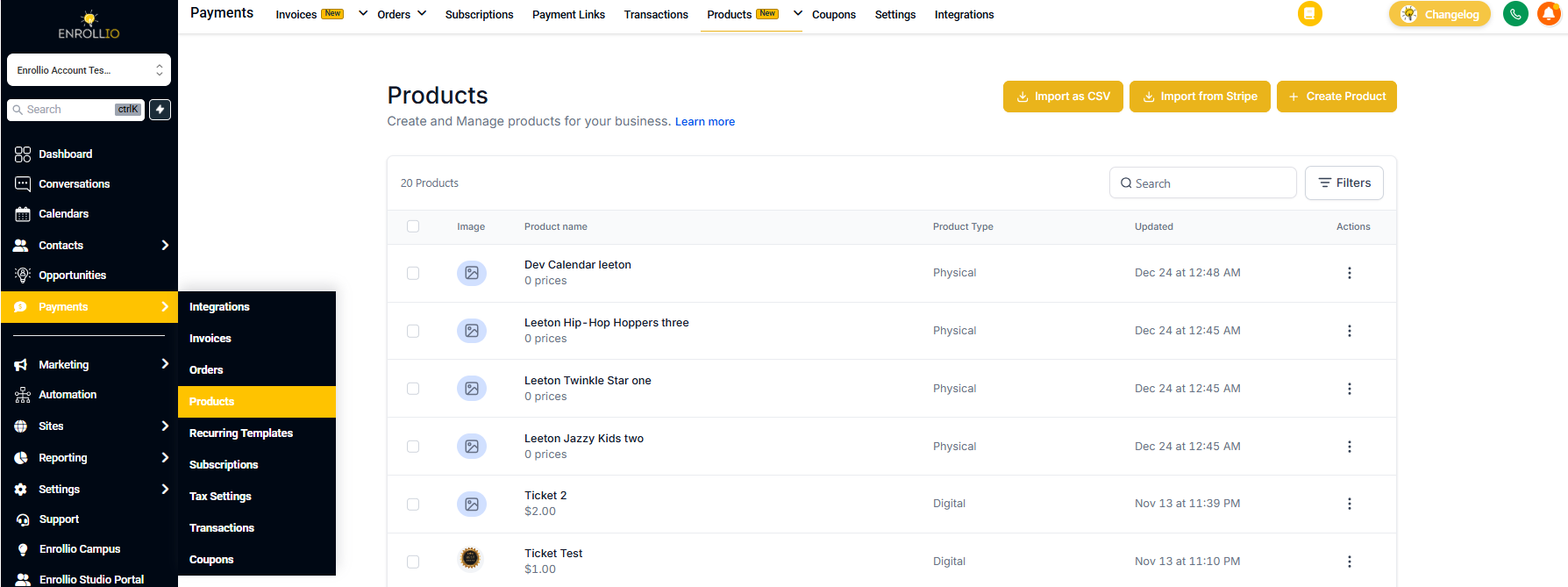
Before you can add products to your emails, you need to create them in your Enrollio account.
- Go to Payments > Products
- Click Add Product
- Enter your product details:
- Product name (e.g., "Infant Care Program" or "Summer Camp 2024")
- Description that highlights key benefits
- Pricing (one-time or subscription)
- High-quality images
- Save your product
Pro Tip: Use clear, welcoming photos of your facility and happy children. These images appear in your email campaigns and influence enrollment decisions.
Adding Products to Email Campaigns
Once your products are set up, you can add them to any email campaign.
- Go to Marketing > Emails > Campaigns
- Click Create New Campaign or open a draft campaign
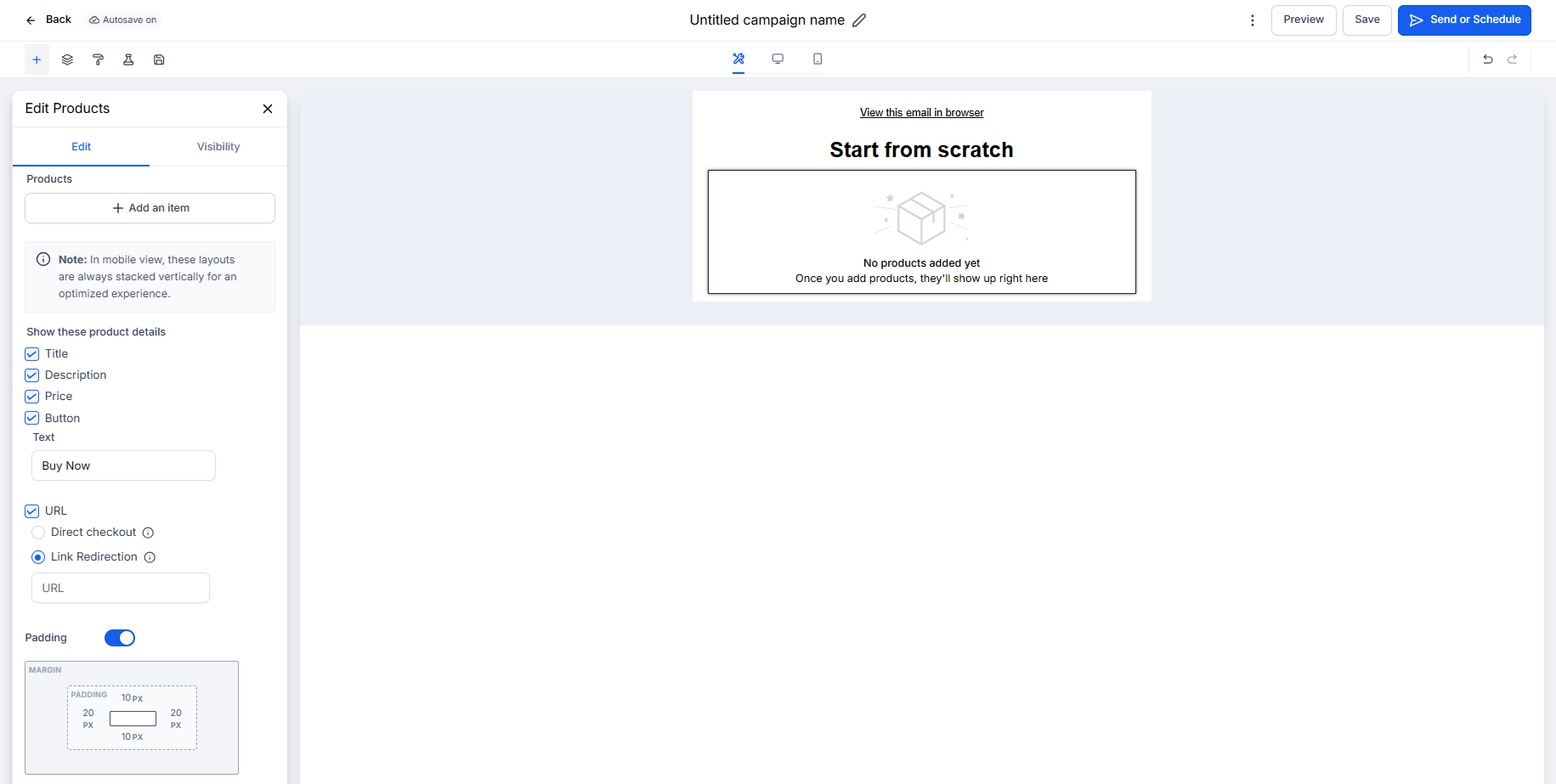
- In the email builder, find the Product element in the left sidebar
- Drag the Product element into your email where you want it to appear
- Click the Product element to open the settings panel
- Select which products to display from your product list
- Choose your display options:
- Show or hide product titles
- Show or hide descriptions
- Show or hide prices
- Customize the button text (e.g., "Learn More," "Book a Tour," "Enroll Now")
- Set the button URL to direct families to:
- Your enrollment page
- A specific program page on your website
- Your tour booking calendar
- Preview your email to see how products will appear
Design Your Product Display
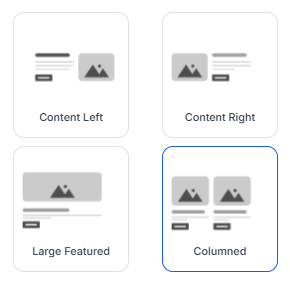
Enrollio offers multiple layout options for product elements:
- Grid Layout: Display multiple programs side-by-side
- List Layout: Stack products vertically for detailed descriptions
- Featured Layout: Highlight a single program prominently
Experiment with different layouts to see what resonates with your families.
Best Practices for Product Elements
- Match Your Audience: Send infant program emails to families with babies, preschool programs to families with 3-4 year olds
- Clear Calls-to-Action: Use button text that tells families exactly what happens next: "Schedule a Tour" or "Reserve Your Spot"
- Highlight Benefits: In product descriptions, focus on what makes your program special
- Test Your Links: Always send a test email and click through to verify URLs work correctly
- Create Urgency: Use product elements to promote limited-time enrollment periods or summer camp registration
Tracking Results
After you send campaigns with product elements, check your email analytics to see:
- Which products generated the most clicks
- How many families visited your enrollment pages
- Which programs drive the most tour bookings
Use these insights to refine your offerings and email strategy.
Coming Soon
We're continuously improving product elements with these upcoming features:
- Direct checkout from email for enrollment fees and merchandise
- Smart links to specific program detail pages
- Revenue tracking per email campaign to calculate ROI
Pro Tip: Combine product elements with personalized content. Show infant care to families who inquired about infant spots, or promote summer camp to families with school-age children.