
What is the Multiple Review Links Feature?
The Multiple Review Links feature lets you add several review platform links (like Google, Facebook, and others) directly into your email templates. Instead of sending parents to just one review site, you can offer them a choice—making it easier for them to leave a review on the platform they prefer.
Enrollio automatically pulls in all your connected review platforms and gives you easy options to customize the text, order, and visibility of each link. Built-in auto-validation helps prevent broken or incorrect URLs, so you can increase review conversions across platforms while keeping setup simple.
Why Use Multiple Review Links?
Offering parents multiple review destinations in one email makes it easier for them to share feedback—and that means more completed reviews for your childcare business.
- Parent choice: Let families choose their preferred platform instead of forcing them to one they may not use
- Higher conversions: Reduce drop-off by removing the "wrong platform" dead end
- Flexible messaging: Customize each link's text to match your brand voice
- Fewer mistakes: Auto-validation catches malformed or incorrect URLs before sending
- Simple control: Reorder, hide, or remove links without changing your integrations
How to Add Multiple Review Links to Your Email Templates
Follow these steps to add multiple platforms to a single review request email:
- Navigate to Reputation → Settings → Email Requests
- Click + Create New or Edit an existing template
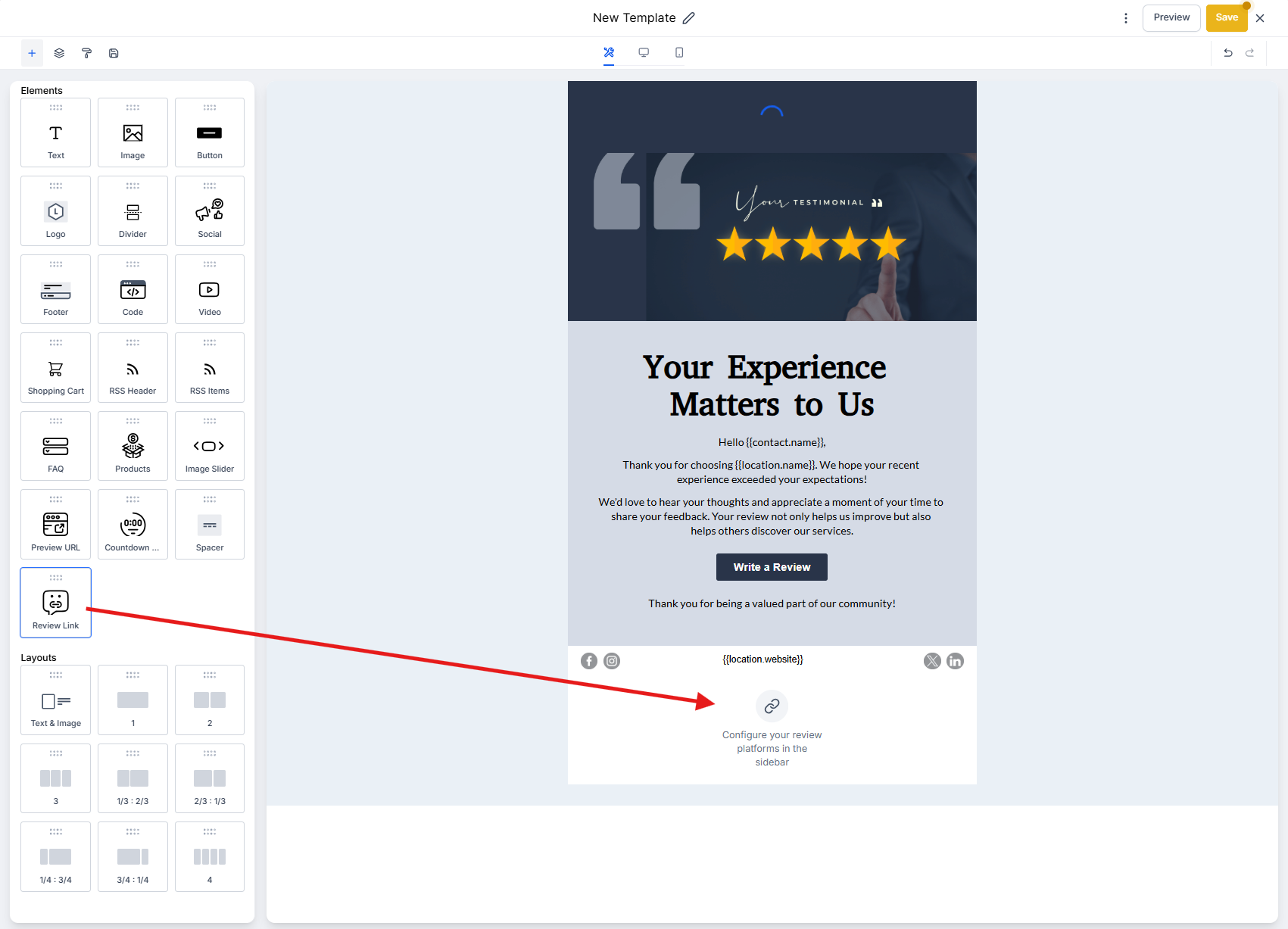
- Drag and drop the Review Links element into your email builder
- The builder automatically pre-selects any connected review platforms
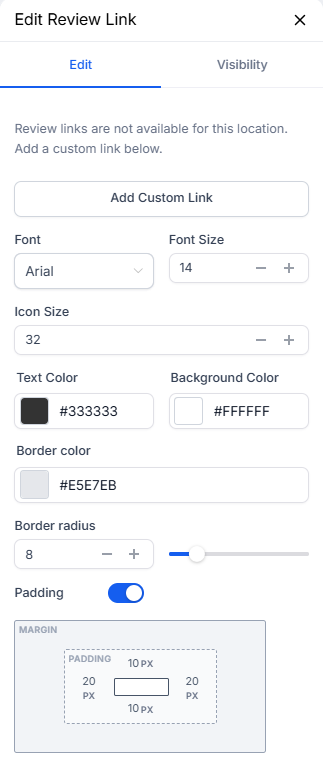
- Add, edit, or deselect platform URLs as needed
- Customize the link text for each platform (e.g., "Leave us a review on Google")
- If you have multiple Google Business Profile locations connected, select the specific location
- Reorder links by dragging them into your preferred sequence
- Confirm there are no validation errors
- Click Save, then Preview to check how it looks
- Use the template in your review request emails or automations
Frequently Asked Questions
Do I need to enable anything to see Review Links?
No. Once your review platforms are connected, they'll appear automatically in the Review Links component.
What if I don't see any platforms listed?
Connect your review platforms first by going to Reputation → Settings → Integrations, then return to the Email Builder and open Review Links.
Can I customize the call-to-action text for each link?
Yes. You can edit the text for each platform so it matches your brand voice and encourages action.
Can I reorder or remove review links once added?
Yes. You can reorder, select/unselect, or delete each link directly in the email builder without affecting your platform integrations.
Is there a limit to how many links I can add?
You can add multiple links to one email. For best results, keep the list concise—three to four platforms typically work best.
How does auto-validation work for review links?
The component automatically checks each link to ensure it's valid and properly formatted, reducing the chance of broken or incorrect URLs being sent to parents.
Do I need to disconnect a platform to hide it from an email?
No. Simply unselect the platform in the template to hide it without removing the integration from your account.
Can I use these templates in automations?
Yes. Save your template and use it in recurring review emails or in your automated review request sequences.