
Spacer Element in Email Builder
This article introduces the Spacer Element in Enrollio's Email Builder, designed to make email layout customization easier and more precise for both desktop and mobile users.
What is the Spacer Element?
The Spacer Element is a drag-and-drop tool in Enrollio's Email Builder that lets you add adjustable vertical or horizontal space between content blocks within your email templates. Think of it as an invisible block that pushes other elements apart.
This feature gives you a simple, intuitive way to control spacing without relying on dividers or manual padding adjustments. Your email layouts will look clean, professional, and responsive across all devices.
Key Benefits of the Spacer Element
Adding the Spacer Element to your email design process offers several advantages:
- Customize email layouts effortlessly without complex workarounds
- Create cleaner, more professional-looking email designs
- Eliminate the need for using dividers as spacers or adjusting manual padding
- Responsive spacing automatically adapts for mobile and desktop devices
- Enhance the visual appeal and readability of your emails to parents
How To Add and Customize the Spacer Element
Follow these steps to add and customize the Spacer Element in your email templates:
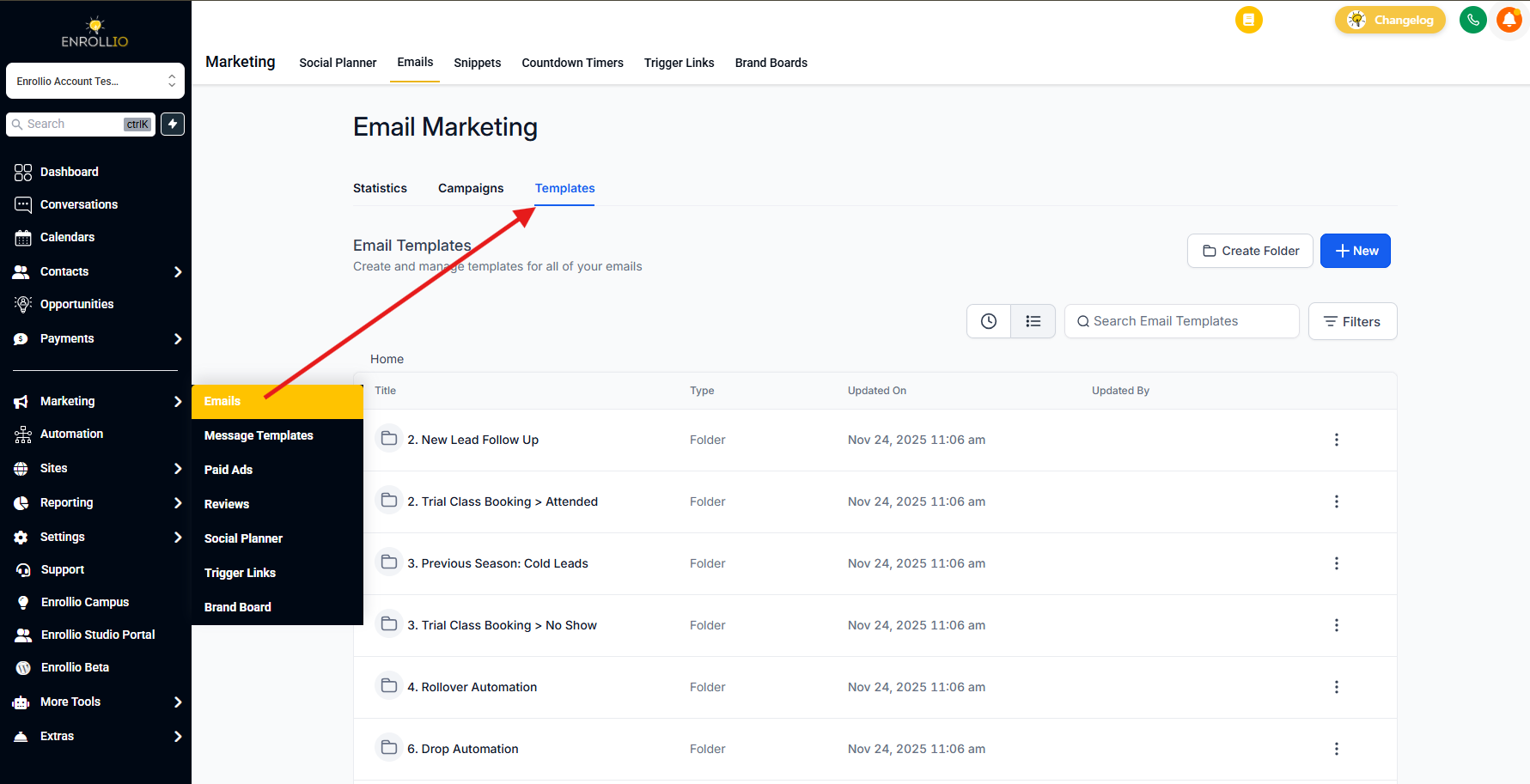
- Navigate to Marketing → Emails → Templates from your Enrollio dashboard.
- Open an existing email template by clicking on it, or create a new one by clicking the + New button in the upper right corner.
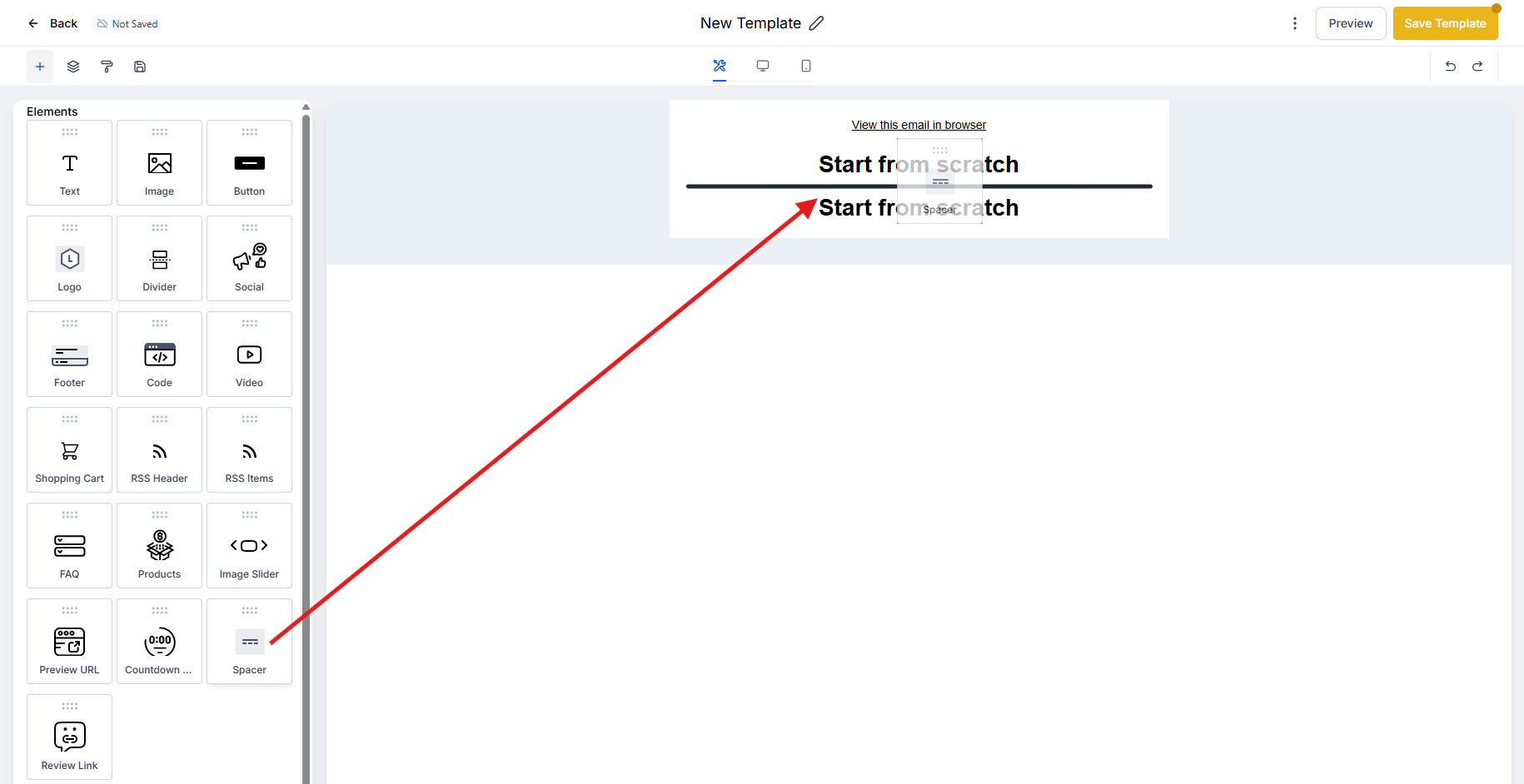
- Click the Add Elements (+) icon in the upper left corner of the email builder.
- Locate the Spacer element in the sidebar.
- Drag and drop the Spacer Element into your desired position within the email layout.
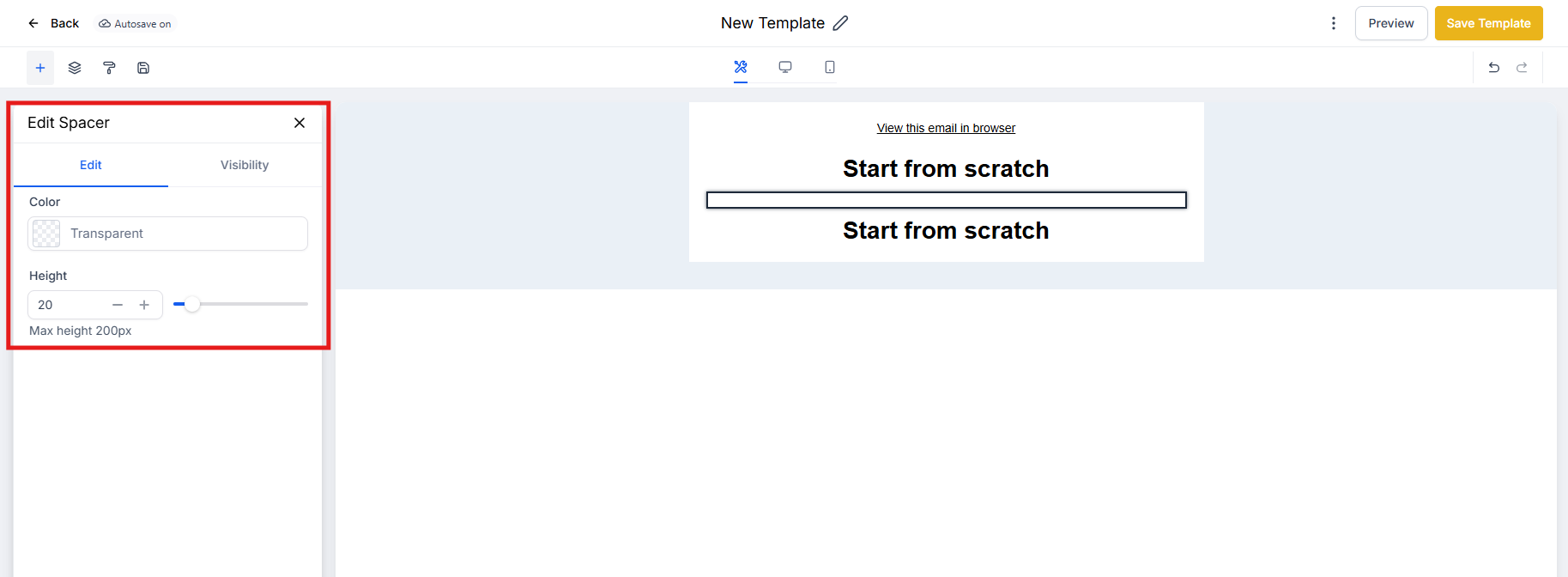
- Click on the Spacer Element, then select the Edit tab on the left bar to adjust the height, width, or color.
- Click on the Visibility tab to adjust device-based visibility and conditional sending options.
- Preview your email to ensure the spacing looks correct on both desktop and mobile devices.
Frequently Asked Questions
Is the Spacer Element responsive for mobile devices?
Yes, the Spacer Element automatically adjusts for mobile responsiveness, ensuring consistent spacing across devices. Always test your emails in both desktop and mobile previews to confirm optimal appearance.
Does the Spacer Element add any visible content to my emails?
No, the Spacer only creates empty space and does not display any visible content to parents receiving your emails.
Can I set both vertical and horizontal spacing with the Spacer?
Yes, you can adjust the height for vertical space and width for horizontal space, depending on your layout needs.
Do Spacers affect email deliverability or loading speed?
No, Spacers are lightweight and do not impact deliverability or loading times.
How do I remove a Spacer if I no longer need it?
Simply click on the Spacer Element and use the delete/trash icon to remove it from your layout.