
AI-Powered Automation Action with OpenAI
Welcome to the AI-Powered Automation Action, built on OpenAI's advanced GPT technology. This action brings intelligent automation to your childcare center operations, handling complex communication tasks quickly and efficiently. Say goodbye to manual messaging and hello to streamlined, personalized interactions with families.
Important: For pricing details on GPT-4, refer to GPT-4 pricing in Enrollio. For GPT-5 pricing, refer to GPT-5 pricing in Enrollio.
What is the AI-Powered Automation Action?
The AI-Powered Automation Action harnesses artificial intelligence to enhance how you communicate with families. It integrates directly into your Enrollio platform, responding intelligently to various triggers throughout the enrollment journey.
Using advanced models like GPT-4 and GPT-5, this action generates dynamic, contextually aware responses that feel personal and relevant. Whether you're following up on tour inquiries, confirming enrollments, or reaching out to waitlisted families, AI can help you craft the perfect message.
This automation action supports complex data formatting and personalization, ensuring every parent interaction feels thoughtful and professional.

Use Cases for Childcare Centers
Tour Inquiry Auto-Responder
Use form submission triggers to automatically send personalized responses when prospective families submit tour requests. The AI can craft a warm welcome message that includes your center's unique approach and next steps.
Automated Birthday Wishes
Trigger a birthday reminder to activate the AI action, sending a personalized birthday message via text or email to enrolled families.
Waitlist Status Updates
When a spot opens up, automatically generate a thoughtful message to waitlisted families with details about the available opening and next steps for enrollment.
Tour Follow-Up Messages
After a family completes a tour (using the appointment status trigger), send a personalized follow-up email that references specific details from their visit.
Enrollment Confirmation
When a family completes enrollment, use AI to generate a warm confirmation message with important first-day details and what to expect.
Payment Received Thank You
Trigger the 'Payment Received' event to send families a thank-you message with payment confirmation and upcoming tuition dates.
Re-Engagement Campaigns
For prospective families who haven't responded, use AI to craft personalized re-engagement messages based on their inquiry details and timeline.
Staff Communication
Generate internal updates for your team when key enrollment milestones are reached, keeping everyone informed about new families joining.
Form Response Acknowledgment
When a parent submits a form (registration interest, supply list confirmation, etc.), automatically send an acknowledgment that confirms receipt and outlines next steps.
Enrollment Pipeline Updates
When an enrollment opportunity status changes, automatically update your team and send appropriate messages to the family based on their stage in the process.
Milestone Celebrations
Send personalized messages celebrating enrollment anniversaries or important milestones in a child's time at your center.
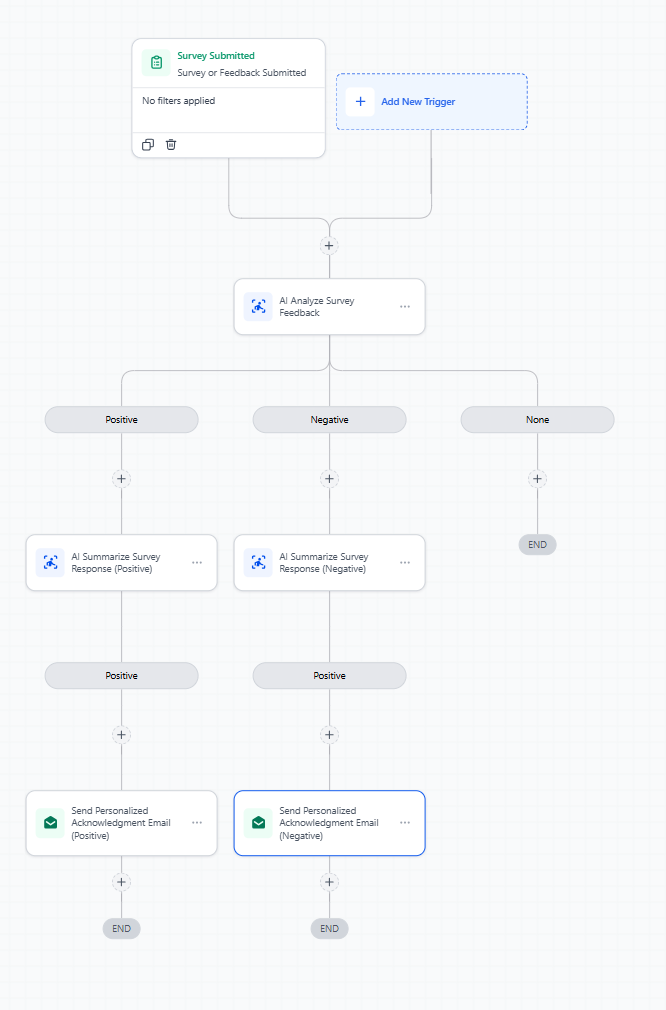
Survey Follow-Up
After receiving feedback or survey responses, use AI to generate thoughtful acknowledgment messages that address specific points families raised.
How to Set Up the AI-Powered Action
Setting up AI-powered automation in Enrollio takes just a few steps:
Step 1: Create or Open an Automation
Navigate to Automations in your Enrollio dashboard. Either create a new automation or open an existing one where you want to add AI-generated content.
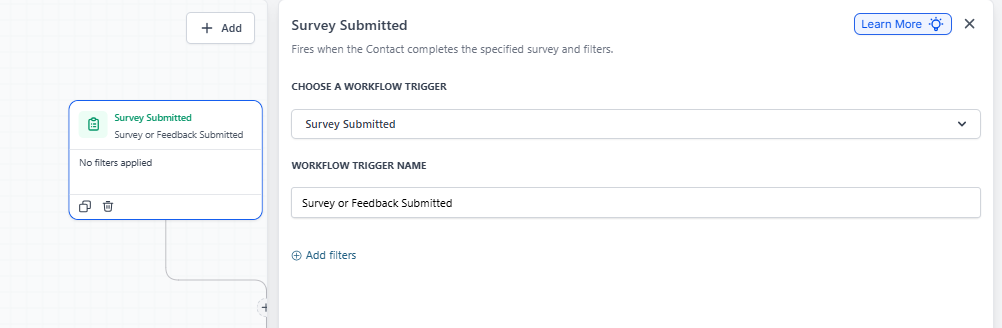
Step 2: Add a Trigger
Choose the appropriate trigger for your automation (like "Form Submitted" or "Tour Completed"). This determines when the AI action runs.
Step 3: Add the AI-Powered Action
- Scroll to the Actions section
- Click "Add Action"
- Select "AI-Powered by OpenAI"
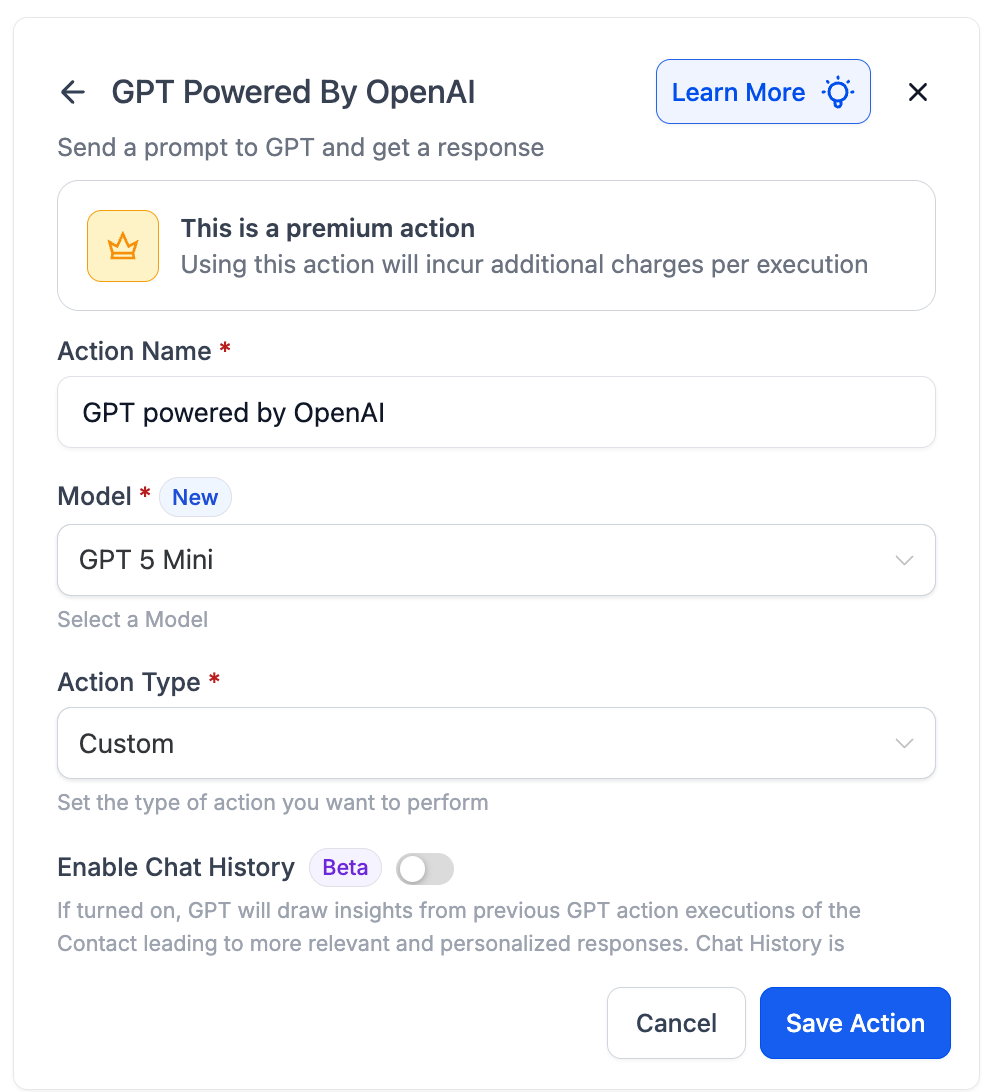
Step 4: Configure the Action
1. Select Your AI Model
Choose which GPT model to use. GPT-5 Mini is selected by default and works well for most childcare communications. Available models include:
- GPT-5
- GPT-5.1
- GPT-5 Mini (default)
- GPT-5 Nano
- GPT-4o
- GPT-4 Turbo
- GPT-4o Mini
Pro Tip: For most parent communications, GPT-5 Mini provides excellent results at a lower cost. Reserve more advanced models for complex scenarios.
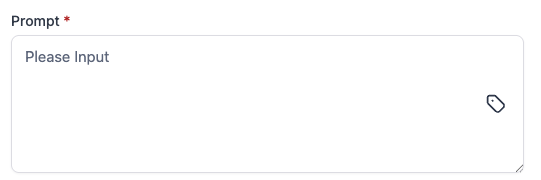
2. Write Your Prompt
This is where you tell the AI what to generate. Your prompt should be clear and specific. You can include dynamic fields from your parent records to personalize the output.
Example prompt:
"Write a warm follow-up email to {{parent.first_name}} who toured our center on {{appointment.date}}. Thank them for visiting, mention that we have openings in our {{enrollment_opportunity.program}} program, and invite them to call with any questions. Keep the tone friendly and professional."
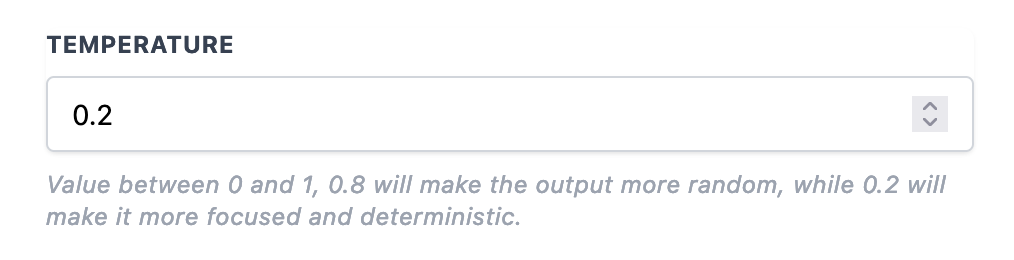
3. Temperature (Advanced Settings)
Temperature controls how creative or predictable the AI's output will be. The range is 0.1 to 1.0:
- Lower values (0.2-0.4): More focused and predictable. Good for professional communications where consistency matters.
- Higher values (0.7-0.8): More creative and varied. Useful when you want more natural, conversational messages.
For most childcare communications, we recommend 0.3-0.5 for the right balance of professionalism and warmth.
Step 5: Use the AI Output
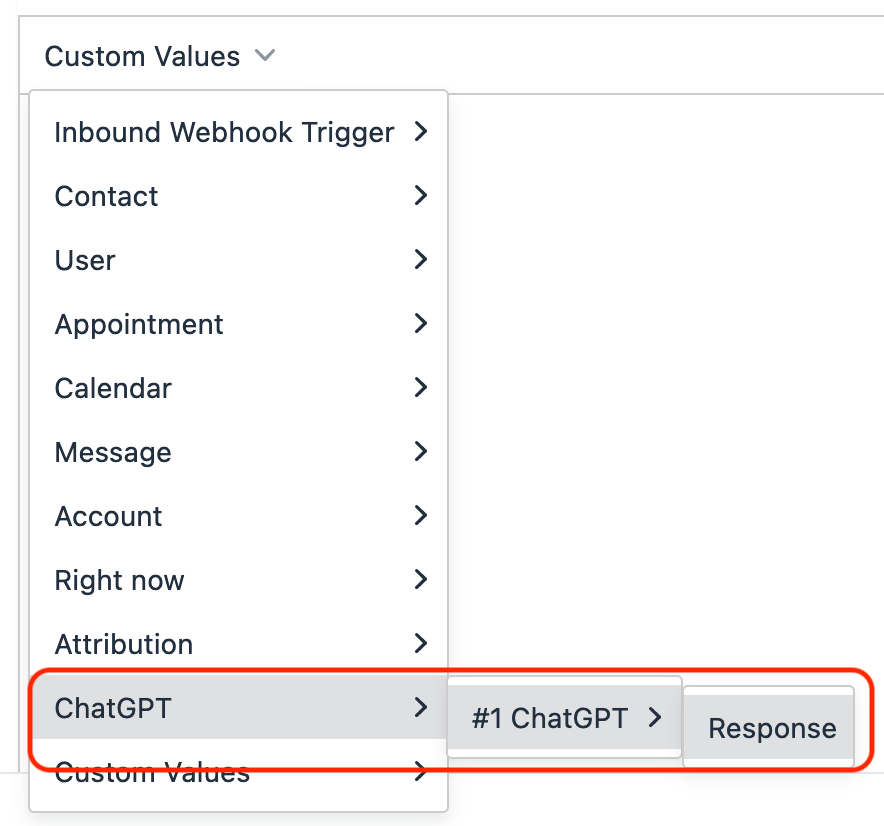
After the AI action runs, you can use the generated content in the next steps of your automation. The output is available as:
{{ai.1.response}}
Common next steps include:
- Send Email (using the AI response as email content)
- Send SMS (using the AI response as message text)
- Update Parent Record (storing the response in a custom field)
- Internal Notification (sending to your team via Slack or webhook)
Step 6: Test Your Automation
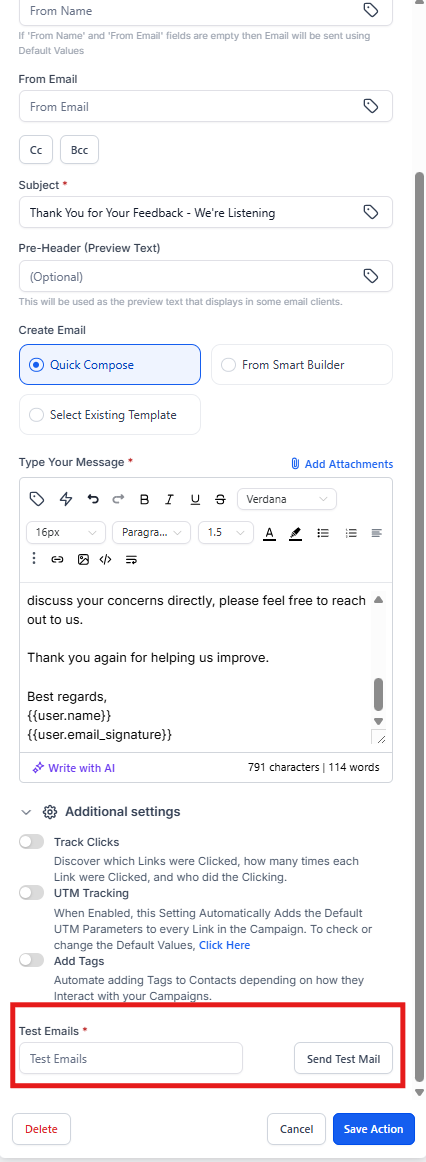
Before activating, test your automation with a sample parent record. Review the AI-generated output to ensure it matches your center's voice and includes all necessary information.
Click "Test" and select a parent from your database to see exactly what message they would receive.
Understanding AI-Generated Output
When your automation runs, the AI action generates content based on your prompt and the dynamic data you included. Here's how it works:
- Your Prompt is Processed: The AI reads your instructions, including any dynamic fields like {{parent.first_name}} or {{enrollment_opportunity.program}}.
- Data is Inserted: Dynamic fields are replaced with actual parent and enrollment data.
- Content is Generated: The AI creates a response that follows your instructions while maintaining a natural, conversational tone.
- Output is Delivered: The generated content is passed to your next automation step (email, SMS, custom field, etc.).
Where Does the Output Go?
The AI-generated content can be:
- Sent directly in email or text message steps
- Stored in custom fields on the parent record
- Logged internally for your team's reference
- Sent to your team via Slack or webhook notifications
Pro Tip: Store AI-generated content in a custom field before sending. This creates a record of what was sent and allows you to review or edit if needed.
Sample Prompts for Childcare Centers
Here are proven prompts you can adapt for your center:
1. Tour Follow-Up Email
"You are {{user.name}}, director at {{location.name}}. Write a warm, professional follow-up email to {{parent.first_name}} who toured our center on {{appointment.date}}. Reference that we discussed our {{enrollment_opportunity.program}} program. Thank them for their time, answer any questions they had ({{appointment.notes}}), and encourage them to reach out if they'd like to move forward with enrollment. Keep it friendly and under 200 words."
2. Waitlist Update Message
"Write a text message to {{parent.first_name}} letting them know a spot has opened up in our {{enrollment_opportunity.program}} program. Mention they've been on our waitlist since {{custom_fields.waitlist_date}}. Ask them to call us at {{location.phone}} within 48 hours to secure the spot. Keep it brief and action-oriented."
3. Enrollment Confirmation
"Create a warm welcome email for {{parent.first_name}} confirming their child {{contact.first_name}}'s enrollment in our {{enrollment_opportunity.program}} program starting {{custom_fields.start_date}}. Include details about first-day drop-off time ({{custom_fields.dropoff_time}}) and remind them to complete the forms in their parent portal. Express excitement about welcoming their family. Keep the tone warm and organized."
4. Re-Engagement for Inactive Inquiries
"Write a friendly re-engagement email to {{parent.first_name}} who inquired about {{enrollment_opportunity.program}} on {{enrollment_opportunity.created_date}} but hasn't scheduled a tour yet. Mention that we still have openings and would love to show them around. Include a direct link to schedule: {{calendar.booking_link}}. Keep it short, helpful, and pressure-free."
5. Payment Received Thank You
"Generate a brief thank-you text message to {{parent.first_name}} confirming we received their payment of {{invoice.amount}} for {{invoice.description}}. Thank them and mention their next payment is due {{invoice.next_due_date}}. Keep it professional and appreciative."
6. Birthday Greeting
"Write a warm birthday message for {{contact.first_name}} from all of us at {{location.name}}. Keep it short, sweet, and celebratory. Make it feel personal but appropriate for a childcare center to send. Under 100 words."
7. Tour Reminder
"Create a friendly reminder text for {{parent.first_name}} about their tour at {{location.name}} scheduled for {{appointment.date}} at {{appointment.time}}. Include our address ({{location.address}}) and mention what to bring if anything. Ask them to reply if they need to reschedule. Keep it brief and helpful."
8. Response to Parent Inquiry
"You are {{user.name}} from {{location.name}}. A parent named {{parent.first_name}} sent this message: {{message.body}}. Write a helpful, professional response that addresses their questions. If they asked about availability, mention we have openings in {{enrollment_opportunity.program}}. If they asked about pricing, invite them to schedule a tour to discuss details. Keep your response warm and action-oriented."
Frequently Asked Questions
How much does the AI action cost?
AI action usage is billed based on the model you select and the length of prompts and responses. GPT-5 Mini is the most cost-effective option for typical childcare communications. Check your Enrollio billing settings for current pricing details.
Can I edit AI-generated content before it's sent?
Not automatically within the automation. However, you can store the AI output in a custom field first, then set up an approval step where your team reviews and manually sends the message. Alternatively, use AI to draft content and paste it into templates you review regularly.
Will the AI always generate the same response?
Not exactly. The Temperature setting controls consistency. Lower temperatures (0.2-0.3) produce similar outputs each time. Higher temperatures (0.7-0.8) create more variation. For parent communications, slight variation can make messages feel more authentic.
What if the AI generates inappropriate content?
OpenAI's models include safety filters, but you should always test your prompts thoroughly before activating automations. Include specific guidance in your prompts about tone, length, and what to avoid. Store outputs in a custom field initially so you can review before going live.
Can I use AI for multiple languages?
Yes. Include language instructions in your prompt, such as "Write this message in Spanish" or "Generate a bilingual message in English and Spanish." The AI models support dozens of languages.
How do I reference custom fields in my prompts?
Use the standard Enrollio custom field format: {{custom_fields.field_name}}. For example, {{custom_fields.child_age}} or {{custom_fields.preferred_start_date}}. You can insert any parent, child, or enrollment data into your prompts.
Can AI actions trigger other automations?
Yes. You can use the AI output to update fields or tags that trigger additional automations. For example, if the AI generates a response, you could tag the parent as "AI-Engaged" and trigger a follow-up sequence.
What's the character limit for prompts?
Prompts can be quite long (several thousand characters), but keep them focused for best results. Most effective childcare prompts are 100-300 words.
Should I use AI for all parent communications?
AI works best for routine, repeatable communications like confirmations, reminders, and follow-ups. For sensitive situations, major decisions, or complex parent concerns, personal communication from your team is always better.
Best Practices
- Start simple: Test AI actions with low-stakes communications first (like tour confirmations) before using them for more sensitive interactions.
- Be specific in prompts: The more detail you provide about tone, length, and content, the better the output.
- Include your center's voice: Add phrases like "We speak warmly and professionally" or "Our center values transparency and clear communication" to your prompts.
- Use dynamic fields strategically: Personalization makes messages feel authentic. Include parent names, program details, and relevant dates.
- Set appropriate temperature: Lower (0.2-0.4) for consistency, higher (0.6-0.8) for variety. For professional communications, stay on the lower end.
- Test thoroughly: Always test with real parent data before activating automations to families.
- Monitor outputs: Periodically review AI-generated messages to ensure they maintain your quality standards.
- Combine with human touch: Use AI for efficiency, but ensure parents can always reach a real person when they need help.