
Easily manage your scheduled email campaigns in Enrollio by pausing, resuming, or canceling them directly from the Email Campaigns page.
These options give you full control over campaign delivery, allowing you to make last-minute changes, fix errors, or stop sends entirely before they go live.
What is the Pause, Resume, or Cancel Feature?
This functionality lets you take control of scheduled email campaigns before they're sent to families. Whether you need to make quick edits, delay an email blast, or stop a campaign completely, you can manage it effortlessly from the campaign actions menu.
The Pause, Resume, and Cancel controls help you stay flexible and precise in your parent communications. Pausing lets you temporarily halt a campaign to review or adjust content. Resuming restores its schedule, while Cancel ensures emails won't send at all.
Key Benefits
Understanding these benefits allows you to use campaign controls strategically—keeping your emails to families accurate, timely, and relevant.
- Flexibility: Temporarily pause campaigns to make quick adjustments
- Control: Cancel emails that are no longer needed before they go out
- Accuracy: Ensure only reviewed and approved content reaches families
- Time Efficiency: Instantly resume paused campaigns without rebuilding them
- Error Prevention: Avoid sending incorrect or outdated information to parents
How to Pause, Resume, or Cancel a Scheduled Campaign
Learning to navigate and use the campaign control menu correctly ensures you can efficiently manage your email campaigns without disrupting your overall communication strategy.
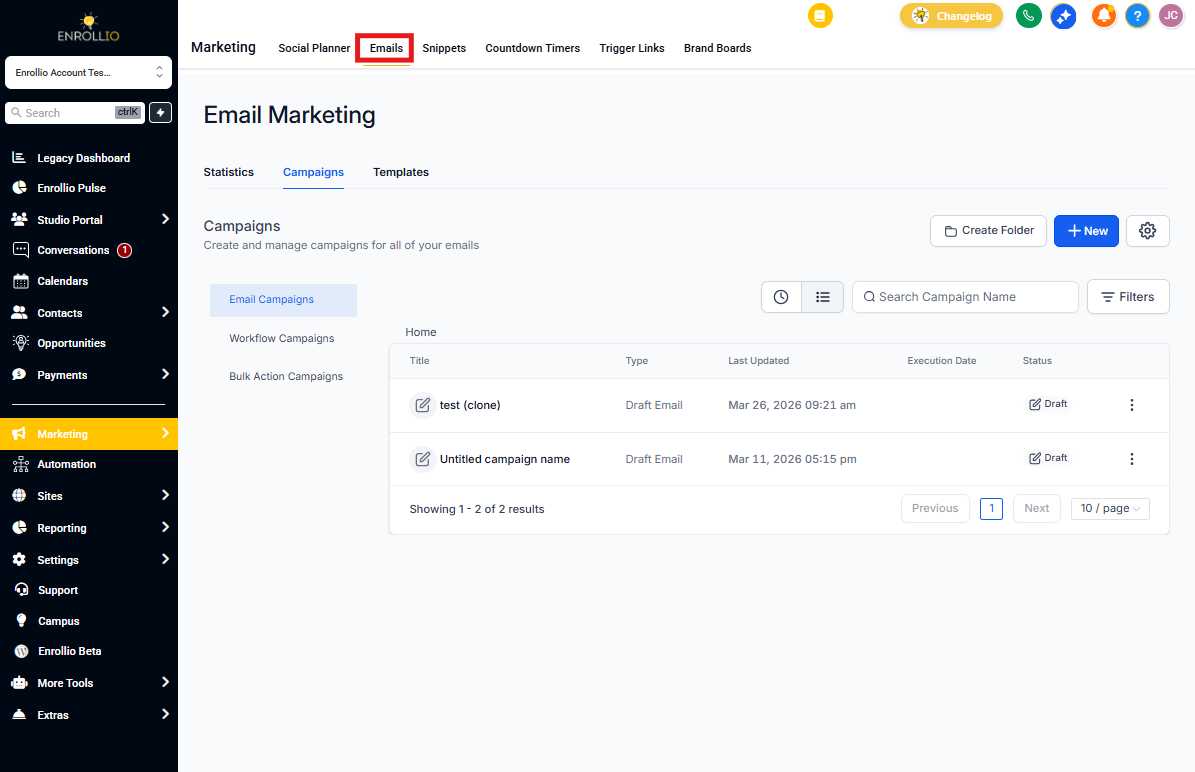
Step 1: Access the Marketing Section
From the left-hand sidebar, click Marketing → Emails.
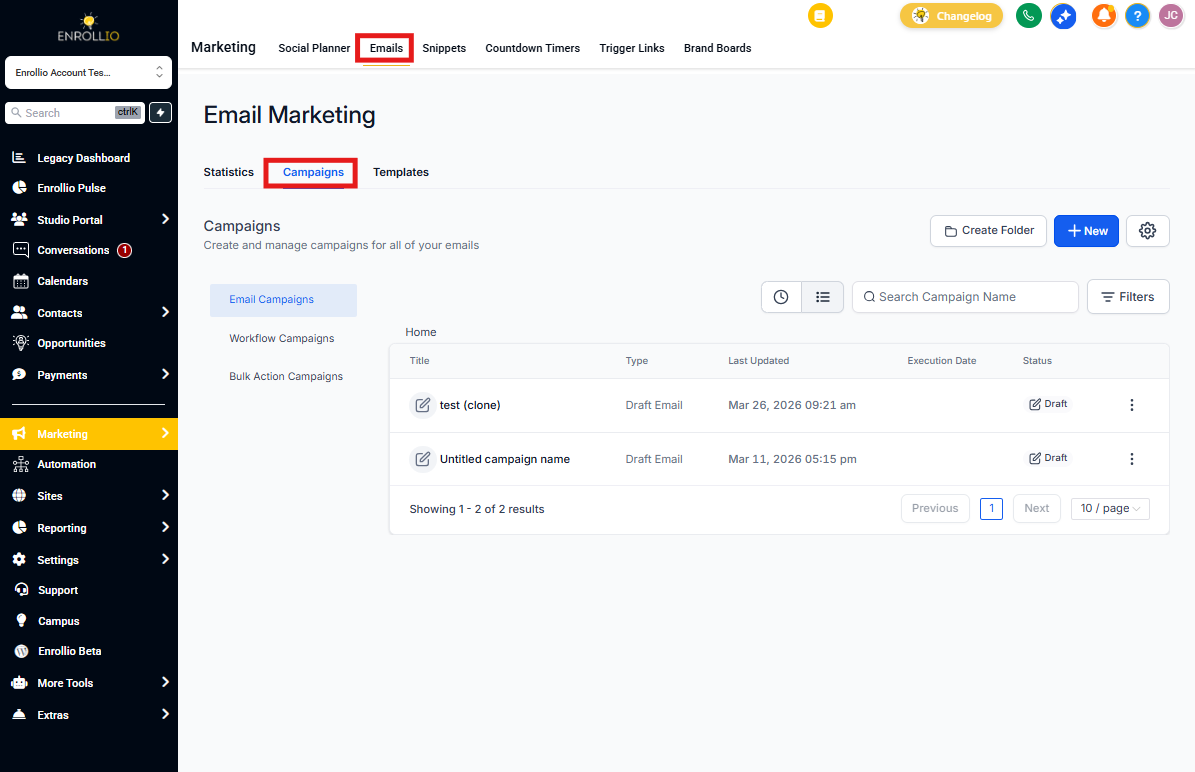
Step 2: Navigate to the Email Campaigns Page
Select the Campaigns tab at the top of the page.
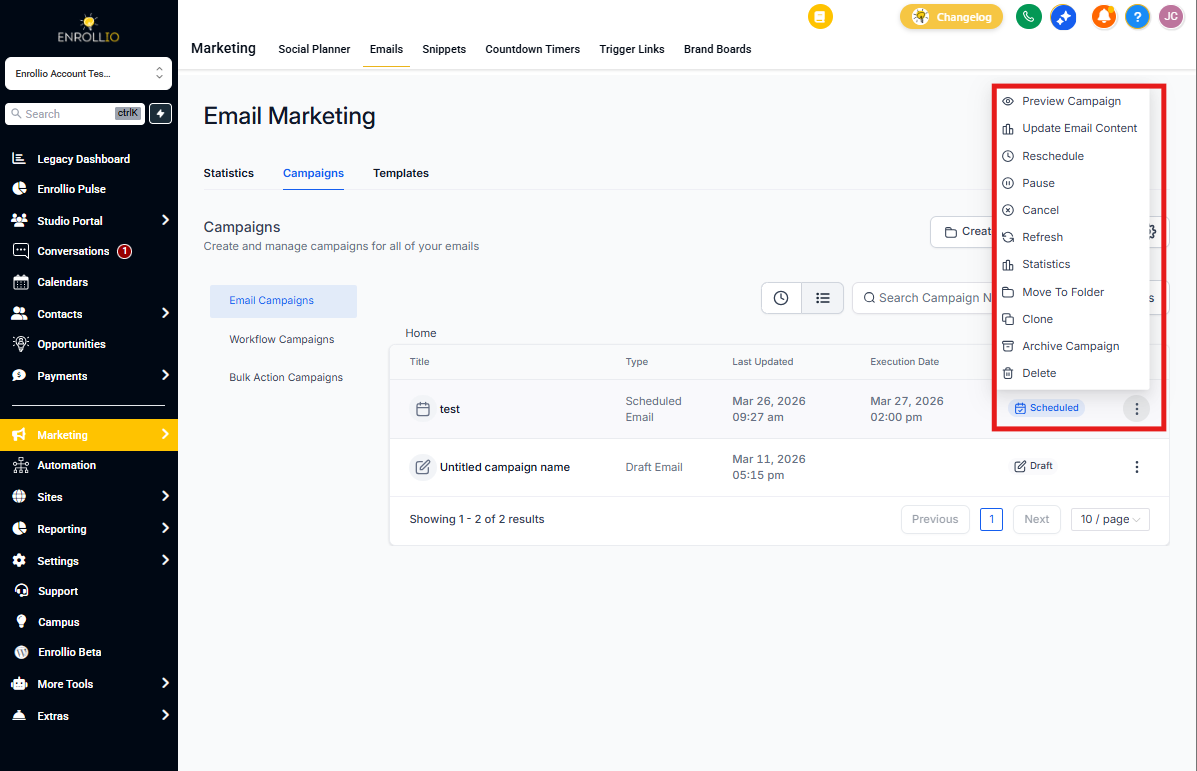
Step 3: Open the Campaign Options
Find the campaign you wish to manage under the Scheduled status. Click the three-dot menu (⋮) next to the campaign name to open available actions.
Step 4: Choose Your Desired Action
Pause a Campaign
Select Pause from the dropdown menu. This will temporarily halt the campaign's send schedule. When paused, the campaign's status updates to Paused.
This is useful when you need to make quick edits, verify recipients, or double-check the schedule.
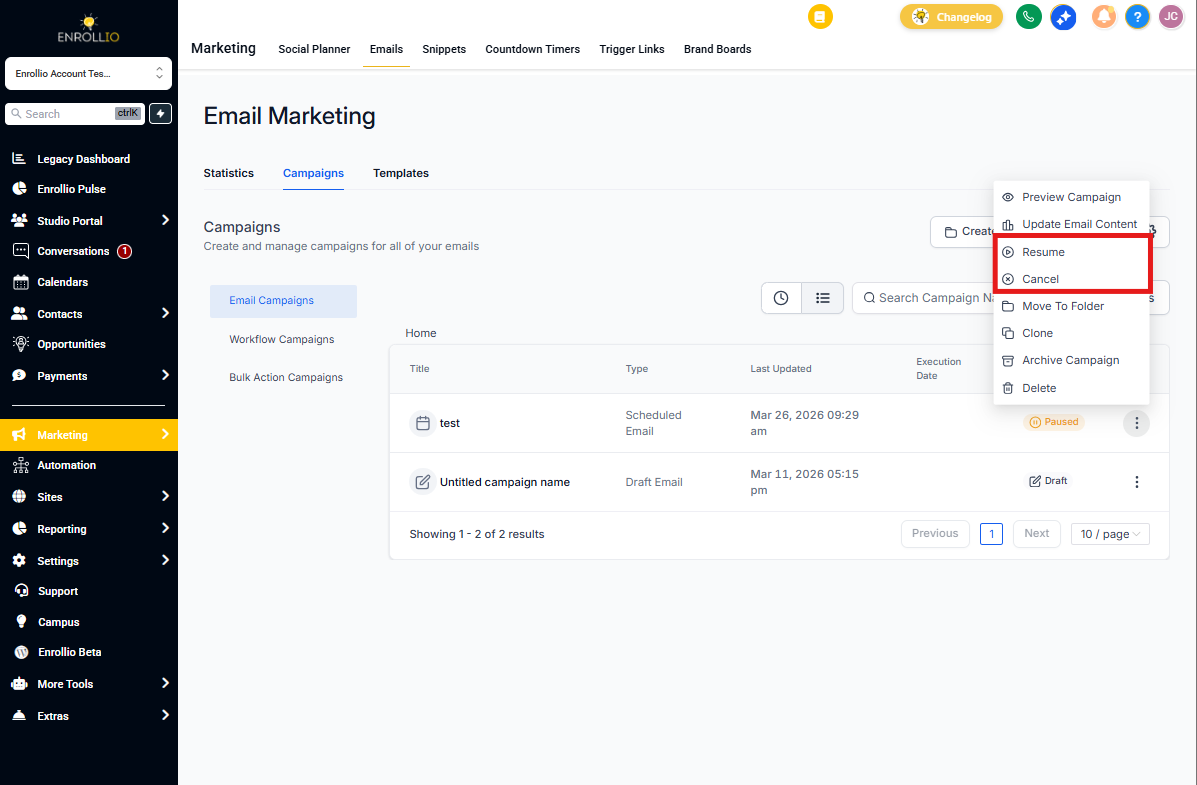
Resume a Campaign
Once a campaign is paused, open the three-dot menu (⋮) again. Click Resume to re-activate the campaign.
If you resume before the scheduled time, it will send as planned. If you resume after the scheduled time has passed, it will send immediately.
Cancel a Campaign
To permanently stop a scheduled campaign, click Cancel from the dropdown. The campaign will not send, including any RSS or batch emails.
When to Use Each Option
Understanding when to use Pause, Resume, or Cancel helps ensure you manage campaigns proactively, maintaining both accuracy and timing.
- Pause: When you need more time to review or make last-minute edits before launch
- Resume: When your paused campaign is ready to continue sending
- Cancel: When the campaign is no longer relevant or contains unrecoverable errors
Frequently Asked Questions
Can I resume a campaign after the original scheduled time?
Yes. If you resume after the original send time has passed, the campaign will send immediately.
What happens to paused campaigns if I don't resume them?
They will remain paused indefinitely until you manually resume or cancel them.
Does canceling a campaign delete it?
No. Canceling only prevents it from sending. You can still clone or edit it later.
Can I pause A/B test campaigns?
Yes. Pause, Resume, and Cancel options work for all scheduled campaign types, including A/B tests.
Will pausing affect analytics or performance tracking?
No. Analytics are tracked from the moment the campaign is sent, so pausing beforehand has no effect.