
The Email action in Automations has been redesigned to make creating and tracking emails faster and more intuitive. You can now compose, customize, and analyze emails seamlessly within one modern interface.
Overview
The Email action in Automations now features a unified, intuitive interface, making email creation consistent across Campaigns, Bulk Actions, and Automations. You can start, edit, and track emails seamlessly with advanced options like UTM tracking, click analytics, and template syncing—all from a single interface.
What's New
Unified Email Creation Flow
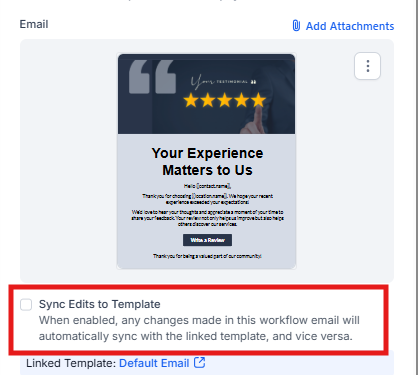
All three areas—Automations, Bulk Actions, and Marketing Campaigns—now share the same builder experience. You can start from:
- Quick Compose → A lightweight editor for fast emails
- Smart Builder → Full-featured editor with Design, Code, or Plain Text modes
- Select Template → Use existing templates or choose from the Template Library
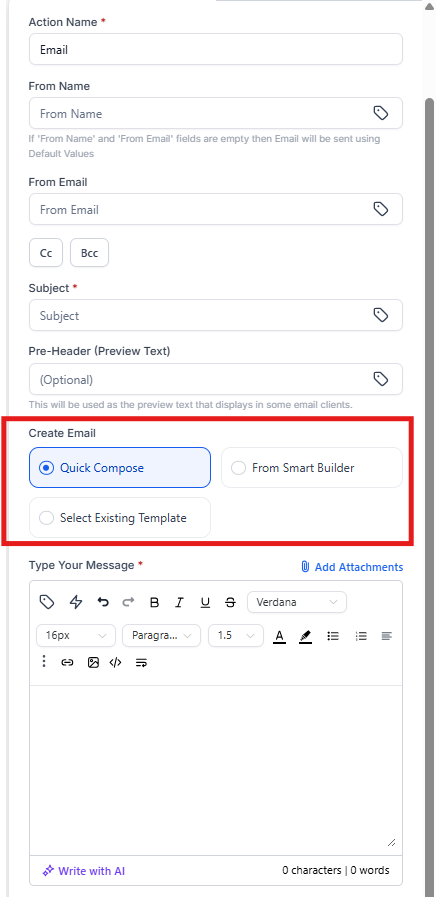
Advanced Settings
Each email action now includes expandable advanced settings so you can fine-tune your campaigns:
- Link Tracking → See click data and CTRs for every link
- UTM Parameters → Automatically append campaign tracking tags
- Add Tags → Automatically tag families based on opens or clicks
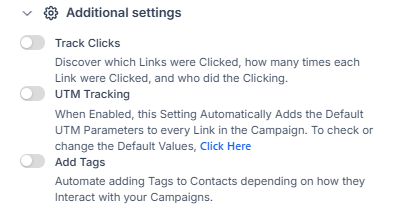
Template Syncing
When selecting a template, you'll see a new "Sync Edits with Template" checkbox.
- Enable it to automatically sync updates from the original template continuously
- Disable anytime to make the email independent
For detailed steps on Template Syncing, check out our dedicated guide on the Sync Edit Checkbox for Email Actions.
How to Use
- Go to Marketing → Email Builder
- Click Campaigns → Automation Campaigns
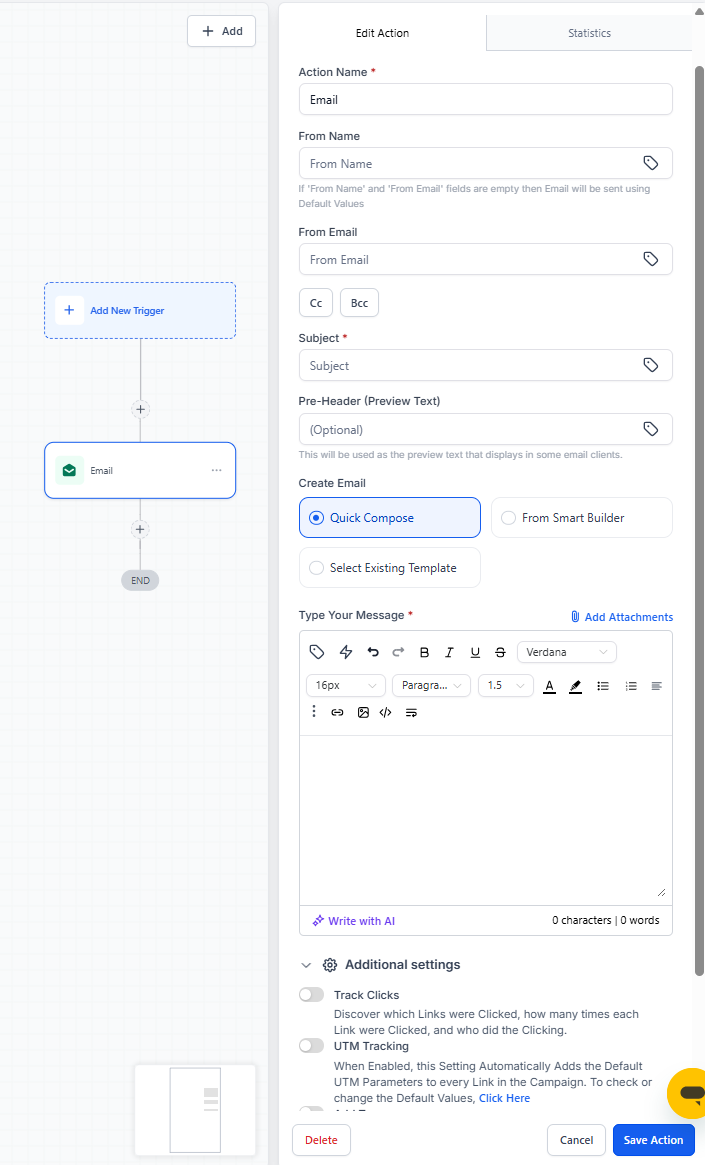
- Add or edit an Email Action
- Choose how to start your email:
- Quick Compose (default) → Simple editor for quick messaging
- Smart Builder → Choose between Design, Code, or Plain Text editors
- Select Template → Access saved templates or the Template Library
- Expand Advanced Settings to:
- Enable Link Tracking
- Add UTM Parameters
- Set Tags
- Click Save to complete your automation email setup
Benefits
- Easier onboarding with a lower learning curve
- Consistent experience across the platform
- More powerful tracking and analytics in one place
- Faster email creation with multiple starting points
Frequently Asked Questions
What does "Sync Edits" do?
It keeps your email linked to its source template—any updates to the original template auto-sync here as well. Turn it off to make the email independent.
How can I track link clicks?
Enable Link Tracking under Advanced Settings to see clicks and CTR for each link. This is especially helpful for tracking tour booking links or enrollment form submissions.
What are UTM Parameters for?
They help track where your email traffic comes from and are useful for analytics and campaign insights. This is helpful for understanding which email campaigns drive the most enrollment inquiries.