
Email Builder Elements Guide
Build professional, engaging emails with Enrollio's drag-and-drop email builder. Add text, images, buttons, countdown timers, and more — no coding required.
What are Email Elements?
Elements are pre-built content blocks you can drag into your emails. Each serves a specific purpose, from adding your logo to creating urgency with countdown timers.
Think of them as building blocks — mix and match to create emails that connect with families.
Available Elements
Text
What it does: Add written content with custom fonts, colors, and alignment.
Use it for: Headlines, tour details, program descriptions, or calls-to-action.
Image
What it does: Insert photos or graphics.
Use it for: Your center's logo, classroom photos, event announcements, or happy children at play.
Button
What it does: Add clickable call-to-action buttons.
Use it for: "Schedule a Tour," "Complete Enrollment," or "Join Our Waitlist."
Logo
What it does: Display your childcare center's logo.
Use it for: Brand recognition at the top or bottom of emails.
Divider
What it does: Add a visual line between sections.
Use it for: Separating different topics or improving readability.
Social
What it does: Add social media icons linked to your profiles.
Use it for: Connecting families to your Facebook, Instagram, or other channels.
Footer
What it does: Add contact information, unsubscribe links, or legal disclaimers.
Use it for: Required compliance information and your center's address.
Code
What it does: Insert custom HTML snippets.
Use it for: Advanced customization, tracking pixels, or dynamic content.
Video
What it does: Embed a YouTube or Vimeo video preview with play button.
Use it for: Virtual tours, staff introductions, or curriculum highlights.
FAQ
What it does: Add collapsible question-and-answer sections.
Use it for: Common enrollment questions, tuition details, or program information.
Image Slider
What it does: Create a carousel of multiple images.
Use it for: Showcasing multiple classrooms, activities, or seasonal events.
Countdown Timer
What it does: Display a live countdown to create urgency.
Use it for: Registration deadlines, enrollment discounts, or open house events.
Spacer
What it does: Add blank vertical space.
Use it for: Fine-tuning layout spacing and visual breathing room.
Review Link
What it does: Insert a link asking for feedback or reviews.
Use it for: Collecting testimonials from happy families.
Forms
What it does: Embed a form directly in the email (when supported by email client).
Use it for: Quick surveys, event RSVPs, or gathering parent input.
How to Add Elements to Your Email
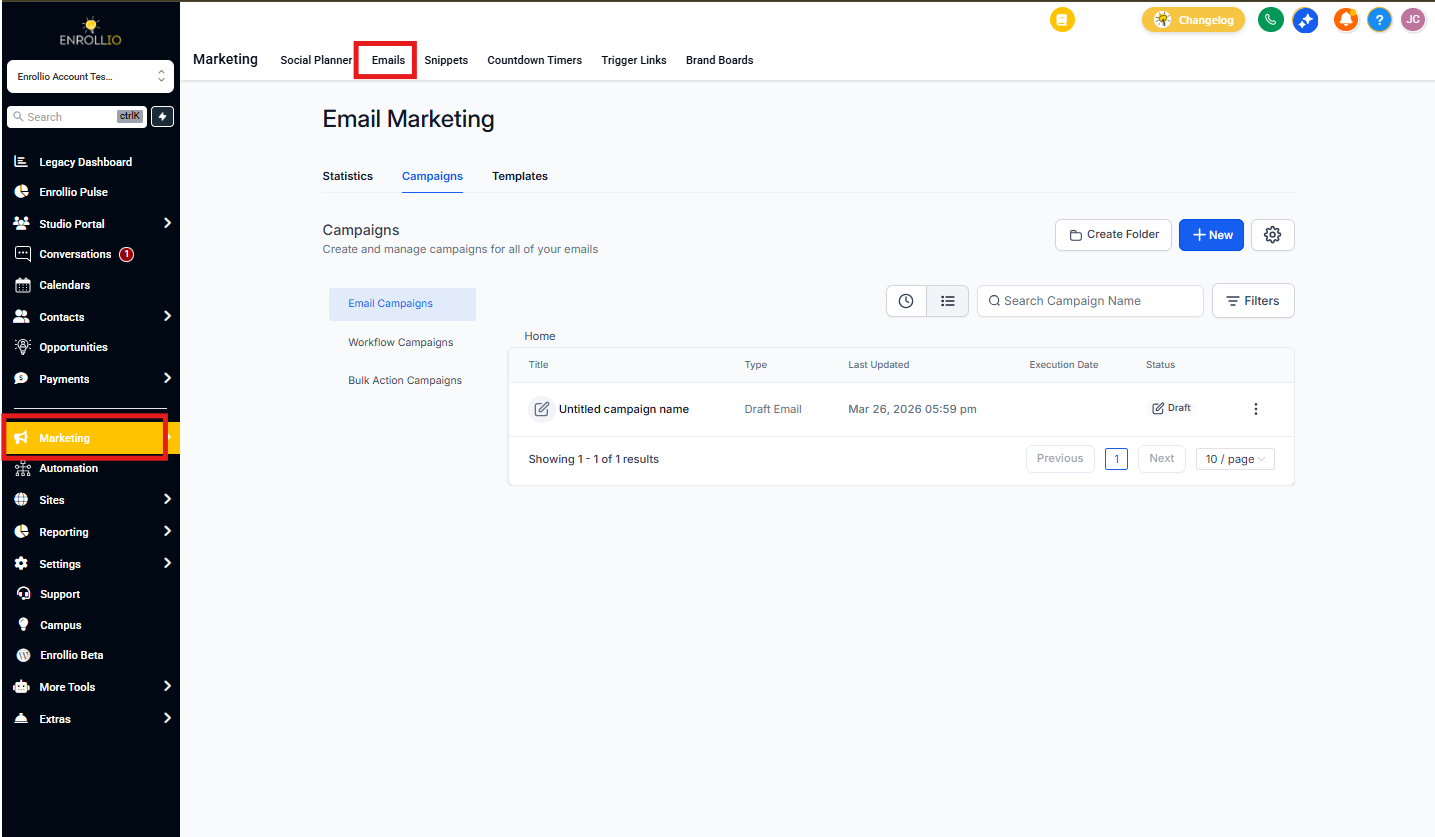
Step 1: Navigate to Emails
- From your Enrollio dashboard, click Marketing in the left navigation
- Click Emails in the top ribbon
Step 2: Create or Edit an Email
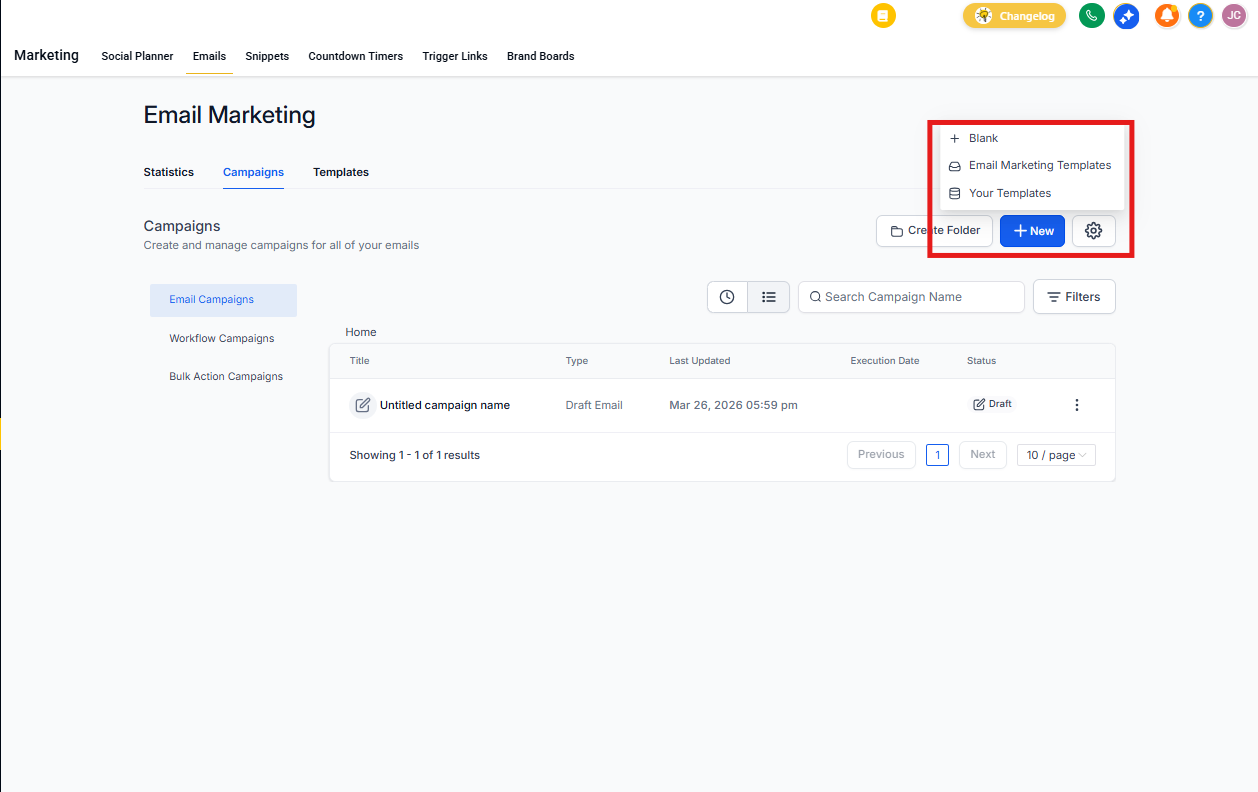
- Click + New Email or select an existing email to edit
- Choose your starting template or start from scratch
Step 3: Add Elements
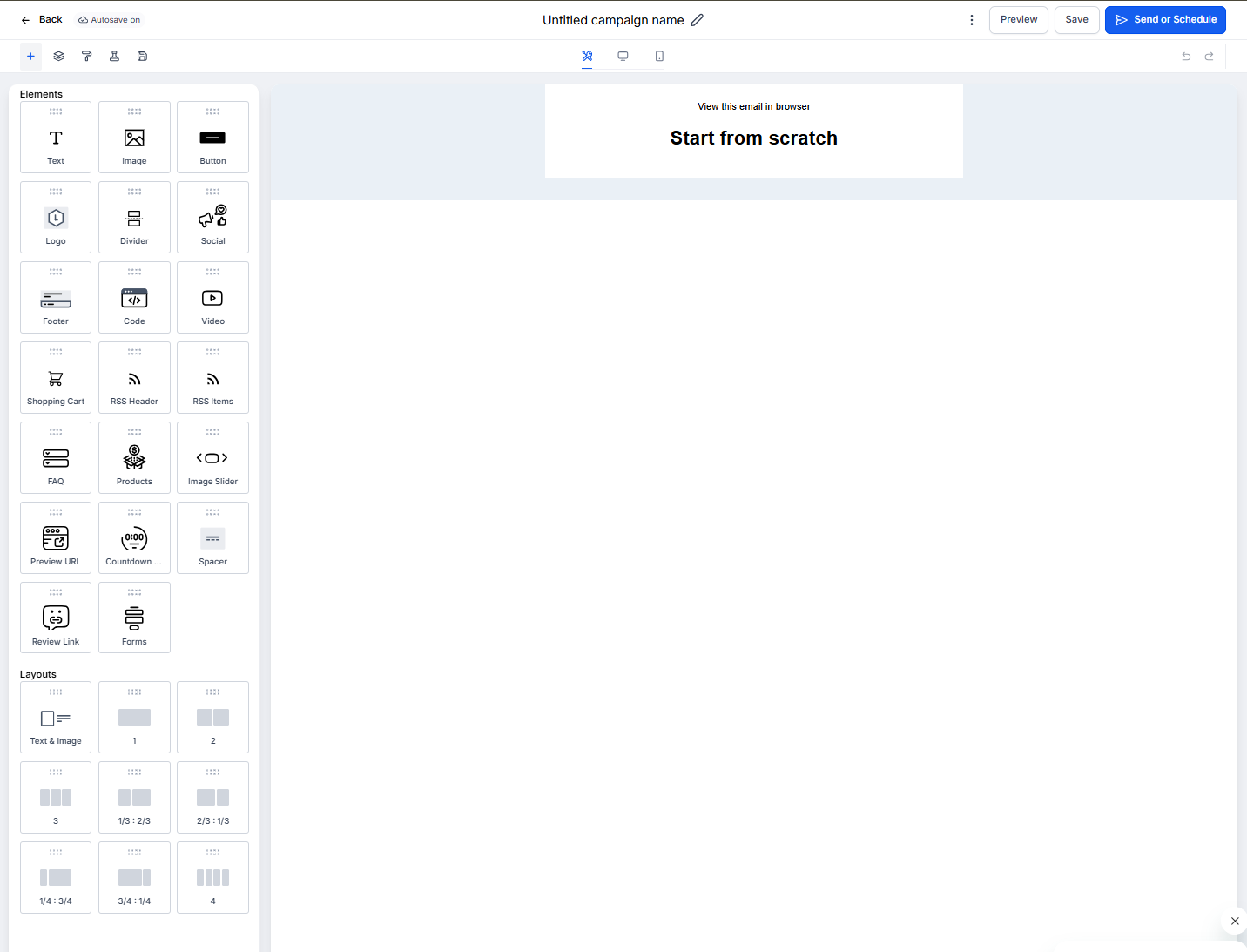
- Look for the Elements tab on the left side of the builder
- Drag your desired element onto the email canvas
- Click the element to customize its content, style, and settings
Frequently Asked Questions
Can I rearrange elements after adding them?
Yes. Drag and drop elements anywhere in your email layout — even after you've customized them.
Are emails mobile-friendly?
All elements are responsive by default. Use the Mobile View tab to preview and adjust spacing or alignment for phones.
What's the difference between Text and Code elements?
The Text element lets you format content visually (bold, colors, alignment). The Code element lets you insert custom HTML for advanced designs or tracking.
When should I use a Spacer vs. a Divider?
Use a Spacer to add blank vertical space. Use a Divider to add a visible line that separates sections.
Can I use video in my enrollment emails?
Yes. The Video element embeds a thumbnail with a play button that links to your YouTube or Vimeo video. Great for virtual tours or welcome videos from your director.