
What is the Footer Element in Email Builder?
The Footer Element is a prebuilt section that sits at the bottom of your email layout. It's designed to hold essential information like your center's details, copyright text, and compliance links.
You can fully customize its layout, background color, and text style to match your email's overall theme. A well-designed footer not only provides parents with key information but also reinforces credibility and trust.
Note: Including an unsubscribe link and contact information in your email footer helps ensure compliance with email marketing regulations.
Key Benefits of the Footer Element
Using the Footer Element in your email design offers several advantages:
- Enhances professionalism and builds trust with families
- Allows customization of colors, fonts, and layout
- Lets you add links to social media, your enrollment site, or support pages
- Ensures consistency across all email templates
How To Setup the Footer Element
Follow these steps to add and configure the Footer Element in your email template:
- Navigate to Marketing → Emails → Templates from your dashboard.
- Open an existing template or click the + New button to create one.
- In the Email Builder, click the Add Elements (+) icon in the left sidebar.
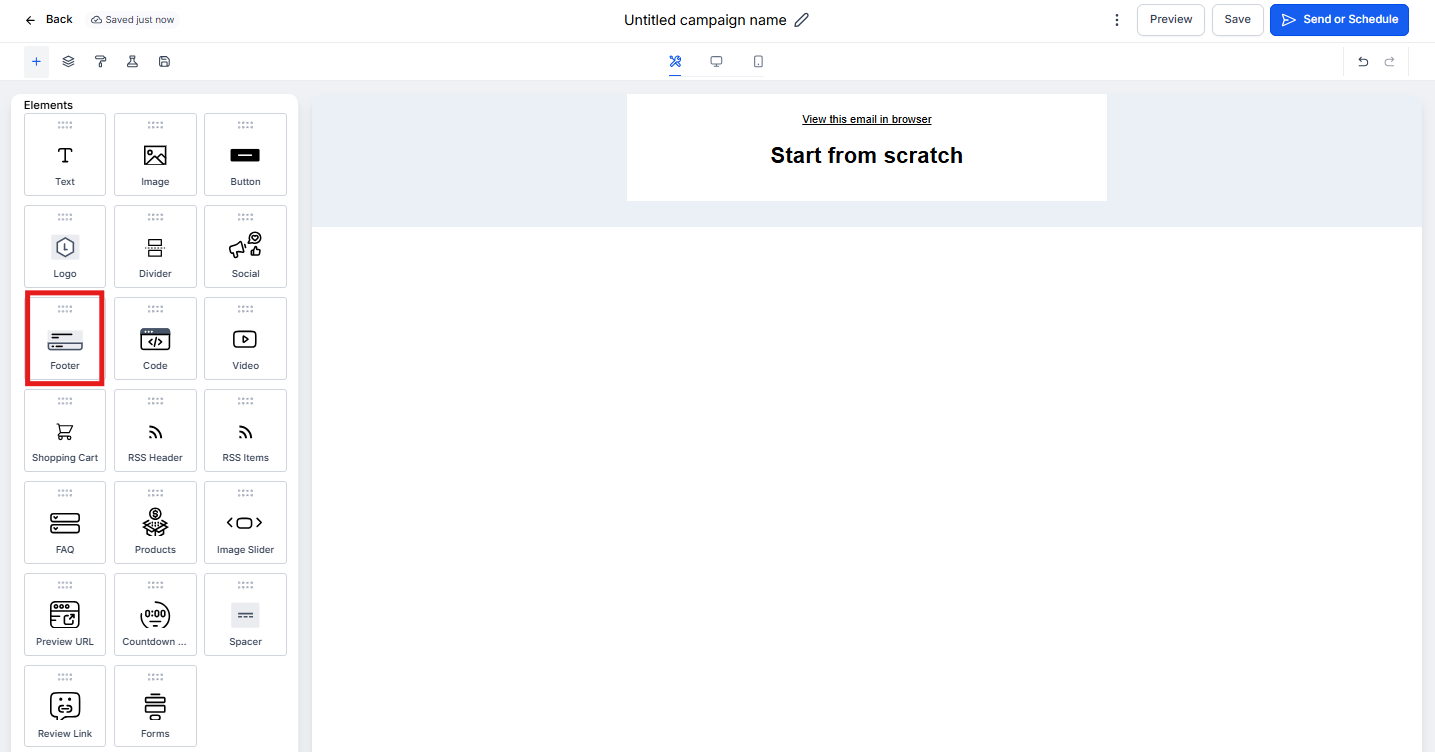
- Locate the Footer Element under the Elements section.
- Drag and drop the Footer Element to the bottom of your email layout.
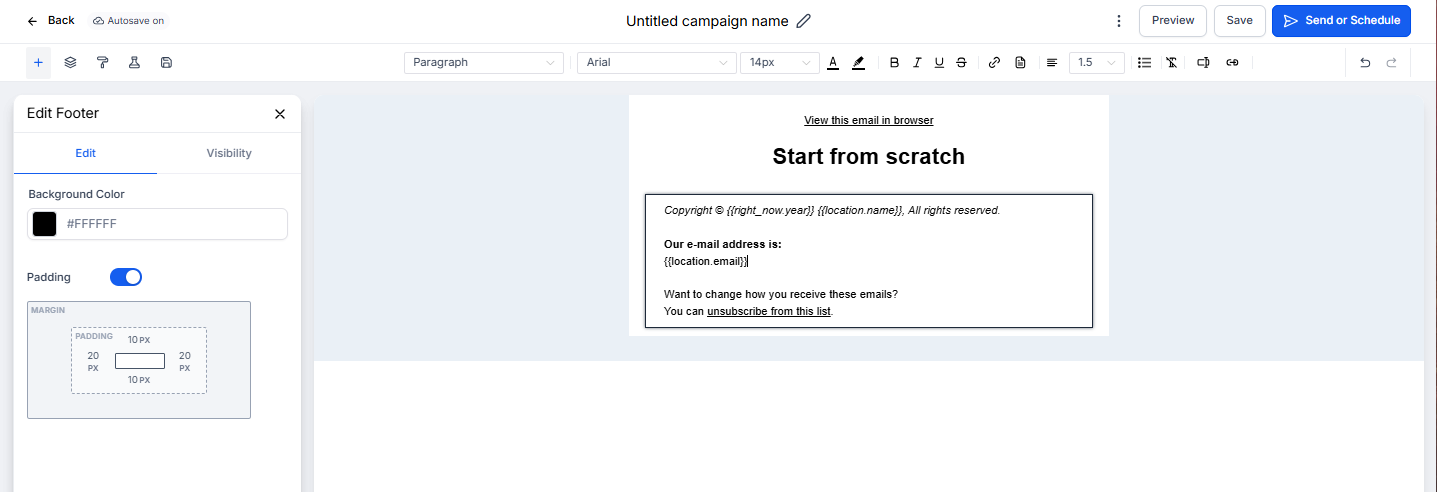
- Click on the Footer Element to open the Edit tab on the left panel.
Here you can:
- Edit Text Content: Add your center's name, address, or legal text
- Add Links: Include unsubscribe or privacy policy links
- Customize Colors: Adjust background and text colors to match your design
- Adjust Spacing: Add padding or margins for balanced layout design
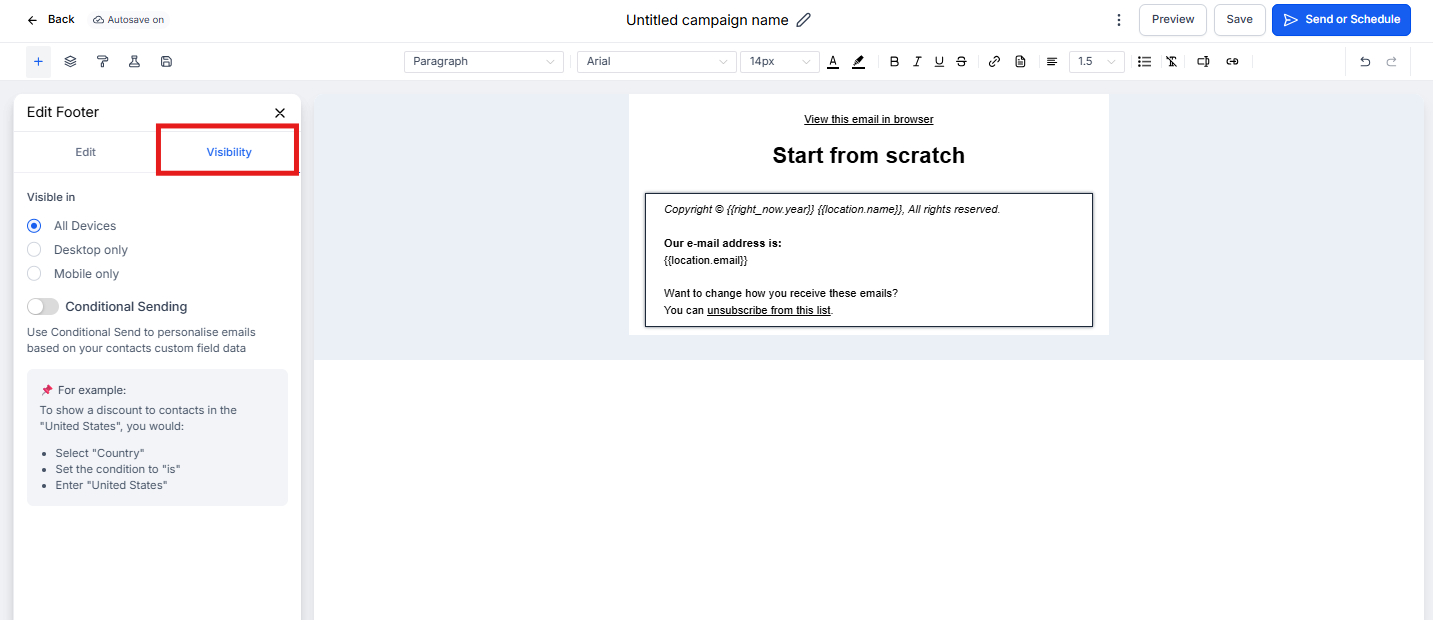
- (Optional) Click the Visibility tab to set Device-Based Visibility or Conditional Sending options.
- Preview your email on both desktop and mobile to ensure your footer displays clearly and aligns properly.
Pro Tip: Create a saved footer template with your center's standard information so you can quickly add it to any new email campaign.
Frequently Asked Questions
What should I include in my email footer?
Common elements include your center's name, physical address, contact information, unsubscribe link, and copyright notice. Many childcare centers also include their state licensing number and links to their enrollment site or parent portal.
How can I make the footer match my email's theme?
Use the background color, font, and padding settings to align the footer with your overall design style. Match the colors to your center's branding for consistency.
How do I remove or replace a footer?
Select the Footer Element and click the trash/delete icon to remove it, or drag in a new one to replace it.