
FAQ Element in Email Builder
The FAQ Element lets you add structured question-and-answer sections inside your email templates. Use it to address common parent questions directly in your emails — like enrollment steps, tuition details, or program schedules — improving clarity and reducing follow-up inquiries.
What is the FAQ Element?
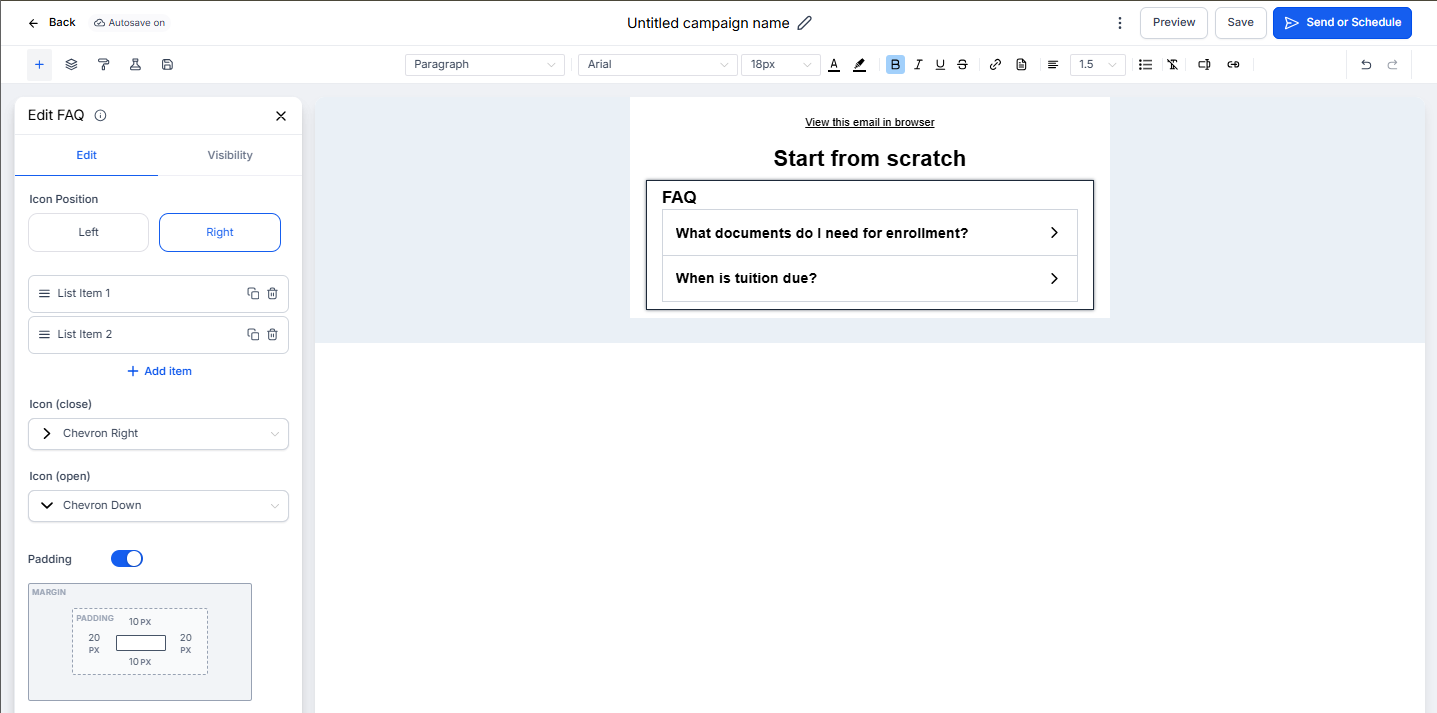
The FAQ Element is a drag-and-drop block that organizes content in a simple Q&A format. It's perfect for enrollment welcome emails, program announcements, or parent newsletters where you want to answer common questions upfront.
Each FAQ item includes a question title and a collapsible answer section. Parents can quickly scan for the information they need while keeping your email layout clean and easy to read.
Why Use the FAQ Element?
Adding FAQs to your emails provides several benefits:
- Helps parents find important information quickly
- Reduces repetitive questions to your front office staff
- Keeps emails organized with a clean Q&A layout
- Easy to customize — change colors, fonts, and spacing to match your brand
- Fully responsive on both desktop and mobile devices
How to Add the FAQ Element
Follow these steps to add and configure the FAQ Element in your email template:
- Navigate to Marketing → Emails → Templates from your dashboard.
- Open an existing template or click + New to create one.
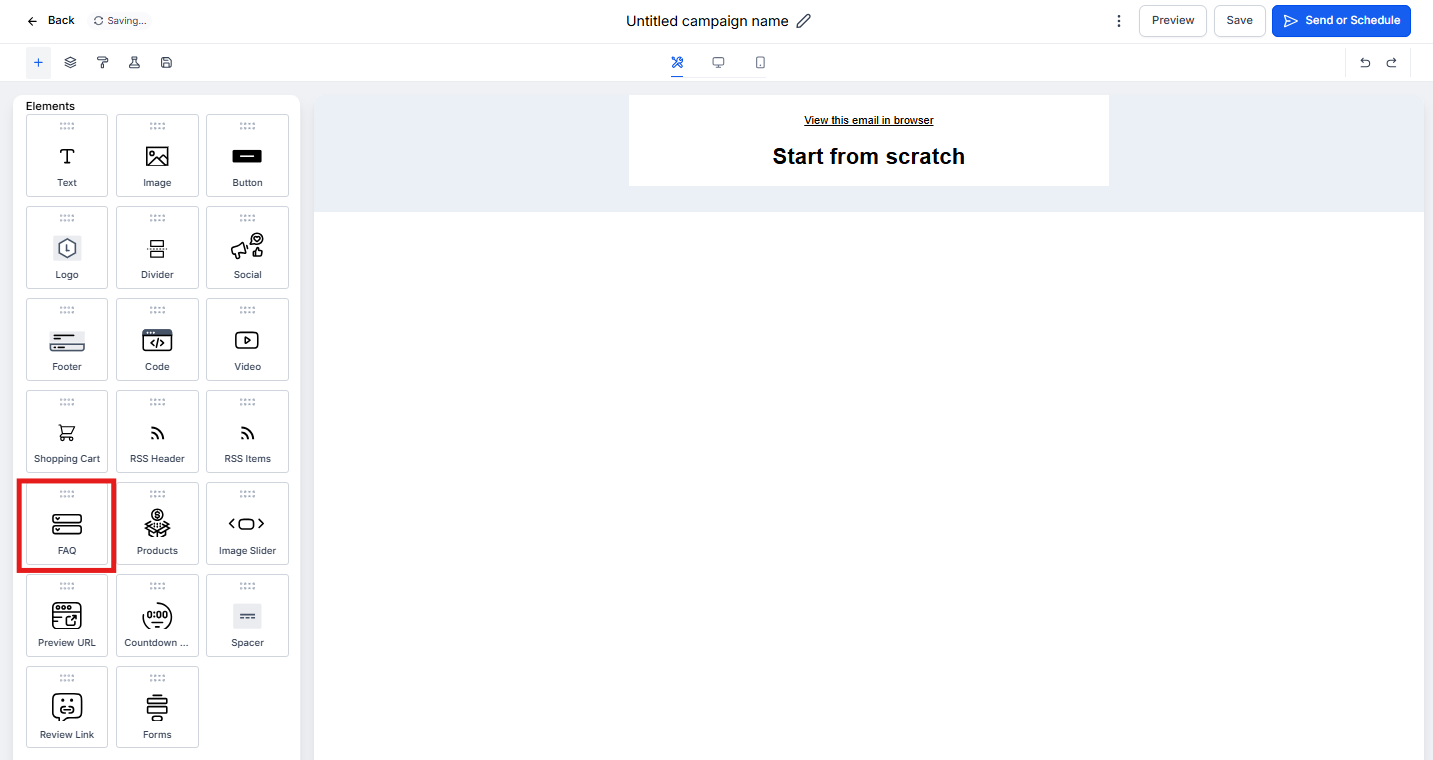
- In the Email Builder, click the Add Elements (+) icon in the left sidebar.
- Locate the FAQ Element under the Elements section.
- Drag and drop the FAQ Element into your email layout where you want it to appear.
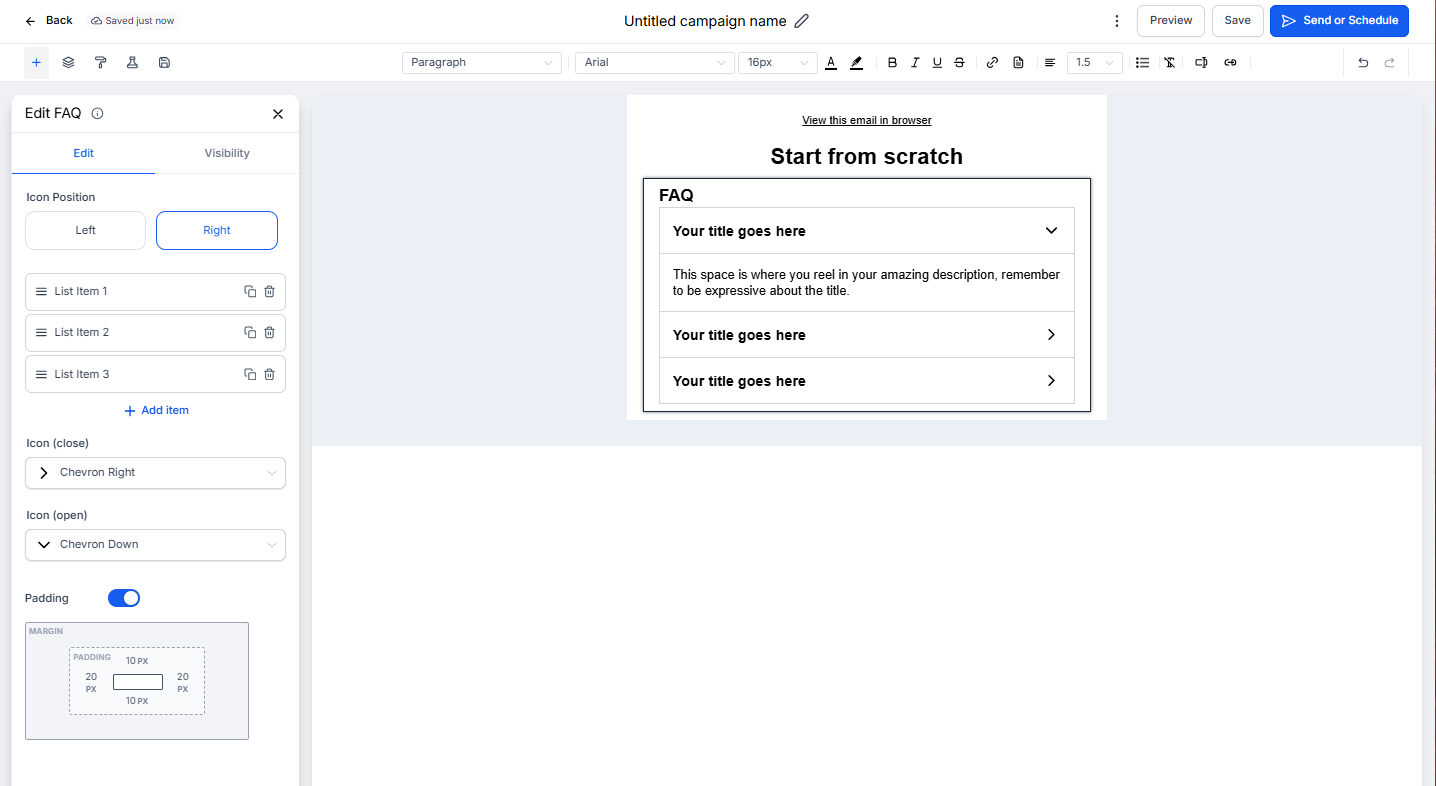
- Click on the FAQ Element to open the Edit panel on the left.
Customize Your FAQ
Once you've added the element, you can:
- Add Questions and Answers: Type or paste your questions and answers directly into the fields.
- Edit Formatting: Use the text toolbar to style your questions — make them bold, change the color, or adjust the size.
- Adjust Layout: Modify padding, spacing, and alignment between FAQ items for better readability.
- Set Visibility: Use the Visibility tab to manage device-based display or conditional sending rules.
Preview your email on both desktop and mobile to ensure everything looks clean and balanced before sending.
Frequently Asked Questions
How many questions should I include in one FAQ section?
There's no strict limit, but 3–6 questions per section works best for readability. For longer lists, consider splitting FAQs across multiple emails or linking to a dedicated FAQ page on your enrollment site.
Can I style each question differently?
Yes. You can format individual questions and answers using the inline text editor — adjust font size, weight, and color to emphasize important information.
Will the FAQ Element work on mobile devices?
Yes. The element is fully responsive and automatically adjusts text wrapping, spacing, and padding for smaller screens so parents can read easily on any device.
Can I reuse my FAQ block in other email templates?
Yes. You can duplicate or save the FAQ block as a reusable section to maintain consistency across your parent communications.
What types of questions work best in enrollment emails?
Focus on questions parents commonly ask during the enrollment process: required documents, tuition payment schedules, program start dates, what to bring on the first day, and how to contact staff. Keep answers brief and actionable.