
Using Inline Forms and Surveys in Email Campaigns
The Inline Forms and Surveys element lets you collect feedback directly inside your emails — no extra clicks required for parents. Whether you're gathering satisfaction ratings after a tour or collecting feedback about a new program, this feature makes it easy to hear from your families.
What Are Inline Forms and Surveys?
Inline Forms and Surveys let you embed feedback collection right into your emails. Parents can respond with a single click, and you'll see all submissions in your campaign statistics.
Use them to:
- Collect satisfaction scores (1-10 scale)
- Gather service reviews (5-star ratings)
- Get quick feedback with Like/Dislike buttons
- Follow up with families who give low ratings
How to Add Forms to Your Emails
Here's how to embed a form or survey in any email campaign:
- Go to Marketing > Emails > Campaigns
- Open an existing campaign or create a new one
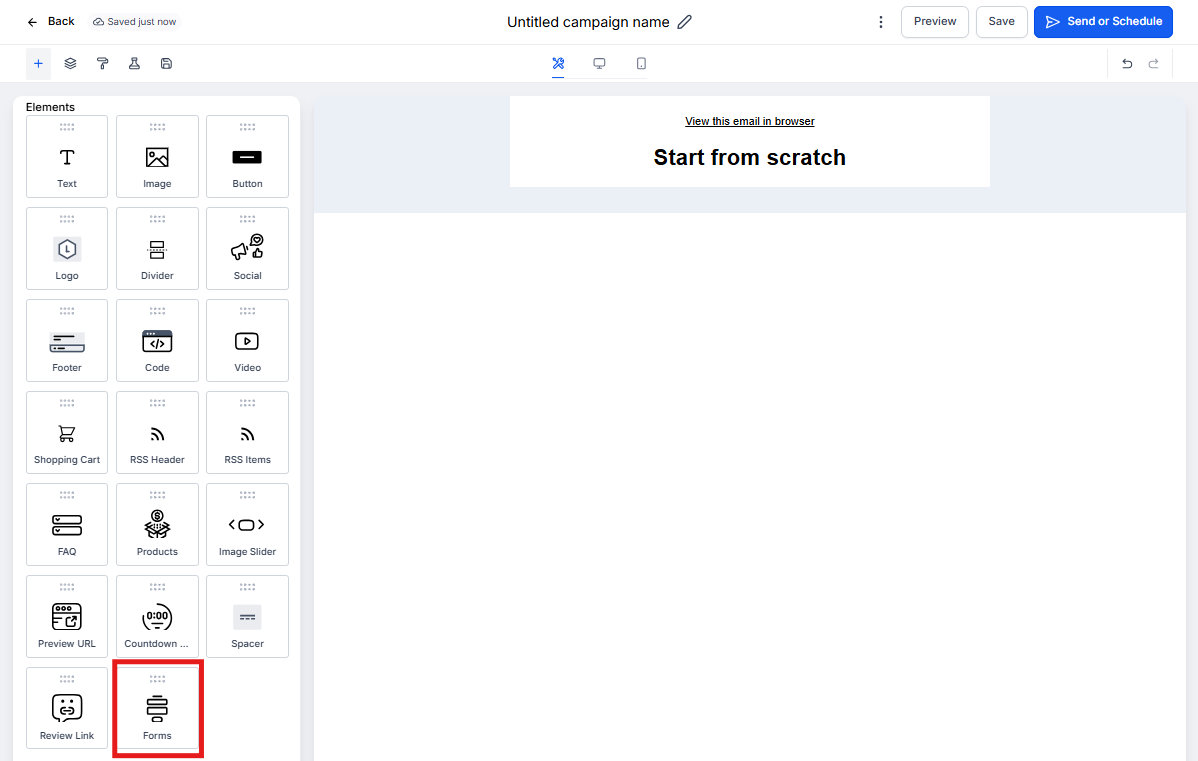
- Drag the Form Element into your email
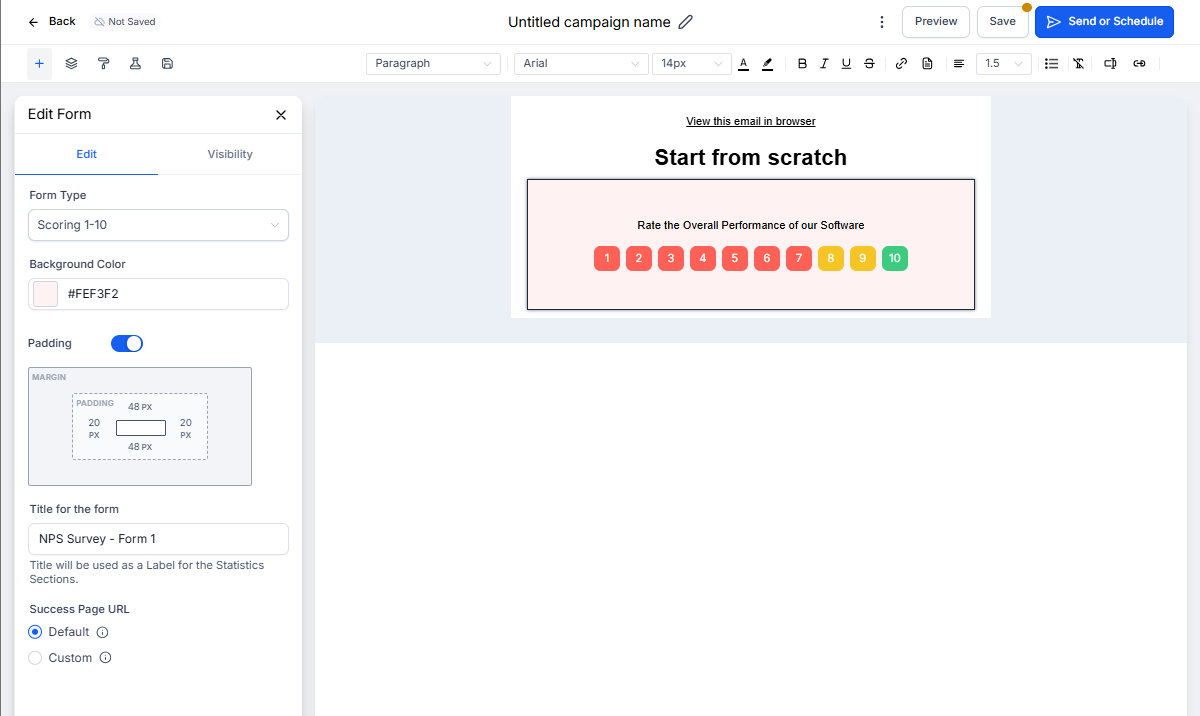
- Choose your feedback type (satisfaction score, star rating, like/dislike, etc.)
- Customize the design and colors to match your branding
- Give your form a clear name (like "Tour Feedback" or "Program Rating")
- Optionally set a Success Page URL where parents land after clicking
- Send your campaign
Viewing Responses
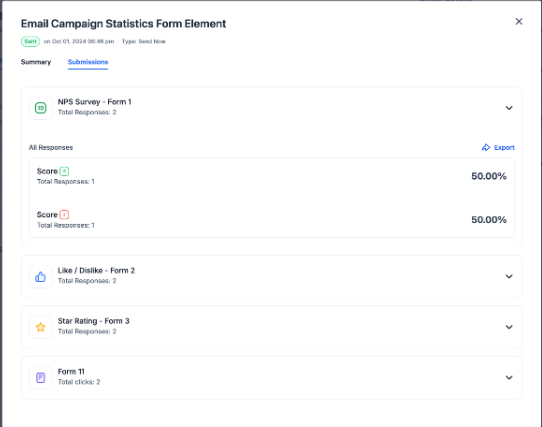
Once parents start responding, you can view all submissions in one place:
- Go to your campaign in Marketing > Emails > Campaigns
- Click Campaign Statistics
- Open the Submissions tab
- Export the list to follow up with specific families
Switching Form Types
Need to change your form after you've started building? No problem. You can switch between form types without losing your work.
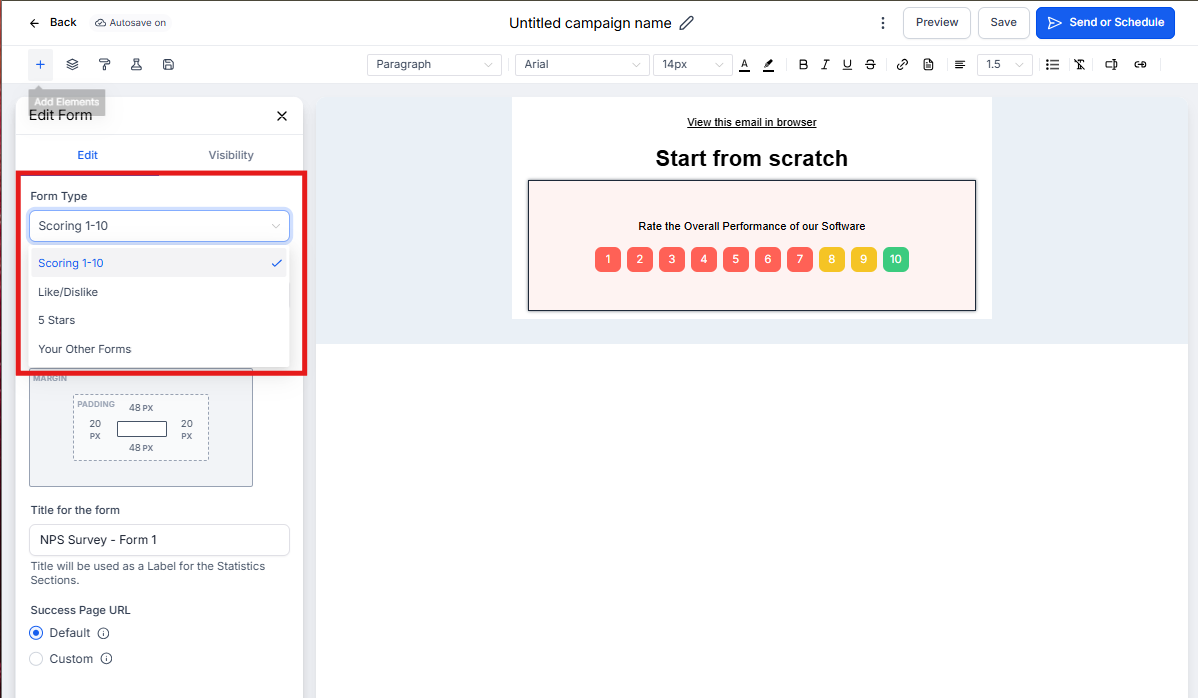
- Click on the form element in your email
- Use the Change Form Type dropdown
- Select a different feedback type
If you switch back to your original form type during the same editing session, your previous settings will be restored automatically.
Frequently Asked Questions
Do I need a custom success URL for responses to be tracked?
No. Form submissions are tracked as soon as a parent clicks on the element inside the email. The success URL is completely optional — it only controls where parents land after clicking (like a thank-you page).
Even without a redirect URL, submissions will appear in your campaign statistics under the Submissions tab. Just make sure to give your form a unique name so you can identify responses easily.
Can I use these forms for tour feedback?
Absolutely. Many childcare centers send a follow-up email after tours with a quick satisfaction rating. It's a great way to measure tour quality and identify families who need extra attention.
What happens if a parent doesn't see the form in their email?
Some email clients (especially older ones) may not support interactive elements. In those cases, Enrollio automatically shows a fallback link that takes parents to a web page where they can submit their response.