
Overview
Use the "Add Parent Follower" automation action to automatically assign staff members to follow up with families in your enrollment pipeline. This keeps your team in sync and ensures every family gets the attention they deserve.
What This Action Does
The Add Parent Follower action lets you assign one or more team members to a parent's profile. When someone is added as a follower, they'll receive notifications about updates, messages, and important changes related to that family.
How to Set It Up
Step 1: Add the Action to Your Automation
In your automation builder, click the plus icon to add a new action. Select "Add Parent Follower" from the Parent/Family category.
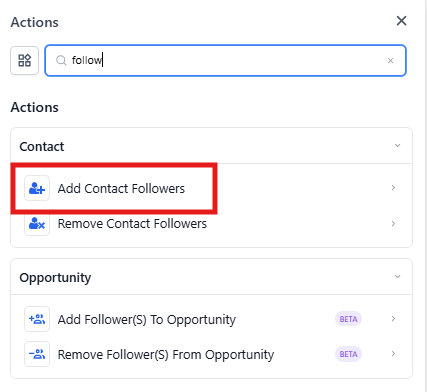
Step 2: Choose Your Followers
Use the dropdown menu to select which team members should follow this parent. You can add multiple followers at once.
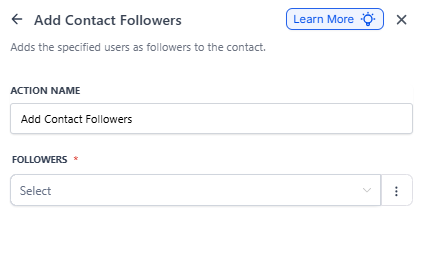
Real-World Example: Tour Follow-Up Team
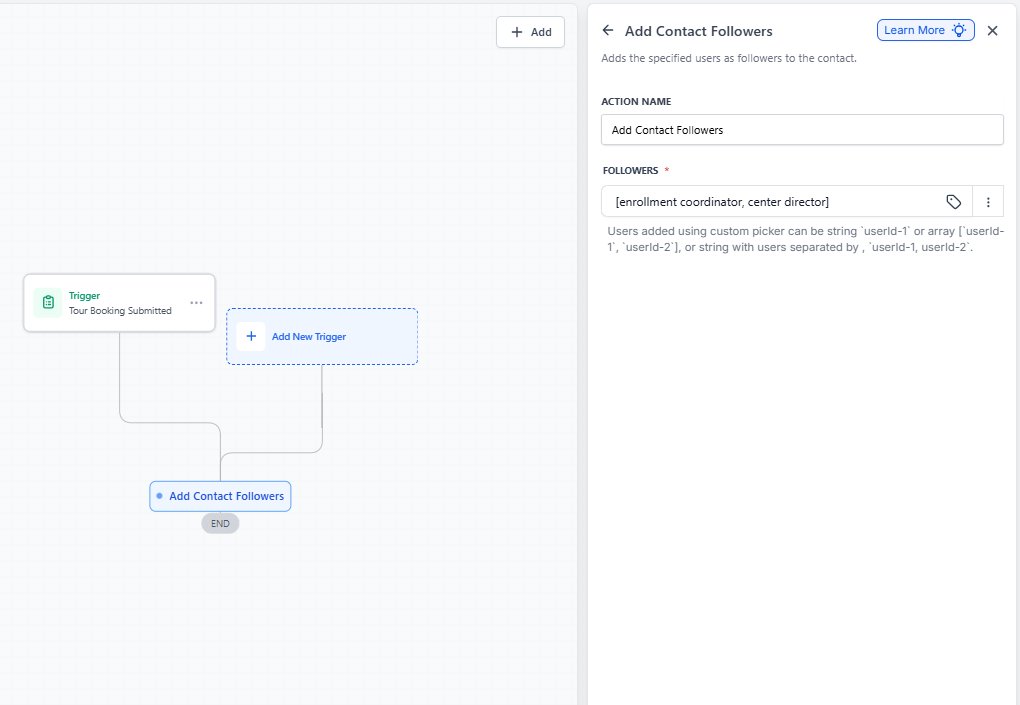
Scenario: You want both your enrollment coordinator and center director to stay updated whenever a family schedules a tour.
How to build it:
- Trigger: Form Submitted (Tour Request Form)
- Action: Add Parent Follower — Select both your enrollment coordinator and center director from the dropdown
Result: When a family requests a tour, both team members are automatically added as followers. They'll see all communication with that family and can coordinate the follow-up together.
💡 Pro Tip: Use this action early in your enrollment process to make sure the right people are looped in from the start. You can always remove followers later with the Remove Parent Follower action.
Related Actions
- Remove Parent Follower — Remove team members from following a parent
- Add to Notes — Log important information about a family
- Add Parent Tag — Organize families with tags like "Toured" or "Waitlist"