
This article explains how to use the Delete Parent/Family action in automations, when to use it, and critical considerations before removing records permanently.
What is the Delete Parent/Family Action?
The Delete Parent/Family action permanently removes all records of a family from your Enrollio platform. Use this action when families meet specific criteria and are no longer needed in your system — for example, families who never responded to initial outreach or confirmed they enrolled elsewhere.
How to Use the Delete Parent/Family Action
Step 1: Open the Automation Builder
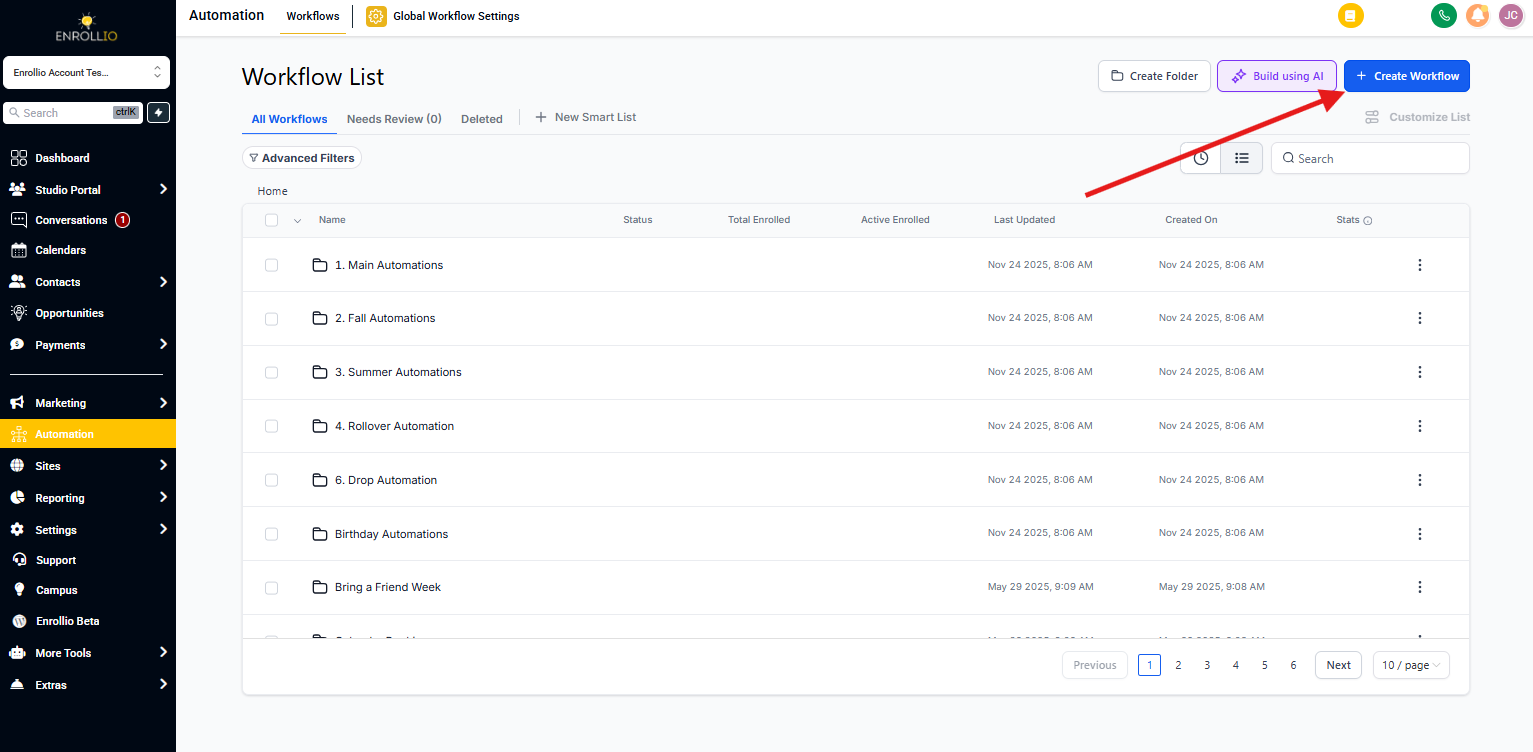
Navigate to Automations in your Enrollio dashboard. Open an existing automation or create a new one.
Step 2: Add the Delete Action
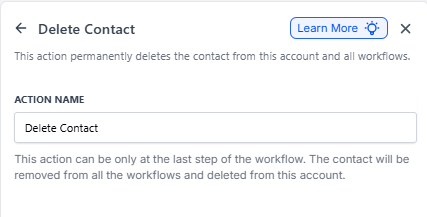
In the automation builder, click the plus (+) icon to open the actions menu. Search for or scroll to find the Delete Parent/Family action.
Always place this action at the end of your automation. Deleting the family record terminates the automation immediately — any actions after this step will not run.
Step 3: Configure the Action
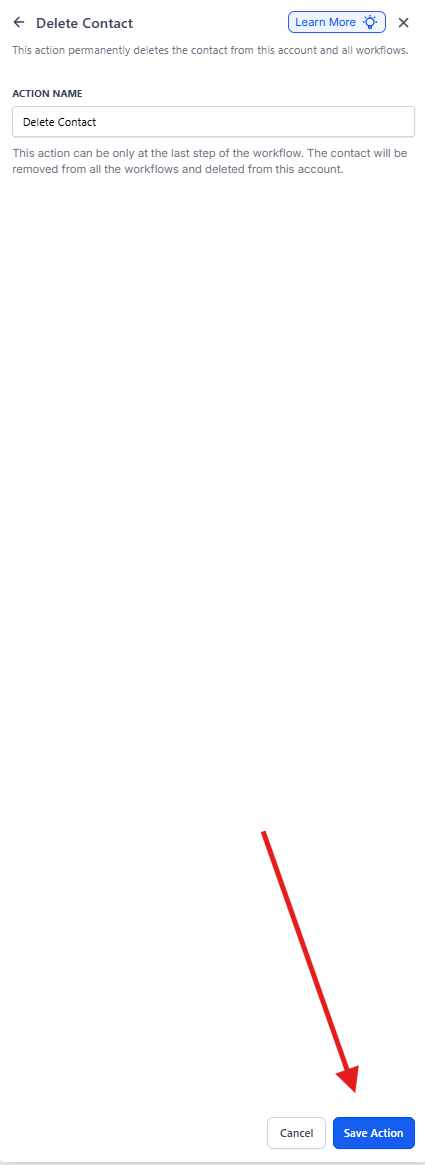
The Delete Parent/Family action has no configuration settings. It simply deletes whichever family record is active in the automation at that step.
Step 4: Save and Test
Click Save to add the action to your automation. Triple-check your filter conditions before publishing to ensure only the intended families will be deleted.
Frequently Asked Questions
Can I restore a deleted family record?
Yes, deleted records can be restored within two months of deletion. However, restoring only recovers basic contact information — all associated data like conversation history, notes, tasks, and activity logs are permanently lost.
What gets deleted with the family record?
Everything: the parent/family profile, all conversations, notes, tasks, enrollment history, and activity records. This data cannot be recovered even if you restore the contact within the two-month window.
Is there a safer alternative?
Yes! If you want to stop a family from progressing through an automation without deleting their data, use the Remove from Automation action instead. This pulls them out of the specific automation while preserving all their information in your system.