
Overview
The Go To action lets you redirect families to different points in your automation based on their actions or behavior. Think of it as a smart detour that keeps families moving through the right path in your enrollment journey.
This action helps you create efficient automations where families get personalized experiences based on how they interact with your center — whether they've scheduled a tour, completed enrollment, or need a gentle nudge.
What It Does
Use the Go To action to send a family to another step in your automation. This is perfect when you want to:
- Skip families to a different branch based on their actions
- Loop families back through previous steps if they haven't completed something
- Avoid sending duplicate messages to families who've already taken action
Important: The Go To action can only be added as the last step in an automation or branch — not in the middle of your automation flow.
How to Set It Up
- Open your automation in Enrollio
- Navigate to the point where you want to add a redirect (remember: this must be the last action in a branch)
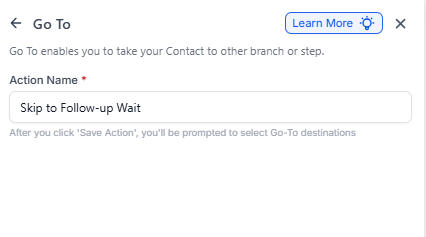
- Click Add Action and select Go To
- Give it a clear name like "Skip to Follow-up Wait"
- Click Save
- All available actions in your automation will highlight — click the one where you want families to go next
Changing the Destination
Need to redirect families to a different step? No problem:
- Find your Go To action in the automation
- Click the Disconnect GoTo icon underneath it
- Select a new destination action
Real-World Example: Tour Reminder Automation
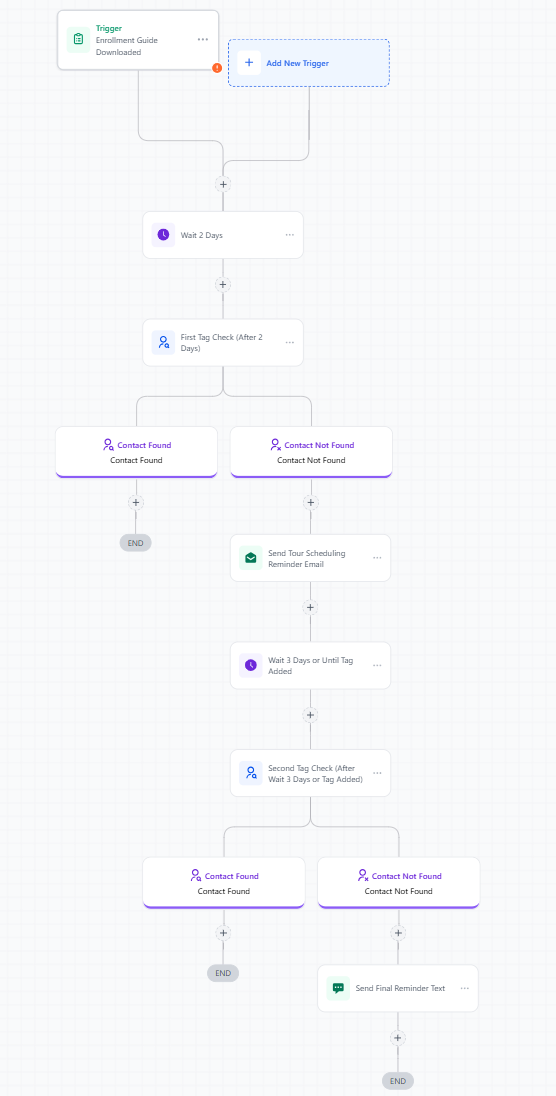
Here's how a childcare center uses Go To to avoid sending duplicate reminders to families who've already scheduled their tour.
Scenario
You want to remind families who downloaded your enrollment guide to schedule a tour, but only if they haven't already booked one.
Automation Setup
Trigger: Parent downloads enrollment guide
Actions:
- Wait: 2 days
-
If/Else: Check if family has "Tour Scheduled" tag
- Yes branch: Add Go To action → skip to the end
- No branch: Continue with reminders
- Email (No branch): Send tour scheduling reminder
- Wait (No branch): 3 days, or until "Tour Scheduled" tag is added
-
If/Else (No branch): Check again for "Tour Scheduled" tag
- Yes: Add Go To action → end automation
- No: Send final reminder text
Outcome
Families who schedule tours immediately don't get unnecessary reminder emails. Families who need encouragement get up to two gentle nudges. Everyone gets a personalized experience.
Best Practices
- Name clearly: Use descriptive names like "Skip to Thank You" or "Return to Wait Step" so you can follow the flow later
- Avoid loops: Be careful not to create infinite loops that send families in circles
- Test first: Run yourself through the automation as a test contact to make sure families end up where you expect
- Document complex flows: If your automation has multiple Go To actions, add notes explaining the logic