
What is the Remove Assigned User Action?
The Remove Assigned User action unassigns a staff member from a parent or family record, leaving the contact unassigned in your system. This is helpful when a family's status changes and they no longer need direct attention from a specific team member.
Once unassigned, the family can enter other automations or remain available for future assignment based on your enrollment process.
Why Use This Action?
- Reset Family Assignment: Clear staff assignments to prepare families for re-engagement or reassignment
- Automatic Management: Remove assignments automatically when specific events occur (like completing a tour or enrollment status change)
- Free Up Your Team: Help staff focus on active families by removing those who no longer need their attention
- Flexible Automations: Let families move between different automations without conflicting assignments
How to Set Up the Action
Step 1: Add the Action
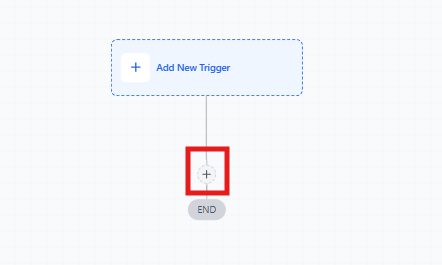
In your automation builder, click the "+" icon to add a new action.
Step 2: Select the Action
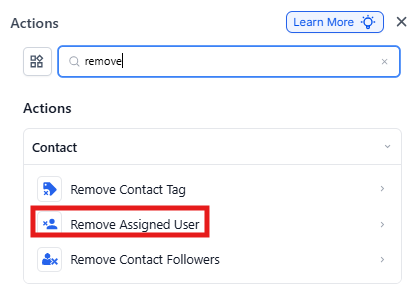
Choose "Remove Assigned User" from the list of available actions.
Step 3: Name Your Action
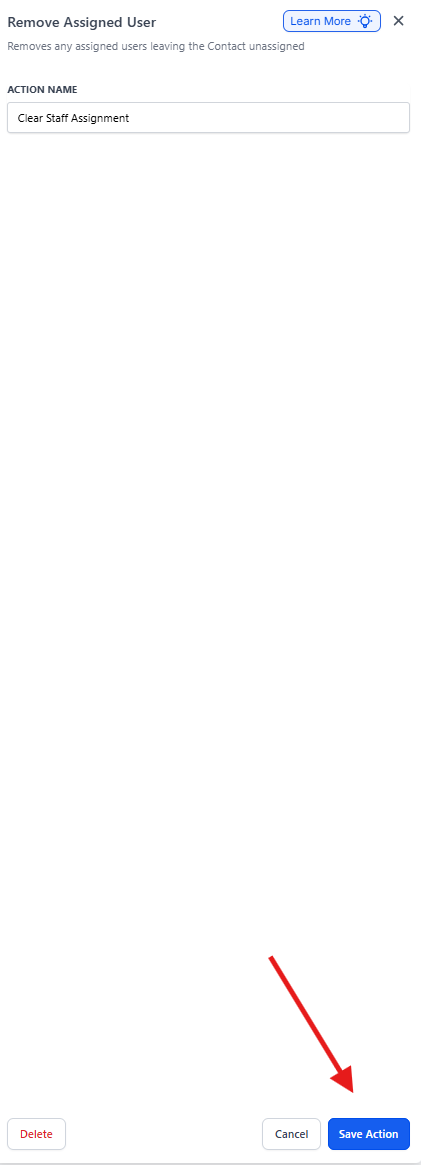
Give it a clear name like "Clear Staff Assignment" or "Reset User Assignment" so your automation stays organized.
Step 4: Save and Test
No additional fields to configure—just save the action. Test your automation to make sure it removes assignments correctly, then toggle it to "Active" to publish.
When to Use This Action
Enrollment Pipeline Cleanup
Scenario: A family's enrollment opportunity changes to "Enrolled" or "Not Interested." Your admissions team no longer needs to follow up.
Setup:
- Trigger: Enrollment Opportunity Status Changed
- Action: Remove Assigned User
Result: The family is unassigned from the admissions coordinator, freeing them to focus on active prospective families.
After Tour Completion
Scenario: A staff member completes a tour follow-up task. Once the task is done, the family should enter a general nurture sequence.
Setup:
- Trigger: Task Completed
- Action: Remove Assigned User
Result: The team member is unassigned, and the family can be managed through automated follow-up sequences.
Frequently Asked Questions
What happens to a family after I remove the assigned user?
The family becomes unassigned and stays in your system without an active staff assignment. You can reassign them through other automations or manually as needed.
Can I use multiple triggers with this action?
Yes. You can combine the Remove Assigned User action with multiple triggers like "Task Completed" and "Enrollment Opportunity Status Changed" to create dynamic automations.
Does this delete the assignment history?
No. Removing an assigned user doesn't erase history. You can still see previous assignments in your activity logs and reports.
How do I prevent this from interfering with other automations?
Test your automation before activating it. Review your trigger conditions carefully and make sure the Remove Assigned User action only runs when you actually want to unassign someone.
Can I reassign a family right after removing the assigned user?
Yes. Add an "Assign to User" action immediately after the Remove Assigned User action in your automation to reassign the family to a different team member.