
Automation Action - Create Parent/Family Record
This article explains the "Create Parent/Family Record" automation action, a powerful feature that automatically creates and updates family records in your platform. You'll learn what this action does, its key benefits, how to set it up step-by-step, and real-world use cases for childcare businesses.
Table of Contents
- What is the Create Parent/Family Record Action
- Key Benefits
- How to Set Up the Action
- Real-World Use Cases
- Frequently Asked Questions
What is the Create Parent/Family Record Action
The Create Parent/Family Record action automatically creates new family records or updates existing ones based on criteria you define. This ensures your family information stays accurate and current without manual data entry.
Whether you're capturing tour requests, processing enrollment applications, or updating family details, this action keeps your database clean and your communication seamless.
Key Benefits
Save Time on Data Entry: Automatically capture family information from enrollment forms, tour requests, and waitlist signups without manual input.
Keep Records Accurate: Update existing family profiles when parents provide new information, reducing duplicates and errors.
Respond Faster: With accurate family records created instantly, your staff can follow up with parents right away.
Customize for Your Center: Add custom fields specific to your childcare business, like preferred start date, dietary restrictions, or emergency contacts.
Connect with Other Actions: Combine this action with text messages, emails, and task assignments to build complete enrollment processes.
How to Set Up the Action
Step 1: Access Your Automation Builder
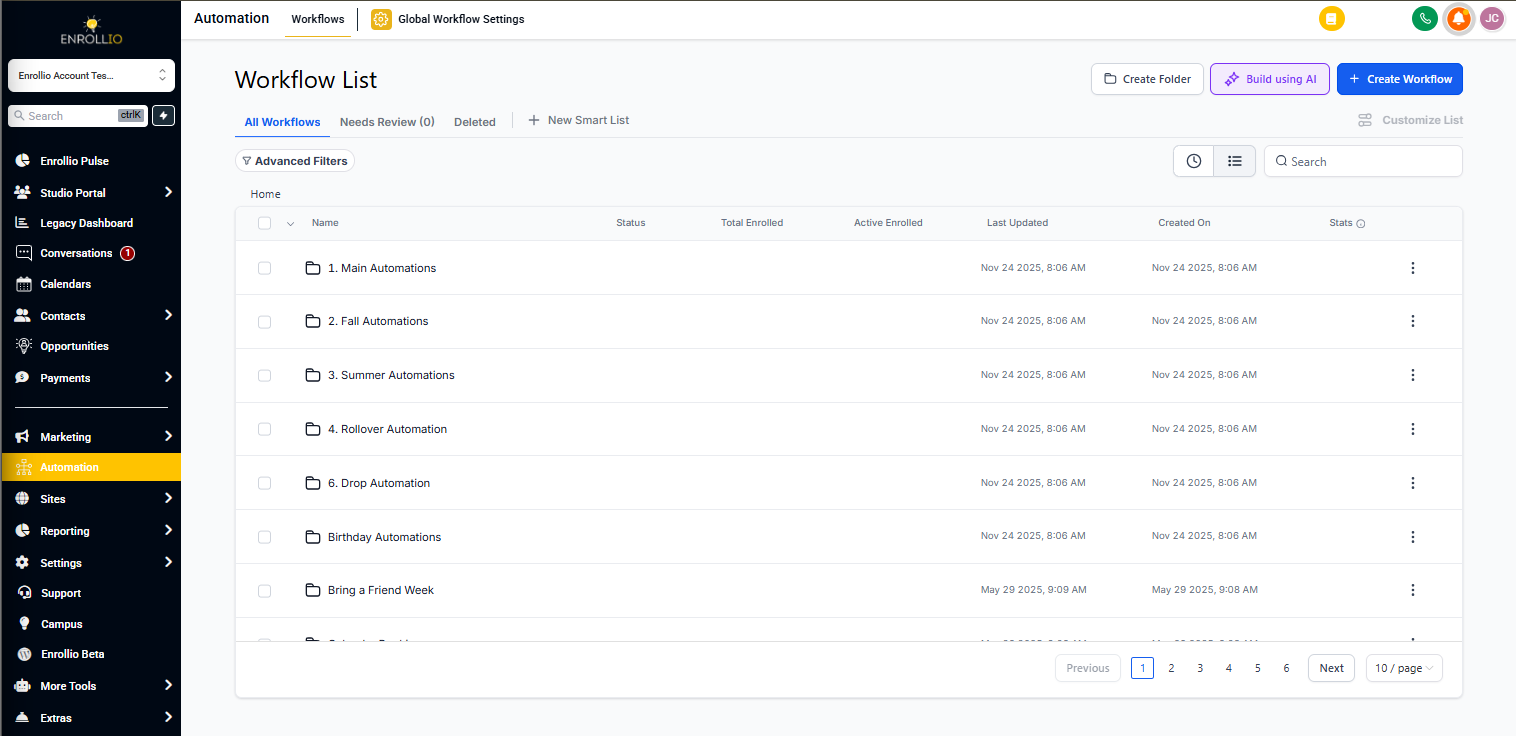
Navigate to the Automations section in your Enrollio dashboard. Either create a new automation from scratch or open an existing one where you want to add this action.
Step 2: Add the Action
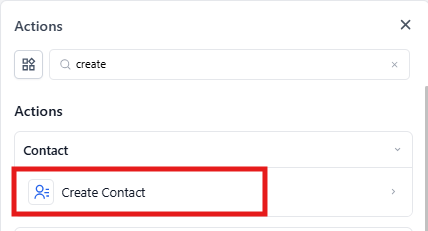
Click the "+" icon in your automation flow. Select "Create Parent/Family Record" from the action menu.
Step 3: Name Your Action
Give your action a clear, descriptive name. For example: "Create Family from Tour Request" or "Update Parent Info from Enrollment Form."
This helps you and your team understand what the action does at a glance.
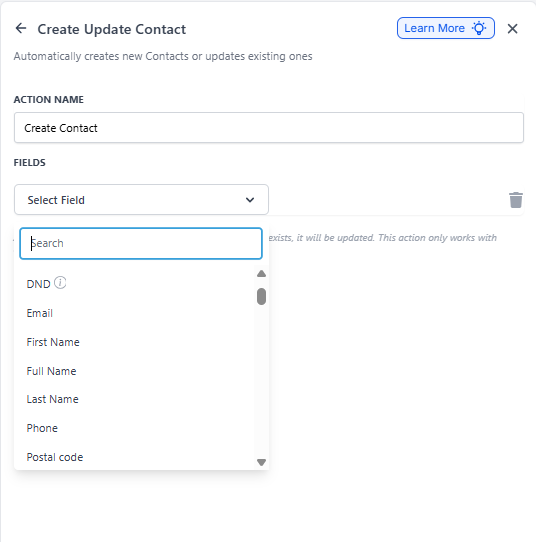
Step 4: Configure Field Mapping
Standard Fields: Map basic information like First Name, Last Name, Email, Phone Number, and Address. These are the core fields every family record needs.
Custom Fields: Add fields specific to your childcare business. Examples include:
- Child's Name and Age
- Desired Start Date
- Classroom Preference
- How They Found You
- Allergies or Special Needs
Step 5: Save and Test
Click "Save" to confirm your configuration. Before activating, test your automation with sample data to make sure family records are created correctly.
Once you've verified everything works, toggle the automation to "Active."
Real-World Use Cases for Childcare Centers
Automatically Create Records from Tour Requests
Scenario: A parent fills out your online tour request form on your website.
Setup:
- Trigger: Tour Request Form Submitted
- Action: Create Parent/Family Record
- Fields: Parent Name, Email, Phone, Child's Age, Preferred Tour Date
Result: The family is instantly added to your system and automatically assigned to your tours pipeline. Your enrollment coordinator receives a notification to schedule their visit.
Update Records After Enrollment Application
Scenario: A family on your waitlist completes a full enrollment application.
Setup:
- Trigger: Enrollment Application Submitted
- Action: Create Parent/Family Record
- Fields: Full Contact Details, Child Information, Emergency Contacts, Start Date, Classroom Assignment
Result: The existing family record updates with complete enrollment details. The family is automatically tagged as "Enrolled" and moved to the appropriate stage in your enrollment pipeline.
Capture Waitlist Signups
Scenario: A parent signs up for your waitlist through your enrollment site.
Setup:
- Trigger: Waitlist Form Submitted
- Action: Create Parent/Family Record
- Fields: Parent Name, Email, Phone, Child's Birth Date, Desired Start Date, Program Interest
Result: The family is added to your database and tagged as "Waitlist." They automatically receive a confirmation text message and are enrolled in your waitlist nurture sequence.
Import Families from Open House Events
Scenario: You collect parent information at an open house event using a sign-in form.
Setup:
- Trigger: Event Sign-In Form Submitted
- Action: Create Parent/Family Record
- Fields: Parent Names, Contact Info, Number of Children, Ages, Event Date (Custom Field)
Result: All open house attendees are instantly in your system with the event tagged. Your team can follow up the next day with personalized messages referencing the event.
Update Records When Parents Change Information
Scenario: An enrolled family submits updated contact information or adds a new emergency contact.
Setup:
- Trigger: Family Update Form Submitted
- Action: Create Parent/Family Record
- Fields: Updated Phone, Address, Emergency Contacts
Result: The existing family record updates automatically. Staff always have current information for communications and emergencies.
Frequently Asked Questions
What happens if the family already exists in my system?
The action updates the existing family record with new information instead of creating a duplicate. Enrollio matches records based on email or phone number to keep your database clean.
Can I use custom fields specific to my childcare center?
Yes! You can add any custom fields you need, such as Child's Age, Classroom Preference, Dietary Restrictions, or Referral Source. This lets you capture information that matters to your specific enrollment process.
How does Enrollio prevent duplicate family records?
The platform uses matching criteria like email address and phone number to identify existing families. If a match is found, the action updates that record instead of creating a new one.
Can I combine this with other automation actions?
Absolutely. You can chain this action with text messages, emails, task assignments, and pipeline movements to create complete enrollment automations. For example: create family record → send welcome text → assign tour scheduling task → add to follow-up sequence.
Can I notify my staff when a new family record is created?
Yes. Add a notification action or task assignment in the same automation to alert your enrollment coordinator or director whenever a new family is added to your system.
What if parents submit partial information?
The action creates a record with whatever information is provided. You can set up follow-up automations to request missing details, or your staff can complete the record during the tour or enrollment call.
Can I use this action for current families, not just prospective ones?
Yes! This action works for any family interaction. Use it to update current family records when they submit updated information, register for events, or request schedule changes.