
OpenRouter: Generate AI Response (Automation Action)
The OpenRouter – Generate Response action lets you use advanced AI models directly within automations to create dynamic, context-aware responses from a prompt you define. This action is ideal for automating parent communications, generating intelligent replies to inquiries, summarizing tour requests, and enabling AI-driven decisions across your childcare center's automations.
What does this action do?
The Generate Response action sends your prompt to a selected AI model through OpenRouter and returns a generated response. You can optionally provide system-level instructions to guide the model's behavior.
The AI-generated output can then be used in subsequent automation steps — like sending personalized follow-up texts to tour leads or creating custom enrollment confirmation emails.
How it works
When an automation reaches this action:
- The selected AI model is invoked via OpenRouter
- The System Prompt (if provided) defines the model's role or behavior
- Your Prompt is sent to the model
- The model generates a response
- The response becomes available for use in later automation actions
Getting Started with OpenRouter
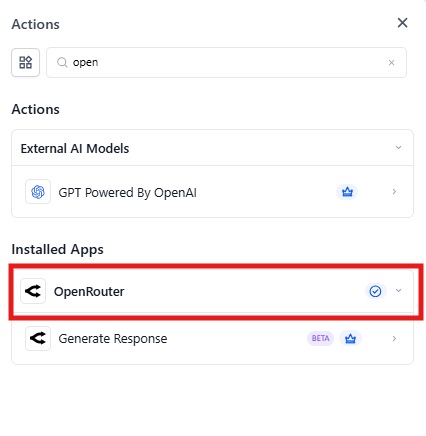
Step 1: Find OpenRouter in Automations
In the Automation Builder, click Add Action and search for OpenRouter.
Step 2: Connect your OpenRouter account
If your account isn't connected, click Connect Now and authorize using your OpenRouter API key.
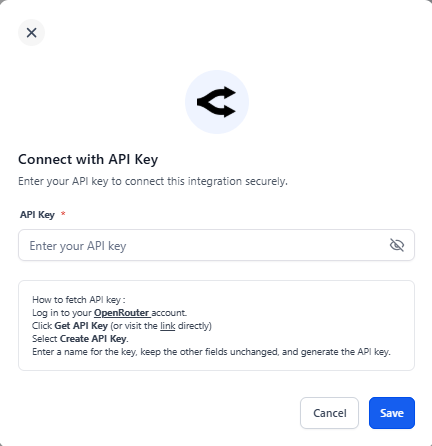
Step 3: Configure the action
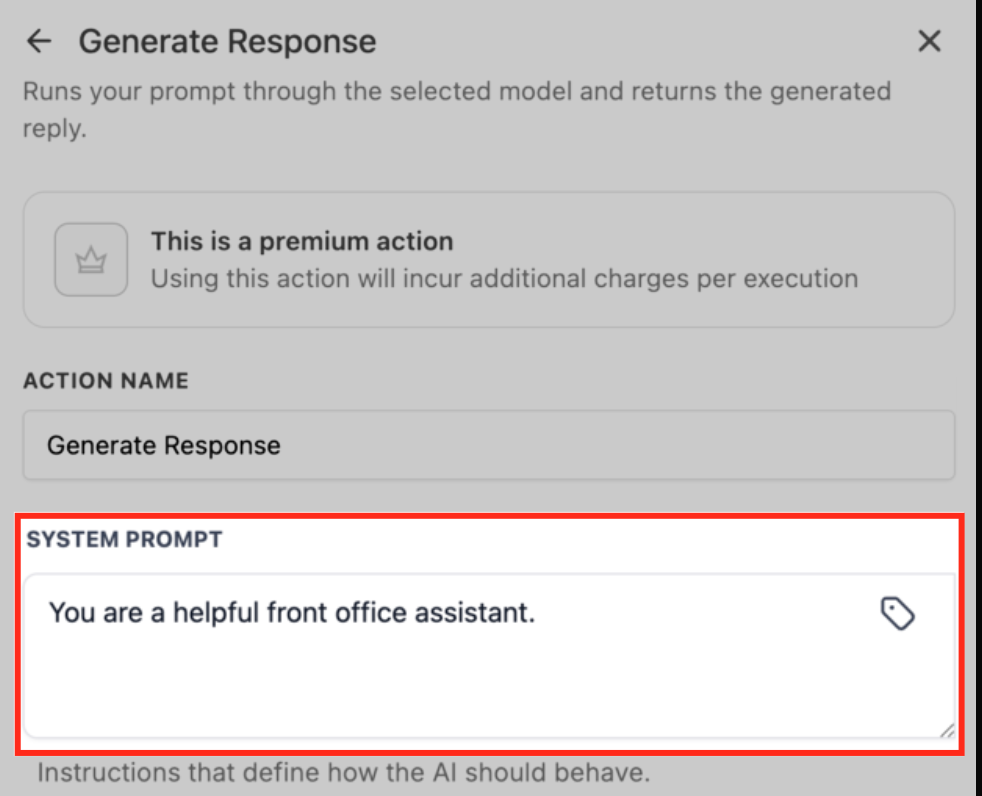
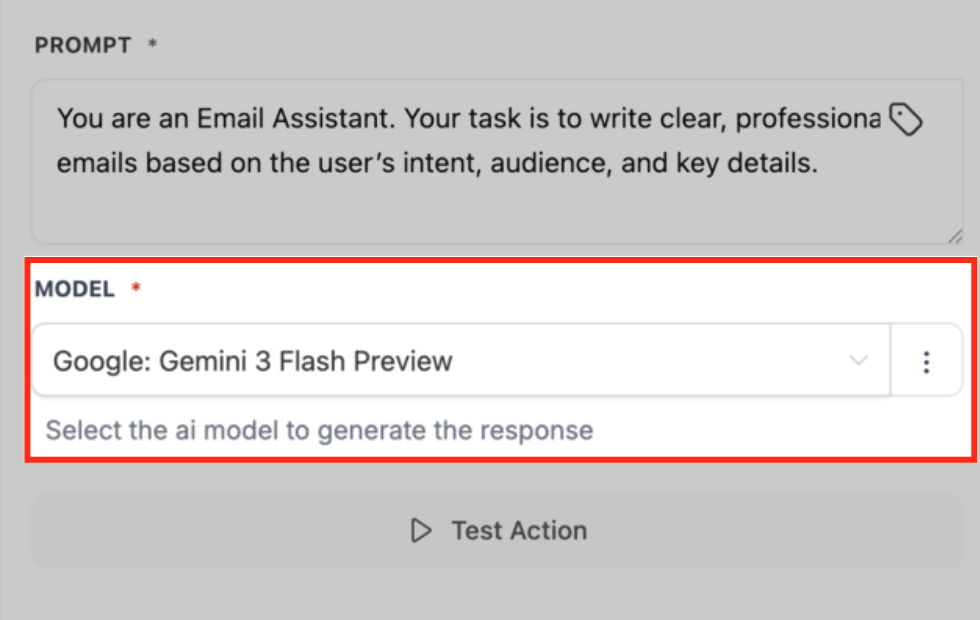
Select a model, add your system prompt and prompt, then test the action to pull sample data.
 Action Configuration
1. System Prompt (Optional)
Use the System Prompt to define the AI's overall role, tone, or behavior.
Examples:
- "You are a friendly childcare center director helping parents with enrollment questions."
- "You are a professional childcare communications specialist. Use warm, welcoming language."
- "Respond in a concise and supportive tone appropriate for busy parents."
This prompt influences how the AI responds, not what it responds to.
2. Prompt (Required)
The Prompt contains the primary instruction or question sent to the AI. You can include:
- Plain text
- Automation variables
- Custom instructions
Examples for childcare centers:
- "Write a warm follow-up text message for {{parent.first_name}} thanking them for touring our center today."
- "Summarize the following parent inquiry in one sentence: {{inbound_message.body}}"
- "Generate a personalized welcome email for {{child.first_name}} who is starting in our {{classroom.name}} classroom."
- "Create a brief reminder about our {{event.name}} event happening on {{event.date}}."
3. Model (Required)
Choose the AI model that will generate the response. Models may differ in:
- Response quality
- Speed
- Cost
- Creativity
Select the model that best matches your use case. For most parent communications, mid-tier models provide excellent results at reasonable costs.
Output
The generated AI response can be:
- Inserted into text messages or emails to families
- Stored in custom fields on parent or child records
- Used in conditional logic to route families through enrollment pipelines
- Passed into other AI or automation actions
Common Use Cases for Childcare Centers
- AI-generated tour follow-ups: Create personalized thank-you messages after each center tour
- Summarizing parent inquiries: Automatically summarize long parent emails or form submissions for your staff
- Personalized enrollment communications: Generate custom welcome messages based on child age, classroom, or start date
- Waitlist updates: Create dynamic messages about spot availability tailored to each family's situation
- Event reminders: Generate engaging reminders for parent nights, orientations, or holiday celebrations
- Intelligent routing: Analyze parent messages to automatically categorize inquiries (tours, billing, general questions)
Best Practices
- Be specific in your Prompt for higher-quality responses — "Write a 2-sentence text thanking parents for their tour" is better than "Write a thank you"
- Use the System Prompt to control tone and intent across all your automations consistently
- Test multiple models to find the best fit for your needs and budget
- Keep prompts concise and clear — the AI works best with direct instructions
- Use automation variables to personalize outputs with parent names, child names, classroom details, and enrollment dates
- Review AI outputs initially — test your automations thoroughly before deploying them to real families
Frequently Asked Questions
Can I use automation variables in the prompt?
Yes. You can use supported automation variables in both the Prompt and System Prompt fields to generate personalized AI responses based on family data, child information, enrollment details, and more.
What is the difference between System Prompt and Prompt?
The System Prompt defines the AI's role, tone, or behavior (like "You are a helpful childcare director"), while the Prompt contains the main instruction or question sent to the model (like "Write a welcome message for this family").
Which AI model should I choose?
Model choice depends on your use case. Lighter models work well for simple tasks like brief text messages or summaries. Advanced models are better for creative or complex responses like detailed enrollment emails or nuanced parent communications.
Can I store the AI-generated response in a custom field?
Yes. The generated response can be mapped to custom fields on parent or child records, used in messages, or passed to other automation actions.
Do OpenRouter actions cost extra in Enrollio?
Yes. OpenRouter actions are premium automation actions and are billed at standard automation rates, in addition to OpenRouter usage charges.
Does Enrollio include AI credits for OpenRouter?
No. Enrollio does not include AI credits for OpenRouter. AI usage is billed by OpenRouter, along with standard automation rates in Enrollio.
Is this safe to use for parent communications?
AI-generated content should be reviewed before sending to families, especially for important enrollment decisions or sensitive topics. Use automations for routine communications and always have a human review critical messages.