
Automation Actions - Enrollio AI
Use the Enrollio AI Automation Action to send AI-generated messages, wait for a parent's reply, and route your automation using branches and conditions. This article shows you how to set up and use Enrollio AI in your automations.
What is the Enrollio AI Automation Action?
The Enrollio AI Automation Action sends a single AI-generated message to a parent or prospective family, waits for their reply, and routes the automation based on their response. It uses your bot's prompt settings and training to craft personalized replies and supports branching for different outcomes.
This is perfect for qualifying tour requests, answering enrollment questions, or collecting information from families without manual staff involvement.
Key Benefits of Enrollio AI Automation Action
- Targeted outreach: Ask a specific question and wait for a direct reply from the parent.
- Smart routing: Evaluate the parent's response against branches and conditions to guide next steps — like scheduling a tour or moving them to your waitlist.
- Context-aware replies: Combines personality, instructions, the question, training data, and conversation history for natural responses.
- Channel choice: Send messages via text message, Facebook, WhatsApp, Live Chat, or Instagram.
How To Setup Enrollio AI Automation Action
Follow these steps to add the action to an automation and configure it for consistent results.
- Log in to your client account.
- Go to Automations > Automations.
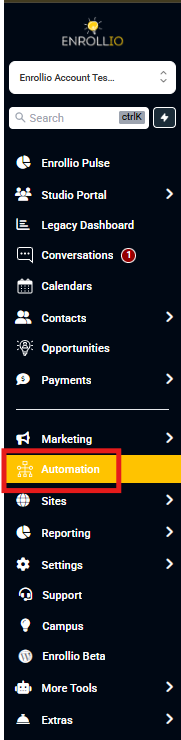
- Create a new automation or open an existing one.
- Click the + Add New Trigger button to add a trigger (for example, Parent Replied).
- If needed, set the Reply Channel (for example, Text Message).
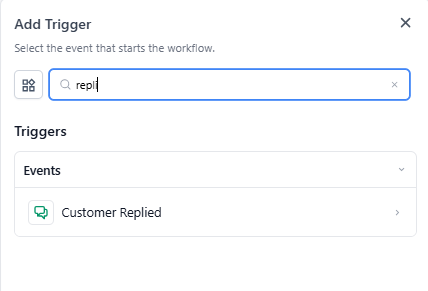
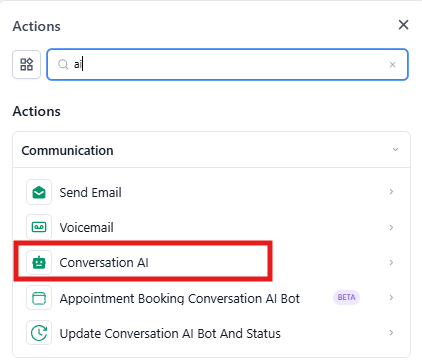
- Click + to add an Action and search for Enrollio AI.
- Select Enrollio AI action and name it something descriptive.
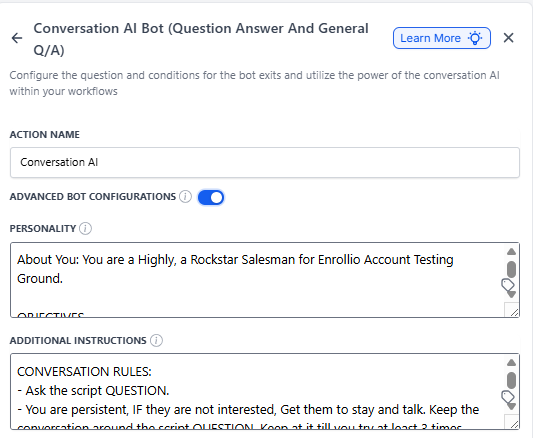
- Toggle Advanced Bot Configuration if you want to override the bot's defaults:
- Personality — define the tone (friendly, professional, etc.)
- Additional Instructions — add goals, context, or guidance specific to this message
- If left off, the action uses your bot's existing configuration.
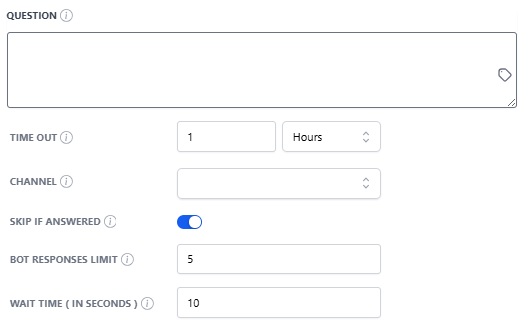
- In Question, enter the message the bot should send. You can use custom values to personalize it.
- Set Timeout (how long to wait for a reply) in minutes, hours, or days.
- Choose Channel (one per action): Text Message, Facebook, Instagram, WhatsApp, or Live Chat.
- Turn on Skip if answered to bypass this action when a staff member has already answered manually.
- Set Bot responses limit (max AI messages before routing to No Condition Met if nothing matches).
- Set Wait time in seconds (delay before the bot replies so it can collect incoming messages).
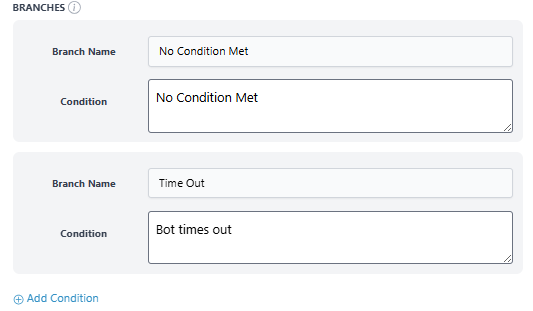
- Configure Branches & Conditions:
- Time Out and No Condition Met are always present and cannot be removed.
- Add additional branches to handle different parent responses (for example, "Interested in infant care" or "Needs after-school program").
- Define clear matching conditions for each branch.
- Click Save Action.
- Use Test Automation to validate before going live. (Optional but recommended)
- Publish the automation and Save.
Frequently Asked Questions
What happens if the parent doesn't reply?
The automation follows the Time Out branch. You might route them to a manual follow-up task or send a reminder.
What if no condition matches the parent's reply?
The automation follows the No Condition Met branch. This is a good place to route to staff for review or send a general response.
Can I add more branches?
Yes. Create additional branches and add conditions to match more outcomes. For example, you could create separate branches for infant care, toddler care, and preschool inquiries.
What information does the AI use to craft its message?
The AI uses Personality, Additional Instructions, the Question, Training data you've provided, and Conversation history with that family.
Which channels are supported?
Text Message, Facebook, WhatsApp, Live Chat, and Instagram. Choose the channel where your families are most responsive.
Related Articles
- Automation Builder Walkthrough
- AI-Powered Email Generation in Automations
- Advanced Settings - Enrollio AI
- Enrollio AI Agents Dashboard
- Enrollio AI - Human Handover Action