
Copy Automation Actions Across Automations
Build automations faster by copying actions from one automation to another. Reuse single steps or entire action blocks with a click—no rebuilding required.
What is Copy Automation Actions?
This feature lets you duplicate existing automation steps into another automation within the same client account. Copy a single action or an entire sequence, then paste it wherever you need it.
Perfect for maintaining consistent follow-ups across different enrollment campaigns or reusing your proven parent communication sequences.
Why Copy Actions Between Automations?
Speed: Paste preconfigured steps in seconds instead of rebuilding from scratch.
Consistency: Keep your messaging, timing, and logic uniform across all your parent communications.
Multi-paste window: Reuse copied actions across multiple automations during the 15-minute clipboard window.
Cross-tab convenience: Copy in one browser tab and paste in another without losing your place.
Lower error risk: Start from steps you know work, then adjust only what's unique to the new automation.
How to Copy Actions Between Automations
Follow these steps to copy and paste automation actions efficiently.
Step 1: Find and Copy the Action
Open Automation → Automations and select your source automation. Locate the action you want to reuse.
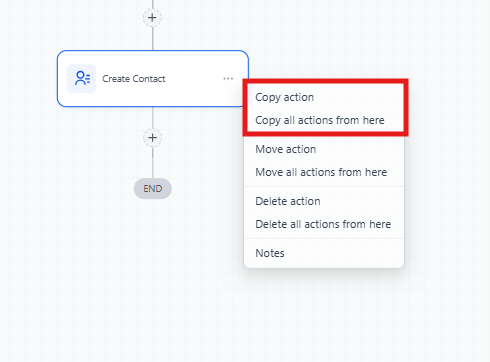
Click the three-dot menu on that action and choose:
- Copy Action — copies just that single step
- Copy All Actions From Here — copies a block starting at that action through the end
Step 2: Navigate to Your Target Automation
Open the automation where you want to paste the action. You can do this in the same tab or open a different tab—both work as long as you're in the same client account.
Step 3: Paste the Action
To paste, you have two options:
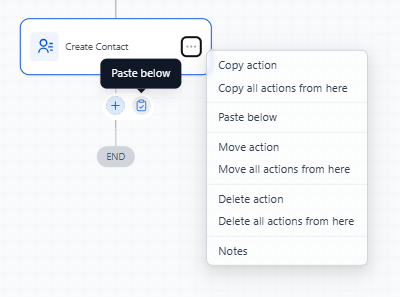
- Click Quick Paste next to the + button where you add new actions, OR
- Open any action's three-dot menu and choose Paste Below
Step 4: Review and Save
Review the pasted actions to confirm everything looks correct—especially any references to email templates, forms, or tags. Then click Save.
Clipboard & Retention Rules
Copied actions remain available to paste for 15 minutes.
During this window, you can paste the same actions multiple times—even into different automations within the same client account. When the 15 minutes expire, the paste options will no longer insert the copied content. Just copy again to continue working.
You can navigate between browser tabs while the clipboard is active, as long as you stay signed in and remain in the same client account.
Frequently Asked Questions
Can I copy multiple actions at once?
Yes. Use Copy All Actions From Here to copy a block starting at the selected action.
Can I paste in another browser tab?
Yes. Copy in one tab and paste in another tab within the same client account during the 15-minute window.
Are triggers copied?
No. Copying actions doesn't include triggers. You'll need to set up triggers separately in your target automation.
Will asset references (emails, forms, tags) carry over?
If those assets exist in the same client account, the references will work. Always review after pasting to confirm everything is connected properly.
How long are copied actions available?
15 minutes. You can paste multiple times during this window without copying again.
Can I undo a paste?
Before saving, you can delete or move the pasted actions. Review your placement and settings, then save when you're ready.
Does this work across different client accounts?
No. Action copying works only within the same client account. For copying between client accounts, see the related article on copying entire automations.