Send Enrollment Documents & Contracts Using Automations
If multiple team members work with families but only one person handles final enrollment contracts, you can streamline the process using the Send Documents & Contracts action in Automations. This ensures the right staff member signs templates that include Sender fields, without manual editing each time.
By creating contracts as drafts instead of sending them immediately, you make sure only your designated contract coordinator reviews and sends enrollment agreements. Perfect for centers where multiple staff members schedule tours but one person finalizes paperwork.
Why Use the "Create as Draft" Feature?
Centralized Review: One person or team reviews and sends all enrollment contracts, avoiding confusion or accidental sends even when documents are auto-generated from templates.
Quality Control: When a family completes a tour booking form or reaches a specific enrollment stage, the automation prepares the document. But the final send happens only after your designated coordinator reviews it in the Documents & Contracts section.
Step-by-Step Guide
1. Create or Edit Your Automation
Go to Automations and click New Automation or edit an existing one.
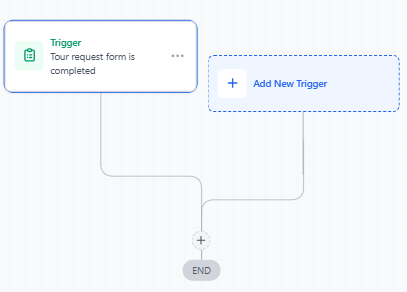
In the automation builder, add a Trigger. Common triggers include:
- Family reaches a new enrollment stage
- Tour request form is completed
- Enrollment opportunity status changes
2. Add the "Send Documents & Contracts" Action
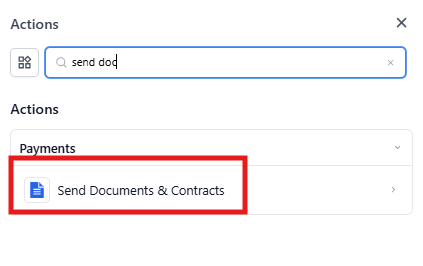
Click Add New Action.
Select Send Documents & Contracts from the list of available actions.
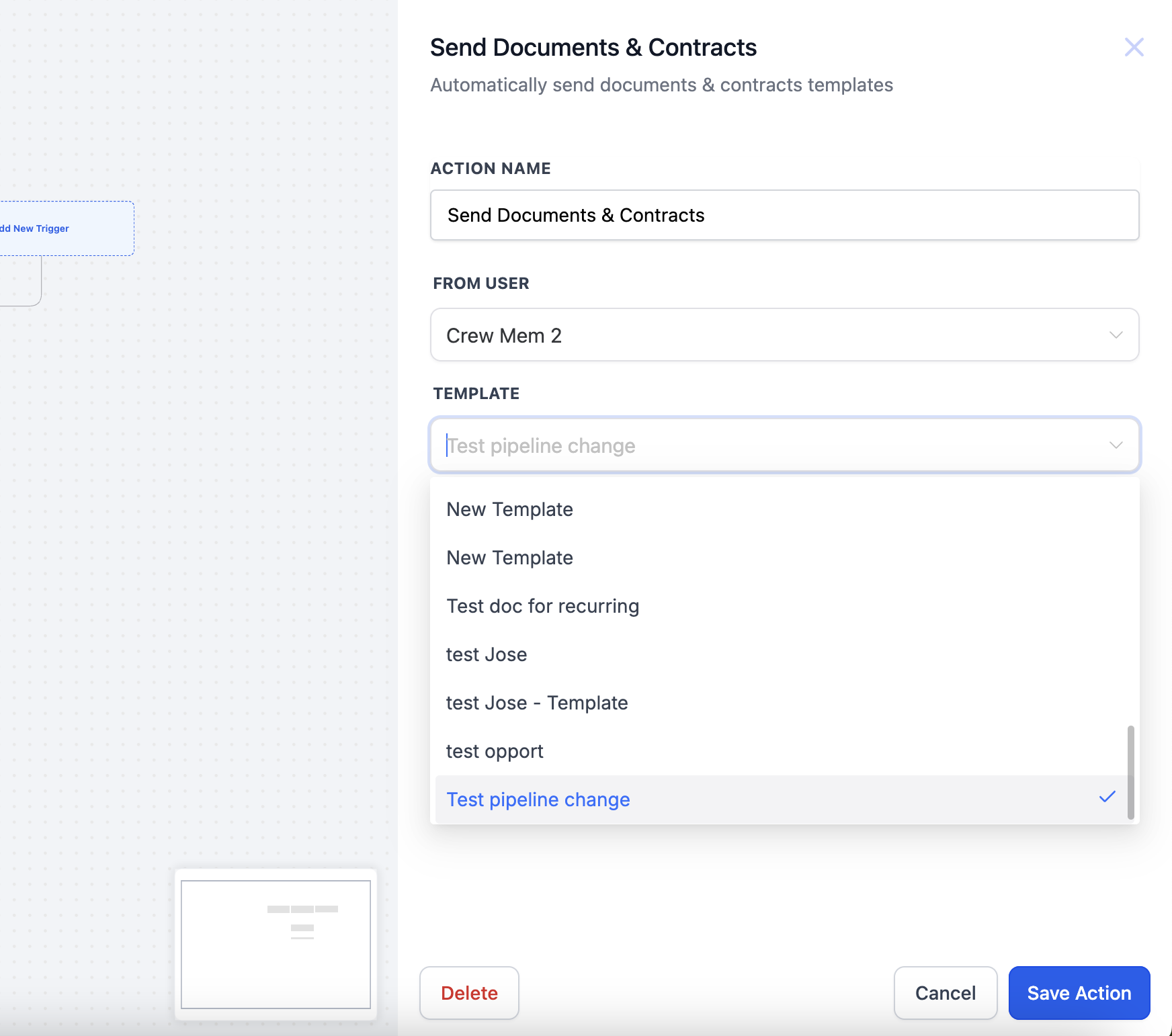
3. Configure the Action
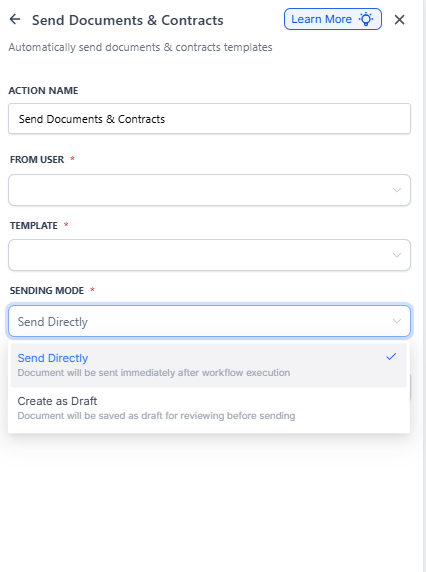
Action Name: Give it a meaningful name like "Draft Enrollment Agreement".
From User: Choose the staff member who will appear as the sender on the draft contract.
Template: Select the enrollment agreement or contract template you want to send to families.
Sending Mode: Select Create as Draft. This generates the document but doesn't send it immediately.
4. Save and Publish Your Automation
After configuring the details, click Save Action.
When you're satisfied with the entire automation, click Publish.
Any families who enter this automation will now trigger a draft contract to be created automatically.
Assign Sender Fields Dynamically
Use this setting to auto-assign template fields marked "To be signed by → Sender" at send time—no manual edits needed for each contract.
How It Works
If your selected template contains Sender fields, the action detects them and assigns those fields based on your choice below. This applies to all Sender fields in the template for that send.
Options:
- From User: Assigns Sender fields to the automation's From user (the staff member sending the document)
- Template Owner: Assigns Sender fields to the person who last updated the template
Steps to Configure
- Select the From user at the top of the action
- Choose a Template that uses "To be signed by → Sender" on its fillable fields
- Set Assign Sender Fields To to either From User or Template Owner
- Choose Sending Mode and Channel (Email or Direct), then click Save
Sending Out Draft Contracts
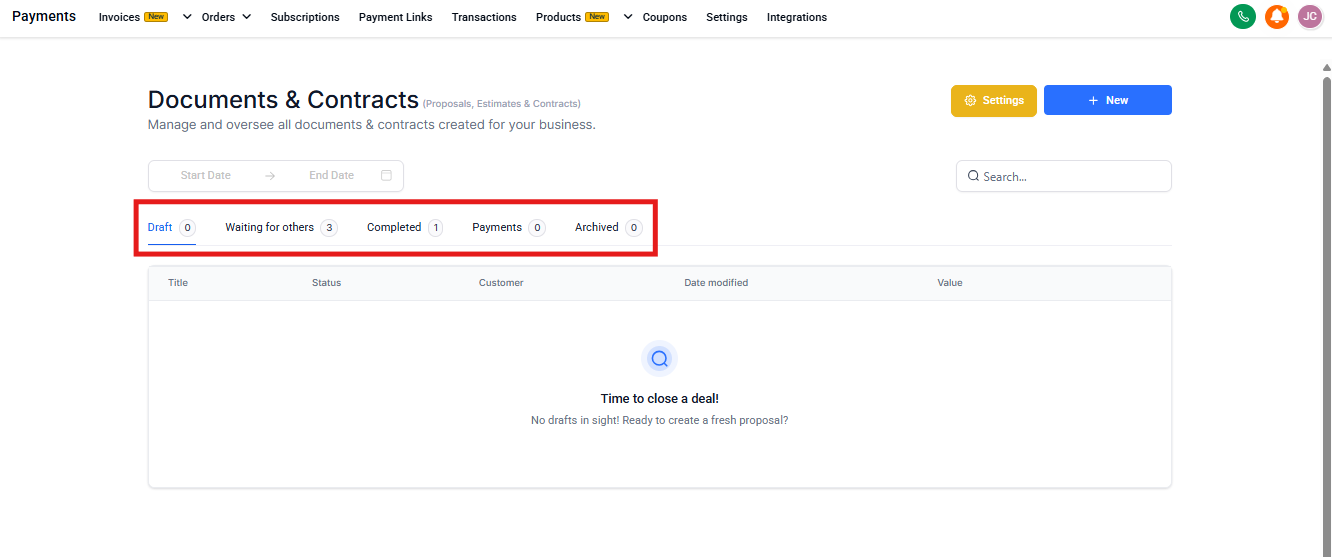
After your automation creates contracts in draft status, your designated coordinator can review and send them.
How to Send Draft Contracts
- Navigate to Documents & Contracts: In your account, go to Payments Documents & Contracts
- Locate Drafts: You'll see all drafted enrollment agreements and contracts
- Review and Edit (If Needed): Make any final edits or add personalization to the document
- Send the Contract: When ready, click Send. The contract will be delivered to the family, and you can track its status
Important Limitations
Automations only evaluate the document or contract status when the family first enters the automation. Status updates that happen later are not tracked or re-evaluated.
Example: If a family enters on a trigger like "Document Sent", and you later add a condition for "Status is Completed", that logic won't update even if the document gets signed afterward.
Workaround
If you need real-time responses based on document status:
- Create a second automation triggered by events like "Document Signed" or "Document Completed"
- Route families in that second automation using their updated document status
Frequently Asked Questions
Can multiple people review draft contracts before sending?
Yes. Any staff members with the necessary permissions can open and review the draft before it's sent. This is helpful if your director wants to approve enrollment agreements before they go out.
Can I automate sending directly if I don't need a review step?
Absolutely. Under Sending Mode, choose "Send Directly" if you want the contract automatically sent without the draft stage. Use this for routine documents that don't need review.
Where can I see the status of my contracts?
Go to Payments Documents & Contracts. Each contract shows whether it's in Draft, Sent, or Completed status. You can also see when families viewed or signed the document.