
What is Text Formatter?
The Text Formatter action lets you clean up and transform text in your automations. Whether you need to capitalize names, remove extra spaces, or extract email addresses from messy form data, this action handles it.
This is especially useful for ensuring parent names are formatted consistently, cleaning up address data, or standardizing text before it goes into your enrollment records.
How To Use Text Formatter
Step 1: Create or Edit an Automation
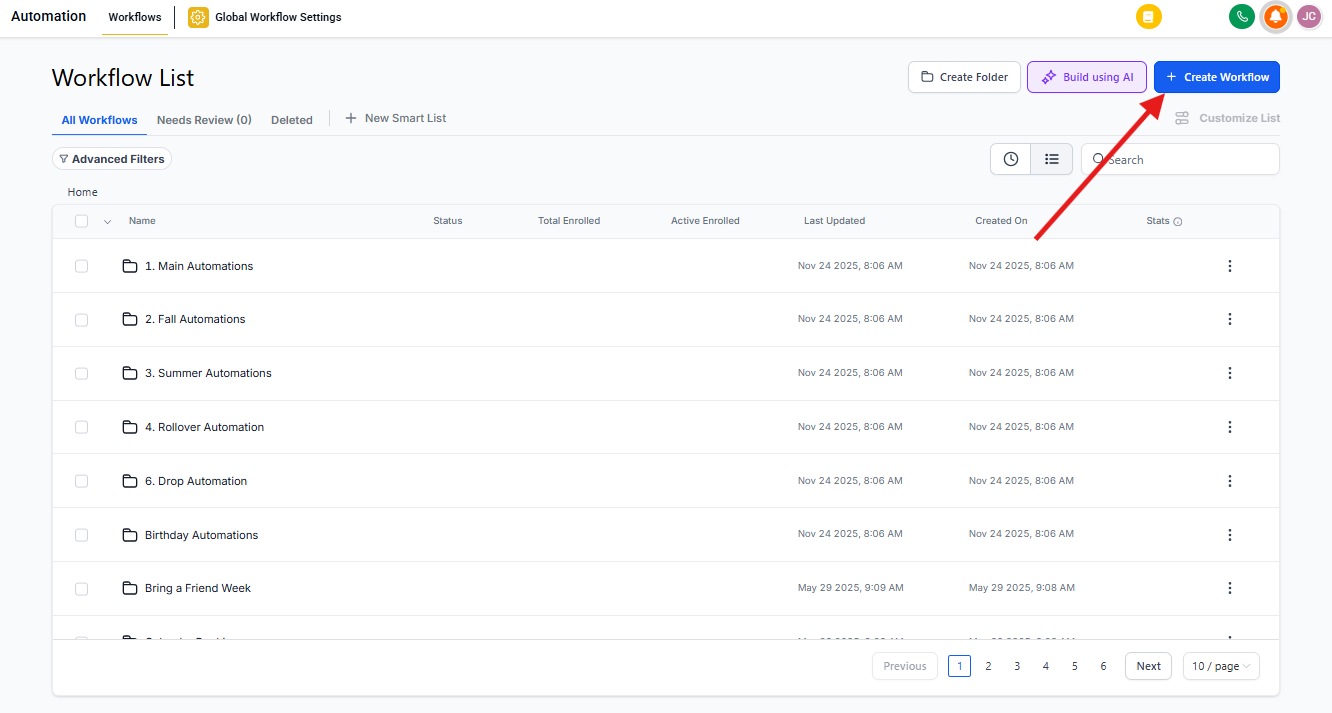
Go to Automation → Automations and click Create Automation or edit an existing one.
Step 2: Add the Action
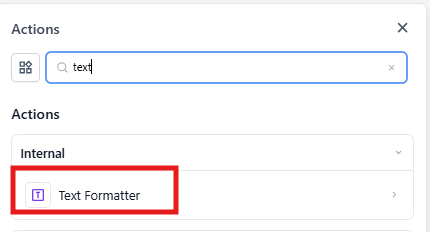
Click the plus (+) button to add an action, then search for or scroll to Text Formatter.
Step 3: Configure Your Settings
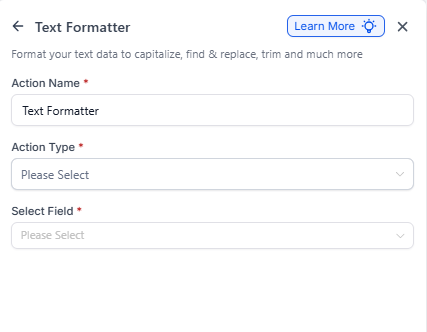
Give your action a descriptive name (like "Capitalize Parent Name" or "Remove Extra Spaces"). Then select the action type and the field you want to format.
Different action types have different settings — see the tables below for details.
Text Formatter Action Types
| Action Type | What It Does | Example | Required Fields |
|---|---|---|---|
| Upper Case | Converts all text to uppercase | "sarah" → "SARAH" | Select Field |
| Lower Case | Converts all text to lowercase | "SARAH" → "sarah" | Select Field |
| Title Case | Capitalizes the first letter of each word | "sarah jones" → "Sarah Jones" | Select Field |
| Capitalize | Capitalizes only the first letter | "sarah jones" → "Sarah jones" | Select Field |
| Default Value | Sets a backup value if the field is empty | "" → "Not provided" | Select Field, Default Value |
| Trim | Shortens text to a specific number of characters | "Kindergarten" → "Kinder" (6 chars) | Select Field, Max Length |
| Ellipses | Shortens text and adds "..." at the end | "Long text here" → "Long text..." | Select Field, Max Length |
| Trim Whitespace | Removes extra spaces from the beginning and end | " Sarah " → "Sarah" | Select Field |
| Replace Text | Replaces specific characters or words | "pre-k" → "Pre-K" | Select Field, Find, Replace |
| Find | Finds the position of specific text (returns -1 if not found) | "Sarah Jones" → "Jones" = 6 | Select Field, Find |
| Word Count | Counts the number of words | "Bright Futures Academy" → 3 words | Select Field |
| Length | Counts the number of characters | "Sarah" → 5 characters | Select Field |
| Split Text | Splits text by a separator and returns a specific segment | "Sarah Jones" → split on " " → first segment = "Sarah" | Select Field, Separator, Segment |
| Remove HTML Tags | Converts HTML to plain text | "<p>Hello!</p>" → "Hello!" | Select Field |
| Extract Email | Pulls out the first email address from text | "Contact me at sarah@email.com" → "sarah@email.com" | Select Field |
| Extract URL | Pulls out the first URL from text | "Visit mychildcare.com" → "mychildcare.com" | Select Field |
Available Fields
You can format text from any of these data sources:
| Data Source | Available Fields |
|---|---|
| Parent/Family | Full Name, First Name, Last Name, Email, Phone, Phone (raw format), Company Name, Full Address, Address 1, City, State, Country, Postal Code, Timezone, Source, Website, ID |
| Staff User | Full Name, First Name, Last Name, Email, Phone, Phone (raw format), Signature, Calendar Link, Twilio Phone, ID |
| Message | Message Body, Message Subject, Message Attachments |
| Client Account | Name, Full Address, Address Line 1, City, State, Country, Postal Code, Email, Phone, Phone (raw format), Website, Logo URL, Owner First Name, Owner Last Name, Owner Email, Owner ID |
| Facebook Lead | ID |
| Phone Call | Direction, Duration, From, To, From City, From State, From Country, From Zip, To City, To State, To Zip, To Country, Answered By Phone, Answered By User Name, Answered By User Id, Answered By Device, User Id, User Name, Start Time, End Time, Status |
| Portal | Family Login URL (Magic Link) |
| Attribution | First Session: Source, URL, Campaign, UTM Source, UTM Medium, UTM Content, Referrer, Campaign Id, FB Click Id, Google Click Id, Google Client Id, UTM Campaign, UTM Keyword, UTM Match Type, Ad Group ID, Ad ID Latest Session: (same fields as First Session) |
| Custom Fields | Any custom fields you've created in your account |
| Custom Values | Any custom values specific to your account |
When To Use Text Formatter
After Form Submissions
Clean up parent names and addresses from tour request forms. Use Title Case to capitalize names properly, or set a default value like "Not provided" for optional fields left blank.
When Creating New Family Records
Automatically format text fields when a new family is added. This keeps your database clean and professional-looking.
With External Data
If you're importing data from another system via webhook, use Text Formatter to standardize the format before it enters Enrollio.
Frequently Asked Questions
Can I use Text Formatter to personalize messages?
Yes! Combine Text Formatter with custom values and merge fields to create personalized messages with properly formatted text. For example, ensure parent names are always capitalized correctly before sending them an email.
Can I use multiple formatting actions together?
Absolutely. Add as many Text Formatter actions as you need within an automation to perform step-by-step transformations.
Does Text Formatter work on numbers?
Only if the numbers are stored as text. If you need to perform mathematical operations or format actual numeric values, use the Number Formatter action instead.
I can't find the field I need
Check the Available Fields table above to confirm the field exists. Make sure you're drilling down far enough in the field selector — some fields are nested under parent categories.