
Overview
The Update Tour Status action automatically changes the status of a tour appointment in your automation. Use it to keep your tour calendar accurate without manual updates.
When a parent books, confirms, cancels, or completes a tour, this action updates the appointment status instantly. It works with the tour that triggered the automation, or if triggered another way, it updates the family's most recent tour.
How It Works
This action updates tour statuses like Confirmed, Cancelled, Showed, or No-show. It's perfect for keeping your tour tracking accurate and triggering follow-up actions based on appointment changes.
Available Status Options
- New — Tour just scheduled
- Confirmed — Parent confirmed they're coming
- Cancelled — Tour was cancelled
- Showed — Parent attended the tour
- No-show — Parent didn't show up
- Invalid — Tour is no longer valid
Setting Up the Action
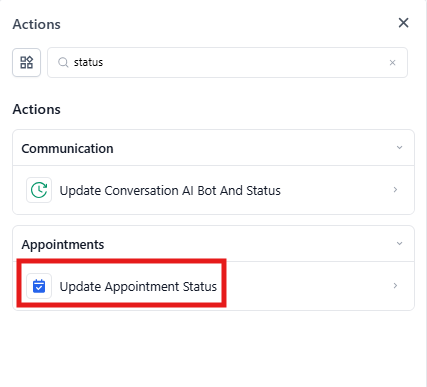
Step 1: Add the Action
In your automation, click the + button and select Update Tour Status from the appointment actions.
Step 2: Name Your Action
Give your action a clear name like "Mark Tour as Confirmed" or "Set Status to No-Show." This helps you understand your automation at a glance.
Step 3: Choose the Status
Select the status you want to apply from the dropdown. This is required — you can't save the action without choosing a status.
| Field | Description | Required |
|---|---|---|
| Action Name | Internal label for this action | No |
| Status | The new tour status to apply | Yes |
Example: Automating Tour Confirmations
Let's say you want to automatically mark tours as confirmed when parents click a confirmation link in your reminder text.
Automation setup:
- Trigger: Link clicked (confirmation link)
- Action: Update Tour Status → Confirmed
- Action: Send thank you text
Now when a parent confirms, their tour status updates automatically and they get a thank-you message.
Example: Handling No-Shows
You can also use this action to track no-shows and trigger follow-up:
- Trigger: Tour appointment date/time passes (scheduled trigger)
- Wait: 15 minutes
- Action: Update Tour Status → No-show
- Action: Send re-engagement text offering to reschedule
💡 Pro Tip
Combine this action with conditional logic. For example, only update to "Showed" if a staff member checks the family in via a form or mobile app.
Important Notes
- Which tour gets updated? If your automation was triggered by a tour-related event (like "Tour Booked" or "Tour Cancelled"), it updates that specific tour. Otherwise, it updates the family's most recent tour.
- Double-check your status — Once you save your automation, it will update tour statuses automatically. Make sure you've selected the right status before activating.
- Use with other actions — This works great combined with text messages, tags, or enrollment opportunity updates based on tour outcomes.
⚠️ Watch Out
Status updates happen immediately when the action runs. If you need to update a status at a specific time (like marking no-shows 15 minutes after tour time), add a Wait step before this action.
Common Use Cases
- Auto-confirm tours when parents click a confirmation link
- Mark tours as "Showed" when check-in form is submitted
- Update to "No-show" for missed appointments and trigger re-engagement
- Set to "Cancelled" when cancellation form is received
- Change to "Invalid" for duplicate or test bookings