Automation Trigger - Enrollment Opportunity Changed
Managing enrollment opportunities efficiently keeps your childcare center organized and your enrollment pipeline flowing. The Enrollment Opportunity Changed automation trigger in Enrollio takes action whenever an enrollment opportunity record is updated, ensuring real-time responsiveness to changes.
Unlike the Enrollment Opportunity Status Changed trigger, which only tracks status updates, this trigger detects broader modifications like lead value adjustments, stage movements, staff reassignments, and custom field updates. This guide walks you through its benefits, configuration, and best practices to help you streamline your enrollment automation.
Table of Contents
- What is Enrollment Opportunity Changed Automation Trigger?
- Key Benefits of Enrollment Opportunity Changed Automation Trigger
- Configuring the Enrollment Opportunity Changed Trigger
- Frequently Asked Questions
What is Enrollment Opportunity Changed Automation Trigger?
The "Enrollment Opportunity Changed" automation trigger in Enrollio takes action when any changes occur in an enrollment opportunity record. Unlike "Enrollment Opportunity Status Changed," which only tracks status updates, this trigger responds to broader modifications such as updates to enrollment value, enrollment pipeline stage, staff assignment, or custom fields.
This flexibility helps you streamline automations and maintain real-time accuracy in your enrollment management.
Key Benefits of Enrollment Opportunity Changed Automation Trigger
- Comprehensive Tracking: Automate actions based on any change in an enrollment opportunity, not just status updates.
- Real-Time Notifications: Notify your enrollment team immediately when an opportunity is updated.
- Enhanced Accuracy: Ensure automated record-keeping and data consistency across your enrollment pipeline.
- Improved Enrollment Pipeline Management: Trigger follow-ups or task assignments when opportunities are modified.
- Customizable Automation: Apply filters to tailor automation for specific opportunity changes.
- Flexible Filter Operators: Use "Has Changed," "Has Changed To," and "Equals" operators to precisely control when automations trigger.
Configuring the Enrollment Opportunity Changed Trigger
Setting up this trigger allows you to automate actions based on updates to enrollment opportunities. Follow these steps:
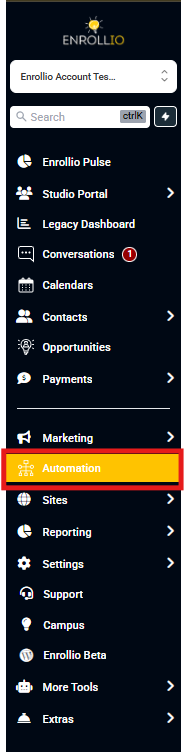
Step 1: Access the Automations Builder
Log in to your Enrollio account and navigate to Automations. Either create a new automation or open an existing one.
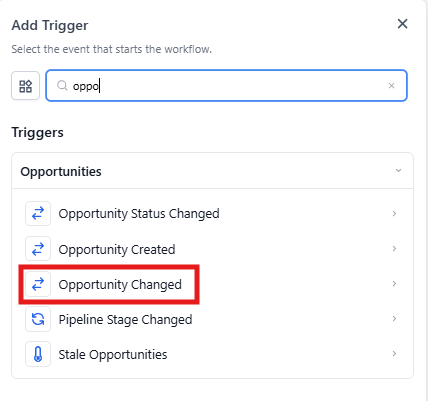
Step 2: Add the "Enrollment Opportunity Changed" Trigger
Click + Add New Trigger, then search for Enrollment Opportunity Changed in the list of available triggers. Select it to proceed with the configuration.
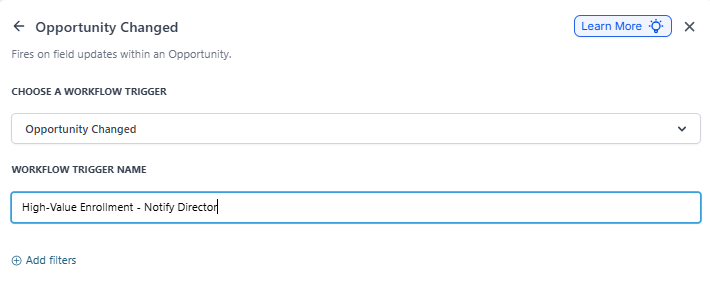
Step 3: Name Your Trigger
Give your trigger a clear, descriptive name that reflects its purpose. A well-named trigger makes it easier to identify automations, especially when managing multiple automations within your center.
Step 4: Apply Filters
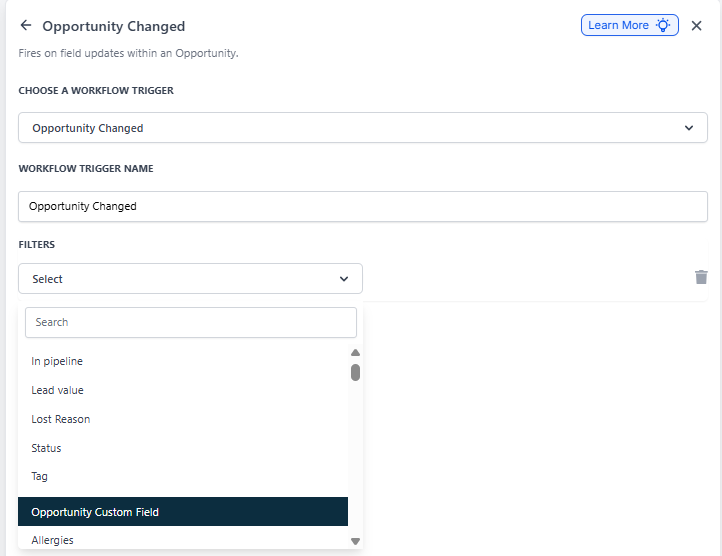
Filters help fine-tune your automation so it only triggers when specific changes happen to an enrollment opportunity. Here are the available filters:
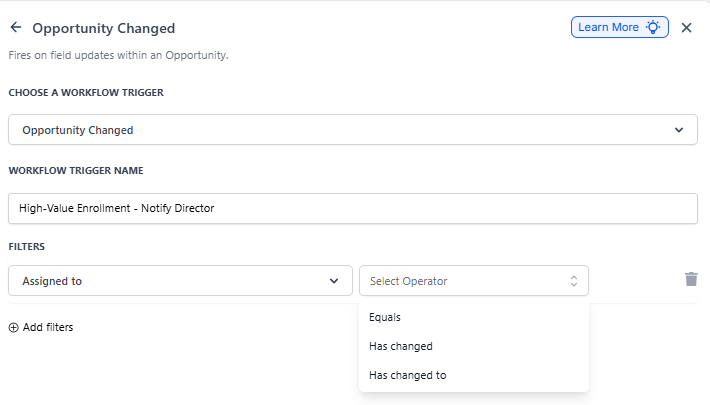
Assigned To Filter
The Assigned To filter triggers the automation when an enrollment opportunity is reassigned to a different staff member. This is particularly useful for enrollment and administrative teams that manage prospective families collaboratively.
By using this filter, you can automate follow-up actions when ownership of an opportunity changes, ensuring a smooth handoff between team members.
Available operators:
- Has Changed: Triggers when the assigned staff member changes to any other staff member.
- Has Changed To: Triggers only when the opportunity is assigned to a specific staff member you select.
- Equals: Triggers when any change occurs on opportunities currently assigned to a specific staff member.
For example, if a high-value enrollment inquiry is reassigned to your center director, the automation can automatically notify the new owner, update internal records, or trigger a follow-up sequence. This helps maintain accountability and ensures that opportunities aren't overlooked during the transition.
Has Tag Filter
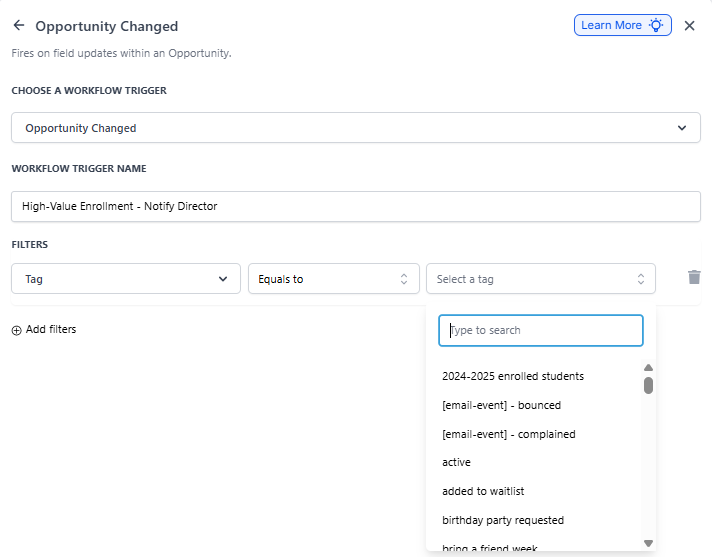
The Has Tag filter triggers an automation based on tags assigned to an enrollment opportunity. This filter ensures that automation is only activated when an opportunity contains a specific tag, giving you more control over automation execution.
For example, if a tag like "Hot Lead" or "Tour Scheduled" is applied to an opportunity, the automation can send follow-up emails, notify enrollment staff, or move the family to a different pipeline stage. This is especially useful for segmenting prospective families, prioritizing high-value opportunities, and triggering specific actions based on family categorization.
In Pipeline Filter
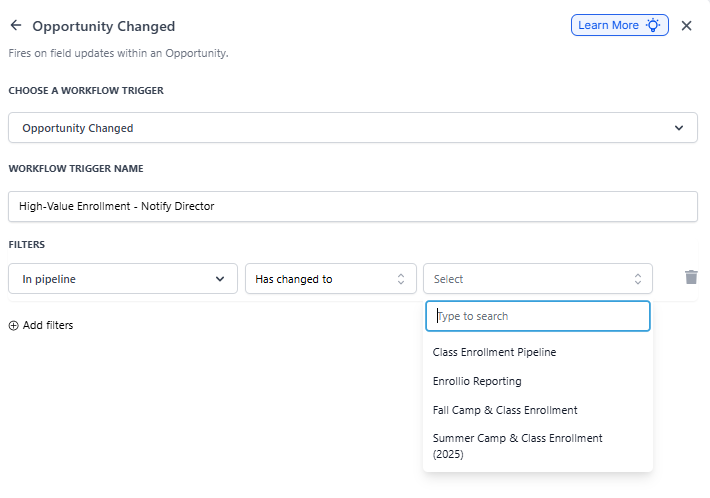
The In Pipeline filter triggers the automation when an enrollment opportunity undergoes a change within a specific enrollment pipeline. This ensures that automation is only activated for opportunities that belong to the selected pipeline, allowing for more targeted automation execution.
Available operators:
- Has Changed: Triggers when the opportunity moves to any different pipeline.
- Has Changed To: Triggers only when the opportunity moves to a specific pipeline you select.
- Equals: Triggers when any change occurs on opportunities within a specific pipeline.
For instance, if a family moves within your Infant Enrollment Pipeline but not your Preschool Enrollment Pipeline, the automation can be configured to trigger only for the infant-related changes. This is particularly useful for centers with multiple enrollment pipelines handling different age groups or programs.
By applying this filter, your team can ensure that automations are executed within the appropriate context, reducing unnecessary automation triggers and improving efficiency.
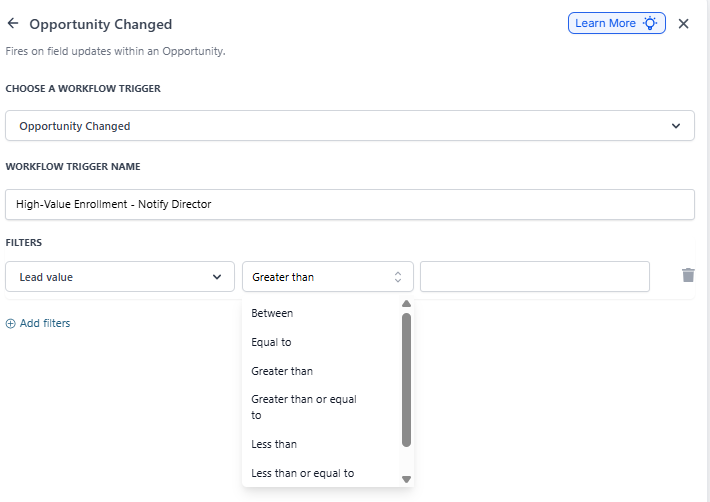
Lead Value Filter
The Lead Value Change filter triggers an automation when the monetary value of an enrollment opportunity increases or decreases. This allows you to automate actions based on changes in potential revenue, ensuring that important updates don't go unnoticed.
For example, if an enrollment's value is increased—perhaps due to a sibling enrollment or additional program add-ons—the automation can notify your enrollment team, adjust pipeline stages, or send a custom follow-up email. Conversely, if the value decreases, the system can alert the enrollment director for review or trigger retention strategies.
Lost Reason Filter
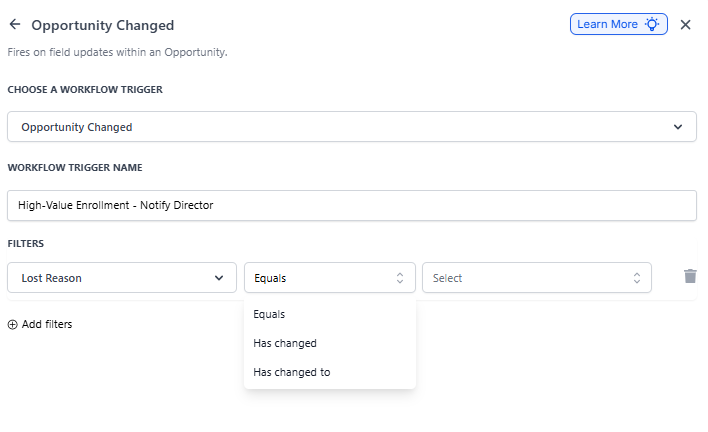
The Lost Reason filter allows you to automate actions when an enrollment opportunity is marked as Lost and a reason is assigned. This filter helps track and respond to lost enrollments strategically, enabling you to improve your enrollment approach and family retention efforts.
Available operators:
- Has Changed: Triggers the automation whenever the lost reason is updated, regardless of the previous value. This is useful for tracking any modifications made to the reason assigned for a lost enrollment.
- Has Changed To: Triggers the automation only when the lost reason is updated to a specific value. For example, if the lost reason is changed to "Tuition Too High," the system can send an automated follow-up email with information about payment plans or financial assistance.
- Equals: Triggers when any change occurs on opportunities that have a specific lost reason assigned.
Status Filter
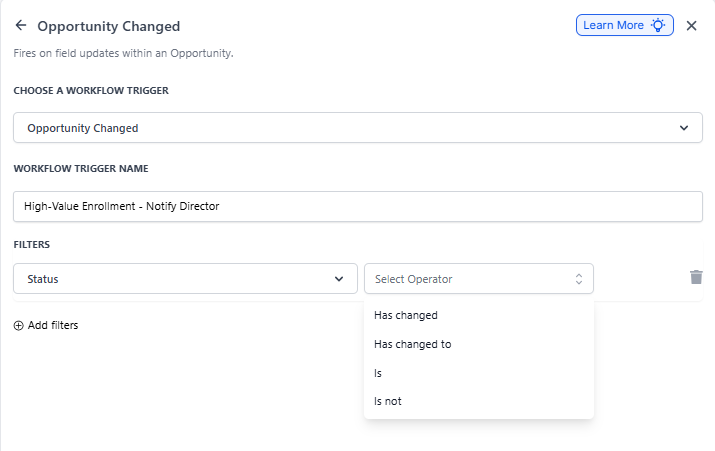
The Status filter allows automations to trigger based on the current status of an enrollment opportunity. This ensures that actions are executed when an opportunity reaches a specific stage in the enrollment pipeline, helping your team track and manage enrollment progress more efficiently.
Available operators:
- Is: Triggers when the opportunity status matches a specific status you define (e.g., "Tour Scheduled," "Application Submitted," "Enrolled").
- Has Changed: Triggers whenever the status changes to any new value.
- Has Changed To: Triggers only when the status changes to a specific value you select.
This filter is perfect for automating stage-specific communications. For instance, when a family's status changes to "Application Submitted," you can automatically send a confirmation email and notify your administrative team to review the application.
Frequently Asked Questions
What's the difference between "Enrollment Opportunity Changed" and "Enrollment Opportunity Status Changed"?
"Enrollment Opportunity Status Changed" only triggers when the status field is updated. "Enrollment Opportunity Changed" is more comprehensive—it triggers on any modification to the opportunity record, including status changes, value adjustments, staff reassignments, custom field updates, and more.
Can I use multiple filters on one trigger?
Yes. You can combine multiple filters to create highly specific automation conditions. For example, you can trigger an automation only when an opportunity assigned to a specific staff member moves to a specific pipeline stage.
What happens if I don't apply any filters?
Without filters, the automation will trigger on every change to any enrollment opportunity in your account. This can lead to excessive automation runs. We recommend using filters to target specific scenarios relevant to your enrollment process.
Can I see which changes triggered an automation?
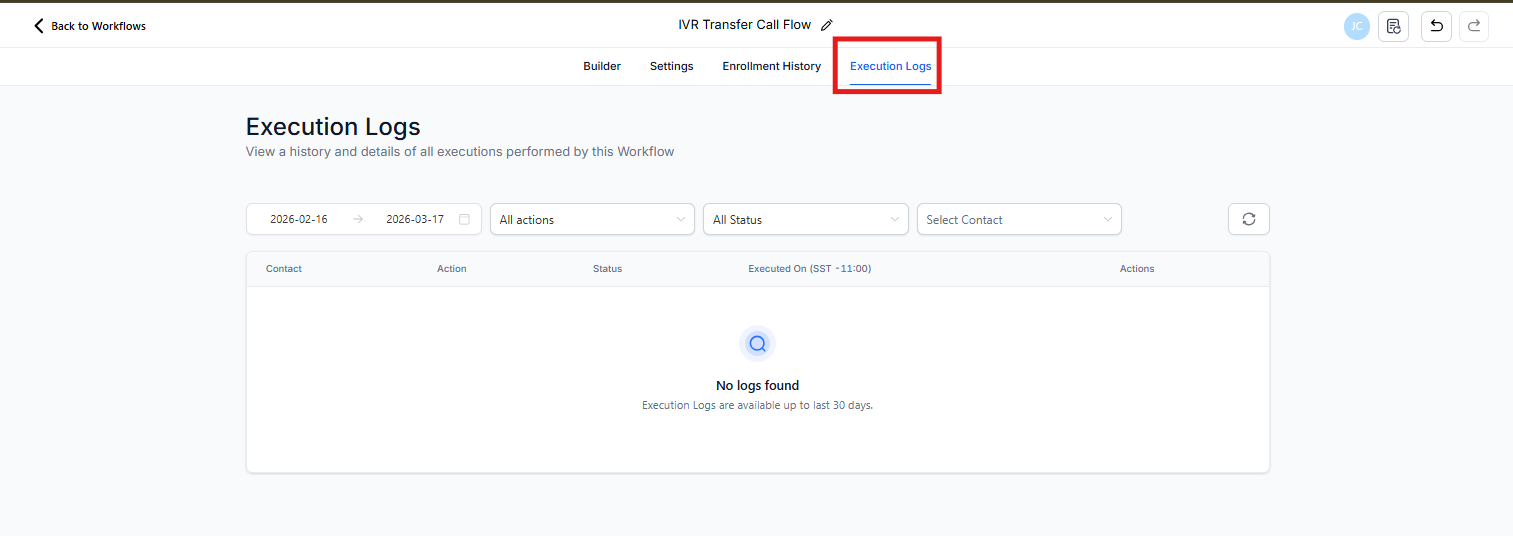
Yes. Navigate to the automation's execution history to see detailed logs of what triggered each automation run, including the specific field that changed and its before/after values.