
What is the Task Reminder Trigger?
The Task Reminder trigger activates an automation when a reminder is scheduled in relation to a task's due date. It helps you stay on top of important deadlines by running automations before or after a task is due.
This is especially useful for following up on enrollment tasks, tour reminders, or staff assignments that need timely attention.
How It Works
The trigger requires a task with a due date. If you complete or delete a task before the reminder time, the trigger won't fire. If you change a task's due date, the reminder timing automatically adjusts based on the new date.
Key Benefits
- Automated reminders: Reduce manual follow-up by triggering automations before or after a task is due
- Better deadline management: Keep your team informed about important upcoming or overdue tasks
- Flexible timing: Choose whether the automation runs before or after the task due date
- Improved internal communication: Use automation actions to notify team members or update task records automatically
- Reduced missed deadlines: Ensure enrollment tasks, tour follow-ups, and staff assignments don't go unnoticed
Task Reminder Trigger Filters
Filters determine exactly when the automation should run in relation to a task's due date.
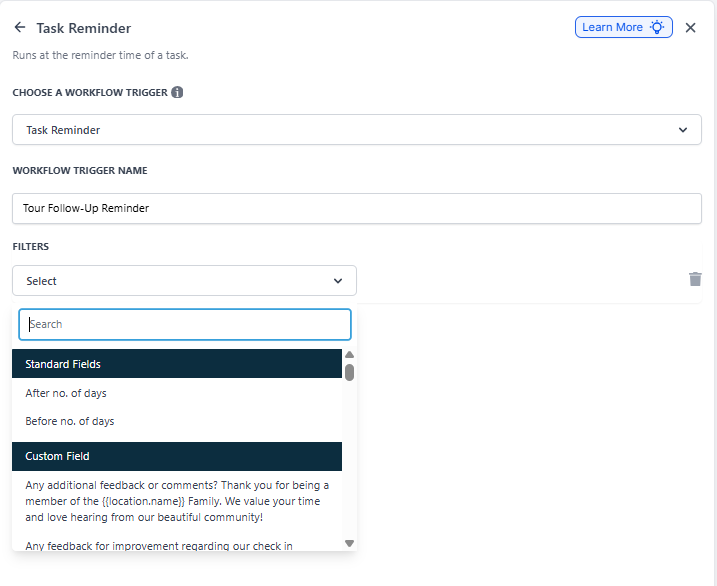
After no. of days
Triggers the automation a set number of days after the task's due date. Use this for overdue task follow-ups or escalation when a tour confirmation or enrollment step hasn't been completed.
Before no. of days
Triggers the automation a set number of days before the task's due date. Ideal for advance notifications or internal reminders about upcoming tours or enrollment deadlines.
How to Set Up the Task Reminder Trigger
Step 1: Open Automation
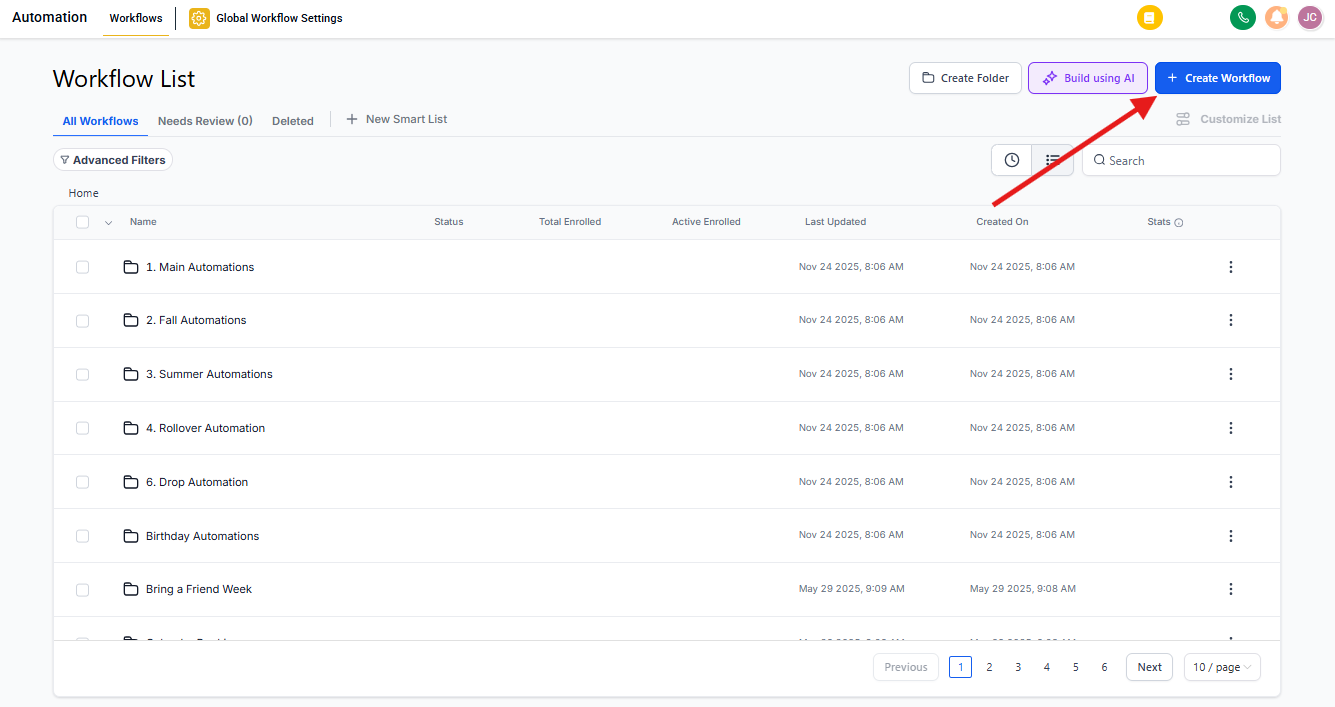
Go to the Automation section in your Enrollio account. In the top-right corner, click Create Automation to begin building a new automation.
Step 2: Add New Trigger
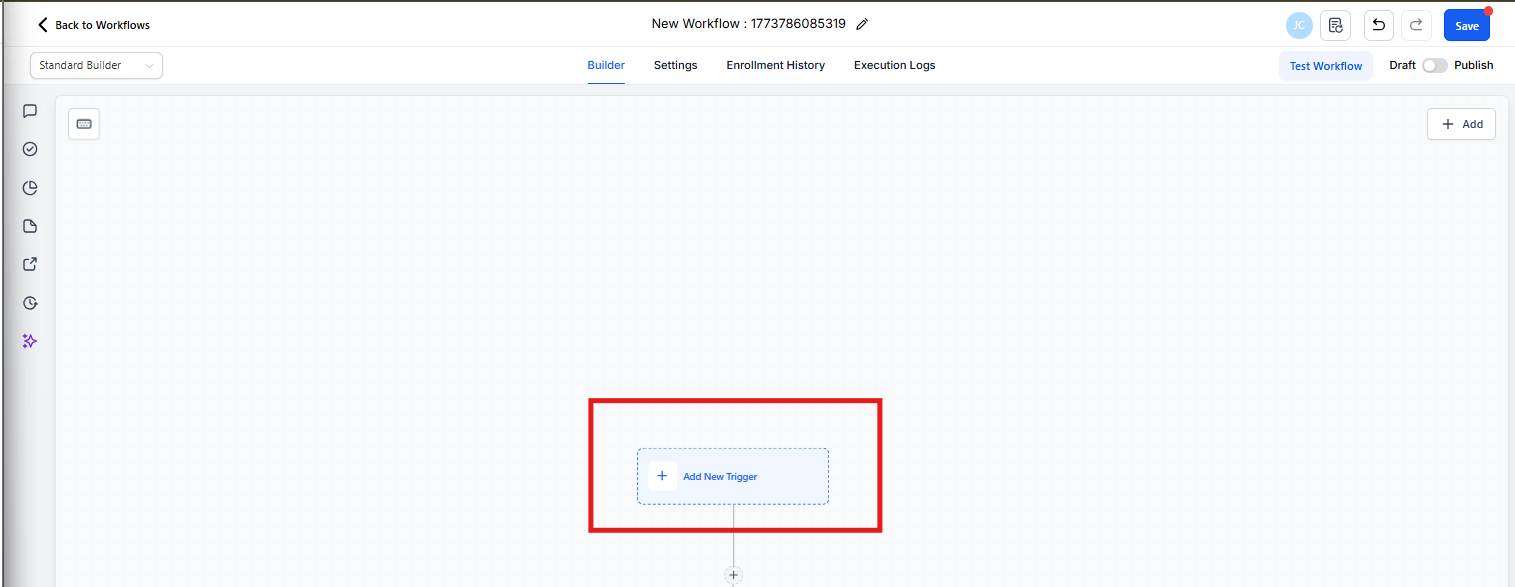
In the automation builder, locate the starting point where triggers are added. Click Add New Trigger to choose the event that will enroll families into the automation.
Step 3: Select Task Reminder
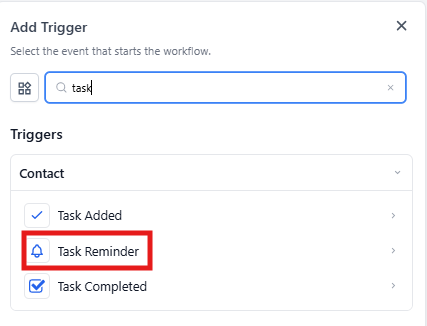
From the trigger list, scroll until you locate Task Reminder under task-related triggers. Select it to build an automation that activates based on upcoming or overdue task reminders.
Step 4: Name the Trigger
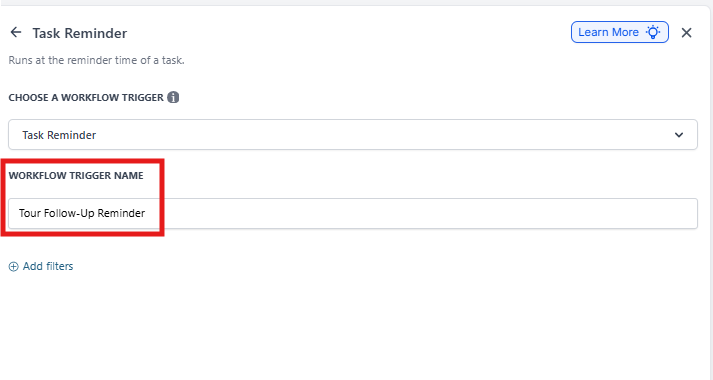
Enter a clear and descriptive trigger name, such as "Tour Follow-Up Reminder" or "Enrollment Task Due Date Reminder." Naming your trigger helps you quickly identify its purpose when managing multiple automation triggers.
Step 5: Open Filter Options
In the trigger configuration area, click the Select dropdown under Filters. This opens the list of available reminder timing options that let you define exactly when the reminder should activate the automation.
Step 6: Save Trigger
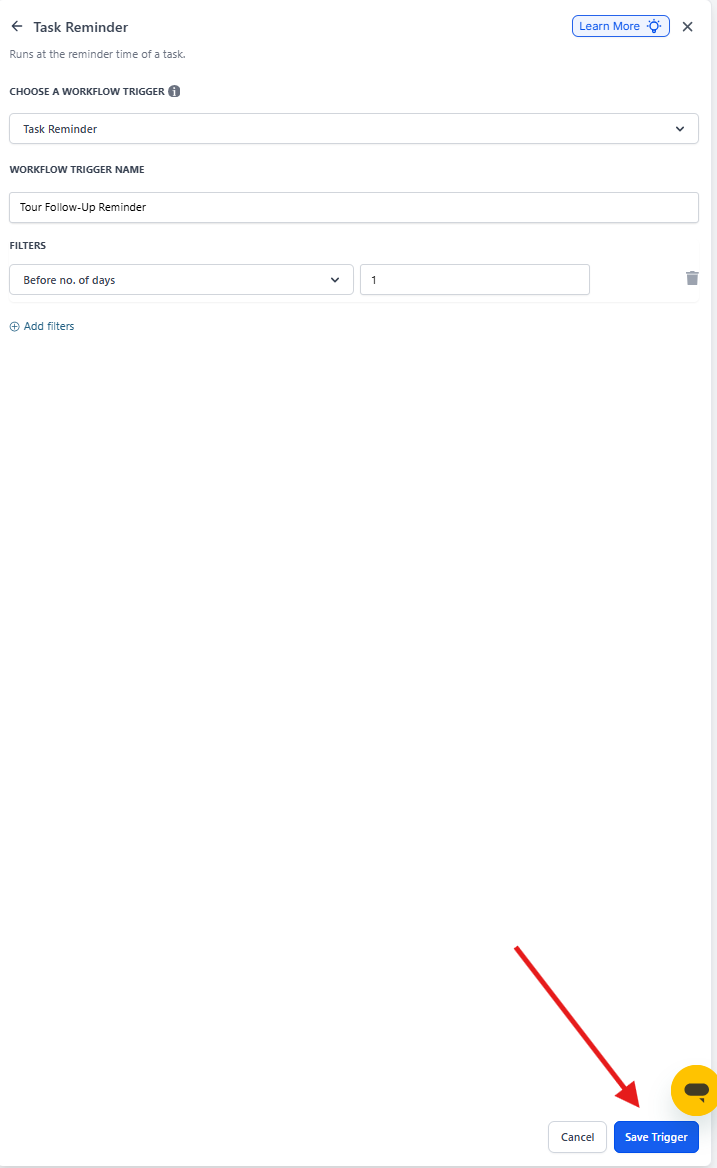
Choose either Before no. of days or After no. of days depending on when you want the automation to run in relation to the task due date. Enter the number of days, then click Save Trigger to apply your settings.
Frequently Asked Questions
Does the trigger work without a task due date?
No. A due date is required for reminder timing.
Does the reminder fire if the task is completed early?
No. The trigger will not run for completed tasks.
Can I set both a "Before" and "After" reminder?
Yes. You can create separate triggers for each—one will fire before the due date and one after. Each will trigger independently based on the timing you enter.
Does changing a task's due date affect the reminder?
Yes. The reminder automatically recalculates based on the updated due date.
Will the trigger fire if the task is deleted?
No. Deleted tasks do not trigger automations.
Does this trigger notify the assigned user automatically?
Only if you add automation actions that send notifications. The trigger itself just starts the automation—you need to add email, text message, or internal notification actions to alert team members.
Will reassigning the task change how the reminder behaves?
Reassignment does not affect the reminder timing. The automation will still fire based on the original due date settings.