
Custom Date Reminder Automation Trigger
The Custom Date Reminder trigger helps you automate reminders and follow-ups based on specific dates that matter to your childcare business — like enrollment anniversaries, waitlist follow-ups, or re-enrollment periods. This trigger ensures timely communication with families, improving their experience and keeping your operations running smoothly.
In this article, you'll learn what the trigger does, how it benefits your center, and how to set it up step-by-step.
What Is the Custom Date Reminder Trigger?
The Custom Date Reminder trigger activates an automation on a specific date stored in a custom field in your Enrollio account. Use it to automate reminders around important dates like:
- Child's birthday
- Enrollment anniversary
- Waitlist follow-up date
- Re-enrollment deadline
- Tour scheduled date
You can customize when the trigger fires — on the exact date, days before, or days after — and add filters to control which families receive messages.
Key Benefits
Improves Family Engagement: Send timely reminders and follow-ups that keep families informed and connected to your center.
Highly Customizable: Set triggers for exact dates, days before or after, specific months, or even days of the week.
Reduces Manual Work: Automate repetitive tasks like birthday messages, re-enrollment reminders, and waitlist check-ins — saving you time and ensuring nothing falls through the cracks.
Supports Proactive Communication: Stay ahead of important dates with families, strengthening relationships and improving retention.
Setting Up the Custom Date Reminder Trigger
Follow these steps to configure your custom date reminder and start automating date-based communications.
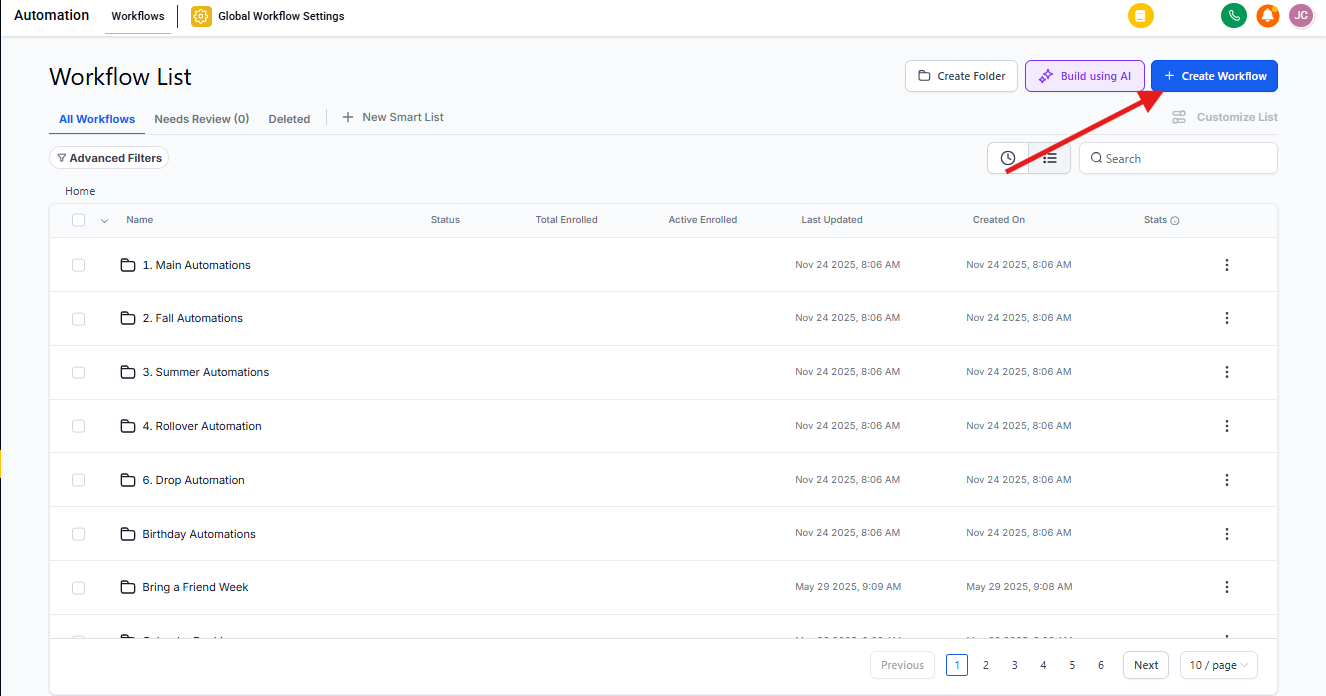
Step 1: Navigate to Automations
Click Automations in your Enrollio dashboard, then click + Create Automation. Choose Start from Scratch to build your own, or select a template to customize.
If you're adding this trigger to an existing automation, find the automation in your list and click to edit it.
Step 2: Add the Custom Date Reminder Trigger
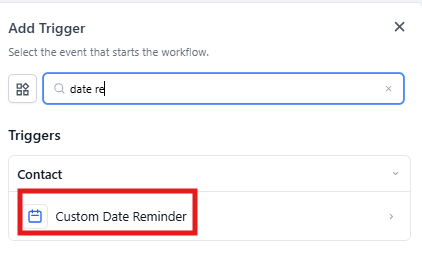
Click Add New Trigger and select Custom Date Reminder from the list.
Step 3: Name Your Trigger
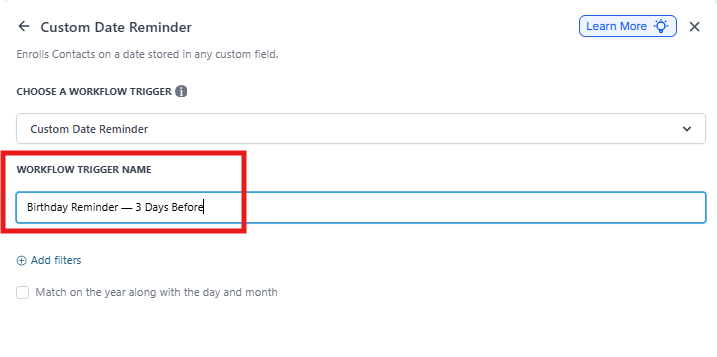
Give your trigger a clear, descriptive name like "Birthday Reminder — 3 Days Before" or "Re-Enrollment Follow-Up." This helps you stay organized, especially when managing multiple automations.
Step 4: Configure Your Custom Date Field
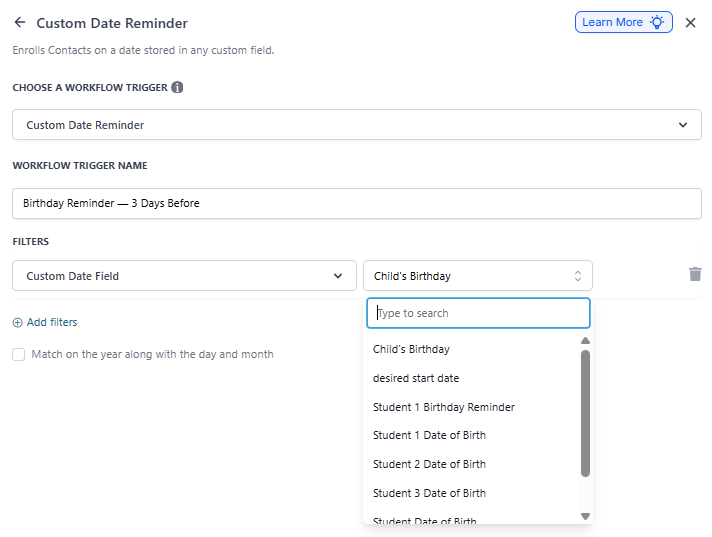
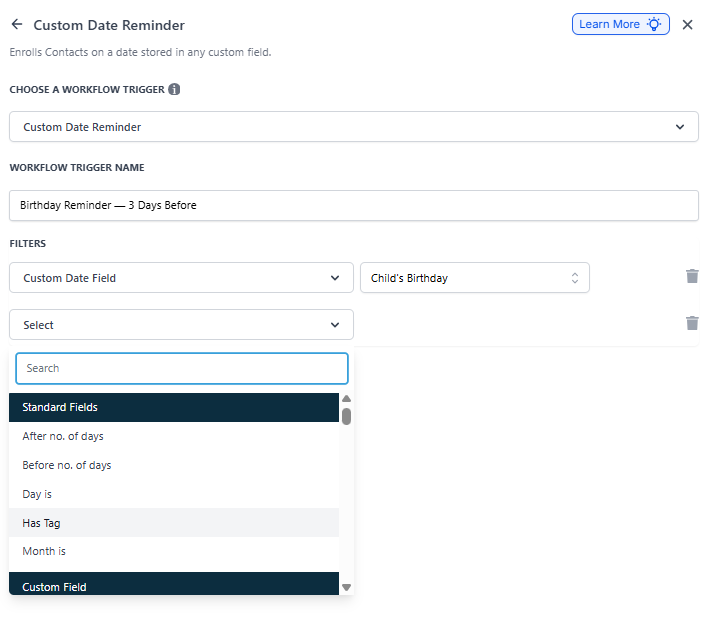
Click Add Filters to open your filter options. Select Custom Date Field to choose which date field will activate this automation.
Common date fields for childcare centers:
- Birthday (MM/DD): Use this for simple birthday reminders when the year doesn't matter.
- Birthday (MM/DD/YYYY): Use this when you need the full birthdate, such as calculating a child's age for classroom transitions.
- Enrollment Start Date: Track enrollment anniversaries or follow-up schedules.
- Waitlist Date: Automate check-ins with families on your waitlist.
- Tour Scheduled Date: Send reminders before scheduled tours.
Step 5: Add Advanced Filters (Optional)
Advanced filters let you control exactly when and for whom the automation triggers.
After Number of Days: Trigger the automation a specific number of days after the custom date. Example: Send a "How's it going?" message 7 days after enrollment starts.
Before Number of Days: Trigger the automation before the custom date. Example: Send a birthday message 3 days before a child's birthday so families can plan celebrations.
Has Tag: Only trigger for families with a specific tag. Example: Only send re-enrollment reminders to families tagged "Current Family."
Day Is: Trigger only on a specific day of the week. Example: Send weekly waitlist updates every Monday.
Month Is: Trigger only during a specific month. Example: Send summer program reminders only in April and May.
Match on Year Along with Day and Month: Enable this to ensure the trigger fires only when the year matches the current year. This is useful for one-time reminders tied to specific years, like enrollment contract renewals.
Step 6: Save and Publish
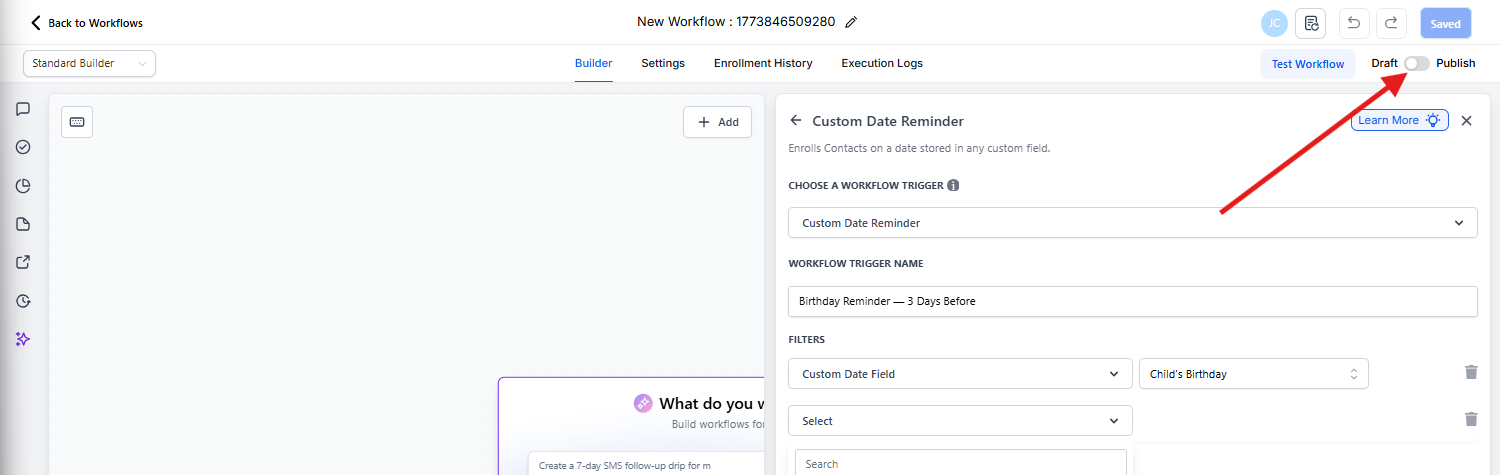
Click Save to preserve your progress. When you're ready to activate the automation, toggle it from Draft to Published.
Frequently Asked Questions
Can I send reminders for multiple dates using this trigger?
Yes. Create separate automations for each custom date field you want to track. For example, one automation for birthdays and another for enrollment anniversaries. Use clear names to keep them organized.
Can I send reminders both before and after a date?
Yes. Set up two triggers within the same automation — one using "Before Number of Days" and another using "After Number of Days." This lets you send a reminder before the date and a follow-up after.
What happens if a family doesn't have a value in the custom date field?
The trigger won't activate for that family. Make sure all relevant family records have the necessary date fields filled in.
Can I send recurring annual reminders?
Yes. Enable Match on Year Along with Day and Month to ensure the automation fires every year on the same date. This is perfect for birthday messages or enrollment anniversaries.
How do I make sure the trigger only activates for specific families?
Use filters like Has Tag to narrow down which families receive the automation. For example, only send re-enrollment reminders to families tagged "Current Family" or "Active Enrollment."