
Do Not Disturb (DND) Automation Trigger
This article shows you how to set up automations that respond when a parent or family opts in or out of communications. You'll learn how to respect communication preferences, stay compliant, and keep your enrollment pipeline clean.
What is the DND Automation Trigger?
The Do Not Disturb (DND) trigger starts an automation whenever a parent or family's DND status changes. This helps you manage communication preferences automatically — ensuring families who don't want to be contacted are excluded from your messages and calls.
You can trigger automations when DND is turned on or off, for specific channels (email, text, calls), and for different directions (inbound or outbound).
Why Use the DND Trigger?
Respect Parent Preferences: Automatically exclude families who've opted out of certain communications, keeping you compliant with privacy regulations.
Cleaner Enrollment Pipeline: Block unwanted inbound calls and texts from spam contacts, preventing false enrollment opportunities from cluttering your pipeline.
Better Parent Experience: Reduce unwanted contact, building trust with families and improving satisfaction.
Channel-Specific Control: Manage DND settings per channel (email, text, calls) or apply them across all channels at once.
Stay Compliant: Automatically handle opt-outs for text messages and emails to meet communication laws and guidelines.
Setting Up the DND Automation Trigger
Here's how to configure an automation that responds to DND changes.
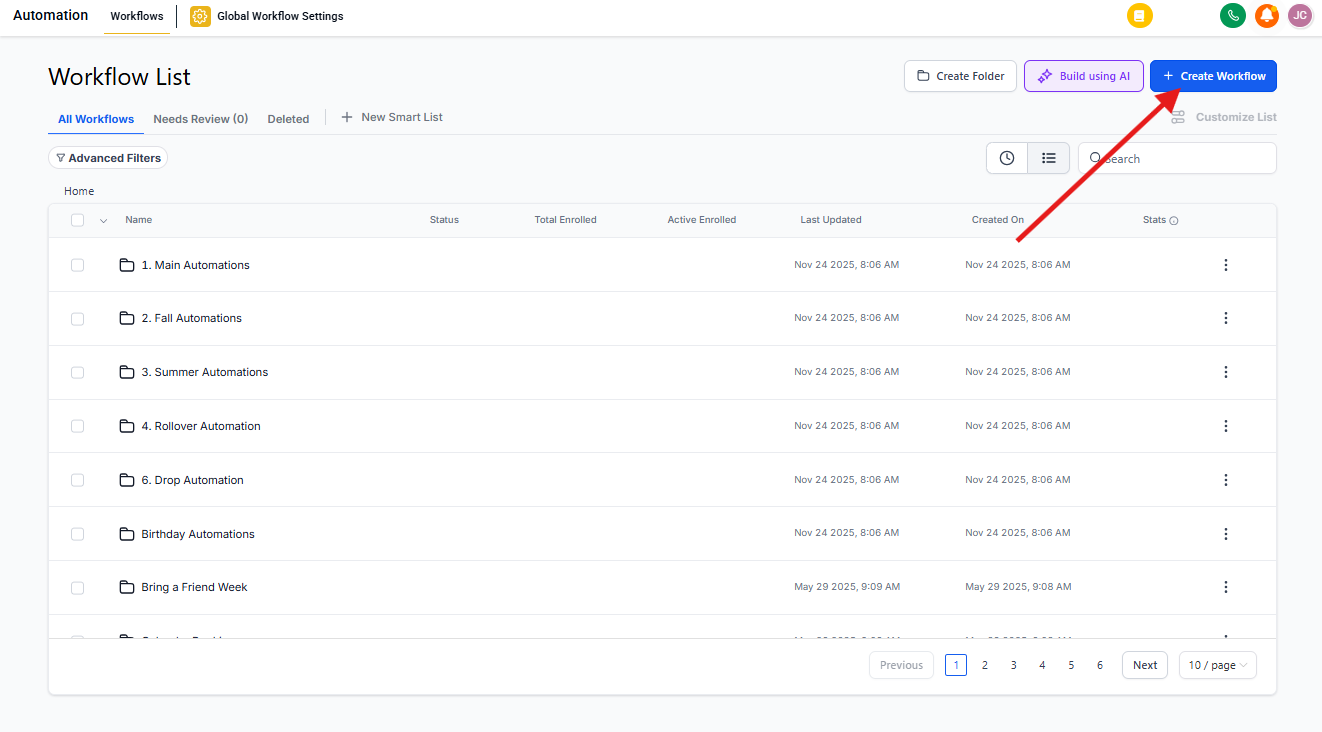
Navigate to Automations
Head to the "Automations" section in Enrollio and click "+ Create New Automation."
Choose "Start from Scratch" to build from the ground up, or select a template to customize. If you're adding this trigger to an existing automation, find that automation and click to edit it.
Add the DND Trigger
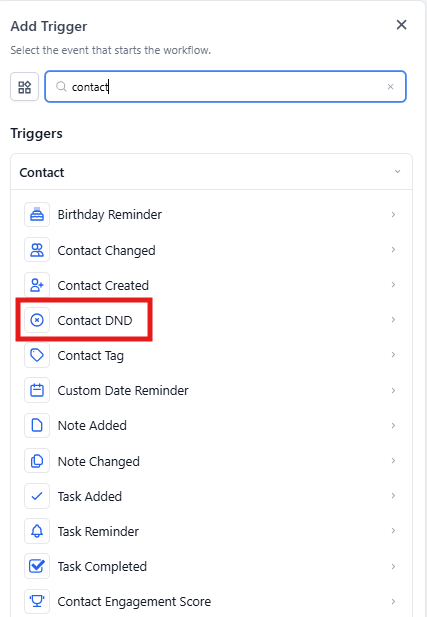
Click "Add New Trigger" and search for "Contact DND" in the list of available triggers. This ensures your automation runs whenever a parent or family's DND status changes.
Name Your Trigger
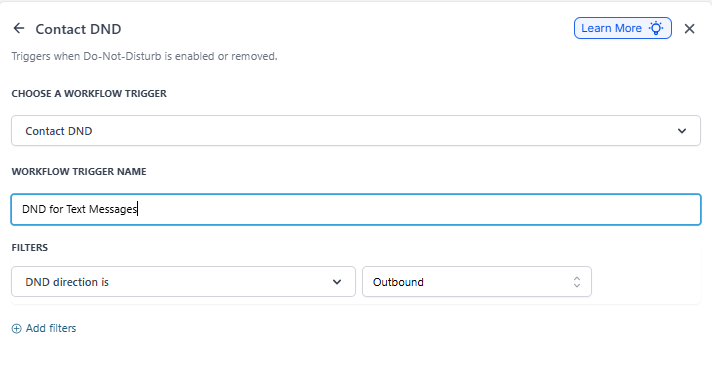
Give your trigger a clear, descriptive name so you can easily identify it later. For example: "DND for Text Messages" or "Inbound Spam Block."
Configure DND Filters
Now you'll set up the specific conditions that activate this trigger. These filters let you control exactly when the automation runs based on parent preferences.
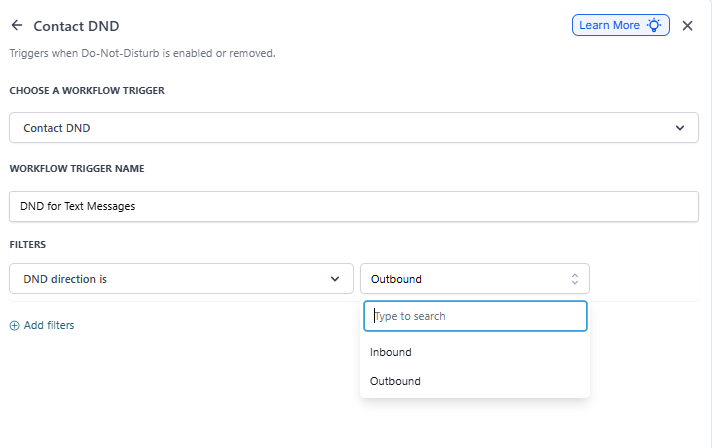
Select DND Direction
Choose whether this trigger should respond to inbound or outbound DND changes:
Outbound: Triggers when outbound DND status changes. Use this to manage families who've opted out of receiving your communications (enrollment reminders, tour invitations, marketing messages).
Inbound: Triggers when inbound DND status changes. Use this to block incoming calls and texts from spam contacts — keeping your pipeline clean. Inbound DND applies to calls and text messages only.
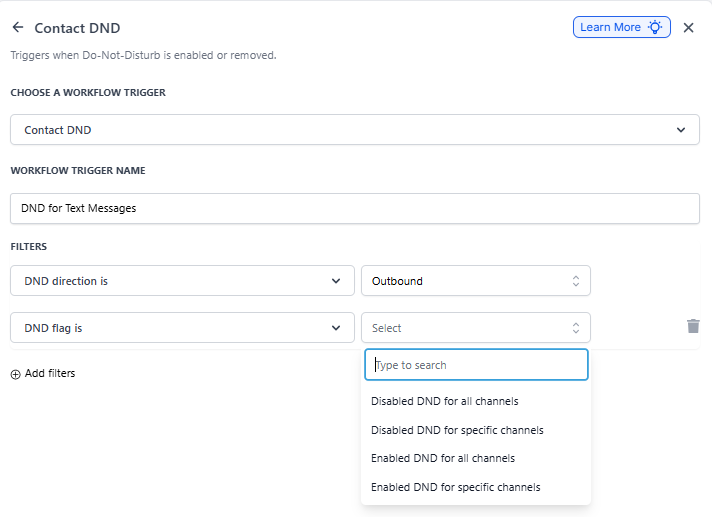
Select DND Flag
This filter controls when the automation should trigger based on whether DND is being turned on or off:
Disabled DND for All Channels: Triggers when DND is turned off for all communication channels. Use this when a family opts back in for all types of communication.
Disabled DND for Specific Channels: Triggers when DND is turned off for certain channels only (like text or email). This lets you re-engage families who want to hear from you through specific channels.
Enabled DND for All Channels: Triggers when a family opts out of all communications (email, text, calls). Use this to ensure no messages are sent to families who prefer complete disconnection.
Enabled DND for Specific Channels: Triggers when DND is enabled for one or more specific channels. This blocks communications only through selected channels while still allowing others.
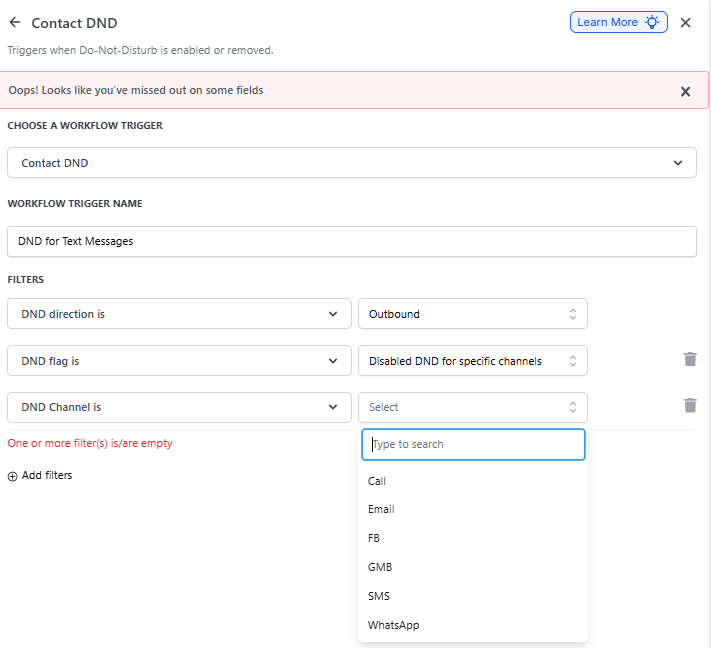
Choose Specific Channels (Optional)
If you selected "Specific Channel" in the previous step, you can now choose which channels this trigger should watch:
- Text Messages
- Phone Calls
- Google My Business Messages
- Facebook Messages
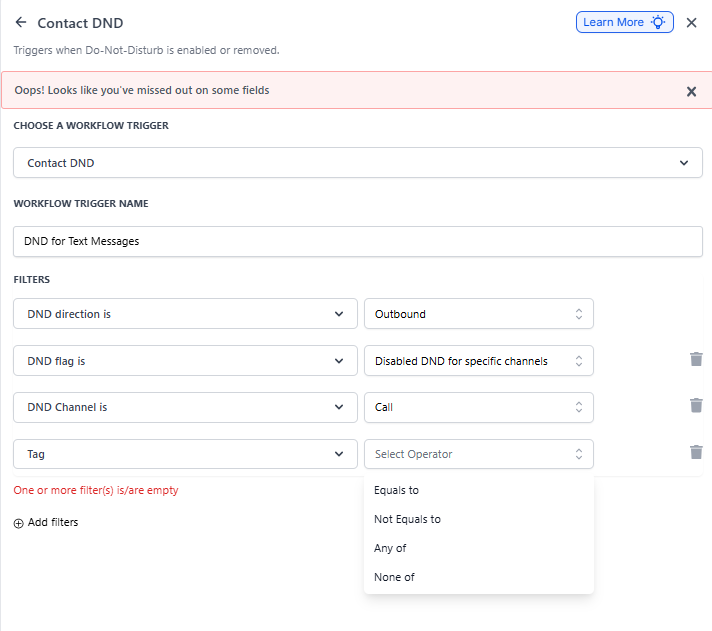
Use Tags to Refine (Optional)
Restrict this trigger to families that match specific tag conditions. You can use multiple operators:
Equals to / Not equals to: Match exact tags.
Any of: Fires when any selected tag is present.
None of: Fires when none of the selected tags are present.
Add multiple tag filters to combine conditions (for example, include families with "Interested" tag while excluding those with "Alumni").
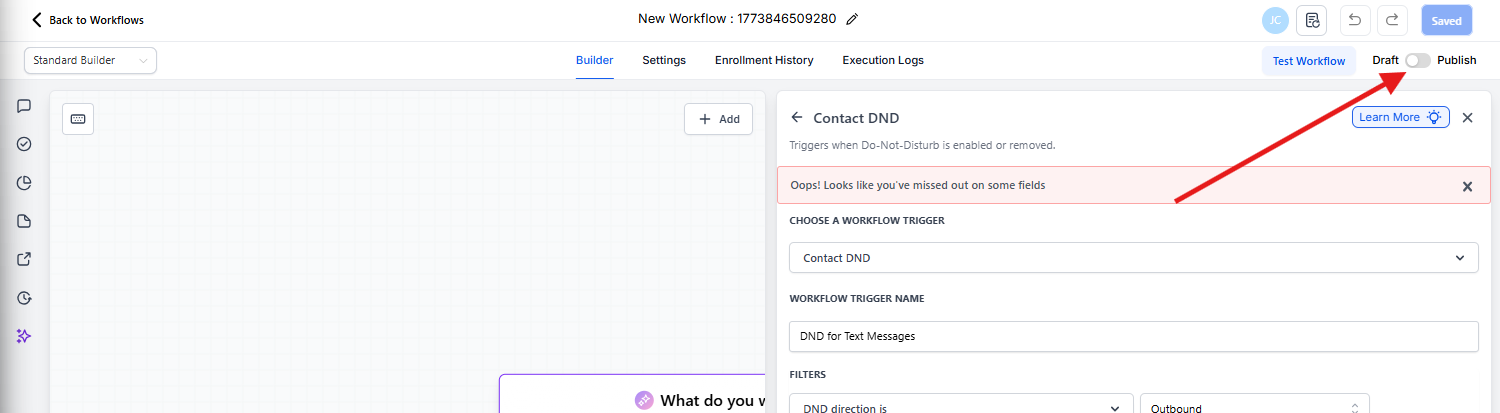
Save and Publish Your Automation
Click "Save" to preserve your progress. When you're ready to activate the automation, toggle it from "Draft" to "Published."
What Causes This Trigger to Fire
This trigger runs whenever a parent or family's DND status changes, regardless of what caused the change. In conversations and activity logs, Enrollio shows the source of the DND change as one of these:
- DND Enabled/Disabled by Automations (for specific or all channels)
- DND Enabled/Disabled by User (staff member manually updated it)
- DND Enabled/Disabled by Contact (parent opted out via text or email)
Real-World Examples
Managing Opt-Outs from Enrollment Campaigns
When a parent opts out of text messages, you want to respect that preference and clean up your follow-up automations.
Trigger Setup:
- DND Direction: Outbound
- DND Flag: Enabled DND for Specific Channels
- Specific Channels: Text Messages
Automation Actions:
- Add tag: "Opted Out - Text"
- Remove from text message campaigns
- Send internal notification to admissions staff
Re-Enabling Communication for Opted-In Families
When a family opts back in after previously unsubscribing, you want to resume your enrollment nurture sequence.
Trigger Setup:
- DND Direction: Outbound
- DND Flag: Disabled DND for All Channels
Automation Actions:
- Remove tag: "Opted Out"
- Add to enrollment nurture campaign
- Send welcome-back message
Blocking Inbound Spam
Prevent spam callers and junk texts from creating false enrollment opportunities in your pipeline.
Trigger Setup:
- DND Direction: Inbound
- DND Flag: Enabled DND for All Channels
Automation Actions:
- Add tag: "Spam - Blocked"
- Remove from all active enrollment opportunities
- Archive contact
Frequently Asked Questions
Q: What's the difference between inbound and outbound DND?
Outbound DND controls whether you can send messages to families. Inbound DND controls whether you receive messages from them — useful for blocking spam.
Q: Can I use DND triggers for specific enrollment campaigns?
Yes. Use tag filters to limit the trigger to families in specific campaigns or with specific interests.
Q: What happens if a parent opts out via a text reply?
Enrollio automatically updates their DND status, and this trigger will fire based on your configuration. The activity log will show "DND Enabled by Contact."
Q: Can I prevent all communications to families who've opted out?
Yes. Set up a trigger for "Enabled DND for All Channels" and use automation actions to remove them from all campaigns and enrollment sequences.
Q: Do DND settings apply across all locations?
Yes. DND preferences are tied to the parent or family record and apply across your entire Enrollio account.