
What is the "New Family Added" Automation Trigger?
The New Family Added trigger starts an automation whenever a new parent or family is added to your Enrollio account. This ensures you can automatically follow up with prospective families, send welcome messages, and keep your enrollment pipeline moving without manual work.
The trigger works no matter how the family is added—whether you enter them manually, they submit an inquiry form on your enrollment site, or they're added through an integration. This makes it a powerful way to ensure no prospective family slips through the cracks.
Key Benefits of the "New Family Added" Trigger
- Instant engagement: New families receive an immediate response the moment they inquire, creating a great first impression.
- Streamlined lead assignment: Automatically assign prospective families to specific staff members based on program interest, location, or other criteria.
- Better data management: Automatically update family records and enrollment details, reducing manual data entry.
- Improved parent experience: Send welcome emails, tour scheduling links, or program information instantly when a family shows interest.
Configuring the "New Family Added" Automation Trigger
Setting up this trigger ensures your automation runs exactly when you need it. Follow these steps to configure it properly and control which families enter your automation.
Step 1: Create a New Automation
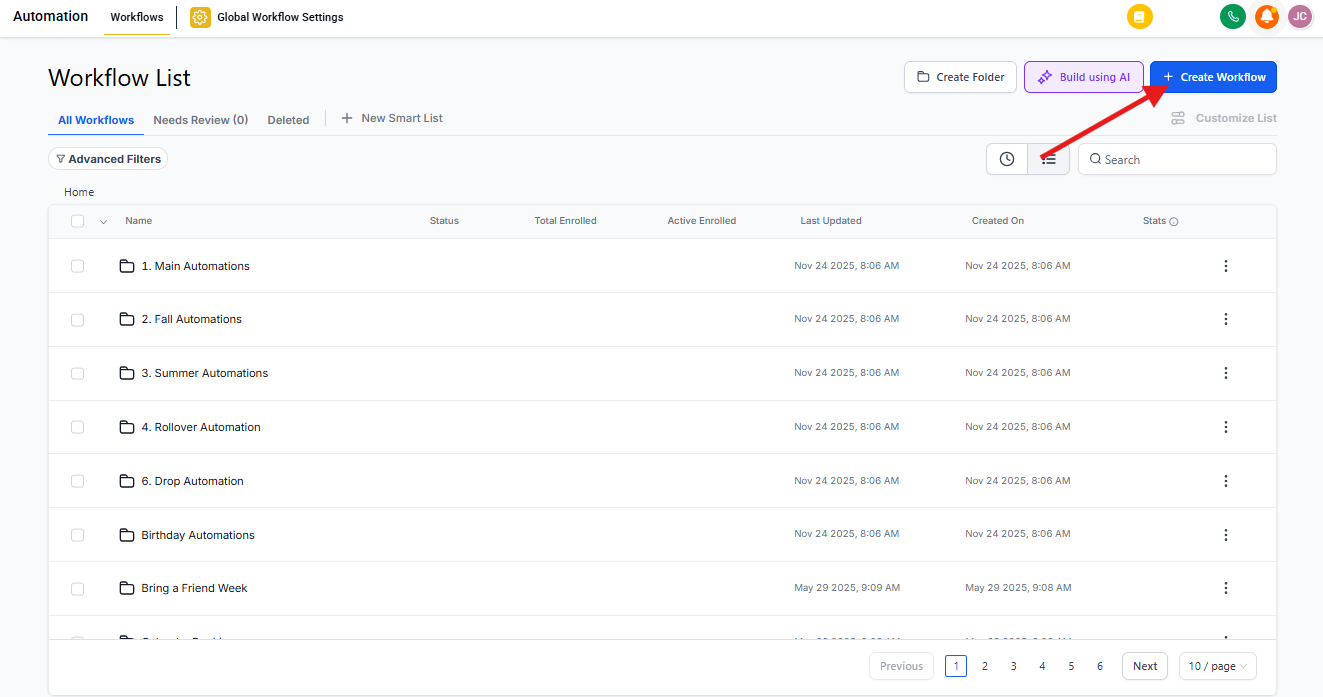
- Navigate to Automations in your Enrollio dashboard.
- Click + Create Automation and select Start from Scratch, or edit an existing automation.
Step 2: Add the Trigger
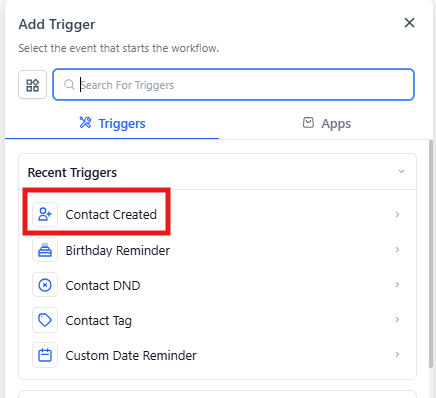
- Click Add New Automation Trigger.
- Select "New Family Added" from the trigger list.
- Name your trigger something descriptive, like "New Inquiry Welcome Sequence" or "Tour Scheduling Follow-up."
Step 3: Apply Filters (Optional)
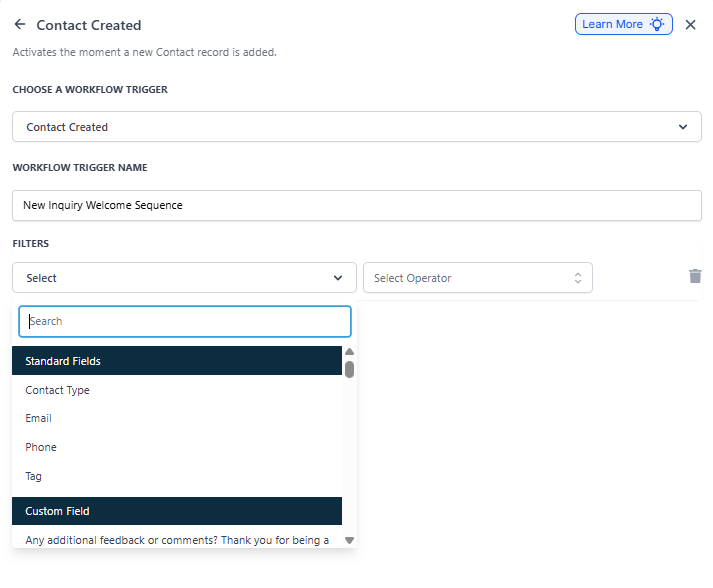
Filters help you control exactly which families trigger your automation. This prevents unnecessary actions and lets you create targeted automations for specific situations.
Available Filters:
1. Tag
Use tags to control which families enter the automation based on their interests, source, or status.
- Equals to / Not equals to: Trigger only when a family has (or doesn't have) a specific tag
- Any of: Trigger when any of the selected tags are present
- None of: Trigger when none of the selected tags are present
Pro tip: You can add multiple tag filters to the same trigger for more advanced rules. For example: Tag equals "Infant Program" AND Tag not equals "Waitlist Only."
2. Custom Fields
If you've added custom fields to track information like "Program Interest," "Desired Start Date," or "Tour Preference," you can use these to trigger automations only when certain criteria are met.
For example, you might send different welcome sequences based on whether a family is interested in your infant program versus your preschool program.
Common Use Cases
- Welcome sequence: Send a warm welcome email and introduce your center when a family first inquires
- Tour scheduling: Automatically send a link to book a tour when a new prospective family is added
- Staff assignment: Route families to the right staff member based on program interest or location
- Follow-up reminders: Create internal tasks for your team to follow up with new inquiries
- Waitlist management: Automatically add families to the appropriate waitlist and send confirmation
Frequently Asked Questions
Will this trigger activate for families imported in bulk?
No, the New Family Added trigger only activates when a family is manually added, submits an inquiry form, is created via API, or is added through an integration. Bulk imports don't trigger this automation to prevent overwhelming your system with hundreds of emails or actions at once.
If you need to automate actions for imported families, consider using a different automation with manual enrollment or a tag-based trigger.
Can I set conditions so this automation only runs for specific families?
Yes, absolutely. Use filters to ensure the automation only runs for families that meet your criteria. You can filter by tags, custom fields, or other attributes.
For example, you might configure the automation to activate only when a family is tagged as "Infant Inquiry" or has "Tour Requested" set to "Yes" in a custom field. This ensures only relevant families trigger the automation.
What happens if a family is added multiple times? Will the automation trigger again?
If a family with the same email or phone number is added again, Enrollio recognizes them as an existing family based on your duplicate detection settings. If the records are merged, the automation won't trigger again.
However, if the system treats it as a completely new family record, the automation will run as expected. You can prevent duplicates by checking for existing families before adding new ones.
Can I use this trigger to automatically assign new families to staff members?
Yes. You can configure the automation to assign new families to specific staff members based on criteria like program interest, location, or inquiry source. You can also set up round-robin assignment to distribute families evenly among your enrollment team.
This ensures every family gets prompt attention and helps balance workload across your team.
How can I track if this automation is working?
You can monitor your automation's performance in several ways:
- Check the automation execution logs to see which families have entered the automation and when
- Track email metrics (open rates, click rates) if your automation includes email messages
- Review task completion rates if the automation creates follow-up tasks for staff
- Monitor enrollment conversion rates for families who enter this automation
Regular review helps you optimize your automations for better results and higher enrollment rates.