
Scheduled Automations: Run Tasks on a Timer
Run automations on a precise schedule with Enrollio's Scheduled Automation Trigger. This time-based trigger doesn't require a parent or family record—it's perfect for daily reports, weekly tasks, data cleanup, and system integrations that run on a clock.
What is a Scheduled Automation?
A Scheduled Automation starts automatically based on a schedule you define—no parent enrollment required. Use it for recurring tasks like daily enrollment summaries, weekly performance reports, spreadsheet updates, and webhook notifications.
All schedules run in your account timezone, and you can preview upcoming run times before publishing.
Why Use Scheduled Automations
Run tasks exactly when you need them: Hourly, daily, weekly, monthly, on a specific date, or with custom cron patterns.
No parent record required: Perfect for operations tasks that don't involve individual families. Steps that need parent data are automatically skipped.
Timezone aware: Your schedules run according to your account timezone to keep reporting consistent.
Built-in safeguards: Skip weekends and set end dates to match your business calendar.
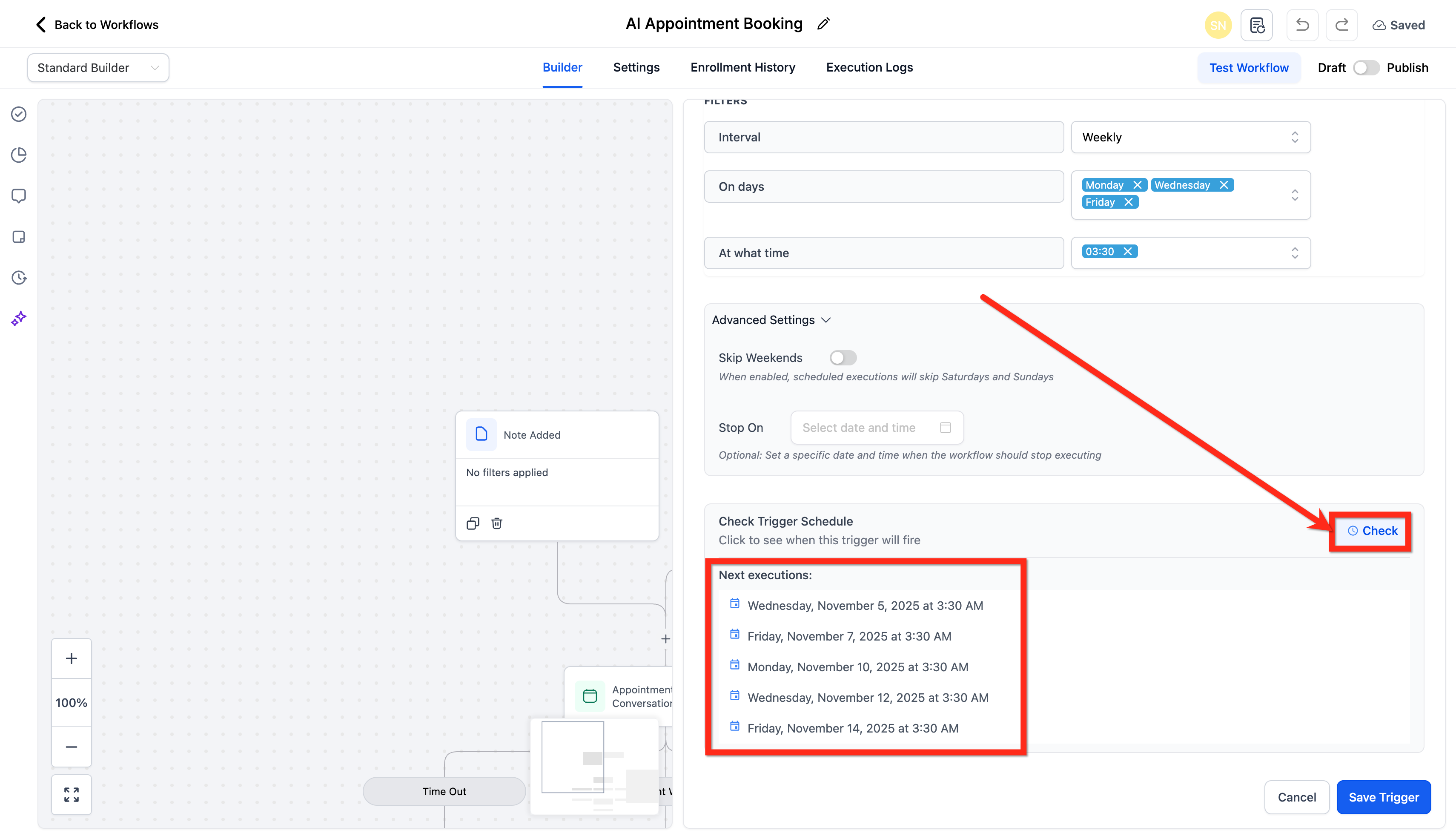
Preview before publishing: Check the next five scheduled run times to confirm everything looks right.
Integrations ready: Works with webhooks, Google Sheets, Airtable, Slack, internal notifications, custom fields, and task creation for powerful operational automations.
Advanced (Cron) Scheduling
When preset schedules aren't enough, use cron format for complex timing patterns.
Format: *minute *hour *day *month *weekday
Examples:
-
0 9 * * 1— Mondays at 9 AM -
30 14 1 * *— 1st of the month at 2:30 PM -
0 */2 * * *— Every 2 hours
Note: Schedules that run more than once per hour aren't allowed.
Skip Weekends & End Dates
Skip Weekends: Automatically removes Saturday and Sunday from your schedule. Works with daily, weekly, every-N-days, and cron patterns.
End Date (Stop On): Sets a final date and time when the automation stops running. Great for time-limited campaigns or seasonal tasks.
Both options appear in your preview of upcoming run times.
What Actions Work (and What Gets Skipped)
Scheduled automations are designed for tasks that don't need parent or family data.
Actions that work well:
- Webhooks (outbound)
- Google Sheets
- Airtable
- Slack
- Internal email/text notifications to your team
- Update or set custom field values
- Create tasks
Actions that get skipped: Any step that requires a specific parent or family record (like "Send text to parent") will be skipped. The automation continues to the next step.
Skipped steps appear in your execution logs so you can track what happened.
How to Set Up a Scheduled Automation
- Go to Automations → Automations.
- Create a new automation or open an existing one.
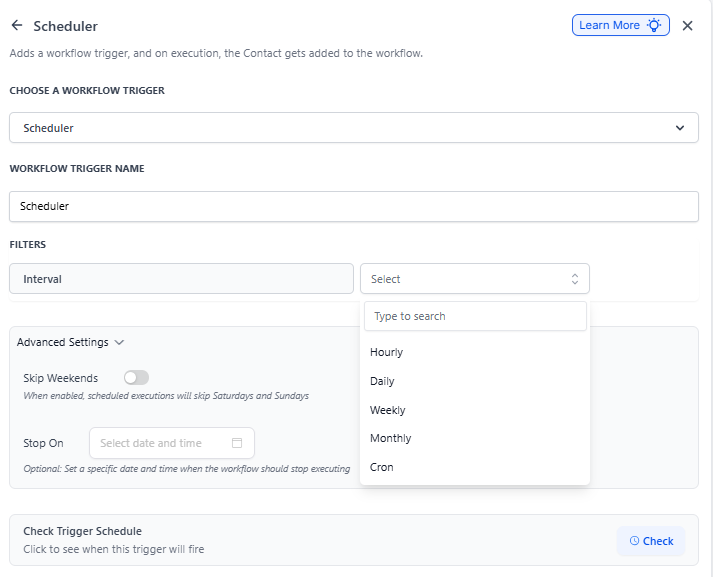
- Click Add Trigger and choose Scheduler.
- Choose your schedule type:
- Custom — Nth weekday (like 2nd Friday or 4th Monday); supports multiple times
- Daily — One or more times each day
- Weekly — Select days of the week and time
- Monthly — Choose day 1–31 or last day of month, plus time
- Every N days — e.g., every 2 days at 9:00 AM
- One-time date/time — Run once at a specific date and time
- Advanced (cron) — Custom cron pattern for complex schedules
- Set the time(s) for your selected schedule.
- Click Advanced Settings (optional):
- Toggle Skip Weekends if you want to avoid Saturday/Sunday
- Set Stop On to add an end date
- Click Check Trigger Schedule to preview the next five run times.
- Add your actions (webhooks, Slack notifications, spreadsheet updates, etc.).
- Click Publish. Your automation will start running at the scheduled times.
Example Use Cases
Daily enrollment summary: Send yourself a Slack message every morning at 8 AM with new enrollments from yesterday.
Weekly waitlist report: Update a Google Sheet every Monday at 9 AM with current waitlist totals by age group.
Spreadsheet sync: Push enrollment data to Airtable every 4 hours to keep your reporting dashboard current.
Nightly cleanup: Run data hygiene tasks every night at midnight—archive old tours, update custom fields, trigger webhooks.
Seasonal campaign: Send weekly reminders about summer camp enrollment, automatically stopping on May 31st using the End Date option.
Frequently Asked Questions
Q: Does a scheduled automation need a parent or family record?
No. It runs on a timer without any parent data. Steps that require a parent record are automatically skipped.
Q: Will it run tasks I missed while the automation was paused?
No. Scheduled automations only trigger upcoming times while published. Past occurrences aren't executed retroactively.
Q: Can I schedule multiple times in one day?
Yes. Daily and Custom schedule types support multiple times per day.
Q: How does "Skip Weekends" work?
Saturday and Sunday are automatically removed from your schedule. You'll see this reflected immediately in your preview.
Q: What does the end date (Stop On) do?
It sets a final date and time after which the automation stops running. Great for time-limited campaigns.
Q: What actions work best with scheduled automations?
Webhooks, Google Sheets, Airtable, Slack, internal team notifications, custom field updates, and task creation. Avoid actions that need specific parent or family data.