
Overview
The "Note Added" trigger starts an automation whenever someone adds a note to a parent or family's record. This helps you stay on top of important updates without manual follow-up.
What This Trigger Does
Use this trigger to automatically send internal notifications, update family information, or kick off other actions when notes are added. It's perfect for flagging important updates that need immediate attention.
How to Set It Up
| Field | Description | Required |
|---|---|---|
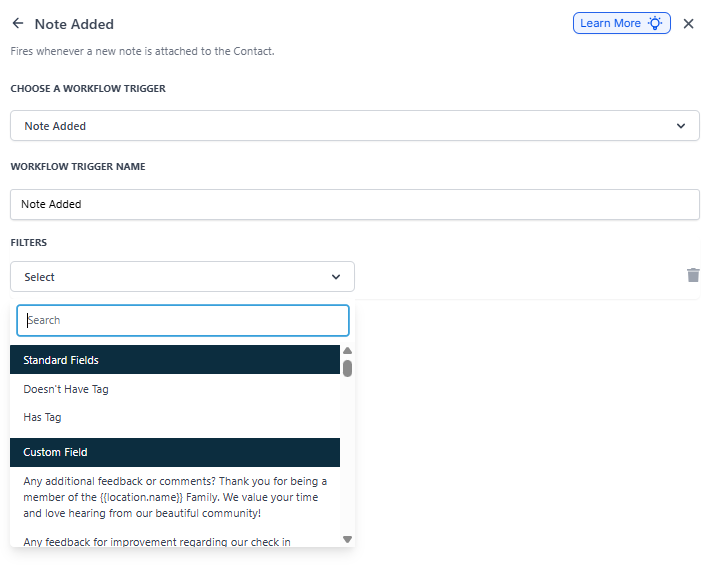
| Choose an Automation Trigger | Select "Note Added" from the dropdown | Yes |
| Automation Trigger Name | Give your trigger a clear name, like "Allergy Note Alert" | Yes |
| Filters | Add conditions to narrow when the trigger fires (like Has Tag/Doesn't Have Tag) | No |
Step-by-Step Guide
-
Navigate to Automation Triggers
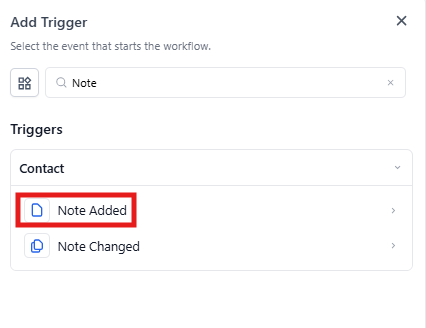
- Choose Your Trigger: Select "Note Added" from the list
- Name Your Trigger: Enter a descriptive name that explains what it does, like "Allergy Note Alert"
- Set Up Filters (Optional): Add filters to specify which notes should trigger the automation. You can filter by tags or other criteria to make sure only relevant notes trigger your automation.
Real-World Example: Allergy Alert
Scenario: Your childcare center needs to ensure any note about allergies immediately alerts your director and classroom teachers.
Trigger Setup:
- Trigger: Note Added
- Name: Allergy Alert
- Filter: Note contains the tag "Allergy"
Automation Actions:
- Send an internal notification to the director and lead teacher
- Create a task for the director to review and update classroom allergy charts
- Add a tag to the family record for easy identification
Outcome: Critical health information gets flagged immediately, ensuring staff can respond quickly and keep children safe.
Pro Tip: Use specific tags in your notes (like "Allergy," "Behavioral," or "Pickup Change") to create targeted automations. This keeps your team informed without notification overload.