
Automation Trigger - Survey Submitted
This article shows you how to use the "Survey Submitted" automation trigger to follow up with families automatically after they complete a survey.
Whether you're collecting feedback on your center, gauging parent satisfaction, or qualifying tour requests, this trigger helps you respond instantly without lifting a finger.
What is the Survey Submitted Trigger?
This trigger activates whenever a parent or family member submits a survey in Enrollio. You can set it to respond to any survey or only specific ones — like post-tour feedback, enrollment satisfaction, or program interest forms.
Once triggered, the automation can send thank-you messages, update family records, assign tags, or route qualified families to your enrollment pipeline.
Why Use This Trigger?
Automating your survey follow-up saves time and ensures every family gets a timely response:
- Instant acknowledgment — Thank families for their feedback while it's fresh
- Qualify families automatically — Route interested parents directly to your enrollment pipeline
- Personalized next steps — Send different messages based on which survey they completed
- Consistent communication — Never miss a follow-up, even during busy enrollment seasons
How to Set Up the Survey Submitted Trigger
Here's how to configure this trigger in your automation:
- Create or open an automation in Enrollio
- Add a new trigger and select "Survey Submitted" from the list
- Name your trigger something descriptive like "Post-Tour Survey Response" or "Parent Satisfaction Survey"
- Add filters to control when the automation runs (optional but recommended)
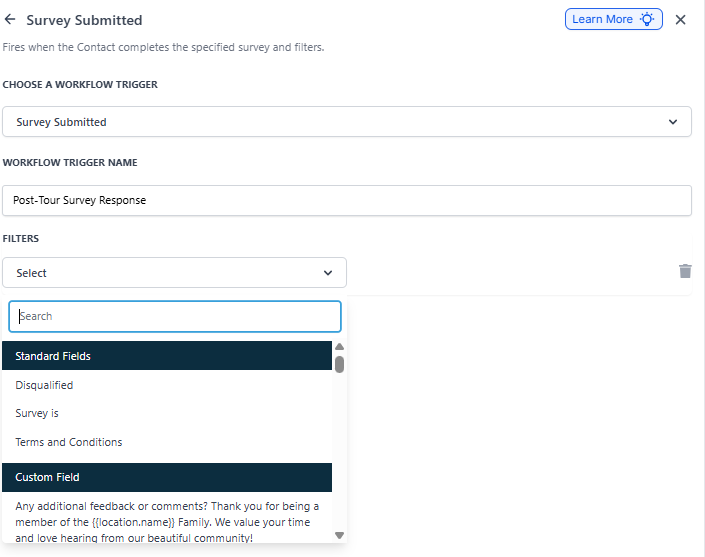
Filter Options
Use these filters to make your automation more specific:
| Filter | What It Does | Required? |
|---|---|---|
| Survey is | Choose which survey(s) should trigger this automation. Leave blank to trigger on any survey. | No |
| Disqualified | Set to "is false" if you only want to follow up with qualified families. Set to "is true" to handle disqualified responses separately. | No |
Example Automation
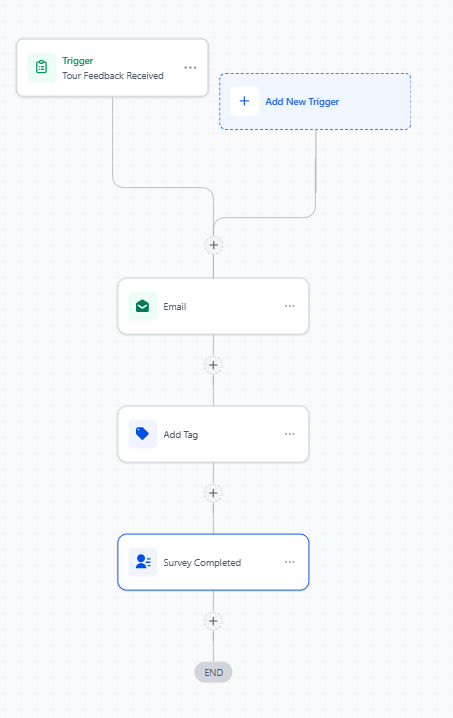
Let's say you want to thank parents who complete your "Tour Feedback Survey" and aren't disqualified:
Trigger Name: "Tour Feedback Received"
Filters:
- Survey is: "Tour Feedback Survey"
- Disqualified: is false
Automation Steps:
- Send email — "Thank you for touring [Your Center Name]!"
- Send text message — "We loved meeting your family! Ready to enroll? Reply YES and we'll send you next steps."
- Add tag — "Tour Completed"
- Update custom field — Set "Survey Completed" to "Yes"
Frequently Asked Questions
Can I trigger an automation from any survey?
Yes. Leave the "Survey is" filter blank to trigger from any survey submission, or select specific surveys to target.
Can I create different automations based on survey answers?
Not directly from this trigger. However, you can use custom fields or tags that your survey applies to the family record, then build additional logic based on those fields.
Does this work for surveys on my enrollment site?
Yes. The trigger works for surveys embedded in your enrollment pages, sent via email or text, or shared through direct links.
What if a family submits the same survey twice?
The automation will trigger each time the survey is submitted. If you want to prevent duplicate follow-ups, add a filter checking for a tag or custom field that your automation sets.