
Automations - Undo/Redo & Change History
Enrollio's Automation Builder now includes Undo, Redo, and Recent Changes—making it safer and faster to build automations for your childcare center. Experiment freely knowing you can step backward or forward through your edits, or jump to a previous state using the Recent Changes list.
This article shows you how to use Undo, Redo, and Recent Changes to build automations with confidence.
What is Undo, Redo & Recent Changes?
Undo, Redo, and Recent Changes give you session-based editing controls while building automations. Every auto-saved change you make can be reversed or replayed in your current editing session.
Here's how each feature works:
- Undo reverses your most recent action
- Redo reapplies an action you just undid
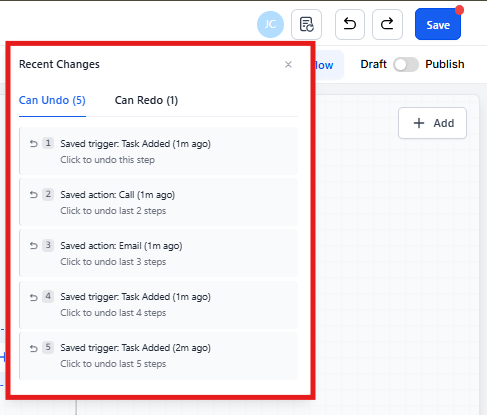
- Recent Changes shows a chronological list of your latest edits so you can jump to a specific point in time
These features work within your current session and don't affect your persistent Version History.
Key Benefits
Safety: Quickly recover from accidental deletions or edits without losing your overall progress.
Speed: Move backward or forward through edits instantly using keyboard shortcuts for rapid iteration.
Precision: Jump to an exact edit from the Recent Changes list to compare states or roll back multiple steps at once.
Confidence: Make bold changes to your parent communication automations knowing you can revert or replay them within your current session.
Focus: Keep your attention on building. Most canvas edits are auto-saved and tracked for quick retrieval during your session.
Undo and Redo Controls
You'll find Undo and Redo buttons in the toolbar while editing any automation. For faster editing, use these keyboard shortcuts:
Windows:
- Ctrl + Z (Undo)
- Ctrl + Y (Redo)
macOS:
- Cmd + Z (Undo)
- Cmd + Y or Cmd + Shift + Z (Redo)
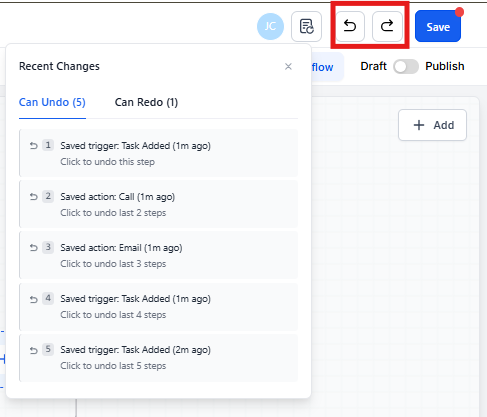
Undo reverses the most recent tracked action on your canvas. Redo reapplies it if you change your mind.
Session Behavior & Limits
Understanding how sessions work prevents surprises when editing automations for your tours, waitlists, or enrollment communications.
Session-based: Change history exists only for your current editing session and resets when you exit or refresh your browser.
Restoring versions: If you restore an older automation version via Version History, Undo/Redo resets and starts fresh from the restored state.
Local scope: History is local to your session. It won't include other staff members' edits if someone else is working on the same automation.
Multiple Editors
If you have staff members who also build automations, here's what you need to know about working together.
Undo/Redo and Recent Changes track only your edits in your session. Other staff members' changes are not included in your session history.
For team-wide or time-spanning rollbacks, use Version History for consistent, shared checkpoints across your center's automations.
How To Use Undo, Redo & Recent Changes
Follow these steps to use Undo/Redo and Recent Changes while building automations:
- Go to Automations > Automations
- Create a new automation or open an existing automation to edit
- Add or modify steps and settings directly on the canvas
- Click the Undo or Redo buttons in the toolbar, or use the keyboard shortcuts (Ctrl/Cmd + Z to Undo; Ctrl/Cmd + Y to Redo)
- Click Recent Changes on the canvas to view your latest edits
- Select any entry in Recent Changes to jump to that point in time
Frequently Asked Questions
Is there a limit to how many actions I can undo?
Undo/Redo is session-based. While the list shows your latest edits, history resets when the session ends (for example, on refresh or when you close the tab) or when you restore a version.
Does history persist after I refresh or close the tab?
No. Change history exists only within your current editing session.
What's the difference between Recent Changes and Version History?
Recent Changes lists your latest session edits for quick rollbacks during your current work. Version History stores persistent automation versions for long-term, collaborative rollbacks across your team.
Can I undo another staff member's edits?
No. Undo/Redo is local to your session and tracks only your edits. Use Version History for collaborative rollbacks.
Will undo/redo affect live, running automations?
Undo/Redo affects the canvas in your editor. Publishing and versioning controls how changes affect live automations. Use Version History and publishing to manage live changes safely for your parent communications.
What happens after I restore an older version?
The Undo/Redo history resets, starting fresh from the restored state.