
You can now discover and install apps directly inside the Automation Builder—no need to navigate to the app marketplace separately. This streamlined process makes it faster and easier to enhance your automations with powerful integrations.
Accessing the App Directory in Automations
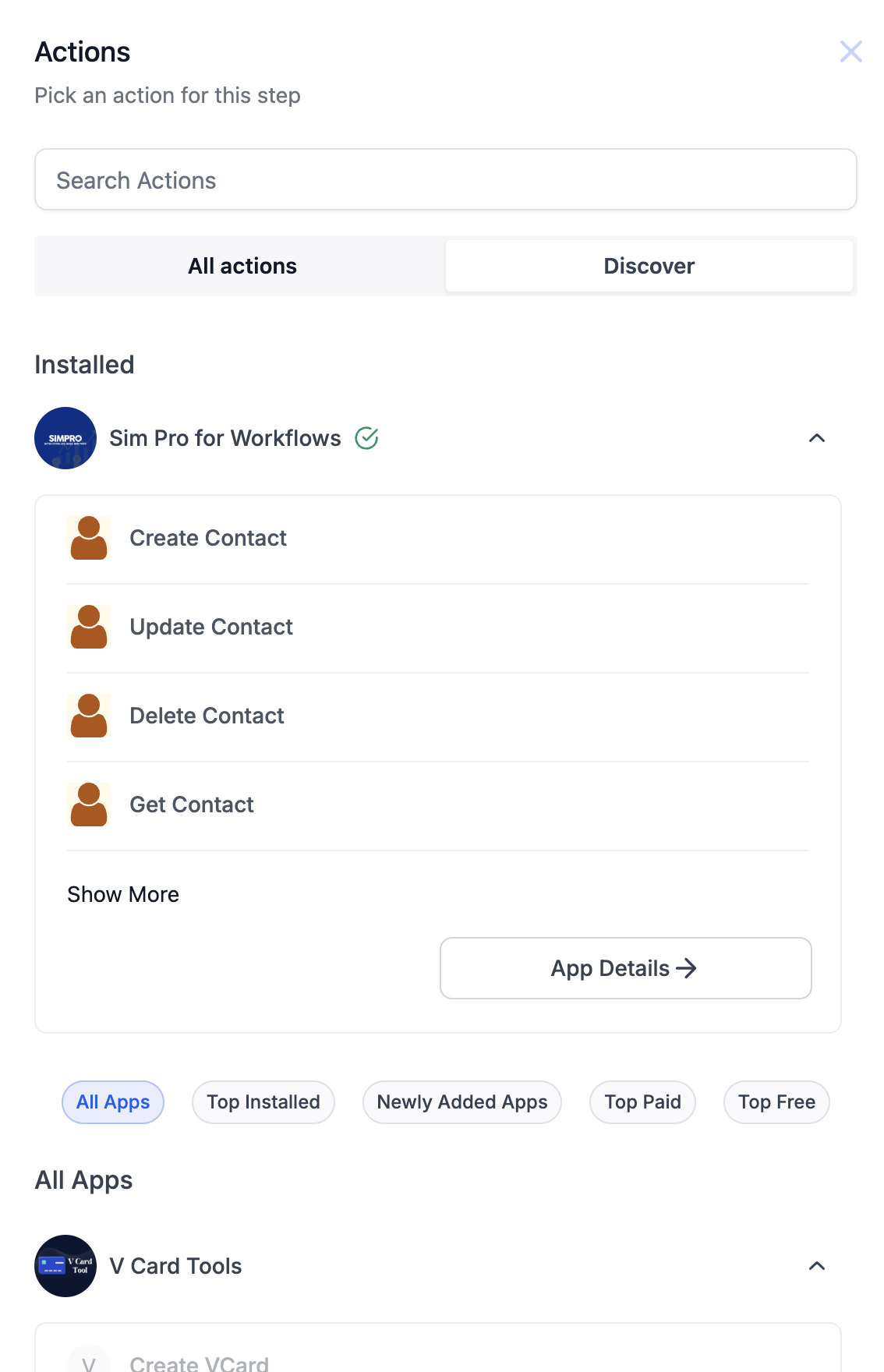
Inside the Automation Builder, you'll see a "Discover" button in the action panel. Click this to open the full list of available apps without leaving your automation.
Browsing and Filtering Apps
The in-automation app directory helps you find the right app quickly with organized categories:
- Top Installed – Most frequently added by childcare centers
- Top Free – Popular apps available at no cost
- Top Paid – Best-selling premium integrations
- Newly Added – Recently published or updated apps
Browse by category to see what's trending or newly available.
Using the Global Search Bar
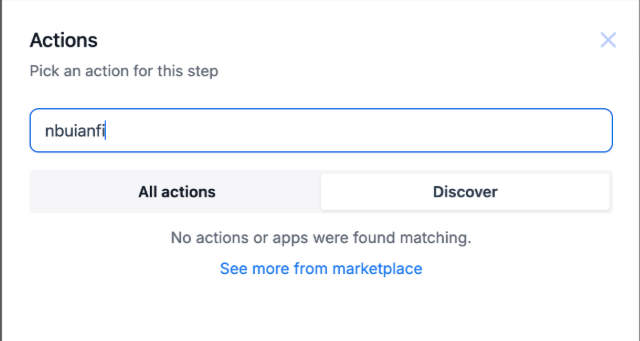
Need something specific? Use the Global Search Bar to find:
- Enrollio-built automation actions
- Marketplace app actions
- Automation triggers from both built-in and marketplace sources
This universal search keeps you from toggling between tabs to locate what you need.
Viewing App Details and Installing Apps
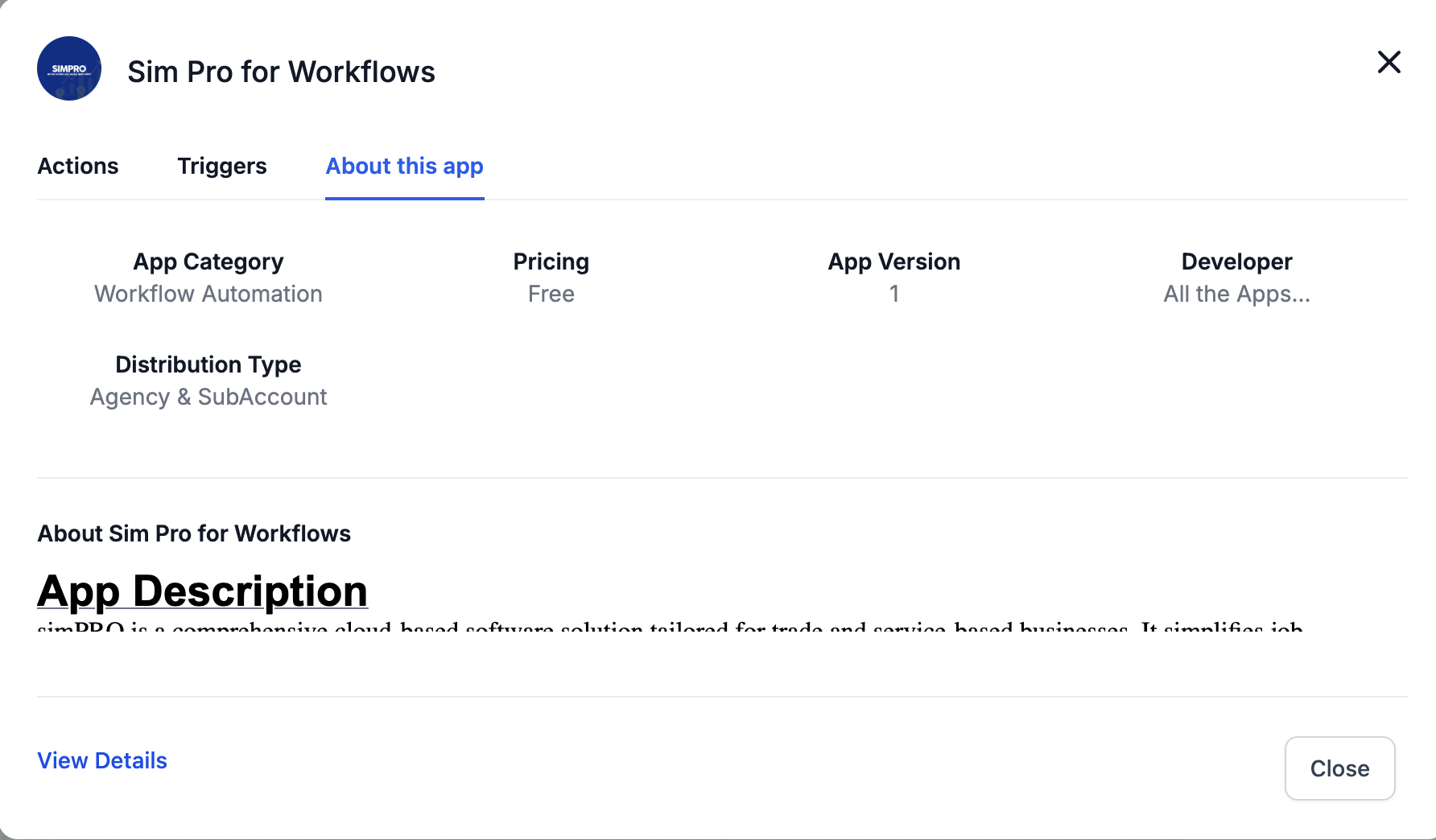
Click on any app to view detailed information including:
- Overview of what the app does for your childcare center
- Available actions and triggers
- Pricing (if applicable)
- Reviews and ratings from other users
Click the Install button to add the app to your account instantly. After installation, the app's actions and triggers appear in your "All Actions" panel in the automation builder, just like built-in steps.
Identifying App Updates
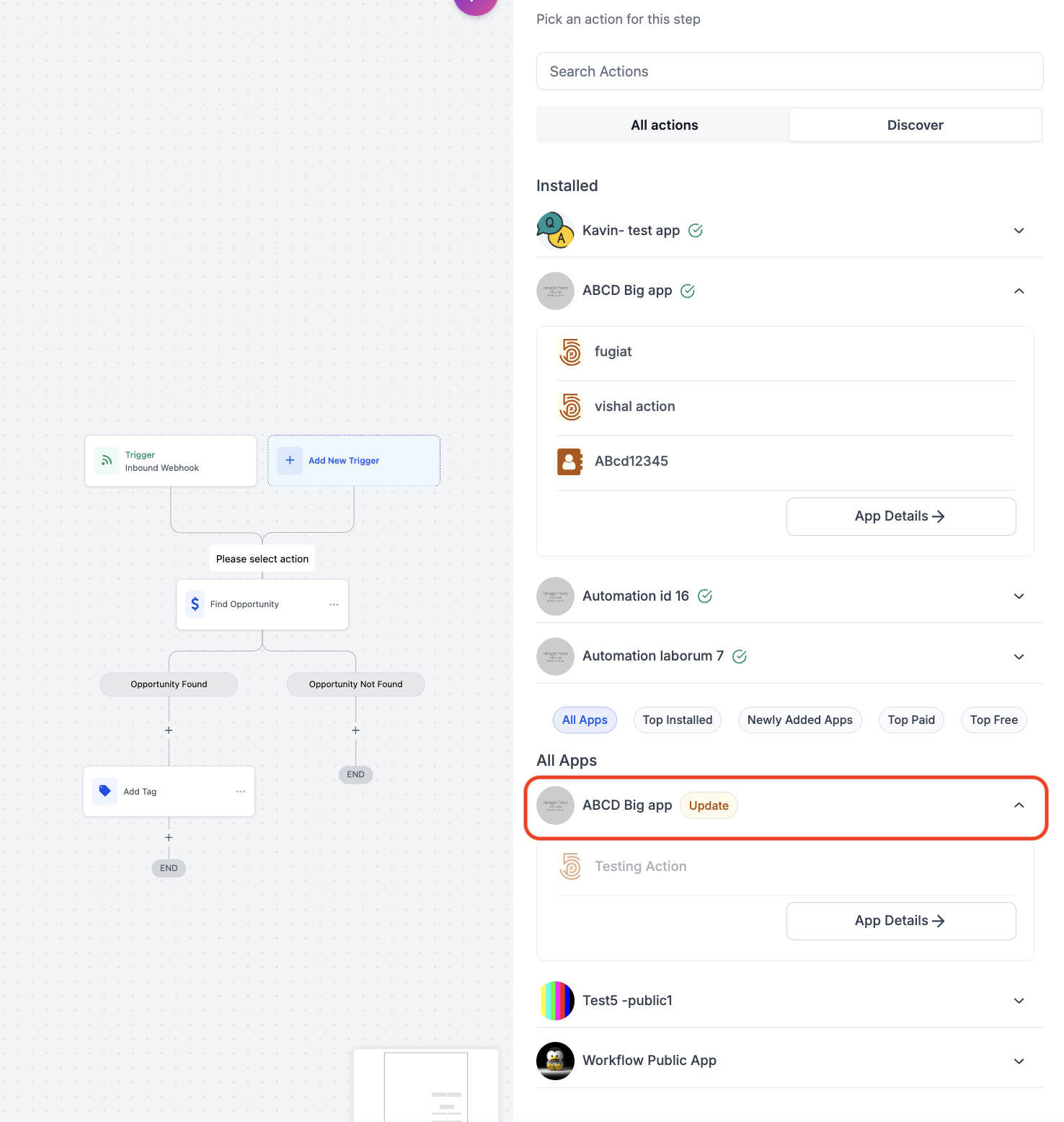
If you've already installed an app and the developer has added new actions, you'll see an Update tag next to the app in the Discover panel. This helps you stay informed about new capabilities you can start using right away—no need to reinstall.
Frequently Asked Questions
Do I need to leave the automation builder to install a new app?
No. You can browse, install, and explore app options directly within the Automation Builder using the Discover button.
Where do I find actions for apps I've already installed?
All installed app actions are accessible under the "All Actions" section in the Automation Builder.
What does the Update tag mean next to an app?
It indicates that the app has new actions or triggers that weren't available when you originally installed it. Click through to see what's new.
Can I uninstall an app if I'm not using it?
Yes. Navigate to Settings → Integrations to manage and remove installed apps from your account.