
Pause Automations on Certain Dates
The Pause Automation feature lets you temporarily stop specific automations without deactivating or deleting them. This is especially useful during holidays, school breaks, or when you need to adjust your communication timing.
This guide shows you how to set up and manage paused automations so you maintain control over when messages go out to families.
What is the Pause Automation Feature?
Pause Automation lets you stop specific automations during predefined periods without losing progress or disrupting your setup. This is perfect for managing seasonal campaigns, holiday closures, or periods when you don't want certain messages going out to families.
Your automations stay intact—they just don't send messages during the pause period. Once the pause ends, everything resumes automatically.
Why Use Pause Automation?
Pausing automations gives you precise control over your communication timing:
- Operational Flexibility: Temporarily halt automations without losing your progress or rebuilding workflows
- Better Family Experience: Avoid sending tour reminders or follow-ups during holidays when your center is closed
- Precise Control: Pause non-essential automations while keeping important ones (like enrollment confirmations) active
- Time-Saving Recurrence: Set annual pauses for predictable closures like Christmas or summer break—no need to remember each year
- Centralized Management: Manage all automation pauses from one location in your settings
How to Set Up Pause Automation
Follow these steps to configure when your automations should pause:
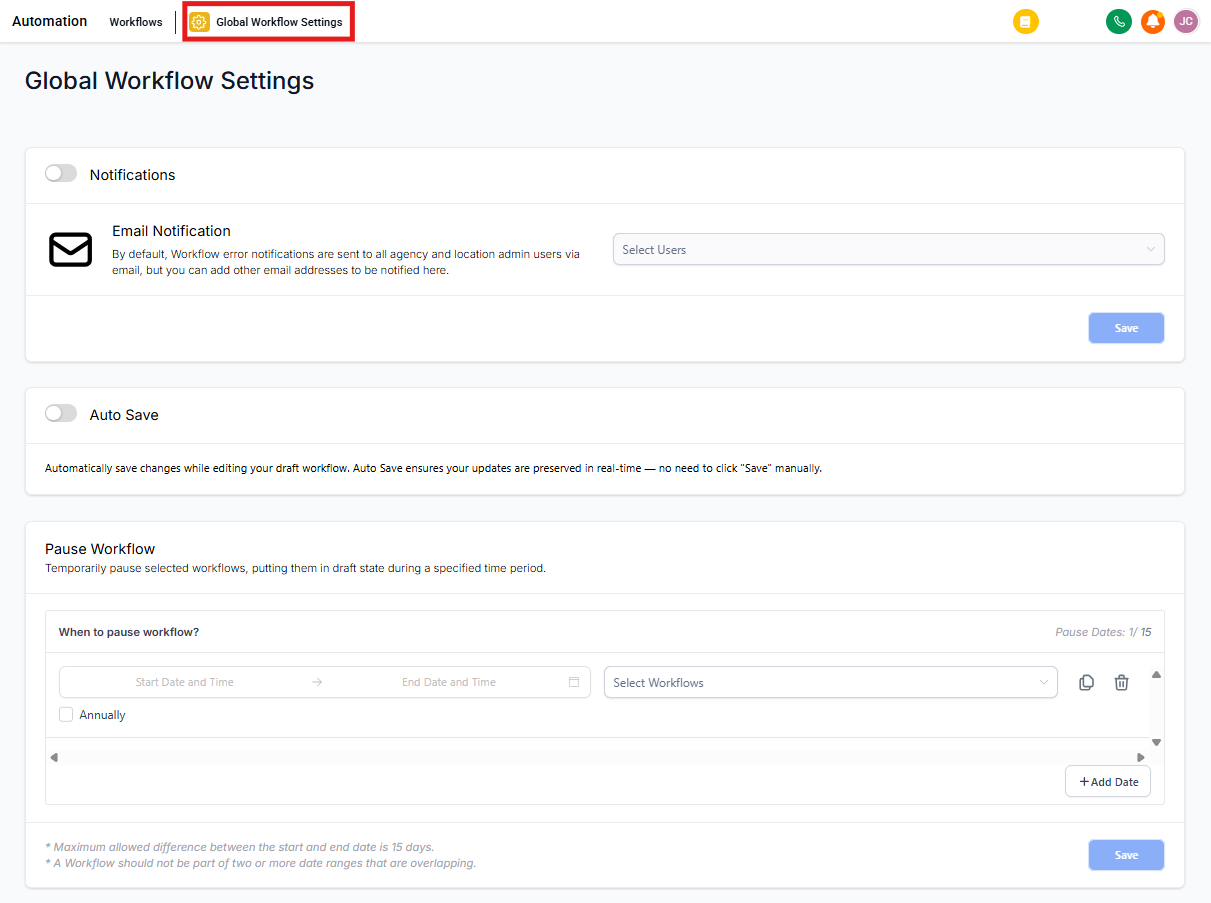
Step 1: Navigate to Global Automation Settings
Go to Settings and click on the Automation tab. Then select Global Automation Settings.
Step 2: Locate Pause Automation Option
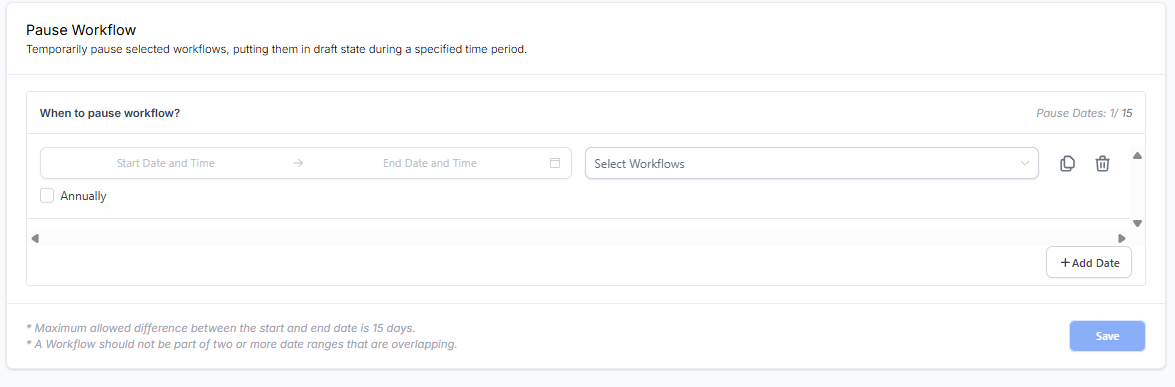
Scroll down in Global Automation Settings to find the "Pause Automation" section.
Step 3: Select the Start and End Date and Time
- Click on the "Start Date and Time" field
- Select your start date and time
- Select your end date and time
- Click "Confirm"
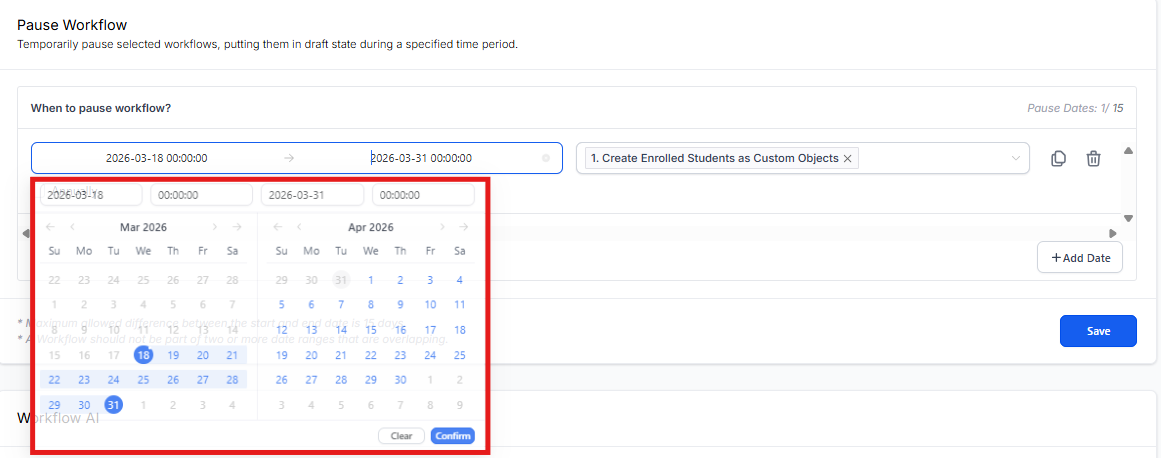
Important: The maximum pause period is 15 days. If you need a longer pause, create multiple date ranges.
Step 4: Select Automations to Pause
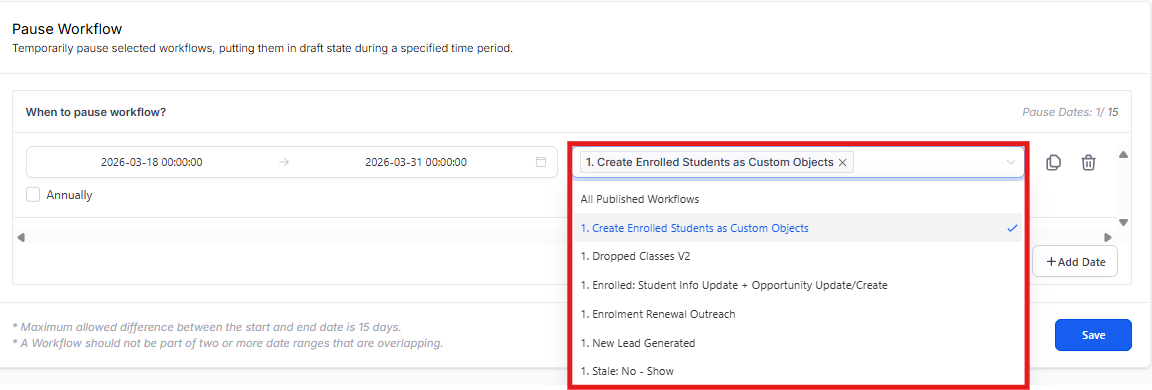
Click on the "Select Automations" field to choose which automations to pause. You can select:
- One specific automation
- Multiple automations
- All published automations
Only published automations will appear in this list—draft automations can't be paused.
Step 5: Add Multiple Date Ranges (Optional)
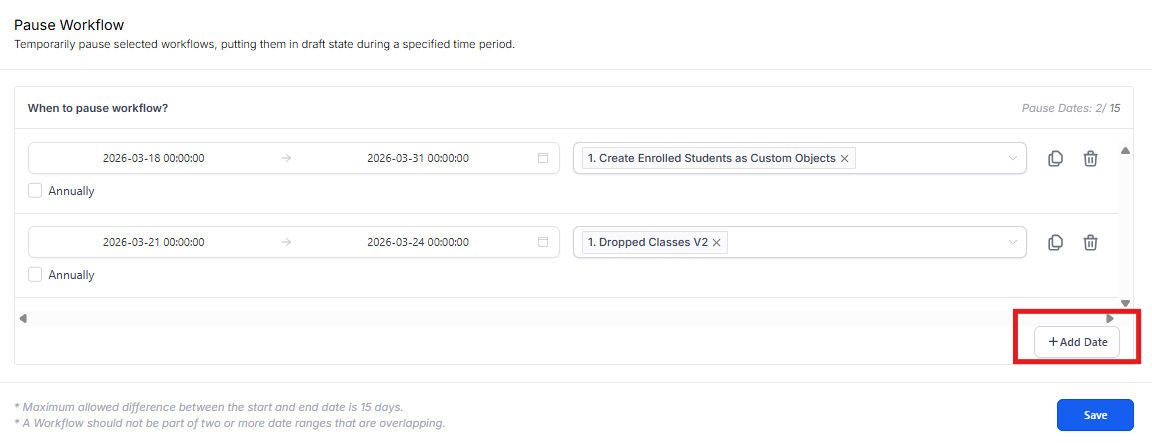
Need to pause automations for multiple periods? Click the "Add Date" button to create additional rows. You can add up to 15 different date ranges.
This is helpful for planning ahead—for example, you might add pause dates for Thanksgiving, Christmas, and spring break all at once.
Step 6: Set Annual Recurrence (Optional)
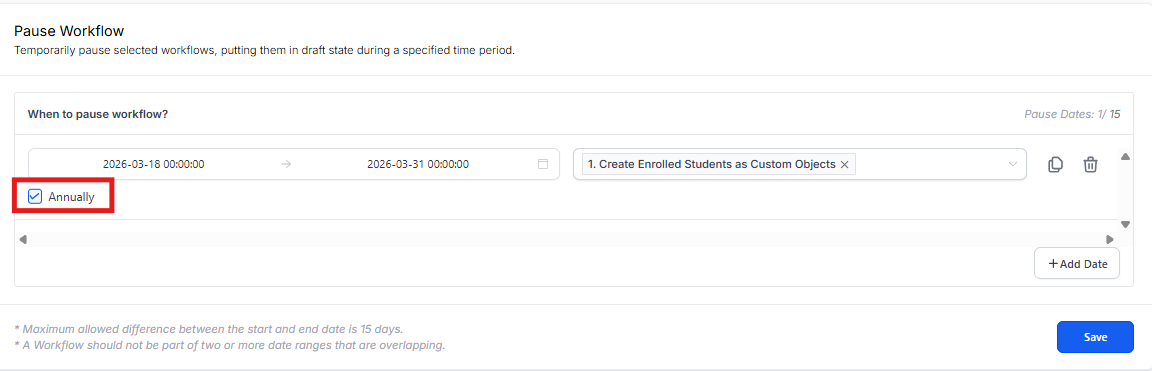
If you want to pause the same automations every year on the same dates, check the "Annually" box for that row. Your selected automations will automatically pause on those dates each year.
Perfect for holidays like Christmas or your center's annual closure dates.
Step 7: Clone or Delete Date Ranges
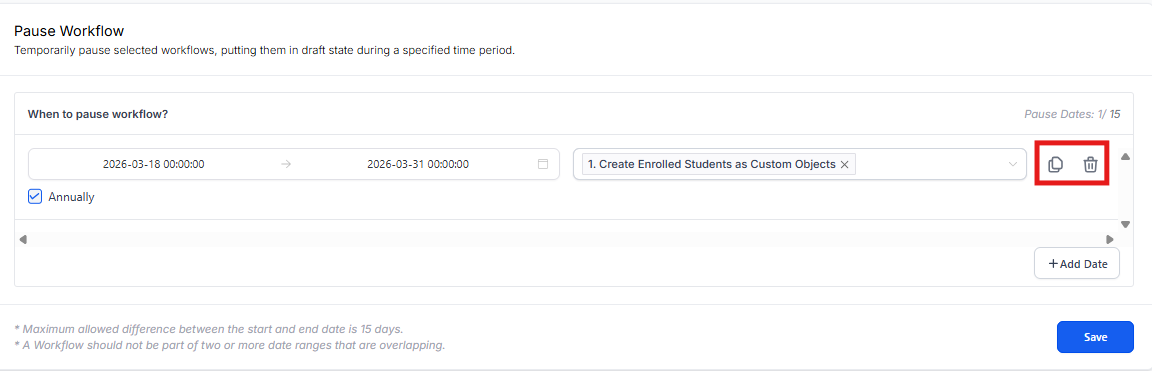
Each date range row has two icons:
- Clone icon: Duplicates the row to quickly create similar pause periods
- Delete icon: Removes the row entirely
How to Tell if an Automation is Paused
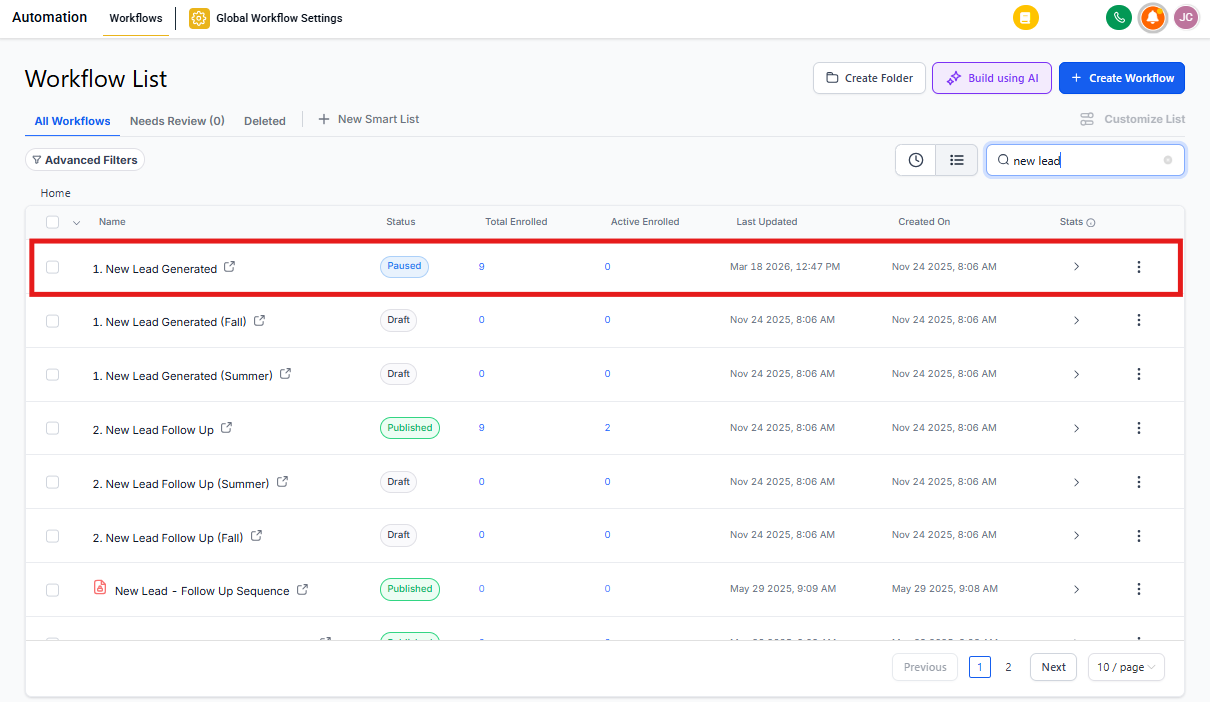
On the Automation List Page
When automations are paused, you'll see a "Paused" status badge next to each one on your main Automation page. This makes it easy to see at a glance which automations are currently on hold.
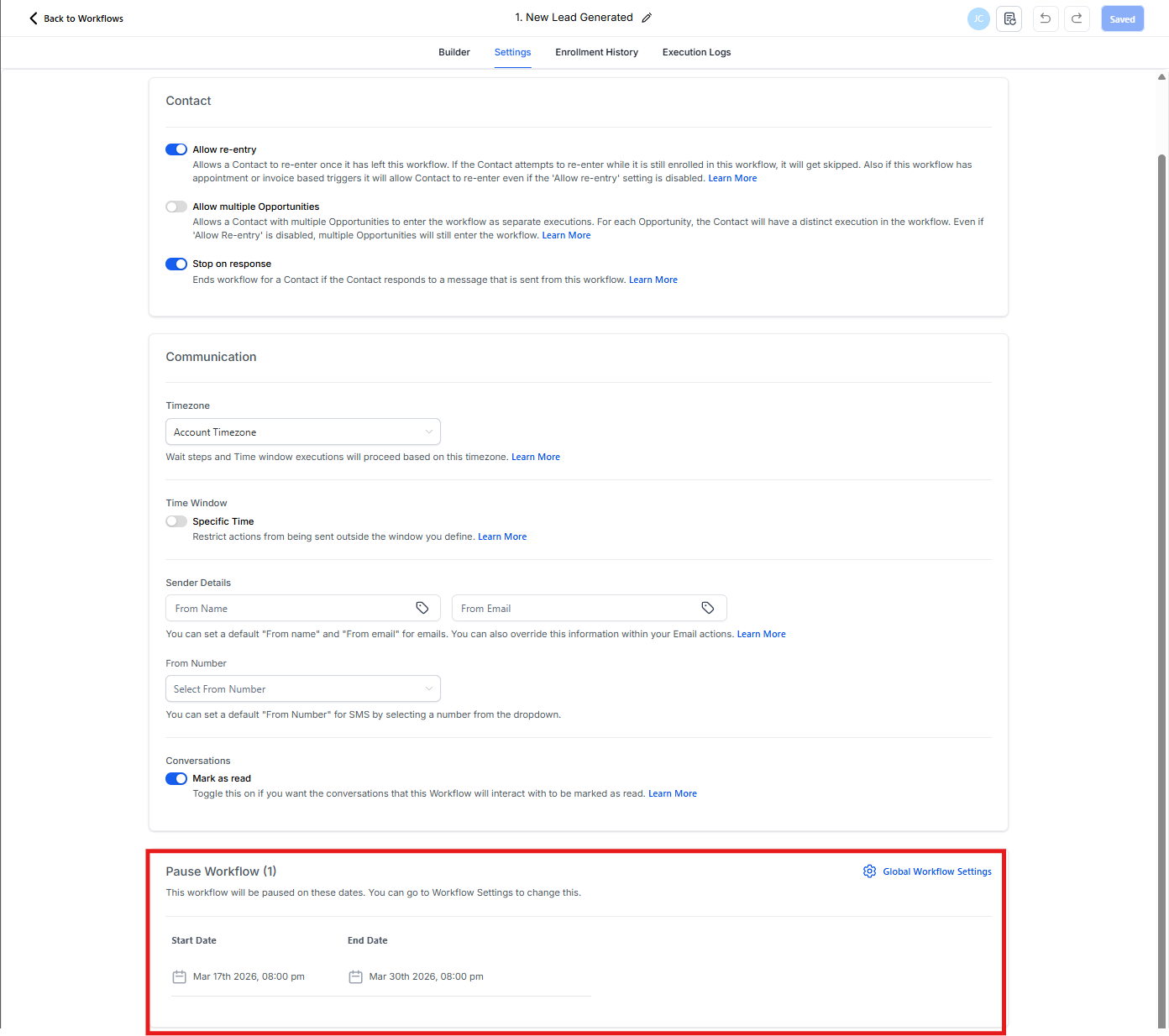
In the Automation Builder
Open any automation and look for the "Pause Automation" section in the builder settings. This shows:
- The exact dates and times this automation is paused
- A quick link to Global Automation Settings if you need to make changes
Important Things to Know
What Happens to Families During a Pause?
Families will still enter the automation even when it's paused—they just won't receive messages or move through action steps until the pause ends.
Here's how it works:
- Most automations: Families wait at the trigger point or the first action step until the pause ends
- Automations starting with Wait or If/Else: Families progress through the Wait or If/Else step, then pause at the next action
Rules and Limitations
- Maximum pause duration: 15 days per date range
- Maximum date ranges: 15 total
- Date ranges cannot overlap for the same automation
- Only published automations can be paused
- Families continue to enter paused automations
- Wait and If/Else actions still process during pauses
Frequently Asked Questions
Can I pause all automations at once?
Yes. When selecting automations to pause, choose "All Published Automations" from the dropdown. This pauses every active automation in your account for the specified dates.
What happens to families already in a paused automation?
They'll pause wherever they are in the automation and resume from that exact spot when the pause ends. No progress is lost—they just wait until the pause period is over.
Is there a limit to the number of pause dates I can set up?
Yes, you can configure up to 15 different date ranges. Each date range can be up to 15 days long. Make sure your date ranges don't overlap for the same automation.
Can the same pause dates apply to multiple automations?
Absolutely. When setting up a date range, you can select multiple automations to pause during that period. This is perfect for center-wide closures when you want to pause all family communication.
How do I make sure automations resume correctly after a pause?
Automations resume automatically when the pause period ends—no action needed from you. Just make sure you click "Confirm" after setting up your pause dates and your settings will be saved.
Can I edit pause dates after I've set them up?
Yes. Return to Global Automation Settings and update the date range. You can also delete pause periods you no longer need using the delete icon.
What if I need to pause an automation for longer than 15 days?
Create multiple consecutive date ranges. For example, for a 3-week closure, create two date ranges: one for the first 15 days and another for the remaining days.