
When parents book, cancel, or reschedule tours and appointments, your automations need to respond intelligently. This guide explains exactly how Enrollio handles each scenario — so your follow-up messages always match what's actually happening.
Scenario 1: Parents Who Book Multiple Appointments
Parents often schedule more than one appointment — maybe a tour plus a follow-up meeting, or appointments for different children.
How it works: When a parent books a new appointment, they'll enter your automation again, even if they're already in it from a previous booking. This happens automatically — you don't need to enable any special settings.
Why this matters: Each appointment deserves its own reminder sequence. A parent booking multiple tours should get reminders for each one.
Scenario 2: Parent Cancels an Appointment
Let's say a parent books a tour for June 25th and enters your reminder automation. On June 20th — while they're waiting for their 5-day reminder — they cancel the tour.
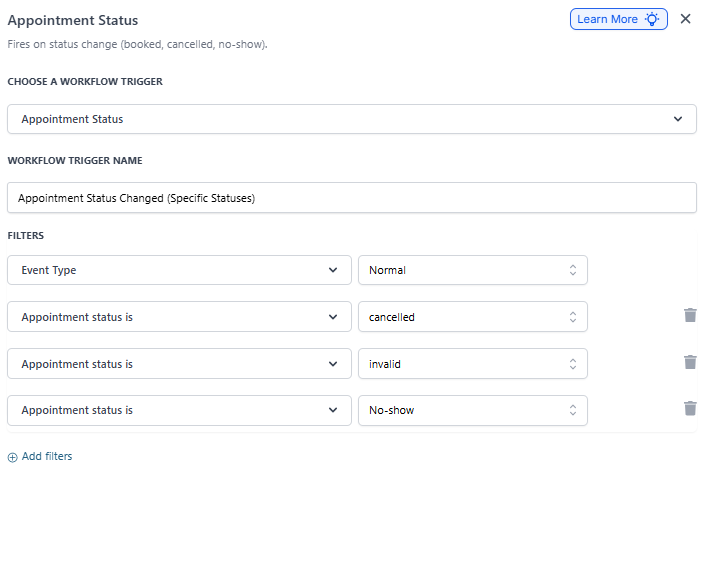
What triggers a cancellation: When you (or the parent) change an appointment status from New, Confirmed, or Show to Cancelled, Invalid, or No Show, Enrollio treats it as cancelled.
What happens: The parent is immediately removed from the automation. No more reminders or follow-up messages will be sent.
Why this matters: You don't want to send "Looking forward to seeing you tomorrow!" messages to someone who already cancelled.
Scenario 3: Parent Reschedules to a Later Date
A parent originally books a tour for June 25th. They're in your reminder automation, currently at the "Wait 5 days" step. On June 20th, they reschedule to June 30th instead.
What counts as rescheduled: Any time the start time or end time of an appointment changes, Enrollio treats it as rescheduled.
What happens: The parent is pulled out of the current automation immediately.
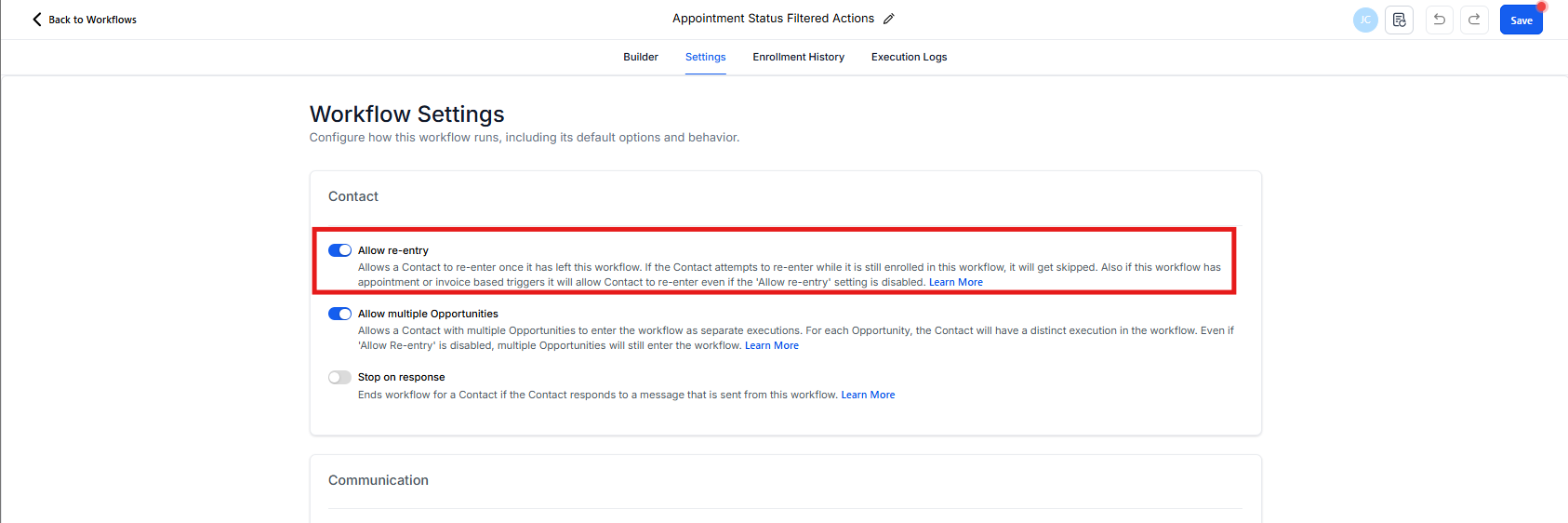
Will they re-enter? Only if all of these conditions are met:
- You have an automation with a trigger set to fire when Appointment Status = Rescheduled
- The rescheduled appointment matches all your trigger filters (correct calendar, assigned staff member, etc.)
- You've enabled "Allow Re-entry" in that automation's settings
Why this matters: When a parent reschedules, your reminder timeline needs to reset. A "Your tour is tomorrow!" message sent 5 days early doesn't make sense anymore. By pulling them out and (optionally) re-entering them, reminders align with the new appointment date.
Scenario 4: Recurring Appointments
Important limitation: Recurring appointments will not trigger automations set to fire when "Parent Booked Appointment."
Why this matters: If you offer recurring parent-teacher conferences or regular check-ins, you'll need to trigger follow-up communications another way — perhaps using appointment status changes or manual tags.
Quick Reference
| Scenario | What Happens | Re-entry Possible? |
|---|---|---|
| Parent books multiple appointments | Enters automation for each booking | Always (automatic) |
| Parent cancels appointment | Removed from automation | No |
| Parent reschedules appointment | Removed from automation | Only if you have a Rescheduled trigger + Allow Re-entry enabled |
| Recurring appointment created | Does not trigger automation | N/A |