
What Are Automation Actions? (Complete List)
Automation actions in Enrollio are the building blocks that help you automate tasks and streamline your enrollment process. After a trigger fires (like a new tour request or form submission), actions execute in the order you set them up — allowing you to customize exactly what happens next.
Understanding Triggers and Actions
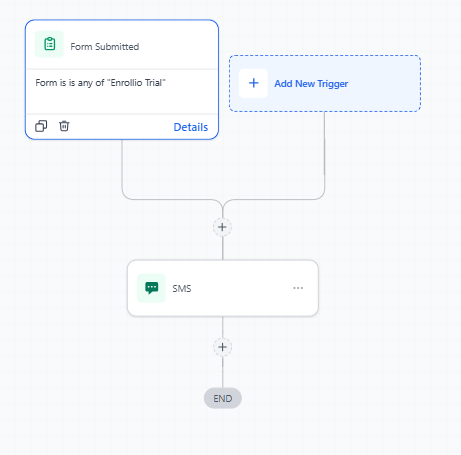
Think of triggers as the spark and actions as what happens next. When a trigger fires — like when a parent submits a tour request — your automation kicks off a series of actions you've configured.
Automation Trigger: The event that starts your automation (e.g., new contact added, form submitted, tag applied).
Automation Action: What happens after the trigger fires. Actions run in the order you set them up.
Action Categories
Enrollio organizes automation actions into categories to help you find what you need quickly:
- Parent/Family Actions
- Communication Actions
- Send Data
- Internal Tools Actions
- Enrollio AI Action
- Appointments Actions
- Enrollment Opportunities Actions
- Payments Actions
- Marketing Actions
- Affiliate Actions
- Courses Actions
- IVR (Interactive Voice Response) Actions
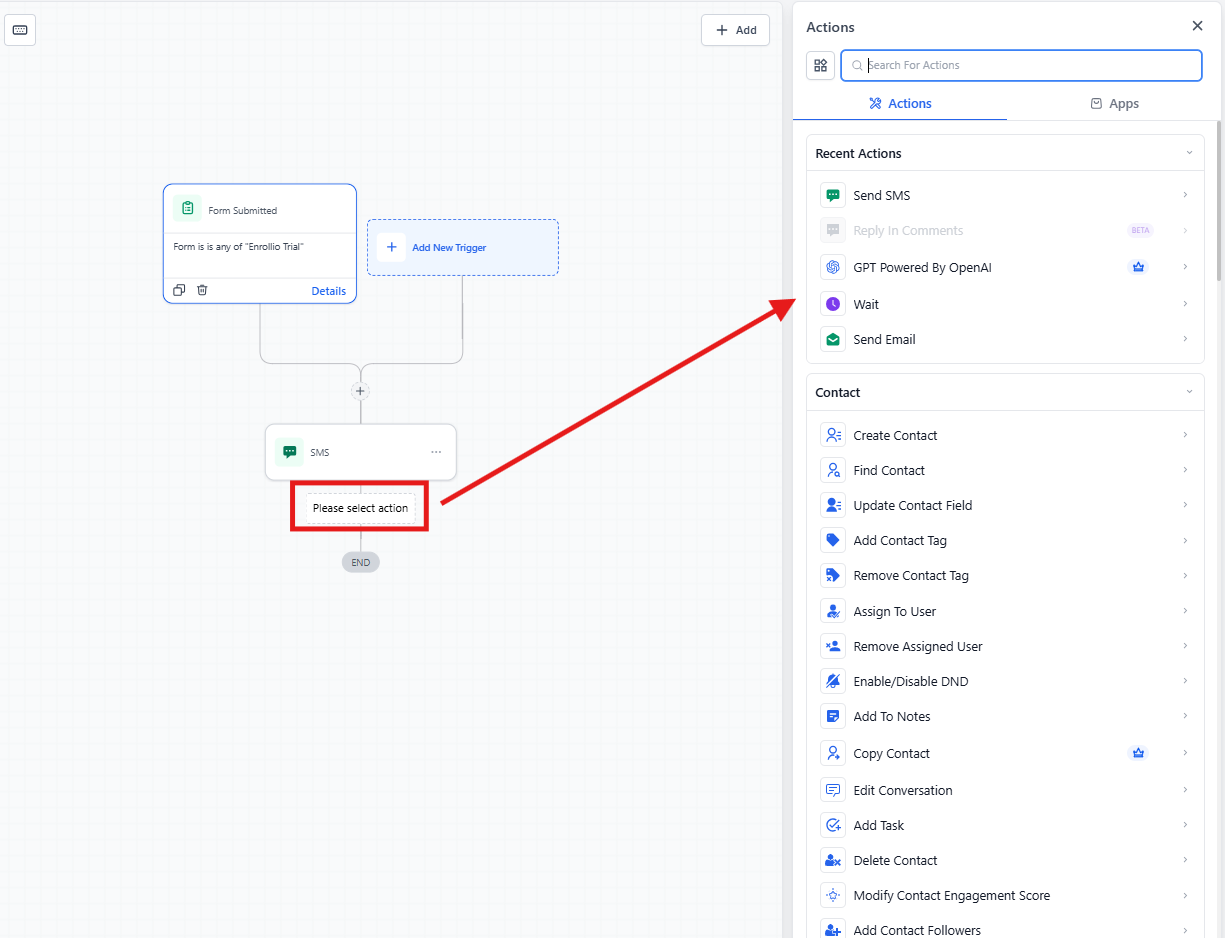
To add an action, open your automation builder and click the Add Action button. Below, we'll break down each action with what it does and when to use it.
Parent/Family Actions
These actions help you manage parent and family records in your system.
Create Contact
Adds a new parent or family to your system.
Useful for: Automatically capturing new leads from forms or landing pages.
Find Contact
Locates an existing parent or family record using phone, email, or other data.
Useful for: Checking if a parent already exists before creating a duplicate, or pulling up their record for updates.
Update Contact Field
Changes specific information on a parent or family record.
Useful for: Keeping records current — like updating a child's age, enrollment status, or preferred tour time.
Add Contact Tag
Adds a tag to organize and segment families.
Useful for: Tracking where families are in your enrollment process (e.g., "Tour Scheduled," "Waitlisted," "Enrolled").
Remove Contact Tag
Removes a tag from a parent or family record.
Useful for: Cleaning up tags as families move through your pipeline — like removing "Tour Requested" after they complete their tour.
Assign to User
Assigns a parent or family to a specific staff member in your center.
Useful for: Routing new inquiries to specific enrollment coordinators or assigning families to classroom directors.
Remove Assigned User
Removes the staff member assignment from a family record.
Useful for: Clearing assignments when staff transitions or when a family needs to be reassigned.
Edit Conversation
Marks conversations as read, archives them, or unarchives them.
Useful for: Keeping your inbox organized and managing which conversations need attention.
Disable/Enable DND
Turns "Do Not Disturb" on or off for a parent or family.
Useful for: Respecting parent preferences — like pausing automated texts when they request it, or re-enabling communications after they enroll.
Add Note
Adds a custom note to a family's record.
Useful for: Automatically logging important details, like "Interested in infant care starting September" or "Prefers afternoon tours."
Add Task
Creates a task for staff related to a specific family.
Useful for: Following up after tours, sending enrollment paperwork, or scheduling check-in calls. If the automation runs without a contact, it creates a general task.
Copy Contact
Duplicates a parent or family record into another client account.
Useful for: Managing multi-location centers where families might transfer between sites.
Delete Contact
Permanently removes a parent or family from your system.
Useful for: Cleaning up test records or removing outdated entries. Use carefully — this can't be undone.
Modify Contact Engagement Score
Adjusts a family's engagement score up or down.
Useful for: Tracking how engaged families are — higher scores for those who open emails and respond quickly, lower for those who ghost.
Add/Remove Contact Followers
Adds or removes staff members who can view a family's record.
Useful for: Keeping directors, enrollment coordinators, and classroom leads in the loop on specific families.
Communication Actions
These actions let you reach out to families automatically via email, text, social media, and more.
Send Email
Sends an email to the parent or family.
Useful for: Welcome emails, tour confirmations, enrollment reminders, waitlist updates, and ongoing parent communications.
Send SMS
Sends a text message to the parent or family.
Useful for: Quick reminders about upcoming tours, enrollment deadlines, or important center updates. Parents check texts immediately.
Send Slack Message
Sends a message to your team via Slack (if integrated).
Useful for: Notifying your enrollment team when a new tour is booked or when a family completes enrollment paperwork.
Call
Places an automated phone call to a parent. If they answer, it connects them to a staff member.
Useful for: Following up on tour requests or reaching out to high-priority families quickly.
Messenger
Sends a message via Facebook Messenger.
Useful for: Responding to families who reach out through your Facebook page, keeping conversations in one place.
Instagram DM
Sends a direct message on Instagram.
Useful for: Engaging with families who discover your center on social media and send inquiries via Instagram.
Manual Action
Prompts a staff member to take a specific action for a family.
Useful for: Creating personalized touchpoints — like "Call this family to discuss tuition" or "Send them a handwritten thank-you note."
GMB Messaging
Responds to messages from your Google Business Profile.
Useful for: Automatically engaging with families who message you through Google search or Maps.
Send Internal Notification
Notifies assigned staff members or specific team members.
Useful for: Alerting enrollment coordinators when a waitlist spot opens up or when a family requests a callback.
Send Review Request
Asks families to leave a review for your center.
Useful for: Building your online reputation by automatically requesting reviews after enrollment or after families have been with you for a few months.
Enrollio AI
Uses AI to manage inbound conversations across email, text, and social media.
Useful for: Answering common parent questions 24/7, like tuition rates, available spots, and tour scheduling — freeing up your staff for higher-value conversations.
Facebook Interactive Messenger
Automatically responds to comments on your Facebook posts.
Useful for: Engaging with parents who comment on announcements, photos, or events on your Facebook page.
Instagram Interactive Messenger
Automatically responds to comments on your Instagram posts.
Useful for: Building community and engaging with families who interact with your center's Instagram content.
Reply in Comments
Posts replies to comments on Facebook or Instagram.
Useful for: Maintaining an active social media presence and answering questions publicly.
Sends messages via WhatsApp.
Useful for: Communicating with families who prefer WhatsApp, especially in communities where it's the primary messaging platform.
Send Live Chat Message
Responds to messages from your website's live chat.
Useful for: Providing real-time support to families browsing your enrollment site.
Send Data
These actions connect Enrollio with other tools you use.
Webhook/Custom Webhook
Sends data from Enrollio to external applications or services.
Useful for: Connecting to accounting software, parent apps, or other childcare management systems.
Google Sheets
Updates or looks up data in Google Sheets.
Useful for: Creating enrollment reports, tracking tour conversions, or maintaining waitlist spreadsheets automatically.
Internal Tools Actions
These actions control how your automation flows and makes decisions.
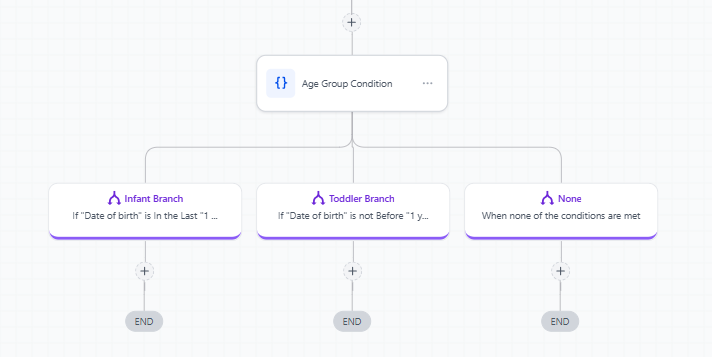
If/Else
Creates branches based on conditions — like "if infant care, do this; if toddler care, do that."
Useful for: Personalizing follow-ups based on age group, enrollment status, tour preferences, or any other family details.
Wait Step
Pauses your automation for a specific amount of time.
Useful for: Spacing out communications — like waiting 2 days after a tour before sending a follow-up email, or waiting 1 week before the second reminder.
Goal Event
Stops the automation when a family reaches a specific milestone.
Useful for: Ending enrollment nurture sequences when a family books a tour, or stopping reminder emails once they submit their paperwork.
Note: The original article appears to be cut off. The remaining action categories (Appointments, Enrollment Opportunities, Payments, Marketing, Affiliate, Courses, and IVR) were not included in the source content.
Getting Started Resources
Ready to build your first automation? Check out these helpful guides:
- Getting Started with Automations
- Automation Builder Walkthrough
- Automation Settings
- A List of Automation Triggers