Complete List of Automation Triggers
Automation triggers start actions in Enrollio based on specific events — like when a parent books a tour, fills out an enrollment form, or their child's birthday approaches. Understanding these triggers helps you automate follow-ups, reminders, and communication so you can focus on running your childcare center.
How Triggers Work
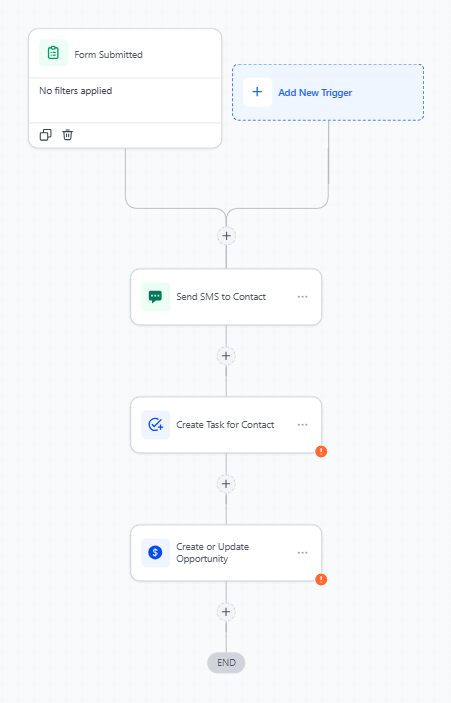
Trigger: The event that starts your automation (e.g., "Tour booked").
Action: What happens next — send a text, create a task, update the enrollment pipeline.
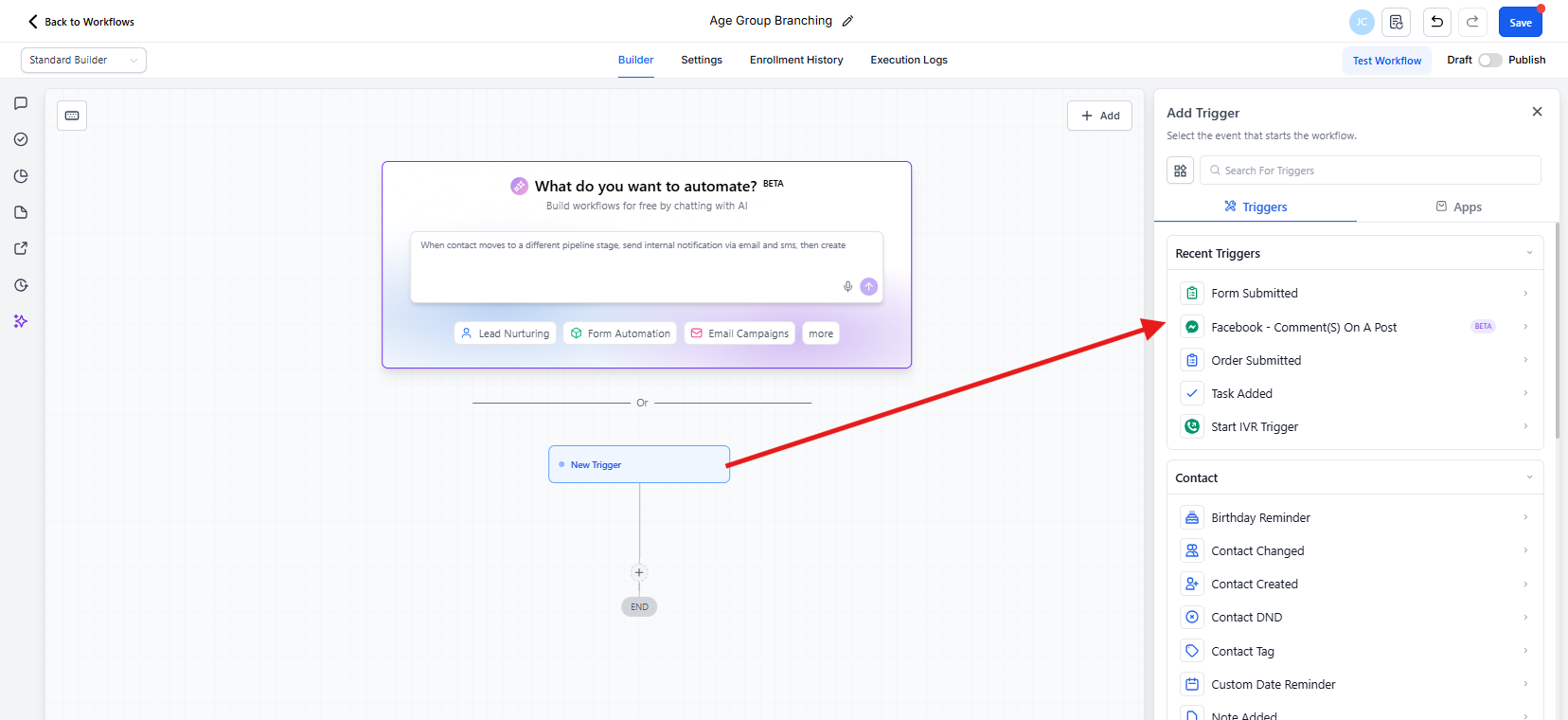
Triggers are organized into categories so you can find what you need quickly. Click "Add Trigger" in any automation to see your options.
Parent & Family Events
Family Birthday Reminder: Fires on or around a child's or parent's birthday using your chosen offset.
Family Changed: Fires when specific fields (address, phone, emergency contact) change to values you define.
Family Created: Fires when a new family record is added to your center.
Family DND: Fires when a family's Do Not Disturb preference is turned on or off.
Family Tag: Fires when a selected tag is added to or removed from a family (e.g., "Enrolled", "Waitlist", "Tour Scheduled").
Custom Date Reminder: Fires before/on/after a custom date field — perfect for enrollment start dates or contract renewals.
Note Added: Fires when staff adds a new note on the family record.
Note Changed: Fires when an existing note is edited.
Task Added: Fires when a task is created for the family.
Task Reminder: Fires when the task's reminder time is reached.
Task Completed: Fires when a task is marked completed.
Family Engagement Score: Fires when engagement scoring meets your rule.
Event & Communication Triggers
Inbound Webhook: Fires when external data is received at your automation's webhook URL.
Scheduler: Fires on a time-based schedule (daily, weekly, monthly) without needing a specific family.
Call Details: Fires when a call log matches selected details or outcomes (answered, missed, voicemail).
Email Events: Fires on email delivered, opened, clicked, bounced, spam reported, or unsubscribed.
Parent Replied: Fires when a parent replies on any connected channel (text, email, web chat).
Enrollio AI Trigger: Fires when a configured AI conversation event occurs.
Custom Trigger: Fires from a custom event you define for specialized use cases.
Form Submitted: Fires when a selected form is submitted (tour request, enrollment application, waitlist).
Survey Submitted: Fires when a parent completes a survey.
Trigger Link Clicked: Fires when a parent clicks a defined trigger link in your messages.
Facebook Lead Form Submitted: Fires when a Facebook Lead Ad form submission is received.
TikTok Form Submitted: Fires when a TikTok lead form is submitted.
Video Tracking: Fires when a viewer reaches a chosen percentage of a video (great for virtual tours).
Number Validation: Fires based on phone number validation results.
Messaging Error – SMS: Fires when an outbound text returns a specific error.
LinkedIn Lead Form Submitted: Fires when a LinkedIn Lead Gen form submission is received.
Enrollment Page/Website PageView: Fires when a parent views a specified page or URL with matching UTM parameters.
Quiz Submitted: Fires when a parent completes a quiz.
New Review Received: Fires when a new review arrives in your reputation dashboard.
Prospective Family Generated: Fires when a new prospective family record is created.
Click To WhatsApp Ads: Fires when an inbound WhatsApp thread starts from a Click-to-WhatsApp ad.
External Tracking Event: Fires when a named client-side or server-side tracking event is captured.
Appointments & Tours
Appointment Status: Fires on status changes like booked, rescheduled, canceled, or no-show.
Parent Booked Appointment: Fires when a parent books a tour or meeting.
Enrollment Opportunities
Enrollment Opportunity Status Changed: Fires when an opportunity's status changes (e.g., Open → Enrolled or Lost).
Enrollment Opportunity Created: Fires when a new enrollment opportunity is created.
Enrollment Opportunity Changed: Fires when selected opportunity fields change.
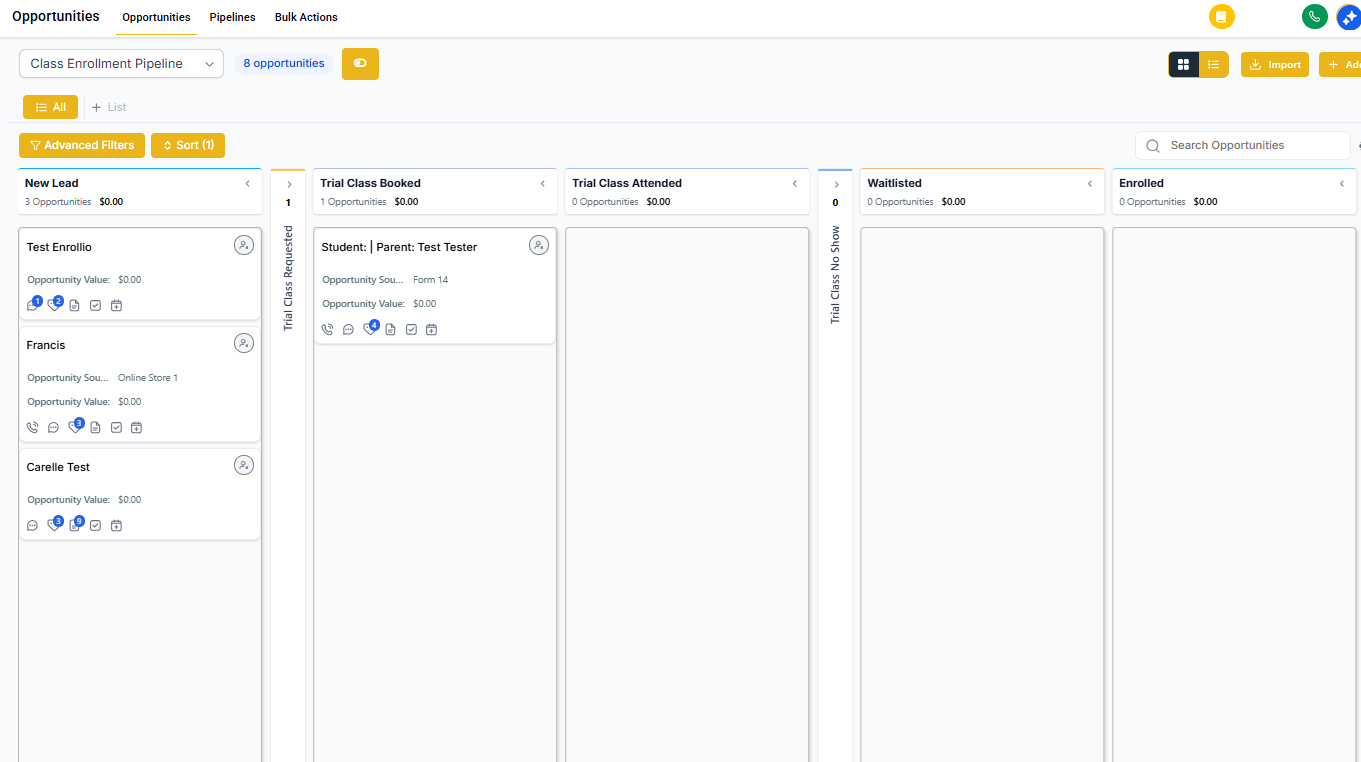
Enrollment Pipeline Stage Changed: Fires when an opportunity moves to a different stage (Inquiry → Tour Scheduled → Enrolled).
Stale Opportunities: Fires when opportunities meet your inactivity rule — perfect for re-engagement campaigns.
Payments & Billing
Invoice: Fires on invoice lifecycle events like created, sent, due, or paid.
Payment Received: Fires when a payment is successfully processed.
Order Form Submission: Fires when a checkout or order form is submitted.
Order Submitted: Fires when an order is successfully submitted at checkout.
Documents & Contracts: Fires on document status events like sent, signed, viewed, or declined.
Estimates: Fires on estimate events like sent, accepted, or declined.
Subscription: Fires on subscription create, update, pause, resume, or cancel events.
Refund: Fires when a refund is issued.
Coupon Code Applied: Fires when a coupon code is applied to a purchase.
Coupon Redemption Limit Reached: Fires when a coupon hits its redemption limit.
Coupon Code Expired: Fires when a coupon code expires.
Coupon Code Redeemed: Fires when a coupon code is successfully redeemed.
IVR (Phone System)
Start IVR Trigger: Fires when a caller reaches a configured phone menu entry or selects a specific option.
Facebook & Instagram
Facebook – Comment(s) On A Post: Fires when comments are added to your selected Facebook post.
Instagram – Comment(s) On A Post: Fires when comments are added to your selected Instagram post.
Google Ads
Google Ads Conversion: Fires when a specified Google Ads conversion event is tracked.
Using This Guide
This master list covers every trigger available in Enrollio today. To build an automation:
- Go to Automation in your dashboard
- Click Create Automation
- Click Add Trigger and select from the categories
- Configure your trigger settings
- Add actions that follow (send text, create task, update pipeline)