
How to Automate Facebook & Instagram Comments for Your Childcare Center
Responding to comments on your childcare center's Facebook and Instagram posts doesn't have to be manual. With Enrollio's comment automation, you can instantly reply to families who engage with your content — whether that's sending a direct message, posting a public response, or using AI to craft personalized replies.
This guide shows you exactly how to set up automations that turn social media engagement into enrollment conversations.
What is Facebook & Instagram Comment Automation?
Facebook and Instagram have billions of users, but they lack tools for managing parent conversations at scale. You need a way to automate responses so conversations happen on social media but are tracked and managed inside Enrollio — with the power of AI.
Enrollio integrates with both platforms so you get the best of both worlds. Once you configure a few components correctly, you can automatically respond to comments, send direct messages, and even use AI to personalize your replies.
Before You Start
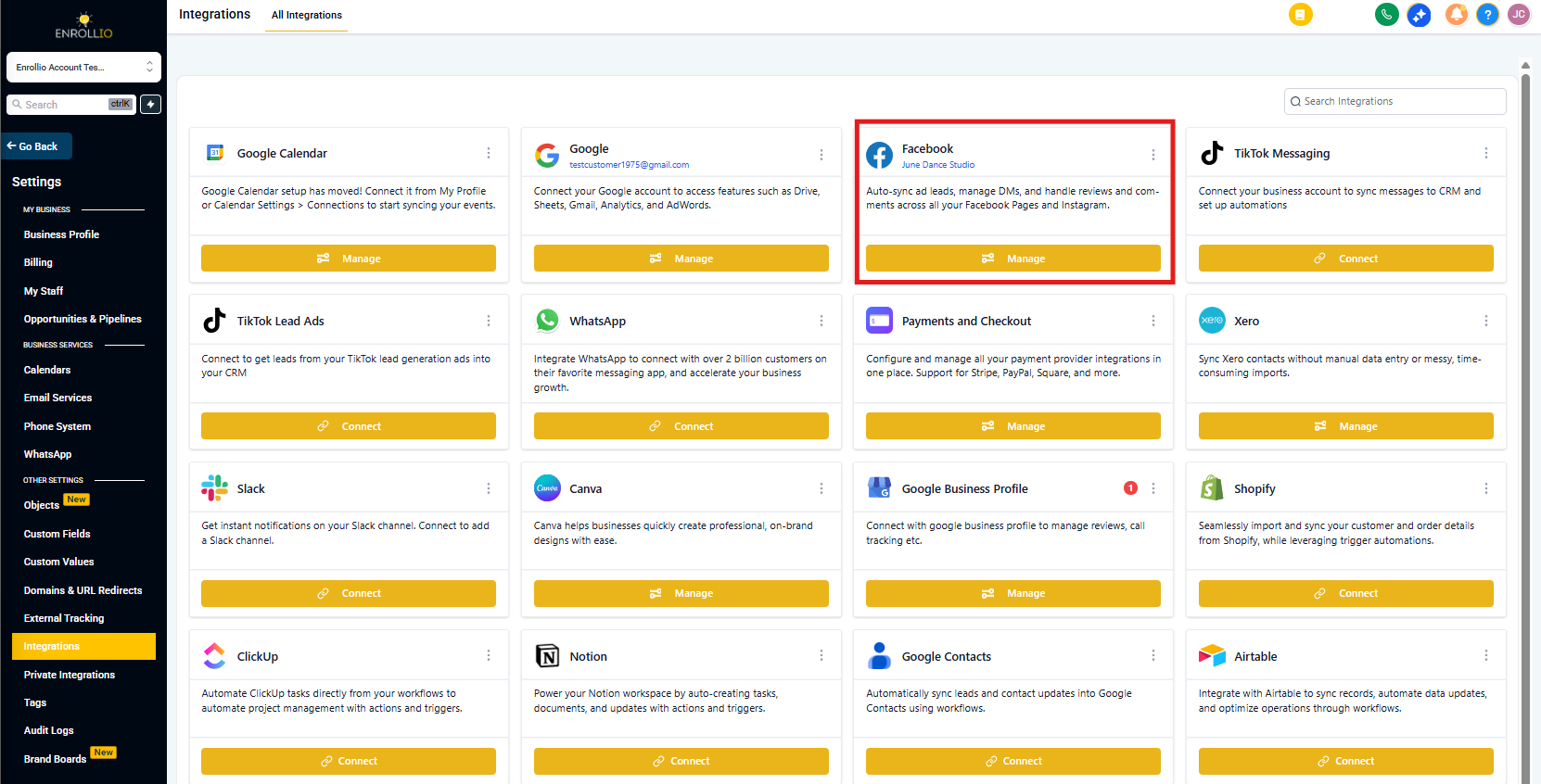
Make sure your Facebook and Instagram accounts are connected to Enrollio first.
- Go to Settings → Integrations
- Find the Facebook & Instagram card
- Connect both accounts
- Confirm your Instagram is linked to your Facebook Business Page (visit your Facebook page — you should see both Facebook and Instagram icons)
Understanding the Components
Comment automation uses two main types of building blocks:
Triggers (What Starts the Automation)
- Facebook Comment on a Post — automation starts when someone comments on your Facebook post
- Instagram Comment on a Post — automation starts when someone comments on your Instagram post
- Parent Replied — triggers when a parent responds via Facebook Messenger or Instagram DM
Actions (What Happens Next)
- Reply in Comments — post a public reply directly under the comment
- Facebook Interactive Messenger — send a private Facebook DM
- Instagram Interactive Messenger — send a private Instagram DM
- AI Response — use Enrollio AI to generate a personalized reply based on the comment
Setting Up Your First Comment Automation
Step 1: Create the Automation
- Go to Automations in your left navigation
- Click Create Automation
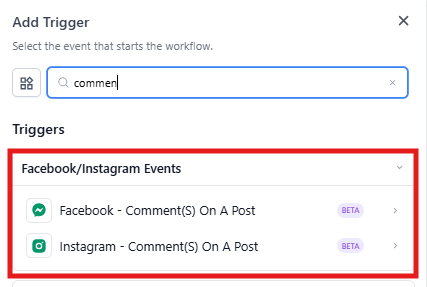
- Click Add Trigger
- Look for the Facebook/Instagram Events category
- Select either Facebook - User comments on a post or Instagram - User comments on a post
Step 2: Configure Your Trigger
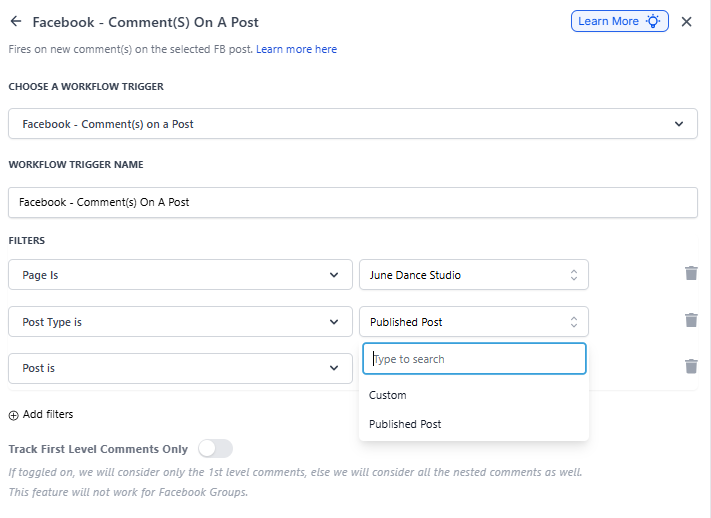
Once you select your trigger, a sidebar opens with filtering options.
Select Your Page
Choose which Facebook Business Page or Instagram account to monitor.
Choose Post Type
You have two options:
- Published Post — Select from your existing posts (text, photo, video, or live video). You can click "View on Facebook" to confirm it's the right post.
- Custom Post — Paste the direct URL or ID of any Facebook post. This is helpful for posts you haven't published yet or want to target specifically.
Step 3: Set Comment Filters
Tell Enrollio what you're looking for in the comments. You have two matching options:
Exact Match — The comment must match your phrase word-for-word.
| Filter | Comment | Result |
|---|---|---|
| Price | Price | ✅ Triggers |
| Share the Price | Share the Price | ✅ Triggers |
| Share the Price | Please share the Price | ❌ Won't trigger |
Contains Exact Phrase — The phrase must appear somewhere in the comment, but other words can be around it.
| Filter | Comment | Result |
|---|---|---|
| I toured here | I toured here | ✅ Triggers |
| I toured here | I toured here yesterday | ✅ Triggers |
| I toured here | I did tour here | ❌ Won't trigger |
Pro Tip: Toggle on "Track only first-level comments" if you only want to respond to direct comments on your post — not replies to other comments.
Step 4: Add Your Actions
Now decide what happens when someone comments. You can reply publicly, send a DM, or both.
To Reply Publicly:
- Click Add Action
- Select Reply in Comments
- Write your public response (you can use merge fields to personalize it)
To Send a Direct Message:
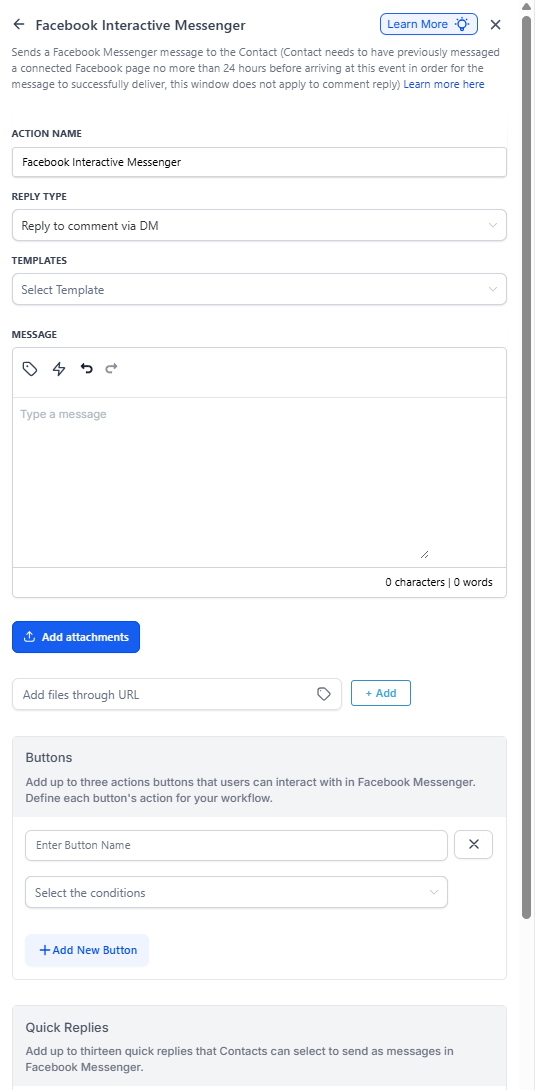
- Click Add Action
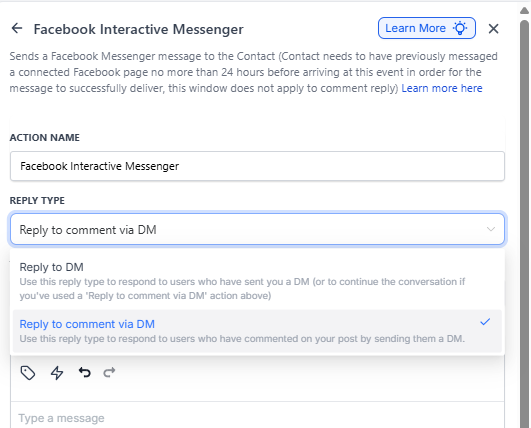
- Select Facebook Interactive Messenger or Instagram Interactive Messenger
- Choose your Reply Type:
- Reply to comment via DM — Use this for your first message when responding to a comment
- Reply to DM — Use this for follow-up messages in an ongoing conversation
Step 5: Customize Your Message
When sending a direct message, you can:
- Use a pre-existing template or write a custom message
- Click Add Attachment to include PDFs, images, or documents (like your enrollment packet or tuition sheet)
- Add up to 3 buttons for quick actions
Button Types:
- Open Website — Links to your enrollment page or tour booking form
- Call Number — Let parents tap to call your center directly
- Perform Actions — Continue the conversation or trigger additional automation steps
Step 6: Set Wait Time (Required)
By default, Enrollio waits 1 minute before expecting a response. Adjust this based on your workflow. For example, if you're asking parents to provide tour preferences, give them 24 hours to respond.
When Are Families Added to Enrollio?
When someone triggers your comment automation, they're automatically added as a contact in Enrollio. Their first and last name (from their Facebook or Instagram profile) are captured and saved.
This means every parent who engages with your posts becomes a trackable contact — even if they never filled out a form.
Using AI to Personalize Responses
Want to go beyond templated replies? Use Enrollio AI to generate responses based on the comment content.
- Add the Enrollio AI action to your automation
- Write a prompt that tells AI what type of response to generate (e.g., "Reply warmly to this parent's comment and invite them to schedule a tour")
- Use the AI-generated text in your next action (like Reply in Comments or send a DM)
Example Use Case: If a parent comments something negative, use AI to detect sentiment and send a private, empathetic DM instead of a public reply.
Pre-Built Automation Templates
Enrollio includes ready-made templates you can customize:
- Comment to Get File — When parents comment a keyword, send them a PDF (great for enrollment packets or tuition guides)
- AI-Powered Replies — Detect positive comments and send personalized DMs automatically
- Tour Booking Flow — Reply to comments asking about tours and guide them to your calendar
Find these under Automations → Templates → Social Media.
Important Things to Know
- Order matters: If you're using multiple message actions in one automation, the first one must be "Reply to comment via DM" — all follow-ups should be "Reply to DM"
- Test before going live: Post a test comment on your page to make sure the automation triggers correctly
- Instagram requires a Business Account: Personal Instagram accounts won't work — you need an Instagram Business or Creator account connected to your Facebook page
- Direct messages have limits: Parents must follow your account or have messaged you first before you can send them a DM
Example: "Comment to Tour" Automation
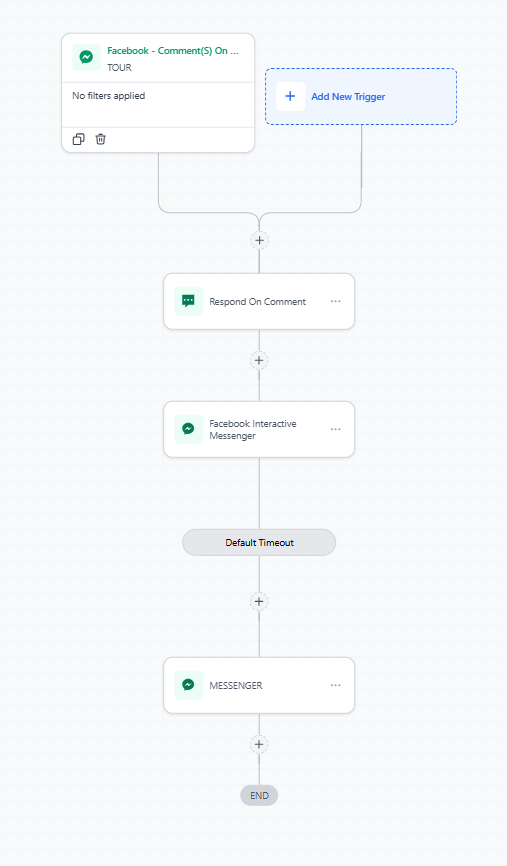
Here's a complete workflow for turning comments into tour bookings:
- Trigger: Instagram comment contains "TOUR"
- Action 1: Reply publicly: "Thanks for your interest! We just sent you a DM with tour details 🎉"
- Action 2: Send Instagram DM with tour options and a "Book a Tour" button linking to your calendar
- Action 3: Wait 24 hours, then follow up if they haven't booked yet
What Happens in Facebook and Instagram
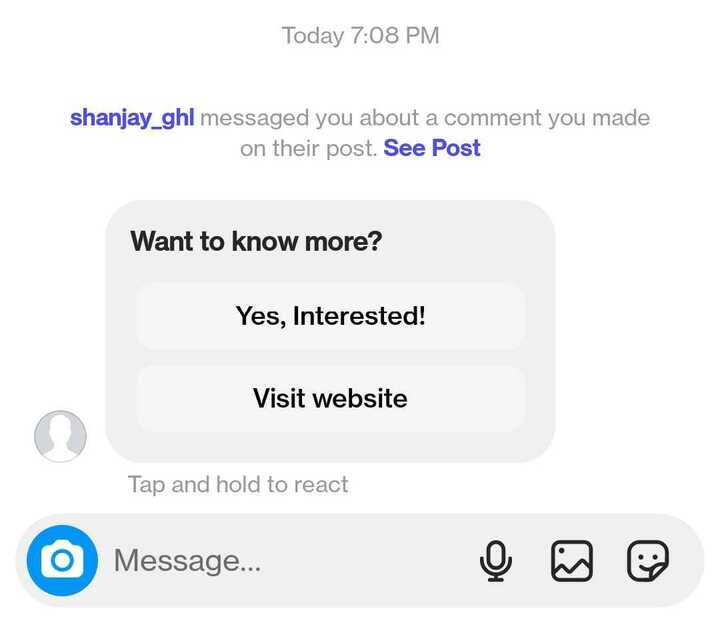
From the parent's perspective:
- They comment on your post
- Your childcare center immediately replies (publicly or privately)
- If you sent a DM, they see a message in their inbox with any attachments or buttons you included
- If they click a button or reply, the conversation continues in their Messenger — and you manage it all from Enrollio
Troubleshooting
Automation isn't triggering:
- Confirm your Facebook and Instagram are connected in Settings → Integrations
- Check that you selected the correct page and post
- Verify your comment filter matches the exact phrase you're testing
Can't send DMs:
- Make sure the parent follows your account or has messaged you before
- Confirm your Instagram is a Business or Creator account, not Personal
Parents aren't saving as contacts:
- This happens automatically — check your Contacts list to confirm they were added
- If they're not appearing, the trigger may not have fired correctly
Need help? Contact Enrollio support or check out our automation video tutorials in the help center.