
What is If/Else?
If/Else lets you build smart automations that take different actions based on different conditions. Think of it as giving your automation the ability to make decisions.
For example: if a parent books a tour, send them a confirmation text. If they haven't responded in 3 days, send a follow-up email instead.
New Features to Make Your Automations Easier
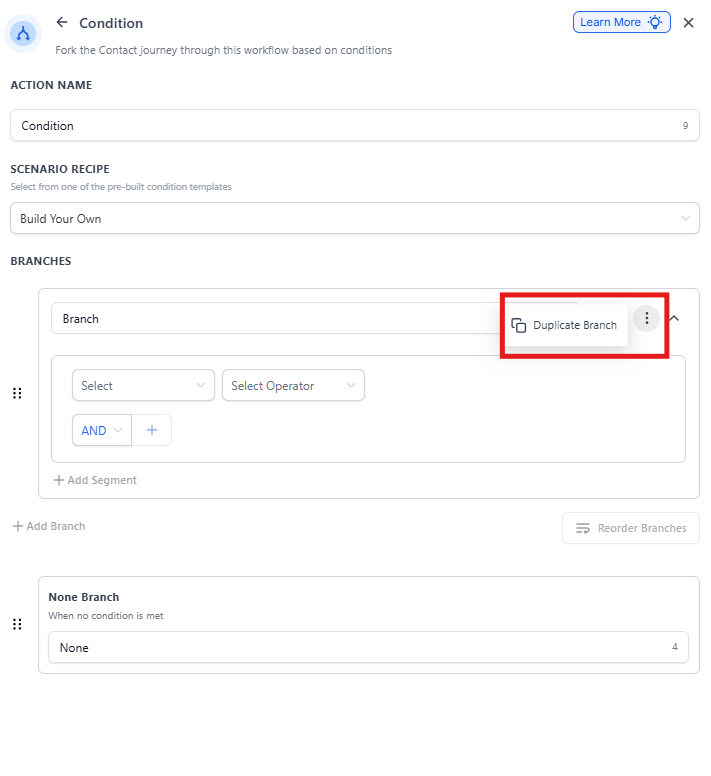
1. Duplicate Branch
Save time by copying existing branches instead of rebuilding them from scratch.
How to duplicate a branch:
- Click the three dots menu on any branch
- Choose "Duplicate Branch"
- The copied branch appears below the original with "(copy)" added to its name
- Rename it to fit your automation
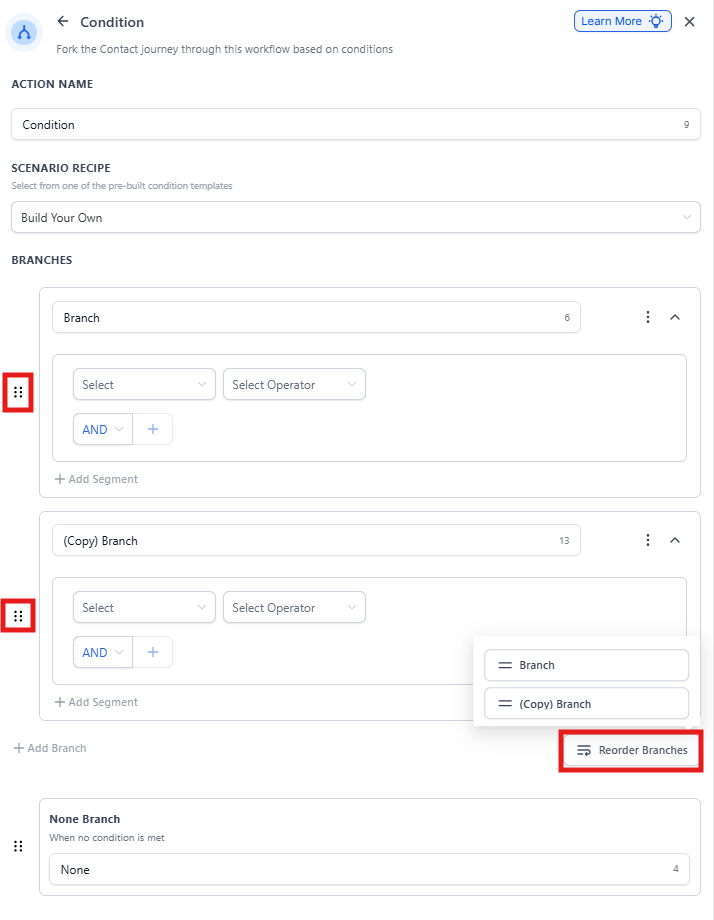
2. Reorder Branches
Keep your automation organized by dragging and dropping branches into the order that makes the most sense to you.
How to reorder branches:
- Click the "Reorder Branches" icon
- Drag branches up or down to your preferred order
- Release to set the new order
Note: You can't reorder the "None" branch, but all other branches can be moved freely.
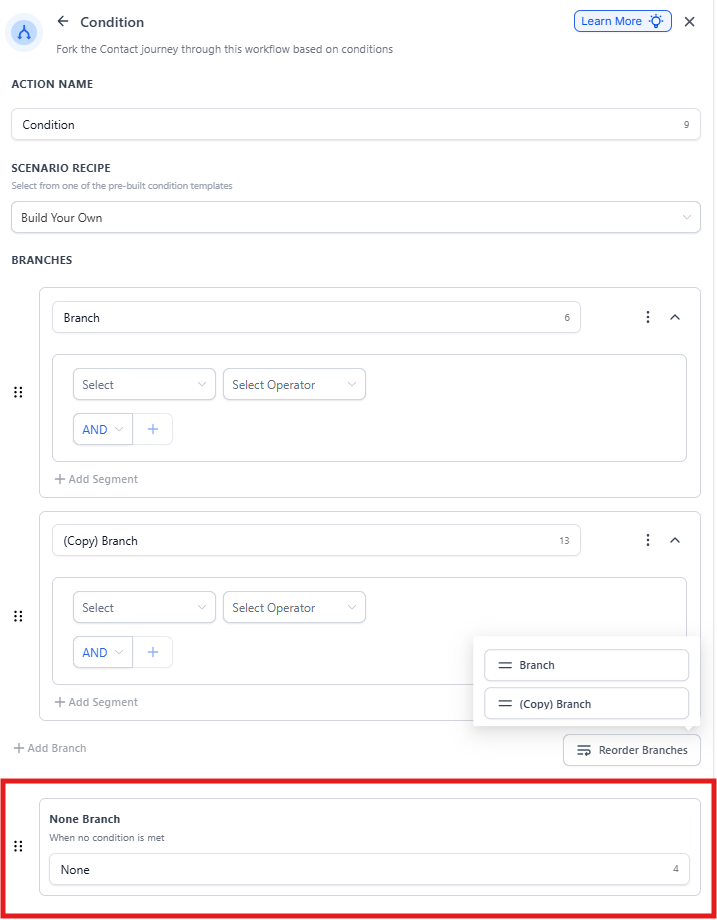
3. Rename the "None" Branch
Give your "None" branch a custom name so your automation is easier to understand at a glance.
How to rename the None branch:
- Click on the branch name
- Type your desired name
- Press Enter to save
Important: The branch name can't be left empty — make sure to give it a descriptive name.
Related Help Articles
- Create Task Event in Automations
- Automation Trigger - Parent Tag
- Automation Action - Update Family Field
- Automation Action - Math Operation