
Google Forms Actions and Triggers in Automations
Automatically capture Google Form responses and trigger follow-ups inside Enrollio automations. With native Google Forms triggers and actions, you can sync prospective families, trigger CRM automations, and build conditional logic—without third-party tools or manual imports.
What is the Google Forms Integration?
The Google Forms integration enables seamless automation between Google Forms and Enrollio. It allows you to trigger automations when a new form response is submitted and to search for forms or past responses directly inside your automations.
This integration is ideal for:
- Tour request forms and inbound inquiries
- Parent onboarding forms
- Feedback, surveys, and satisfaction collection
- Conditional automations based on historical responses
Why It Matters
Without native support, you'd rely on manual CSV imports or external platforms. With this integration, you can:
- Instantly trigger automations on new form submissions
- Map form responses directly to parent and family records
- Build logic based on whether a response already exists
- Streamline your enrollment process end-to-end
Triggers (Google Forms → Automations)
These Google Forms events can initiate automations in Enrollio:
Available Triggers
New Response (Instant)
Fires when a new response is submitted to a selected Google Form.
Behavior:
- Polling every 5 minutes
- Each response triggers the automation only once
Trigger Outputs:
- Form metadata (Form ID, Form Name)
- Individual question responses
- Respondent information
- Submission timestamp
Actions (Automations → Google Forms)
These actions allow automations to search for forms and responses:
Find Form
Search for a Google Form using:
- Form Name (dropdown list)
- Form ID (dynamic input supported)
Behavior:
- Dropdown shows accessible forms
- Form ID can be dynamically mapped
- Includes Found and Not Found branches
Find Response by ID
Searches for a single response using:
- Form ID
- Response ID
Behavior:
- Always returns one response
- No limit field required
- Includes Found and Not Found branches
Find Responses by Form Name
Searches for responses in a specific form.
Inputs:
- Form Name (dropdown)
- Optional dynamic Form ID override
Behavior:
- Returns all matching responses
- No upper limit on returned results
- Includes Found and Not Found branches for conditional automations
Getting Started with Google Forms
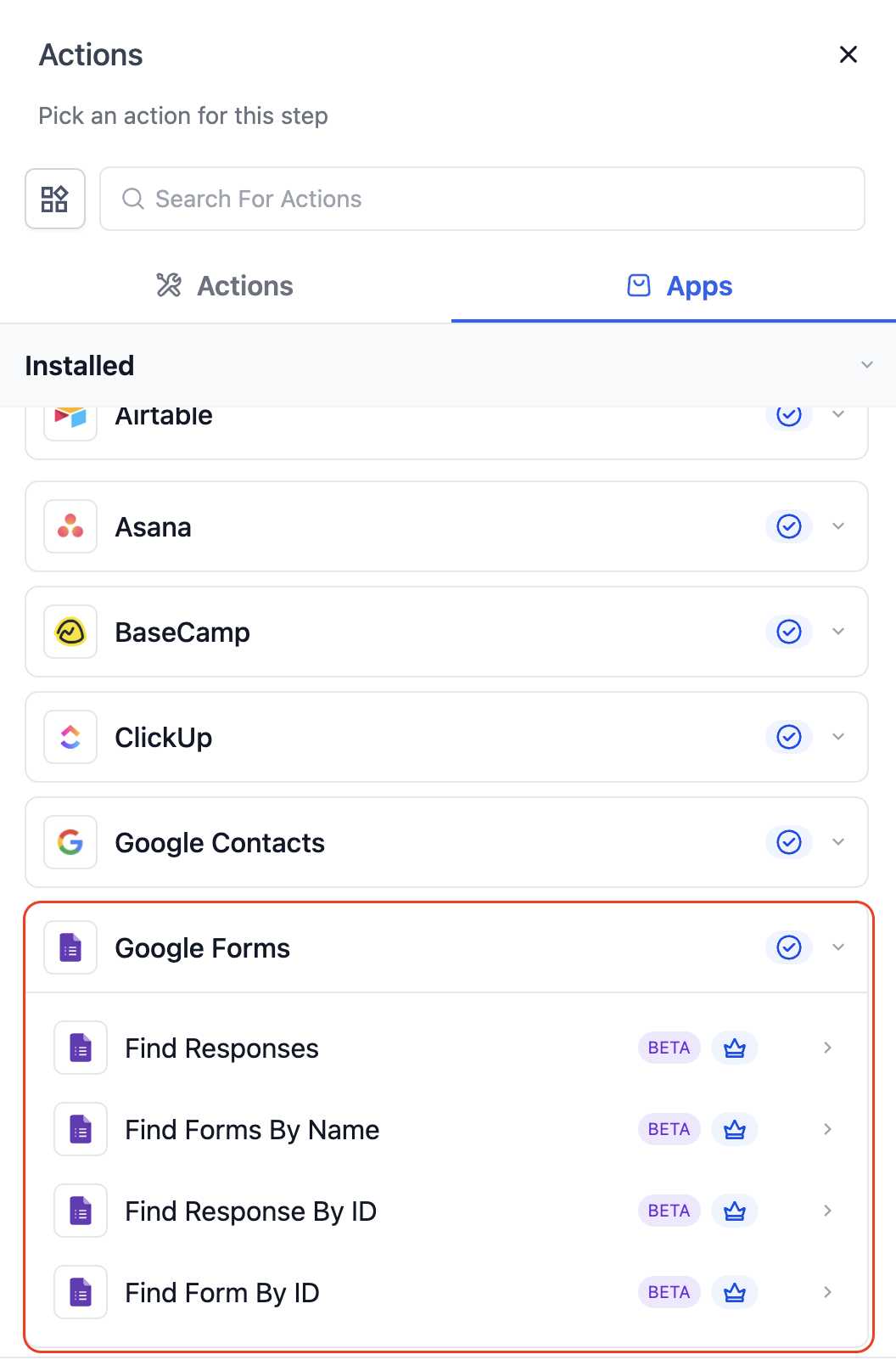
Step 1: Search in Automations
In the Automations Builder, click Add Trigger or Add Action and search for Google Forms.
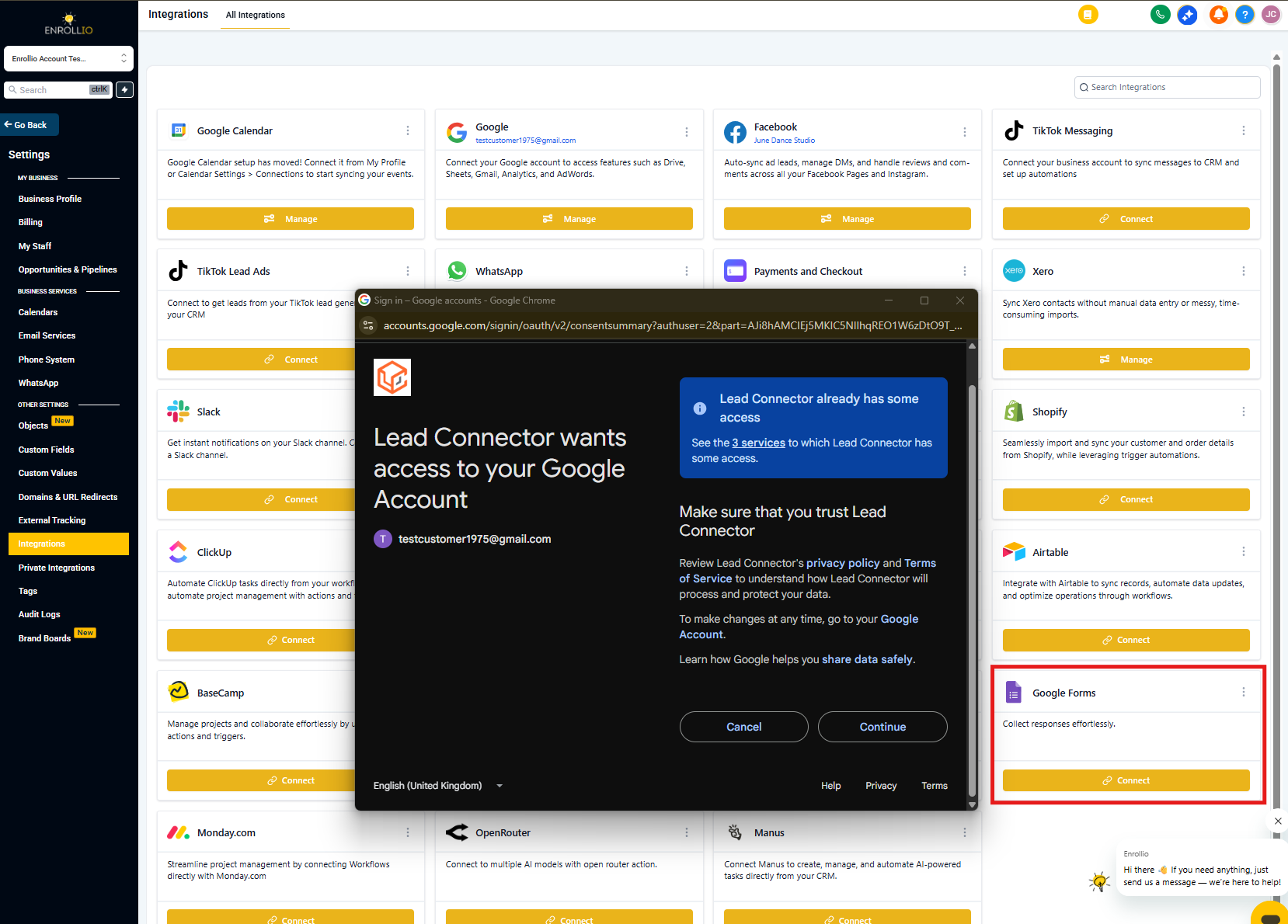
Step 2: Connect Your Google Account
If not already connected, click Connect Now and authorize access using Google OAuth.
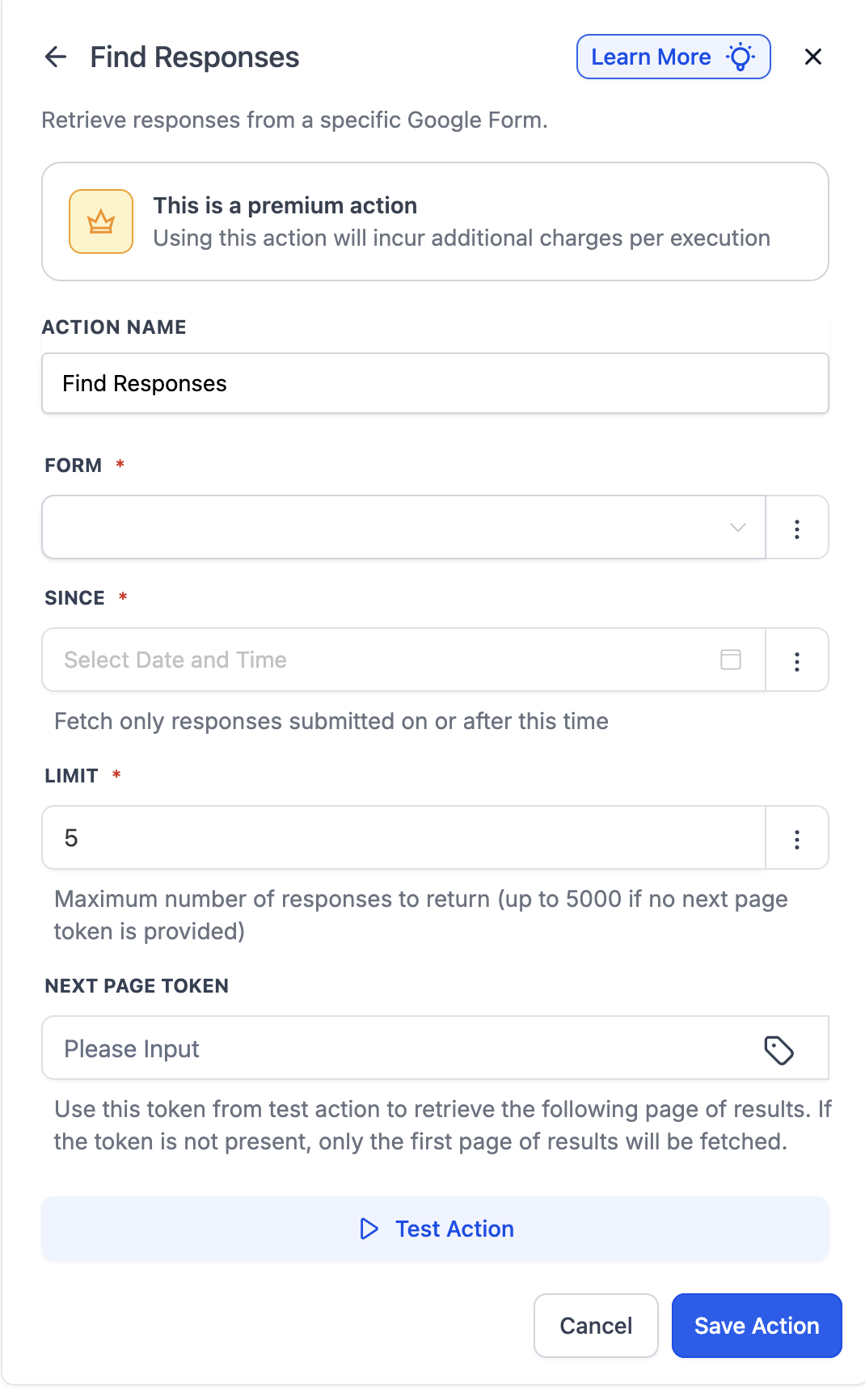
Step 3: Configure Trigger or Action
- Select the form from the dropdown
- Test to fetch sample responses
- Map response fields to parent/family records, messaging, or logic steps
How do Google Forms Triggers Work?
Google Forms triggers are designed to be near real-time and reliable:
- Select New Response trigger
- Choose the Google Form from your account
- Test trigger to fetch a sample response
- Use response fields (name, email, phone, answers) in automation actions
Common Use Cases
Use Case 1: Tour Request Capture & CRM Sync
Goal: Automatically create family records and follow up with tour requests.
Automation Setup:
- Trigger: New Response ("Tour Request Form")
-
Actions:
- Create or update family record in Enrollio CRM
- Send confirmation text message or email
- Notify enrollment coordinator via internal notification
- Add family to "Tour Scheduled" pipeline stage
Result: Every tour request becomes a family record with automated follow-up.
Use Case 2: Feedback Form Follow-Up
Goal: Escalate low satisfaction scores from parent surveys.
Automation Setup:
- Trigger: New Response ("Parent Satisfaction Survey")
- Condition: Rating ≤ 6
-
Actions:
- Send personalized follow-up email
- Create task for center director
- Add tag "Needs Attention"
Result: Concerned parents are addressed immediately without manual review.
Use Case 3: Conditional Automation Using Past Responses
Goal: Avoid sending duplicate enrollment surveys.
Automation Setup:
- Trigger: Internal CRM Event ("Enrollment Completed")
-
Actions:
- Find Responses (search by parent email)
- If Found → Do nothing
- If Not Found → Send welcome survey link
Result: Parents only receive surveys when appropriate.
Frequently Asked Questions
Are Google Forms triggers instant?
They use polling every 5 minutes, so responses are captured quickly but not instantaneously.
Can I search responses dynamically?
Yes—use Find Response by ID or Find Responses by Form Name to search based on automation data.
Is this a two-way sync?
No. Currently, automations can read from Google Forms and act in Enrollio. You cannot write data back to Google Forms.
Are these premium actions?
Yes, Google Forms triggers and actions are billed at standard automation rates.
Can I use responses in conditional logic?
Yes, all response data is available in If/Else conditions within your automations.