
What You'll Learn
This article shows you how to use the AI Translate action in your automations to automatically translate text between languages. You'll be able to communicate with families in their preferred language — whether that's Spanish, Mandarin, French, or dozens of other options.
What is the AI Translate Action?
The AI Translate action lets you automatically convert text from one language to another inside your automations. This is perfect for childcare centers serving multilingual communities.
For example, you can take an incoming message from a parent in Spanish, translate it to English for your staff, then respond in Spanish — all automatically. Or translate your enrollment confirmation emails into each family's preferred language.
This personalization helps families feel welcome and understood from their very first interaction with your center.
How to Set Up AI Translate
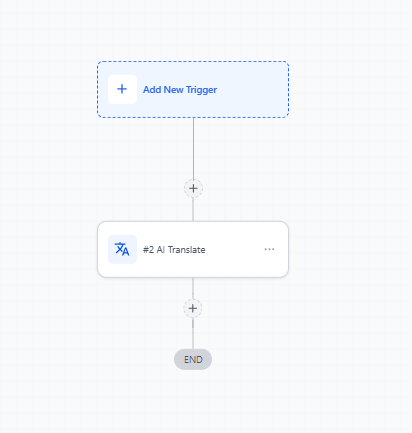
Follow these steps to add translation to your automation.
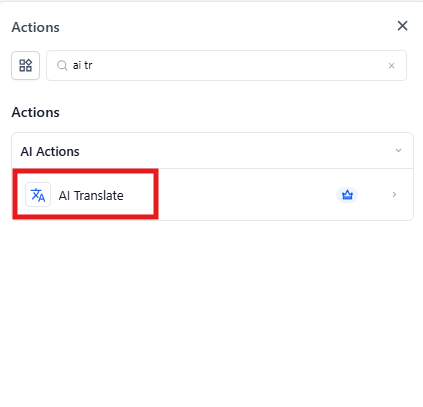
Step 1: Add the Translate Action
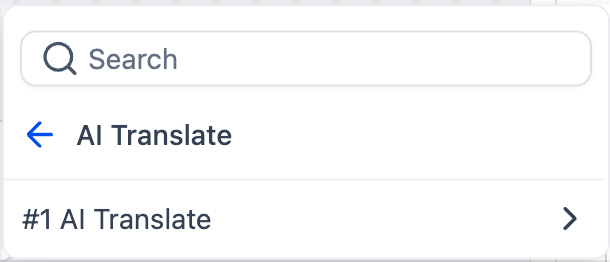
Open your automation in the automation builder. Click the plus icon where you want to add translation, search for "Translate" in the actions menu, and add it to your automation.
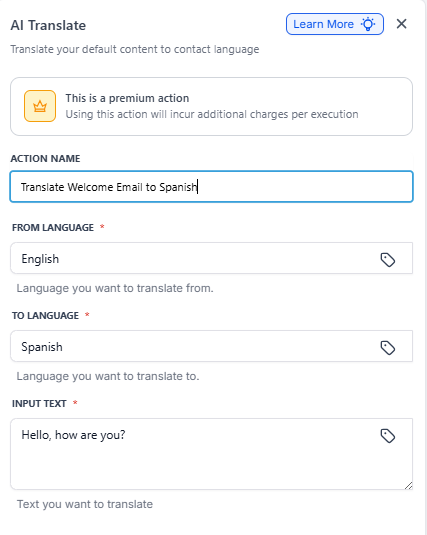
Step 2: Configure Your Translation Settings
Once you've added the action, you'll see these fields:
- Action name: Give it a clear name like "Translate Welcome Email to Spanish" so you can identify it later
- From Language: Select the source language — the language your original text is in (e.g., "English")
- To Language: Select the target language you want to translate into (e.g., "Spanish")
- Input Text: Enter the text you want to translate. You can either type it directly or use custom fields to pull in dynamic content from a family's profile or a previous automation step
Click Save Action when you're done.
Using the Translated Text
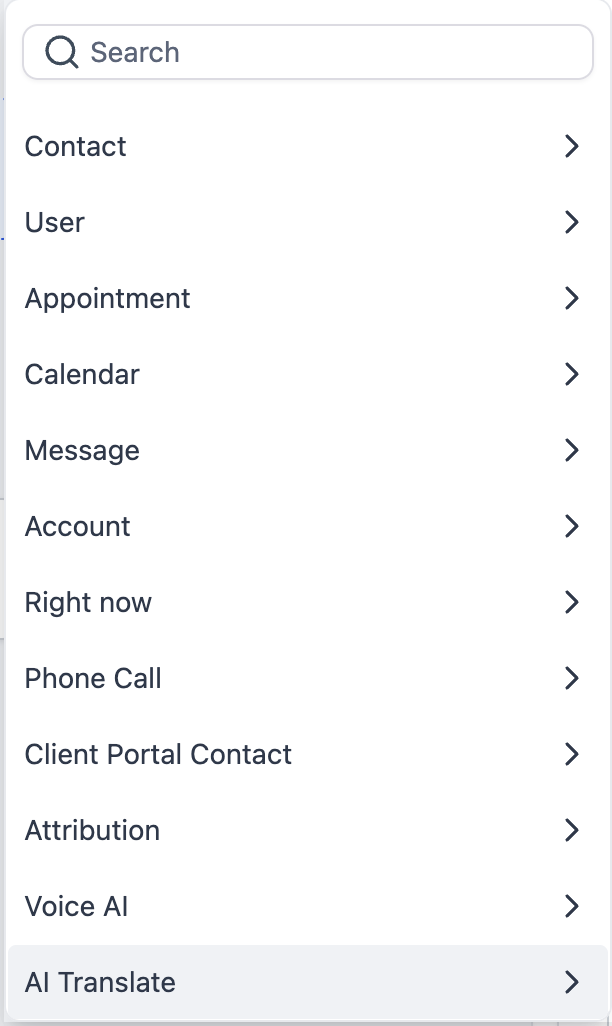
After the translation runs, the translated text becomes available as a custom variable you can use in later steps. You'll find it in your custom fields menu labeled with your action name.
Insert it anywhere you send communications — emails, text messages, or internal notifications.
Real-World Example: Welcome Email in Spanish
Let's say a new family completes your enrollment form and indicates Spanish as their preferred language. Here's how to automatically send them a welcome email in Spanish:
Trigger: Family Submits Enrollment Form
Action 1: AI Translate
- Action Name: Translate Welcome to Spanish
- From Language: English
- To Language: Spanish
- Input Text: "Welcome to [Your Center Name]! We're excited to have your family join us. Your enrollment coordinator will reach out within 24 hours to schedule your first day."
Action 2: Send Email
- Email Body: Insert
{{workflow_ai_translate_content.2.response}}(the output from your translation action)
The family automatically receives your welcome message in perfect Spanish — no manual work required.
Common Use Cases
- Tour confirmations in the family's preferred language
- Enrollment reminders translated automatically
- Incoming parent messages translated for your staff
- Daily updates or newsletters sent in multiple languages
- Waitlist communications personalized by language