
Automation Action - AI Intent Detection
The AI Intent Detection action analyzes text to automatically determine sentiment, categorizing it as POSITIVE, NEGATIVE, or NONE. This premium action helps you automate responses based on parent sentiment—whether it's feedback from tours, enrollment inquiries, or post-enrollment check-ins.
What is AI Intent Detection?
The Intent Detection action is an AI-powered automation tool that automatically analyzes text input to determine the underlying sentiment or intent. It processes any text—whether from parent messages, survey responses, or form submissions—and categorizes it into three distinct branches:
- POSITIVE: Text expressing positive sentiment, satisfaction, or agreement
- NEGATIVE: Text conveying negative sentiment, dissatisfaction, or disagreement
- NONE: Text with neutral sentiment or when the system cannot confidently categorize it
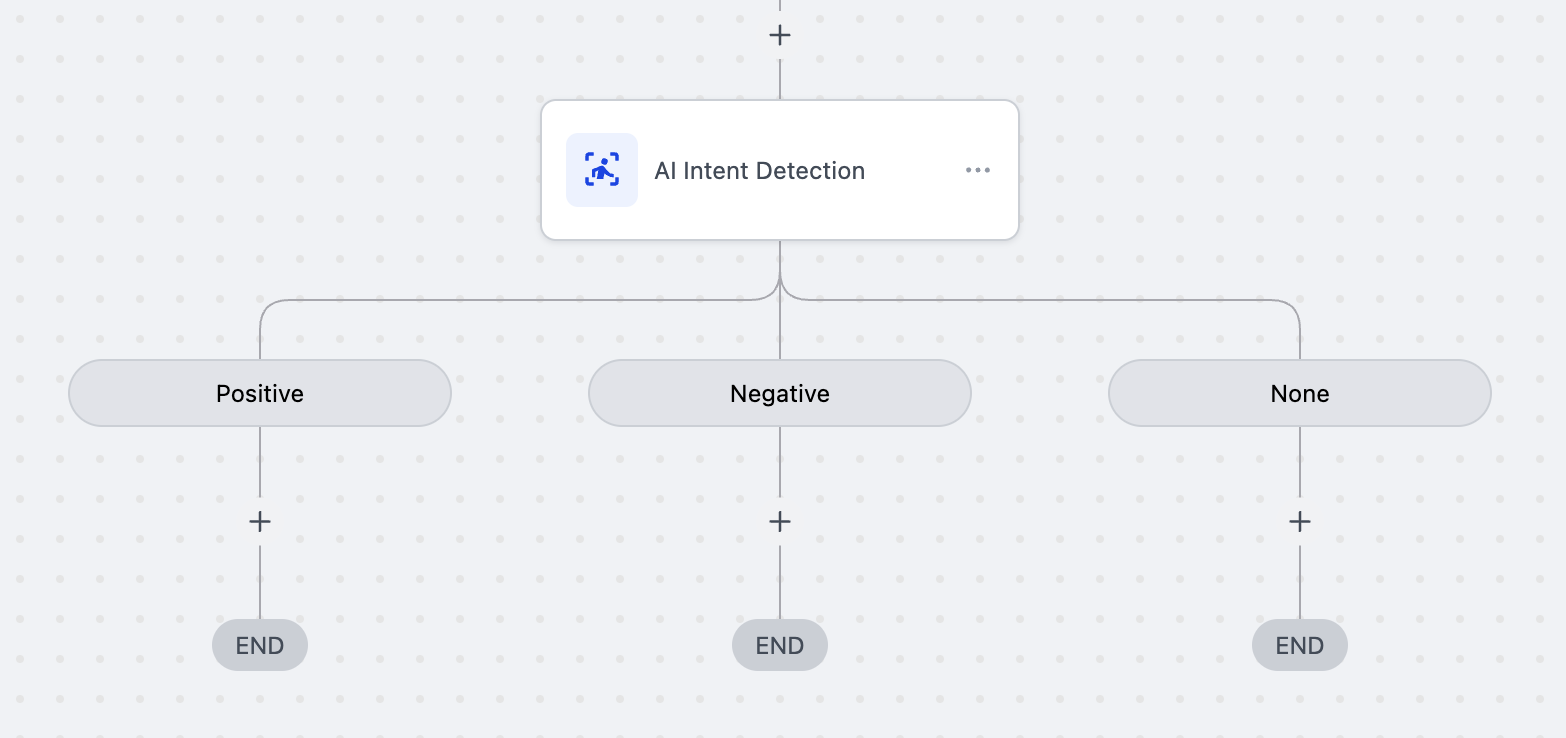
This action creates three automation branches automatically, allowing you to build different paths based on the detected sentiment.
Key Benefits
- Automated Sentiment Analysis: Instantly categorize parent responses without manual review
- Improved Accuracy: More reliable sentiment detection using advanced AI
- Simplified Automation Design: Three clear branches eliminate complex conditional logic
- Real-Time Response: Trigger appropriate actions immediately based on parent sentiment
- Enhanced Parent Experience: Deliver personalized responses tailored to parent emotions
- Scalable Automation: Process unlimited messages without human intervention
How to Set Up AI Intent Detection
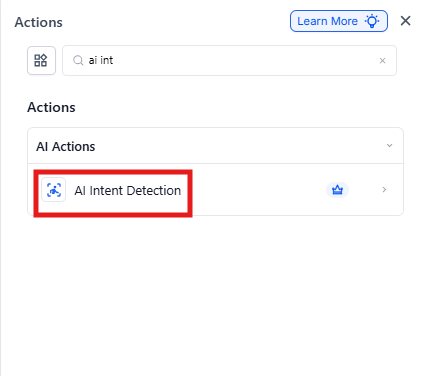
Step 1: Add the AI Intent Detection Action
Navigate to your automation builder and search for "AI Intent Detection" in the actions menu. Add it to your automation at the point where you want to analyze text sentiment.
Step 2: Configure the Action
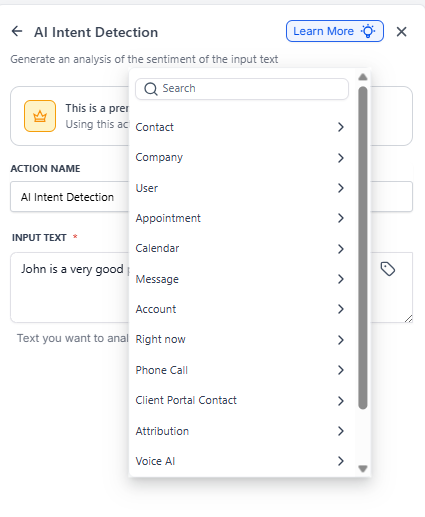
Action Name: Give your action a descriptive name (e.g., "Analyze Tour Feedback Sentiment")
Input Text: Specify the text to analyze. You have two options:
- Static Value: Enter fixed text directly
-
Dynamic Variable: Use the custom value picker to select variables:
- {{message.body}} for incoming messages
- Any other variable that stores text to be classified
Step 3: Set Up Branch Actions
After saving, the action automatically creates three branches:
1. POSITIVE Branch: Configure actions for positive responses
- Send thank you messages
- Request Google or Facebook reviews
- Offer referral bonuses
- Add "satisfied parent" tags
2. NEGATIVE Branch: Configure actions for negative responses
- Trigger director notification
- Send discount codes or waive fees
- Schedule follow-up calls
- Add "needs attention" tags
3. NONE Branch: Configure actions for neutral/unclear responses
- Send clarification requests
- Route to manual review
- Apply default follow-up sequences
Example Use Cases
1. Post-Tour Feedback
Scenario: After a family completes a tour
-
POSITIVE Response: "The tour was amazing! Our daughter loved the playground!"
Action: Send enrollment application link and request a Google review -
NEGATIVE Response: "We're disappointed with the teacher-to-child ratio"
Action: Send director's personal phone number and waive application fee -
NONE Response: "Okay" or "Thanks"
Action: Send follow-up questions about their experience
2. Enrollment Survey Responses
Scenario: After the first month of enrollment
- POSITIVE: Request testimonial and referral
- NEGATIVE: Trigger parent-teacher conference scheduling
- NONE: Send tips for helping your child adjust
Pricing
Cost: 1 cent ($0.01) per execution
Part of Premium Actions suite
Frequently Asked Questions
Q: Can I use multiple Intent Detection actions in one automation?
A: Yes, you can chain multiple Intent Detection actions to analyze different text inputs or create multi-level sentiment analysis automations.
Q: What happens if the text contains mixed sentiments?
A: The system analyzes the overall dominant sentiment. If no clear sentiment is detected, it routes to the NONE branch.
Q: Can I test the intent detection before going live?
A: Yes, use the automation test mode with sample text inputs to verify the sentiment detection accuracy before activating your automation.
Q: Can I see why text was categorized a certain way?
A: Currently, the action provides the categorization result only. Detailed reasoning or confidence scores may be added in future updates.
Q: What types of parent messages work best with this action?
A: The action works well with open-ended responses from surveys, text message replies, feedback forms, and email responses. It's less effective with very short responses like "yes" or "no."