
Overview
The Enrollio AI Bot action lets you have natural, AI-powered conversations with parents and prospective families directly in your automations. Use it to answer questions, qualify tour requests, or route conversations based on parent responses — all without lifting a finger.
This feature helps you stay responsive 24/7, especially during peak enrollment seasons when families are researching childcare options outside business hours.
Action Name
Enrollio AI Bot
What This Action Does
The Enrollio AI action configures questions and conditions for your AI bot, enabling automated responses and intelligent conversations. It uses AI to understand and respond to parent inquiries, making your enrollment process more efficient and responsive.
Action Settings
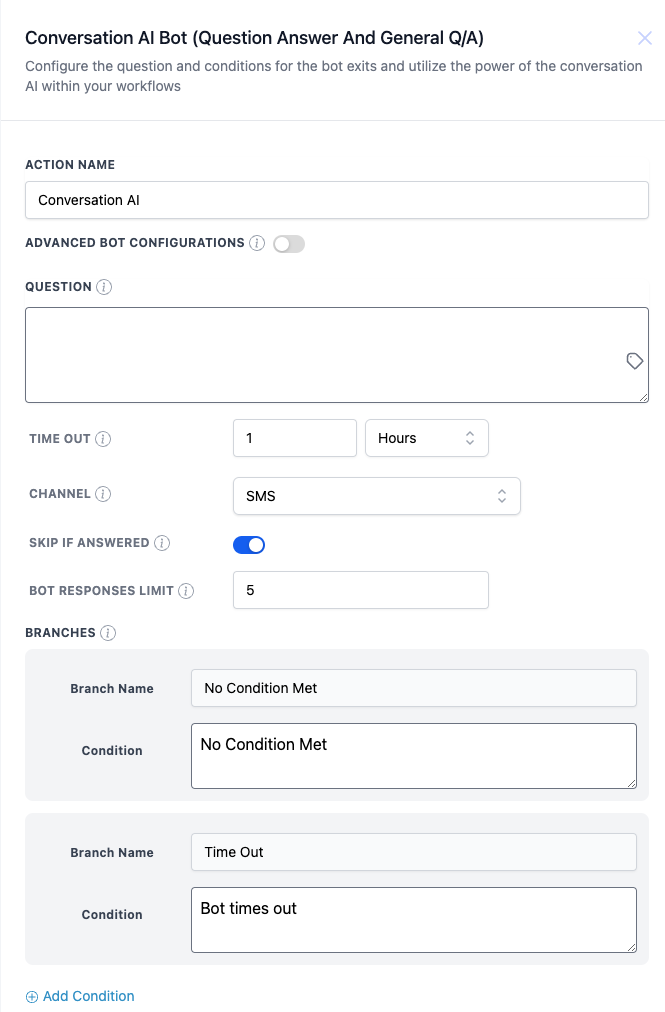
Here's what you can configure when setting up an Enrollio AI Bot action:
Advanced Bot Configurations
Toggle this on to access additional customization options for your AI bot. When enabled, you'll see extra fields for personality and instructions.
Personality
This defines how your bot communicates with families. For example, "Warm and welcoming" or "Professional and efficient." Choose a personality that matches your childcare center's brand voice.
Additional Instructions
Give your bot specific guidance on how to handle conversations. For example, you might instruct it to always mention your tours are free, or to emphasize your curriculum approach when parents ask about programming.
Question
The main question or prompt your bot will ask. You can use custom values here to personalize questions based on the parent's name, child's age, or other information you've already collected.
Time Out
How long the bot waits for a response before moving on (in minutes or hours). This prevents your automation from getting stuck waiting indefinitely for a parent to reply.
Channel
Choose where this conversation happens: text message, Facebook Messenger, Instagram DM, or live chat on your enrollment site. Make sure you select the channel where the parent actually contacted you.
Skip If Answered
Turn this on to avoid asking the same question twice. If a parent has already answered this question in a previous conversation, the bot will skip it and move to the next step.
Bot Responses Limit
Sets a maximum number of messages the bot can send in this conversation. This prevents overwhelming parents with too many automated messages and keeps conversations natural.
Branches
Define different paths based on how parents respond. For example, create one branch for when parents express interest in a tour, and another for when they don't respond within your timeout period. Branching lets you create personalized follow-up based on parent behavior.
How to Set Up the Action
- Add the action: Drag the Enrollio AI action into your automation.
- Enable Advanced Configurations (optional): Toggle this on if you want to customize personality or add special instructions.
- Set the personality: Choose a tone that reflects your center's culture (e.g., "Warm and nurturing").
- Add instructions (optional): Give the bot specific guidance relevant to your childcare program.
- Write your question: Enter the main question the bot should ask. Use custom values to personalize it with the parent's name or child's information.
- Configure the timeout: Set how long to wait for a response before the automation moves forward.
- Select the channel: Choose where this conversation happens (text, Facebook, Instagram, or live chat).
- Set Skip If Answered: Decide whether to skip this step if the parent already answered this question.
- Set response limit: Choose how many messages the bot can send in this interaction.
- Add branches: Create different paths based on parent responses or conditions, so you can customize follow-up actions.
Example: Tour Inquiry Response
Here's how you might use Enrollio AI to respond to parents requesting a tour:
Trigger: New message received from Facebook
Action: Enrollio AI Bot
- Question: "Hi {{contact.first_name}}! Thanks for reaching out about a tour. What age is your little one, and are you looking for full-time or part-time care?"
- Personality: Warm and welcoming
- Channel: Facebook Messenger
- Timeout: 2 hours
Branch 1: Parent Responds
- Condition: Parent provides age and care type
- Next action: Send available tour times and link to online booking
Branch 2: Timeout
- Condition: No response after 2 hours
- Next action: Assign to staff member for personal follow-up
💡 Pro Tip
Start with simple questions and expand from there. Your AI bot learns from real conversations, so review early interactions to refine your personality and instructions for the best parent experience.