
What is the Set Event Start Date Action?
The "Set Event Start Date" action lets you schedule tasks and reminders in your automations based on specific events. Think of it as setting a reference point that other automation steps can use to time their actions perfectly.
This is especially useful for managing tours, enrollment deadlines, open houses, parent orientations, or any event where you need to send timely communications to families.
Why Use This Action?
Automated scheduling: Schedule reminder texts and emails to go out automatically before your events. No more manual reminders or forgotten follow-ups.
Timely tour reminders: Send families a reminder text the day before their scheduled tour, then another one an hour before. This dramatically reduces no-shows.
Follow-up communications: Automatically send a thank-you email after a tour or request feedback a few days after an orientation.
Flexible timing: Use any date field as your reference point — enrollment start dates, trial period end dates, parent birthdays, or custom dates you create.
Time-specific actions: Schedule social media posts about your open house or send enrollment deadline reminders at exactly the right moment.
When to Use This Action
Tour management: Set your tour date as the event start date, then send reminder texts a day before and an hour before the scheduled time. Follow up the next day with a personalized email and enrollment information.
Open house events: Schedule reminder emails leading up to your open house, send directions the morning of the event, and follow up with attendees afterward.
Enrollment deadlines: Set the enrollment deadline as your event date, then send reminders to families on your waitlist at intervals leading up to the deadline.
Trial period management: For families doing trial days, set the trial end date and send reminders encouraging them to complete enrollment before their spot expires.
Parent orientations: Schedule orientation reminders, send what-to-bring lists, and follow up with additional resources after the session.
Birthday celebrations: Celebrate children's birthdays by setting up automated greetings or special activity announcements for families.
Seasonal enrollment campaigns: Set your fall enrollment start date and build a series of timed communications leading up to and during the enrollment period.
Re-enrollment periods: For annual re-enrollment, set each family's re-enrollment date and send timely reminders with necessary forms and information.
Staff training sessions: Schedule reminders for staff training events, send session details beforehand, and share recordings afterward.
License renewal reminders: Track important dates like when families need to update immunization records or emergency contacts, and send automated reminders.
How to Set Up Event Start Date
Step 1: Add the Action to Your Automation
Navigate to the automation where you want to add this action.
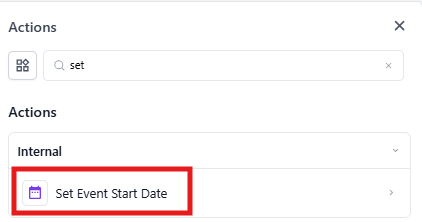
Click the plus icon to add a new step and select "Set Event Start Date/Time."
Step 2: Choose Your Event Date
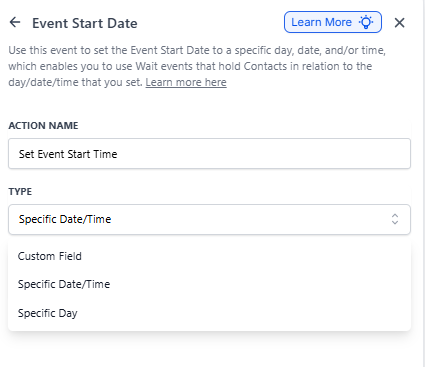
You have three options for setting your event date:
Custom Field: Use a date field that's already saved in the parent's or family's record. For example, if you have a "Tour Date" custom field, select it here. The automation will use whatever date is stored in that field for each family.
Specific Date/Time: Enter an exact date and time (like "March 15, 2025 at 10:00 AM"). This works well for events that happen on the same date for everyone, like an open house.
Specific Day: Choose a day of the week and time. This is useful for recurring events, like weekly tours every Saturday at 10:00 AM.
Accepted Date Formats
When entering a specific date, Enrollio accepts these formats:
- MM-DD-YYYY HH:MM (12-15-2025 09:30)
- MM/DD/YYYY (12/15/2025)
- Month DD, YYYY (December 15, 2025)
- YYYY-MM-DD (2025-12-15)
Step 3: Add Wait Steps
After setting your event date, add "Wait for Event/Appointment Time" steps to pause the automation until the right moment.
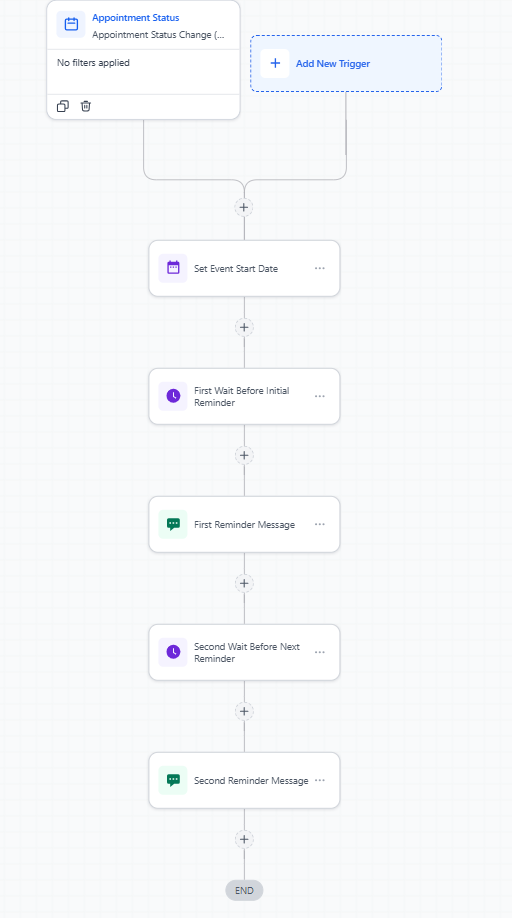
For example, to send a tour reminder the day before and an hour before:
- Add "Wait for Event/Appointment Time" and set it to wait until 1 day before the event
- Add your reminder text message
- Add another "Wait for Event/Appointment Time" set to wait until 1 hour before the event
- Add your final reminder message
Frequently Asked Questions
Can I use this action for recurring events?
Yes! If you run weekly tours or monthly open houses, set up your automation using the "Specific Day" option. The automation will trigger each time a family enters and use the next upcoming occurrence of that day as the reference date.
Can I set multiple event dates in the same automation?
Yes, you can add multiple "Set Event Start Date" actions in a single automation. This is helpful when you have different types of events in one flow — for example, a tour date followed by an orientation date.
What happens if a family enters the automation after the event date has passed?
If the event date has already passed when a family enters the automation, any "Wait for Event/Appointment Time" steps set to trigger before the event will be skipped. Steps set to trigger after the event will execute immediately.
Do I need to use a Wait step with this action?
Not necessarily. Setting an event date by itself doesn't trigger any actions — it just establishes a reference point. However, the action becomes useful when combined with "Wait for Event/Appointment Time" steps that use that reference to time communications perfectly.
How do time zones work with this action?
If your automation settings are configured to respect family time zones, the "Set Event Start Date" action will use each family's time zone. This ensures that a "1 day before" reminder goes out at the right local time for every family, regardless of where they're located.