
What is the "Remove from Automation" Action?
The "Remove from Automation" action helps you keep your automations clean and relevant. It automatically removes families from one or multiple automations based on specific triggers or conditions you set.
This ensures families receive the right messages at the right time—no duplicate emails about tours they've already scheduled, no waitlist reminders after they've enrolled, and no marketing messages after they've become active families.
Why Use the "Remove from Automation" Action?
Streamlined Family Management: Automatically removes families from automations they no longer need to be part of, saving you time and effort.
Relevant Communication: Prevents families from receiving redundant or irrelevant messages by ensuring they're only in automations that match their current status.
More Efficient Operations: Reduces manual work by automating the removal process, so you can focus on tours, enrollments, and family relationships.
Better Family Experience: Ensures parents receive appropriate communication without being overwhelmed by unnecessary emails or text messages.
How to Set Up the "Remove from Automation" Action
Step 1: Create Your Automation
- Go to the Automations section in your Enrollio dashboard
- Click + Create Automation
- Choose Start from Scratch from the dropdown menu
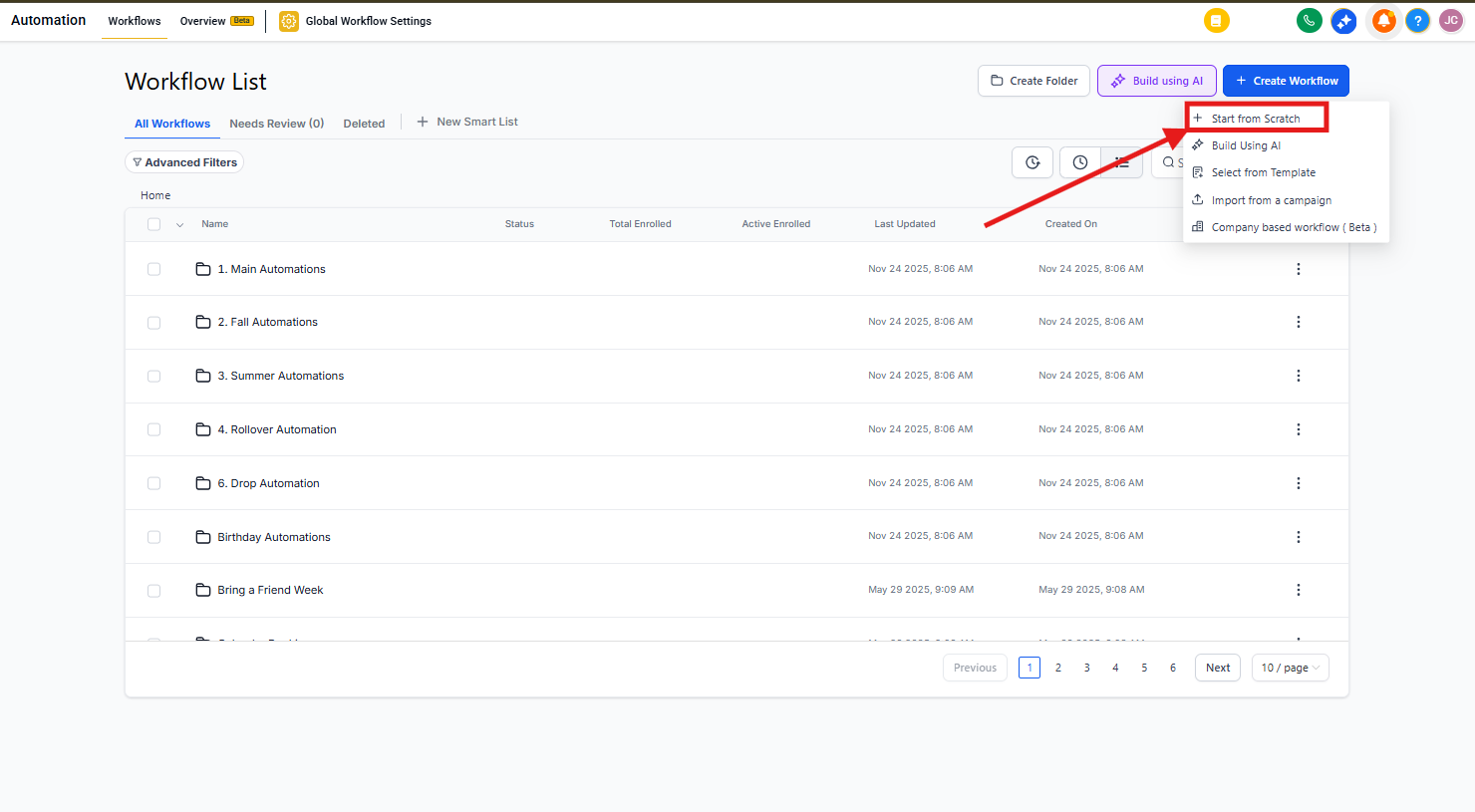
Step 2: Add the Remove Action
- In the automation builder, click the + icon to view all available actions
- Scroll down to find Remove from Automation
- Click to add it to your automation
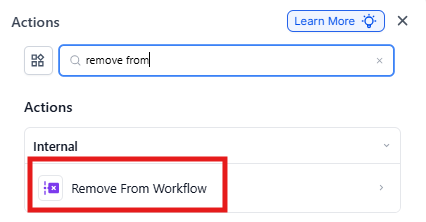
Step 3: Name Your Action
Give your action a descriptive name so it's easy to identify later. For example: "Remove from Tour Follow-up" or "Remove from Waitlist Nurture."
Step 4: Choose Removal Scope
Select where you want to remove the family from:
- Current Automation: Removes the family from the automation they're currently in
- Another Automation: Removes the family from a different automation you specify
- All Except Current: Removes the family from all automations except the one they're currently in
- All Automations: Removes the family from all active automations
If you choose "Another Automation," select the specific automation from the dropdown menu.
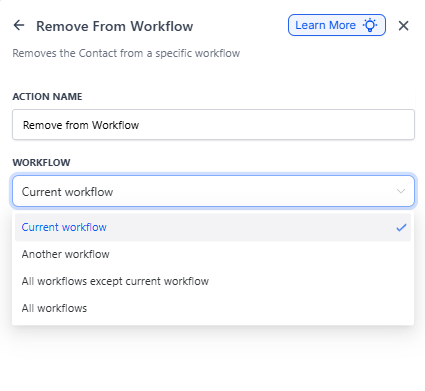
Step 5: Save and Test
- Save your action
- Test it with a sample family record to ensure it works as expected
- When you're ready, toggle the automation to Publish to activate it
Real-World Example
Scenario: You want to remove families from your tour follow-up automation once they enroll, so they don't keep receiving tour reminder messages.
How to Set It Up:
- Trigger: Set the trigger to activate when a family's status changes to "Enrolled" or when an enrollment opportunity is marked as "Won"
- Add Action: Add the "Remove from Automation" action
- Name It: "Remove from Tour Follow-up"
- Select Scope: Choose "Another Automation"
- Choose Automation: Select your "Tour Follow-up Sequence" automation
Result: When a family enrolls, they're automatically removed from the tour follow-up automation. They stop receiving tour-related messages and only get enrollment onboarding communication instead.
Pro Tip: Use this action to clean up your automations when families move through your enrollment pipeline. Remove them from waitlist nurture when they schedule a tour, remove them from tour follow-up when they enroll, and remove them from all prospect automations when they become active families.
Frequently Asked Questions
What happens if a family is in multiple automations?
You have full control. You can remove them from:
- The current automation only
- Another specific automation of your choice
- All automations except the current one
- All active automations
Can I automatically remove a family after they complete a specific action?
Yes. Set up a trigger like "enrollment opportunity won" or "tour scheduled" to automatically remove families from specific automations. This ensures they only receive relevant messages for their current stage.
How do I know if the action is working?
Test the automation using a sample family record to confirm they're removed as expected. You can also check your activity logs to verify successful removal.
Can I undo this action once it's triggered?
No, once a family is removed from an automation, it can't be undone automatically. You'll need to manually re-enroll them if necessary.
Will families be notified when they're removed from an automation?
No. This action only affects internal automation status—families don't receive any notification about being removed.
Should I remove families from all automations when they enroll?
In most cases, yes. Once a family enrolls, you'll want to remove them from prospect-focused automations (tour follow-ups, waitlist nurture, marketing campaigns) so they only receive onboarding and family-focused messages.