
Previewing and testing your emails in Enrollio ensures your layout, links, and personalization display correctly before you hit send. This guide covers preview modes and test sends so your parent communications look perfect every time.
What is Preview & Test for Email Campaigns and Templates?
Preview & Test are built-in tools in Enrollio's email builder that let you verify content and send a safe test copy before going live. These options help you validate personalization, layout, and links without affecting real families or campaign metrics.
Use Preview to see how your email renders across devices, and use Send Test to deliver a sample to your inbox for a final check.
Why Preview & Test Matters
- Accuracy: Confirm merge fields, custom values, and conditional content appear as intended for each family.
- Compliance: Validate that required elements like unsubscribe sections are present before launch.
- Quality assurance: Catch layout, image, and link issues early—especially if you imported custom HTML.
- Speed: Iterate quickly without sending to real parent lists or affecting your analytics.
How to Preview and Send Test Email Campaigns
Note: For detailed instructions on creating and sending campaigns, see our guides on Getting Started — Launch an Email Campaign and How to Use the Email Builder.
- Go to Marketing > Emails > Campaigns.
- Click on a campaign to open it.
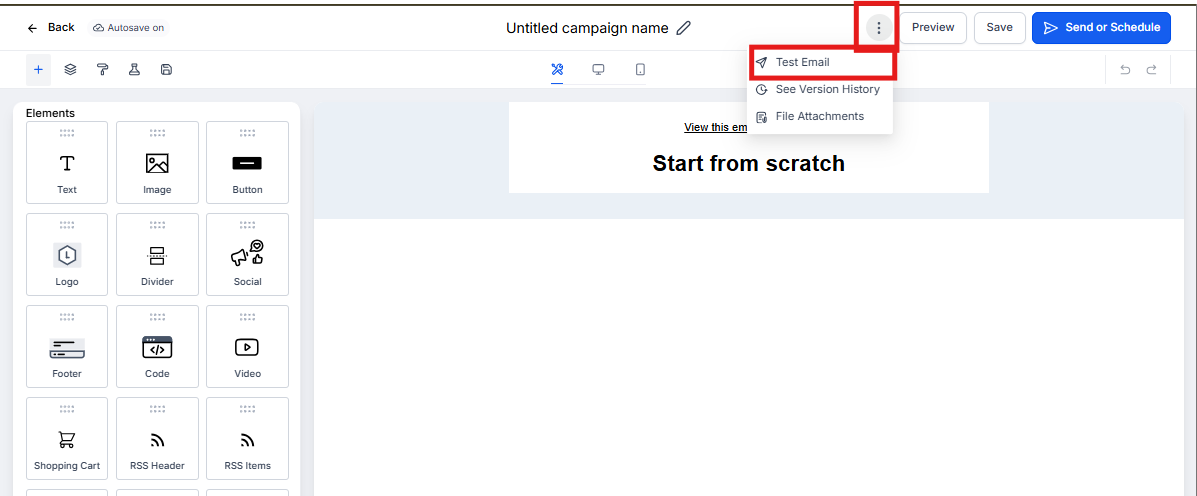
- Click the Preview button in the top right to check Desktop, Tablet, and Mobile views.
- To send a test email, click the three dots beside the Preview button and select Test Email.
- Select your Sender Email, add a Sender Name, select Receiver Email, add Preview Text and Email Subject.
- Click Send Test Email.
How to Preview and Test Email Templates
Note: The unsubscribe link will not work in test emails.
- Go to Marketing > Emails > Templates.
- Click on a template to open it.
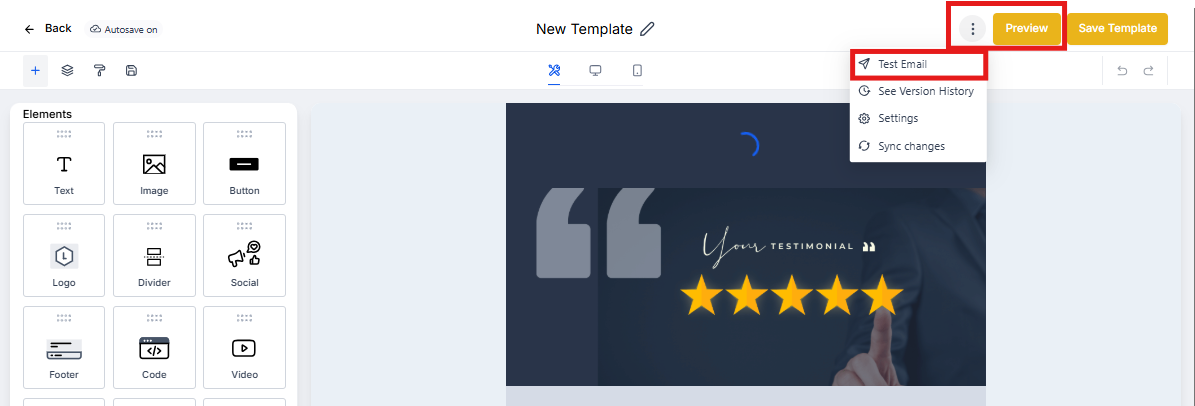
- Click the Preview button in the top right to check Desktop, Tablet, and Mobile views.
- To send a test email, click the three dots beside the Preview button and select Test Email.
- Select your Sender Email, add a Sender Name, select Receiver Email, add Preview Text and Email Subject.
- Click Send Test Email.
Frequently Asked Questions
Why doesn't the unsubscribe link work in my test email?
Unsubscribe is intentionally disabled in tests to protect your parent list. It functions normally in live sends based on your email settings.
Do test opens and clicks affect my analytics?
No. Tests are for validation only—your performance metrics populate from live sends to families.
My test didn't arrive. What should I check first?
Check your Spam/Junk folder, verify your sender email configuration, confirm the recipient email isn't suppressed, and try sending to a different email address.
Do custom unsubscribe links work in tests?
They display in test emails but won't complete an unsubscribe action. They operate normally in live sends as configured.
Related Articles
- Getting Started — Launch an Email Campaign
- How to Use the Email Builder and its In-line Editor
- Email Templates vs Email Campaigns
- How to Set Up A/B Testing for Your Email Campaigns
- How to Send a Regular Email Campaign (Send Now or Schedule)