Create and send email campaigns faster with improved preview options and pre-send checklists
Enrollio's updated email campaign flow makes it easier to create, preview, and send marketing emails to your families. You'll now see your email design while writing your subject line, get clear warnings about missing fields, and preview your message at any point during editing.
What's New
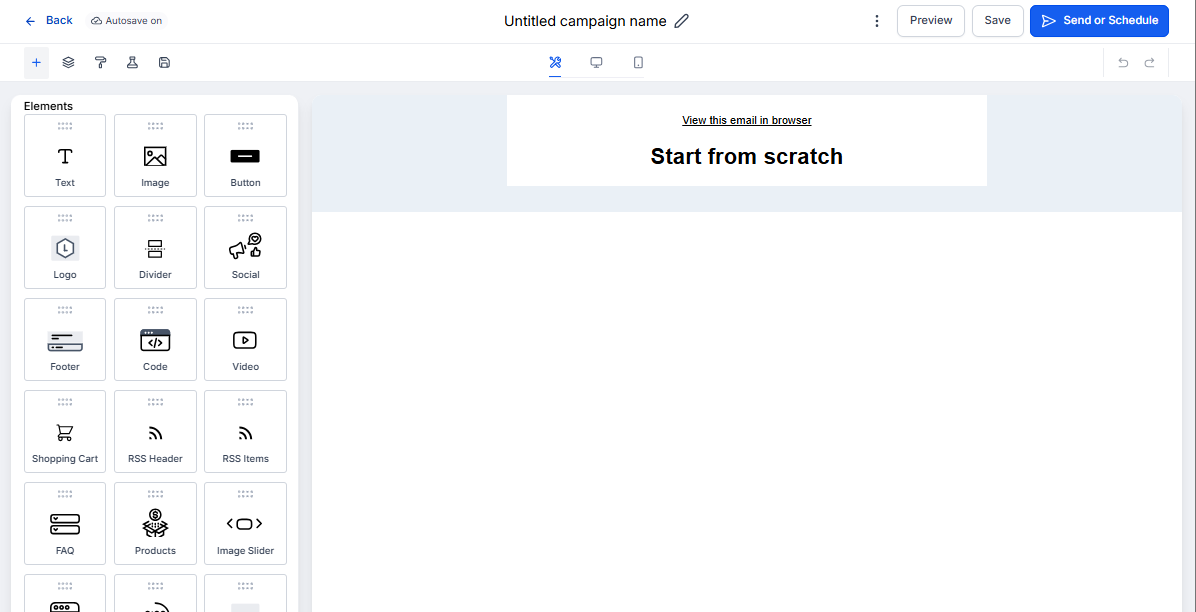
Start campaigns directly from templates: Choose from pre-built templates and jump straight into editing—no extra steps.
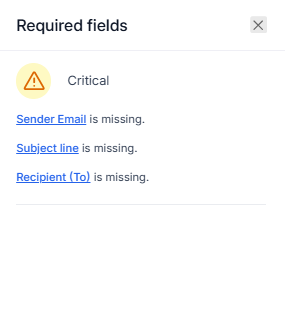
Pre-send checklist: Before sending, you'll see warnings for any missing or incorrect fields. Fix issues quickly and send with confidence.
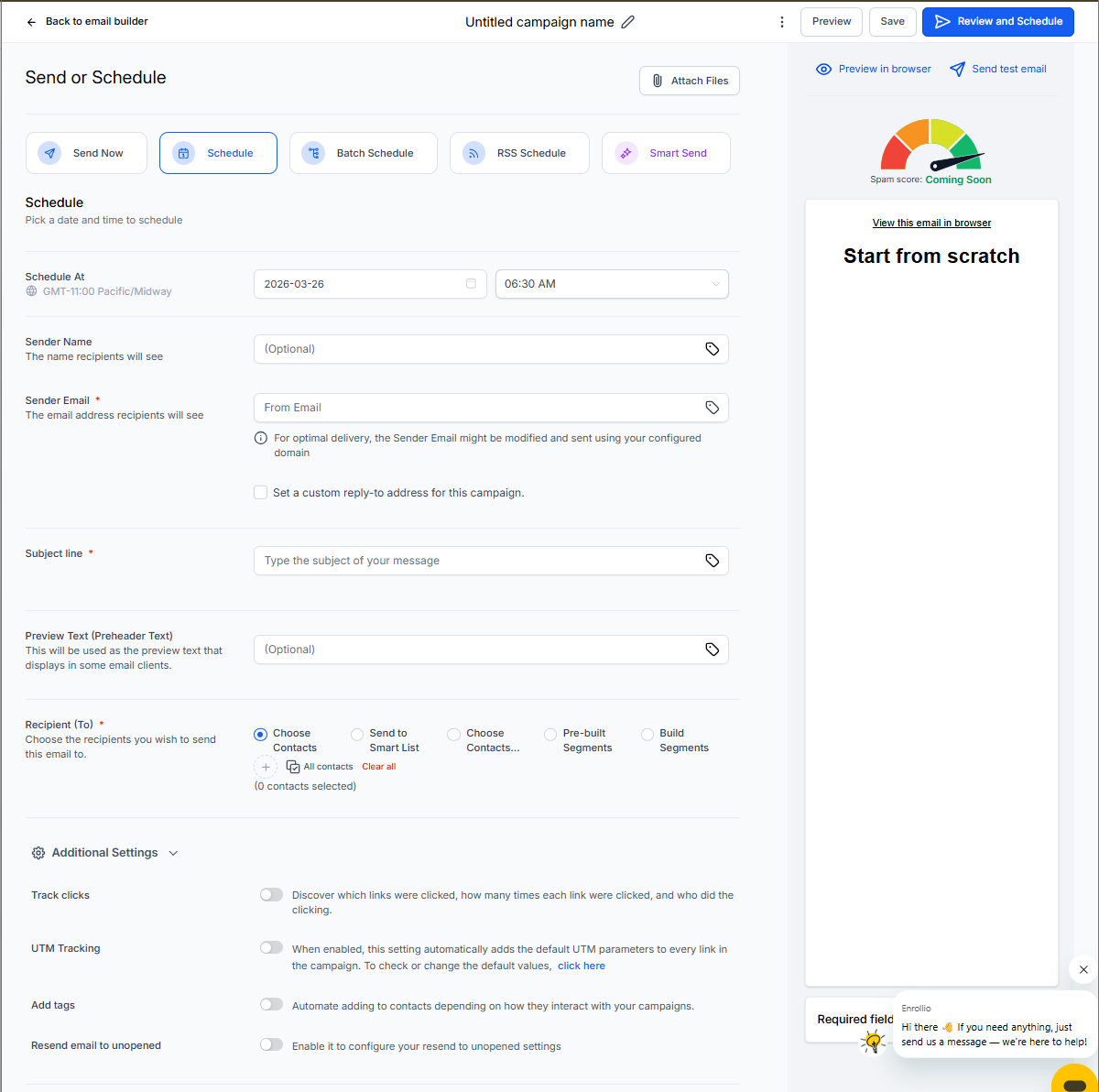
Side-by-side preview: See your email design while composing your subject line and preview text. No more switching back and forth between screens.
One-click preview during editing: Click the Preview button anytime while building your email to see exactly how it will look to families.
Attachment count badge: When attaching files, you'll see a number badge showing how many files are included—helpful for double-checking before you send.
How to Create an Email Campaign
- Go to Email Marketing → Campaigns.
- Click New → Email Marketing Templates.
- Choose a template and click Continue.
- Build your email in the campaign builder.
- Click Preview in the top menu (next to Save) to review your email at any time while editing. No menus—just one click.
- When ready, proceed to Send or Schedule.
- On the Send/Schedule screen, the Attach Files button displays a number badge showing how many files are attached. Use this to confirm everything's included before sending.
- Review any warnings in the Required Fields section, then click Confirm & Send.
Pro Tips
Preview early and often: Click Preview while editing to catch formatting issues and check that personalization fields (like parent names) display correctly.
Use the attachment badge: Before sending event reminders or enrollment forms, glance at the attachment count to make sure all files are included.
What the Pre-Send Checklist Covers
Right now, the checklist alerts you to missing required fields and errors in custom fields. We're expanding this feature to include email limit warnings, content issues, and more.