
Overview
The Bulk Email Builder makes it easy to send announcements, updates, and newsletters to your enrolled families and prospective parents. Whether you need to send a quick reminder about picture day or a beautifully designed monthly newsletter, you can create and send professional emails right from your family list.
Enrollio automatically filters out invalid email addresses and unsubscribed contacts, so you can send confidently knowing your messages will reach the right people.
What You Can Do
- Send to specific groups: Email all enrolled families, waitlisted prospects, or any custom segment
- Choose your style: Quick text updates, visual designs, or branded templates
- Track engagement: See who opened and clicked your emails
- Schedule delivery: Send immediately or schedule for the perfect time
- Automate tagging: Automatically tag families based on email engagement
Dynamic Family Labels
If you've customized how you refer to contacts in Enrollio (like "Families" instead of "Parents"), the Bulk Email Builder automatically uses your preferred terminology throughout the interface. This keeps everything consistent with how you've set up your account.
How Enrollio Protects Your Delivery
Before sending, Enrollio reviews your recipient list and shows you:
- Total families selected
- Filtered contacts (invalid emails or unsubscribed)
- Final recipient count
This automatic filtering protects your sender reputation and improves deliverability, ensuring your messages actually reach parent inboxes.
Three Ways to Create Emails
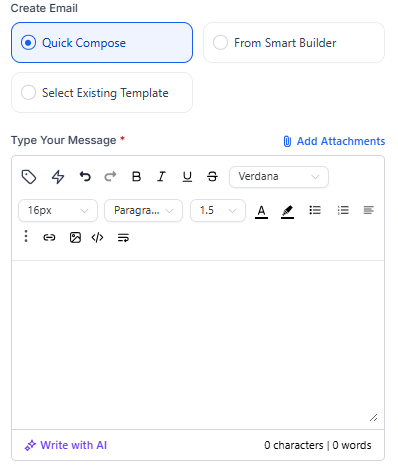
Quick Compose
Perfect for fast announcements like weather closures or schedule changes. Simple text editor with basic formatting — type and send.
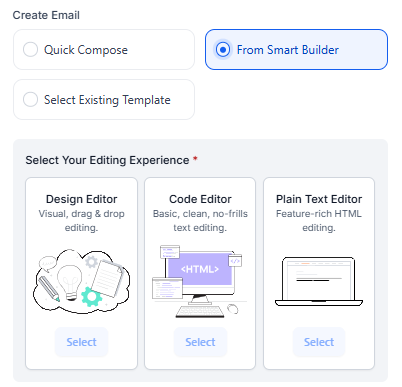
Smart Builder
Your most flexible option. Choose how you want to work:
- Design Editor: Drag-and-drop visual builder for newsletters and announcements
- Code Editor: For custom HTML designs
- Plain Text: Simple formatting for personal-feeling messages
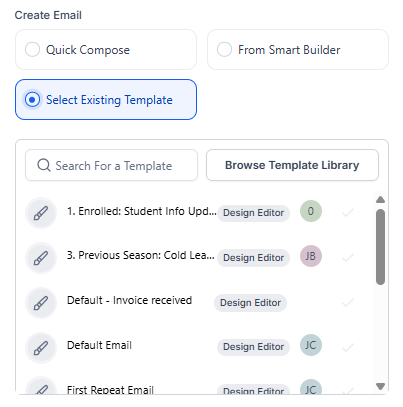
Use a Template
Start with a pre-designed layout from your saved templates or the Template Library. Great for maintaining consistent branding across your center communications.
Advanced Email Settings
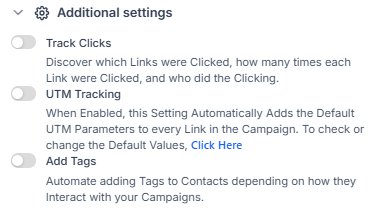
Click into Additional Settings to access powerful tracking and automation options:
Track Clicks
See exactly who clicked links in your email — helpful for tracking tour booking links, event RSVPs, or document downloads.
UTM Tracking
Automatically add tracking parameters to your links so you can see email performance in Google Analytics.
Add Tags
Automatically tag families based on their engagement. For example, tag everyone who clicks your enrollment link as "Interested in Enrollment" for targeted follow-up.
How to Send a Bulk Email
- Go to Contacts → Smart Lists
- Select the families you want to email (or choose a Smart List)
- Click Send Email from the Bulk Actions toolbar
- Choose your creation mode:
- Quick Compose for fast messages
- Smart Builder for newsletters
- Select a template for branded communications
- Create your email content
- Review the recipient summary (Enrollio shows who will be filtered out)
- Optional: Send a test email to yourself first
- Click Review Campaign
- Choose when to send:
- Send Now: Delivers immediately
- Schedule: Pick a specific date and time
- Drip Mode: Send in batches to improve deliverability
- Click Send Email
Sending Test Emails
Before sending to your entire list, test your email:
- Enter your email address in the Test Email field
- Click Send Test Mail
- Check your inbox and review how it looks
- Make any edits needed
- Click Review Campaign when ready
Understanding Send Options
Send All at Once
Delivers to everyone immediately. Best for time-sensitive announcements.
Send at Scheduled Time
Choose the exact date and time for delivery. Perfect for newsletters you want to send Tuesday morning or Friday afternoon reminders.
Send in Drip Mode
Sends emails gradually in batches. This improves inbox placement for large lists and helps avoid spam filters.
Viewing Email Performance
Want to see how your email performed? Check detailed stats including opens, clicks, and bounces.
Quick Stats
After sending, click Show Stats from the Bulk Actions menu for a quick performance overview.
Detailed Performance
For deeper analysis across all your emails:
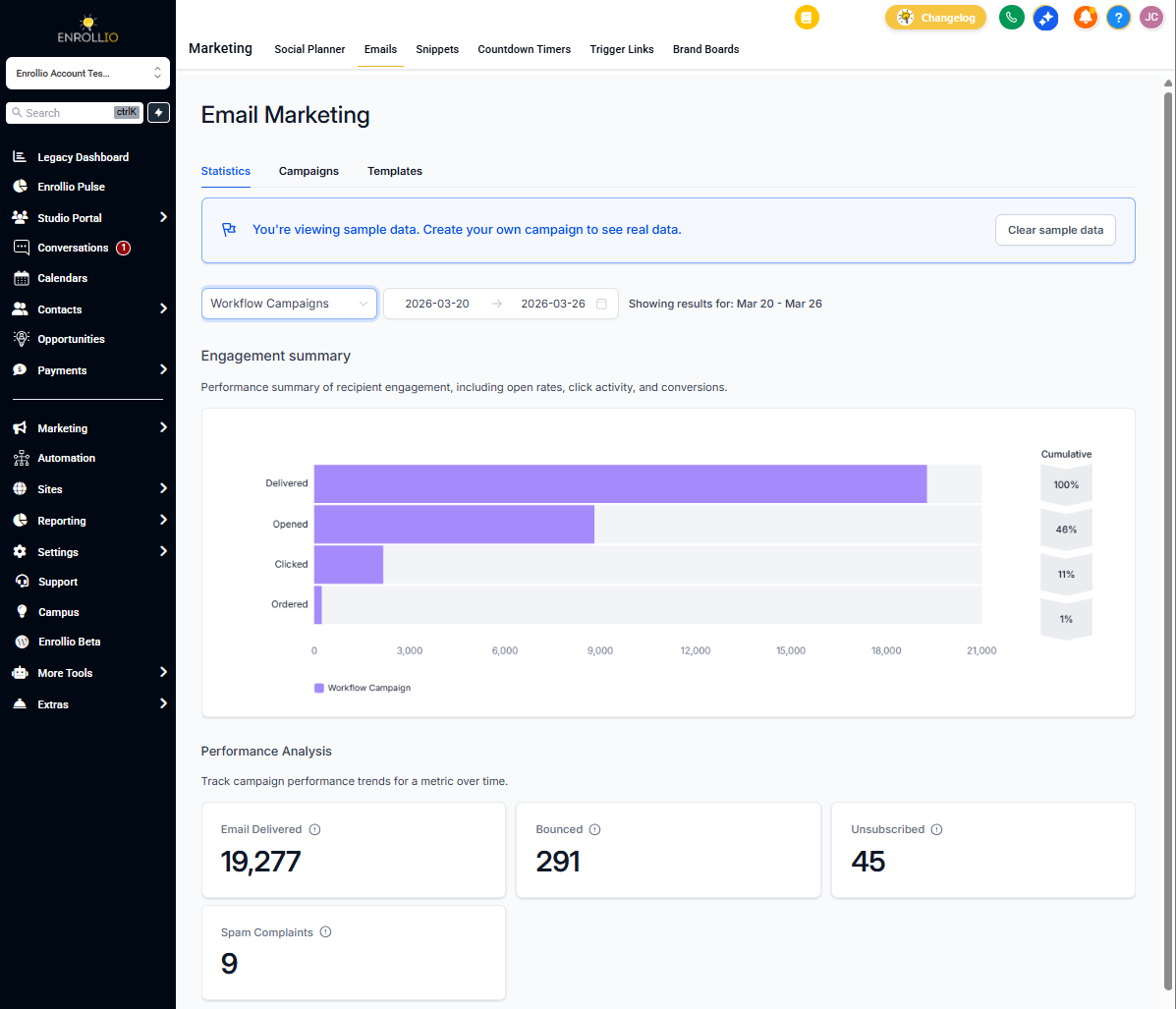
- Go to Marketing → Emails → Statistics
- View aggregated performance from bulk emails, campaigns, and automations
- Compare open rates across different sends
- See which links got the most clicks
Frequently Asked Questions
Will unsubscribed families receive my email?
No. Enrollio automatically excludes anyone who has unsubscribed, has an invalid email address, or is marked as Do Not Disturb. You'll see exactly how many contacts are filtered before you send.
Can I use my existing email templates?
Yes. All templates you've created in Enrollio are available in the Bulk Email Builder. You can also browse the Template Library for pre-designed options.
Can I track who opened and clicked my email?
Yes. Opens, clicks, and bounces are automatically tracked. Access this data through Bulk Actions → Show Stats or the full Statistics dashboard under Marketing → Emails.
Can I automatically tag families who engage with my email?
Yes. Use the Add Tags option under Additional Settings. For example, automatically tag everyone who clicks your tour booking link as "Tour Interest" for follow-up.
If I schedule an email to a Smart List, will it include new families added before send time?
No. The family list is captured when you schedule the email. If you need to include families added later, you'll need to schedule a new send.
Related Articles
- Creating and Managing Smart Lists
- Email Deliverability Best Practices
- Setting Up Your Email Templates
- Understanding Email Analytics and UTM Parameters