
How to Find Hidden or Broken Elements in Email Templates
Sometimes when building email templates, you might accidentally resize an element too small or adjust padding in a way that makes it invisible in the builder. When this happens, you can't click to select or edit that element normally.
Don't worry — Enrollio's email builder has a feature that lets you view and access every element in your template, even the hidden ones.
Using the Template Manager
The Template Manager shows you a complete tree view of all elements in your email, making it easy to find and fix any that have become invisible.
How to Access the Template Manager
- Open your email template in the email builder
- Look at the bottom of the Content tab
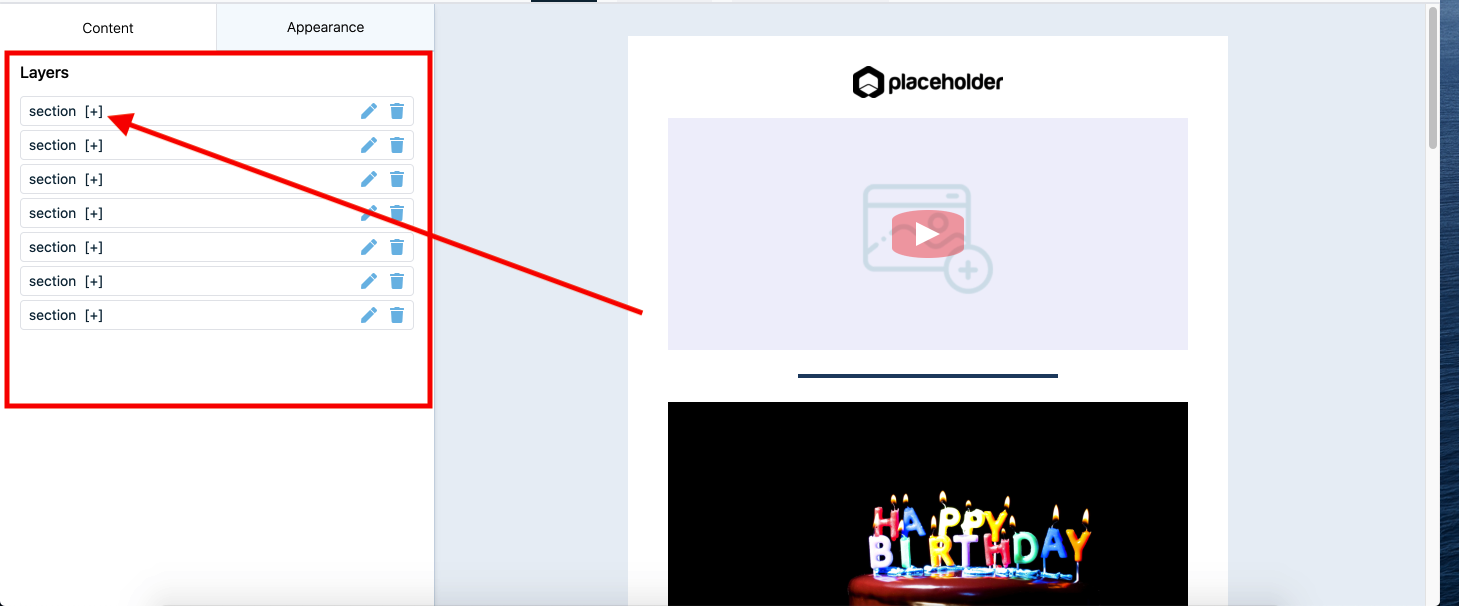
- Click the menu icon (three horizontal lines) to open the Layer section
Navigating the Element Tree
Once the Layer section is open, you'll see your entire template organized as a tree structure. Here's how to use it:
- Expand sections: Click the plus icon next to any section to view all elements inside it
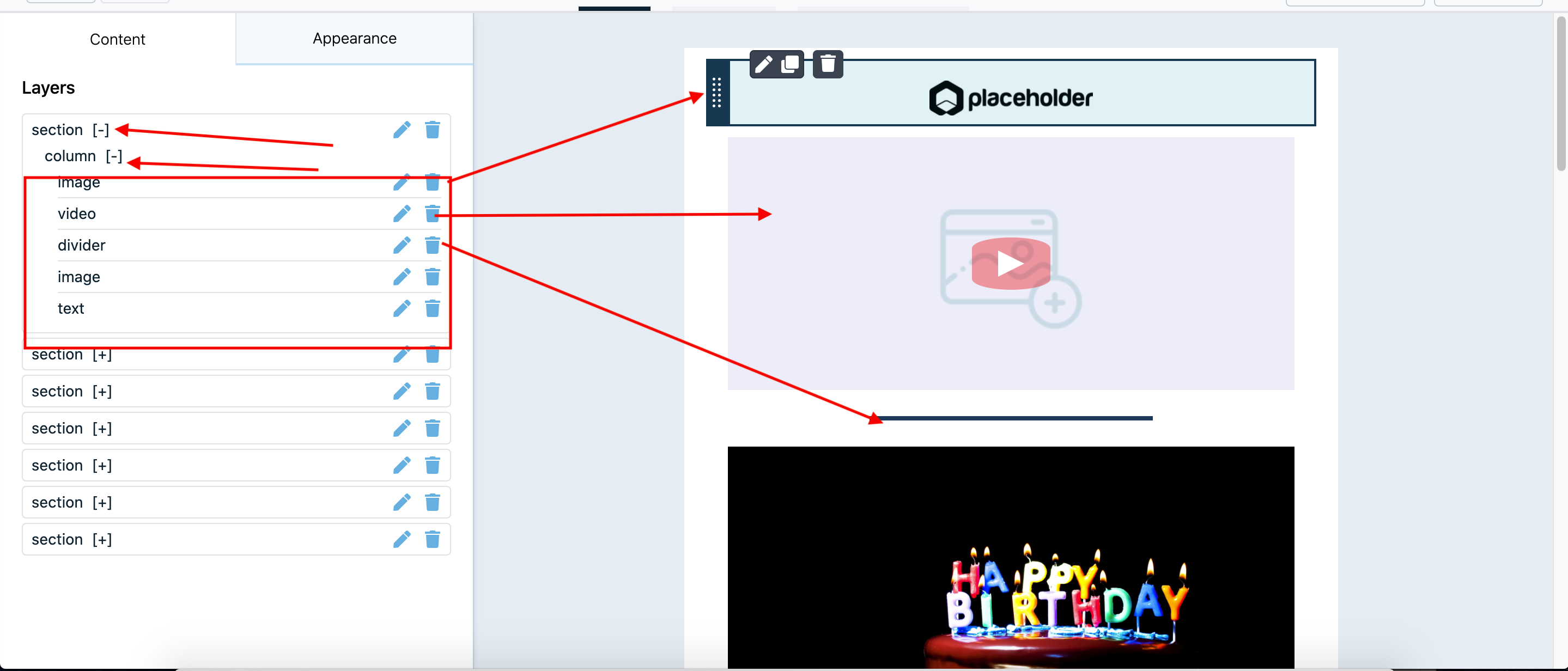
- Locate elements: Hover over any element name in the tree — the email builder will automatically scroll to show you that element
- Select hidden elements: Click on an element in the tree to select it for editing, even if it's not visible in the builder
Example: Finding a Hidden Image
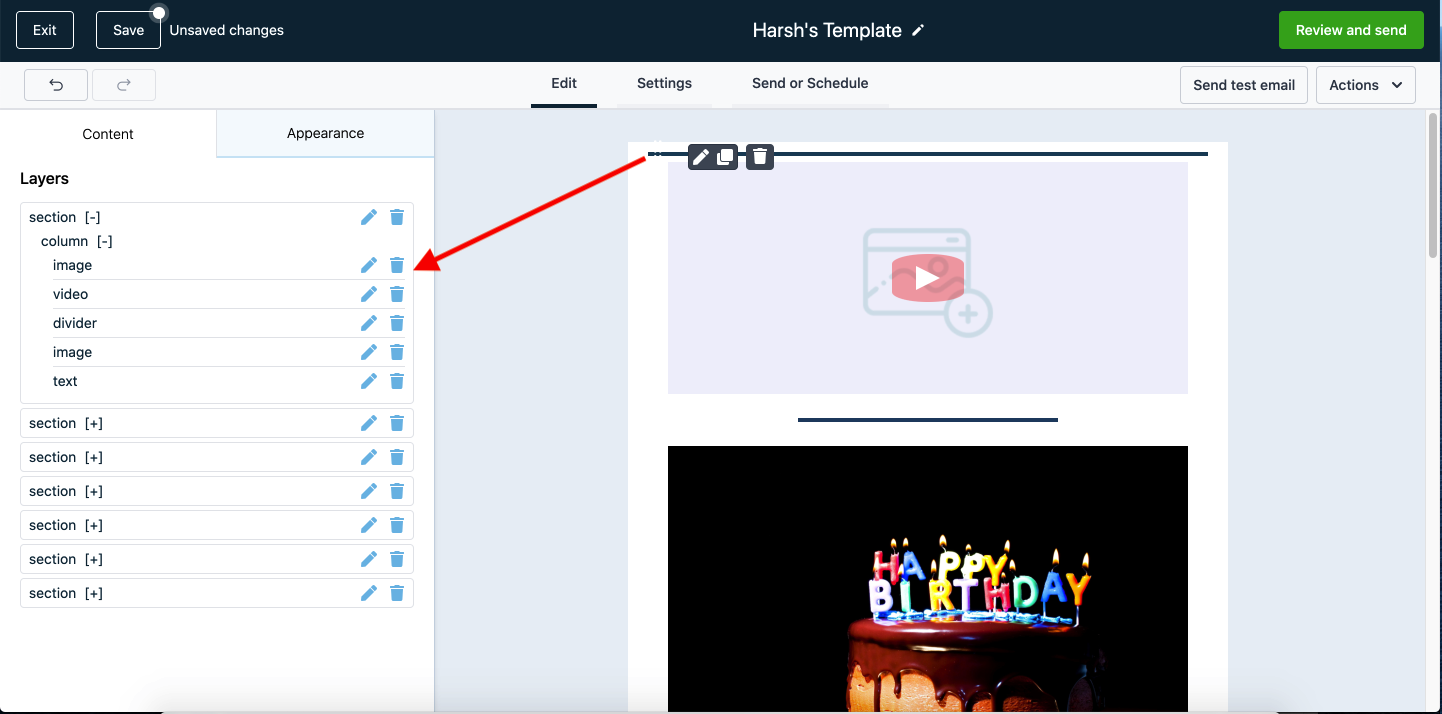
Let's say you accidentally reduced an image's height to 10px, making it invisible in the email builder. Here's how to find and fix it:
- Open the Template Manager using the menu icon
- Find the section containing your hidden image
- Click the plus icon to expand that section
- Hover over the image element in the tree
- The builder will highlight where the image is located
- Click the element name to select it and adjust its properties
Common Scenarios
The Template Manager is especially helpful when:
- An image height or width has been set to nearly zero
- Padding or margins have been removed entirely, collapsing an element
- Text color matches the background color
- Elements are stacked behind other elements
Now you can confidently edit any email template, knowing you can always find and fix hidden or broken elements using the Template Manager.